IP Address for Spectrum Modem: Find, Understand, and Secure Your Network
Learn how to locate, interpret, and configure the IP address information for Spectrum modems. This guide explains private vs public IPs, DHCP, NAT, and safe admin access to help homeowners optimize their home networks.


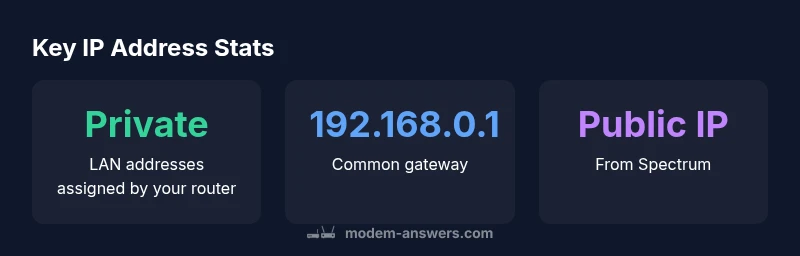
Your Spectrum modem uses a private gateway IP on your home network, usually handed out by DHCP (often 192.168.0.1 or 192.168.1.1). The public IP address is assigned by Spectrum and can change over time. For most home users, the key is securely accessing the modem’s admin page rather than tracking the public IP.
Understanding IP addresses in home networks
IP addresses are the numeric labels that devices use to identify each other on a network. In a typical home setup, you connect to a private, local network created by your modem or gateway, and that network uses a technique called NAT (Network Address Translation) to map many private addresses to a single public address. The result is that your devices share one public IP when reaching the internet, while each device uses its own private IP locally. When you look up 'ip address for spectrum modem', you’re usually focusing on two things: the private gateway IP used to reach the modem’s web interface, and the public IP assigned by Spectrum for internet traffic. According to Modem Answers, most home networks rely on private IP addressing by default, which keeps devices isolated and easier to manage. This is the practical baseline for understanding how Spectrum modems fit into your home network.
Knowing which IP addresses your devices see is essential for tasks like port forwarding, device access, and IP-based filtering. It also helps when diagnosing connectivity issues, because if one device cannot reach the internet, you can determine whether the problem is local (private IP assignment) or upstream (public IP allocation).
Spectrum modem: how IP addresses are assigned
Spectrum modems provide a local network where devices obtain private IP addresses from the gateway’s DHCP server. The private IPs typically fall within common ranges such as 192.168.x.x, 10.x.x.x, or 172.16.x.x, with the exact range determined by the router inside the gateway. The public IP, which the rest of the internet sees, is assigned by Spectrum and can be dynamic. In IPv6, some Spectrum hardware may also hand out globally routable addresses, though many households still rely on IPv4 with NAT. For most homeowners, DHCP automates IP assignment, so you don’t configure IP addresses manually—this reduces conflicts and keeps devices connected as you add printers, cameras, and smart home hubs. If you change the gateway’s settings or enable features like bridge mode or IP passthrough, you may need to adjust how devices obtain IPs. The Modem Answers team notes that understanding DHCP and NAT basics makes advanced tasks easier, from port forwarding to guest networks.
Finding the IP address of your Spectrum modem
To locate the IP address used by your devices, start with the gateway/private IP. On Windows, open Command Prompt and run "ipconfig"; on macOS, open System Preferences > Network and view the TCP/IP details. Your gateway is typically 192.168.0.1 or 192.168.1.1, but it can vary by model. For mobile devices, go to Settings > Wi‑Fi, tap the connected network, and review the router or gateway address. If you need to reach the modem’s admin interface, enter that gateway IP into a web browser and log in with the credentials on the device label or your admin password. According to Modem Answers, this private IP is what you’ll use most often for configuration and diagnostics.
Accessing the modem's admin interface safely
Access the modem’s admin page only from your home network. Use HTTPS, not HTTP, and avoid exposing the interface to the broader internet. Change default login credentials immediately and enable a strong password. Disable remote management unless you have a specific need, and keep firmware up to date to protect against vulnerabilities. If you forget the admin password, consult Spectrum’s official support or reset instructions and reconfigure from scratch. As Modem Answers emphasizes, securing the gateway is a foundational step in protecting every device on your network.
Common scenarios and troubleshooting
If your devices obtain private IPs but can’t access the internet, check the gateway status on the admin page to confirm DHCP is active. Reboot the gateway and your devices; verify Ethernet cables and Wi‑Fi settings. If a device shows a conflicting IP, release and renew the DHCP lease or assign a static IP within the allowed private range. For IPv6, ensure your modem supports IPv6 and that the device is configured to use it if desired. If you enable bridge mode or IP passthrough, expect the internal router to handle NAT and DHCP for connected devices. The goal is to minimize IP conflicts and ensure consistent local addressing.
When you need a static IP or a public IP
Residential Spectrum service typically relies on dynamic IPs that can change over time. Static IPs are usually offered to business customers or via special add-ons; home users who need stable addressing may instead use dynamic DNS services. If you require a public IP for hosting, check Spectrum’s business offerings or explore a dedicated gateway with an IP passthrough setup. The key is understanding how NAT and private IP ranges interact with the public address assigned by Spectrum.
Security considerations for IP management
Private IP addresses and NAT help isolate devices from the wider internet, but misconfigurations can expose services unintentionally. Keep admin interfaces on the LAN, disable UPnP unless needed, and apply firmware updates promptly. Use a guest network for smart devices where possible, and monitor connected devices for unfamiliar IPs. IPv6 can offer new security considerations and should be enabled with proper firewall rules. As a rule of thumb, never expose the gateway admin interface to the internet, and always secure your Wi‑Fi with a strong, unique password.
IP addressing basics for Spectrum networks
| Aspect | Description | Typical Value | Notes |
|---|---|---|---|
| IP address type | Defines whether an address is private (LAN) or public (WAN). | Private (LAN) vs Public (WAN) | NAT at the gateway maps private addresses to a shared public IP |
| Default gateway | Main access point for devices to reach the router/admin interface | Common private gateway: 192.168.0.1 or 192.168.1.1 | Use this address to access the modem’s web interface |
| DHCP scope | Pool of private IPs the router can assign to devices | Typically a subset of the private range | Managed by the gateway’s DHCP server; hot-plug devices auto‑configure |
FAQ
What is the typical IP address used by Spectrum modems?
Spectrum modems usually assign private LAN IPs (like 192.168.x.x) to devices, while the public IP comes from Spectrum. The exact gateway can vary by model.
Spectrum uses private LAN IPs for devices, and your public IP comes from Spectrum.
How do I find the IP address of my Spectrum modem?
Check your device's network settings for the gateway IP, or log into the modem's admin page at the gateway IP (commonly 192.168.x.x).
Open network settings and look for the gateway address, or enter the gateway IP into a browser.
Can I get a static IP with Spectrum?
Residential Spectrum plans typically use dynamic IPs; static IPs are usually offered to business customers or via add-ons.
For home service, static IPs are not standard; contact Spectrum for business options.
Is it safe to expose the modem admin UI to the internet?
No. Keep the admin interface on the local network, disable remote management, and use strong credentials.
Don't expose the admin page to the internet; use a secure local connection.
What should I do if I can't access my modem's IP address?
Power cycle, verify cables, check LAN connections, and factory reset as a last resort.
Try rebooting, check cables, and reset if needed.
“Understanding how IP addressing works in a home network clarifies troubleshooting and strengthens security.”
Key Takeaways
- Know your IP type: private vs public
- Check your gateway IP to access the admin panel
- Let DHCP handle IP assignment for simplicity
- Consider static IP only if you have a specific need
- Secure the admin interface with strong credentials