How to Connect Modem Without Ethernet Cable
Learn step-by-step how to connect your modem without using an Ethernet cable. This guide covers wireless setup, bridging options, and practical tips for homeowners seeking reliable Wi‑Fi connections.


You can connect to the internet without Ethernet by using your modem's built-in Wi‑Fi or a wireless bridge. The essential requirements are a modem with Wi‑Fi capability, a device with wireless, and the network name (SSID) and password. This quick guide shows where to start and what to expect before you begin.
Why wireless connection matters when you can't use Ethernet
If you're wondering how to connect modem without ethernet cable, you're not alone. In many homes today, wireless is the default path to internet access, and modern modems often double as Wi‑Fi hubs. According to Modem Answers, most gateways include built‑in Wi‑Fi and support for wireless devices, which means you can browse, stream, and work without a physical cable. This section explains why wireless is convenient, when it might fail, and how to verify your equipment supports it. A clear understanding of your modem’s wireless capability saves time during setup and reduces frustration when rooms are far from the device.
First, check whether your device is a standalone modem with Wi‑Fi or a gateway from your provider. If you have a dedicated modem that lacks Wi‑Fi, you’ll need to deploy a separate router or a wireless bridge. Conversely, if you have a modern gateway, you’ll likely see a network name (SSID) and a password printed on a sticker or available in the admin interface. The broader goal is reliable coverage across your living space, not just a single room. When you’re ready to proceed, you’ll know the exact steps to connect devices without Ethernet.
Wireless connections enable mobility, fewer cables, and easier guest setups. They also require careful placement to avoid dead zones, which is where tools like signal maps or simple distance checks come in handy. The remainder of this article walks you through practical checks, setup steps, and troubleshooting tips to maximize wireless performance while keeping your home network secure and easy to manage.
Can your modem provide Wi‑Fi? A quick check
Not all modems provide Wi‑Fi. To confirm, look for a Wi‑Fi symbol on the device, check the model number in the admin interface, or consult the user manual. If you’re using an ISP-provided gateway, the Wi‑Fi toggle is often under 'Wireless' or 'Wi‑Fi' in the settings menu. If you can’t find the option, the device may be a straight modem; in that case you’ll need a router or bridge. In addition to built‑in Wi‑Fi, some devices support turning the modem into a bridge mode to pass the internet to a separate router, which can improve coverage and control. If your modem supports Wi‑Fi, you’ll be able to connect your laptop, phone, and smart devices by selecting the network from the list of available networks and entering the password.
What you’ll need to get started
Before you begin, gather a few essentials to ensure a smooth wireless setup. A device with Wi‑Fi (phone, tablet, or laptop) is mandatory. You’ll need a modem with built‑in Wi‑Fi or a gateway from your ISP, plus the SSID and password for your network. If your modem has weak coverage or no Wi‑Fi, consider a wireless bridge or a secondary router to extend reach. Having your modem’s admin password handy helps you enable or adjust wireless settings quickly. Finally, a plan for where to place the modem to maximize coverage (central location, elevated, away from interference) reduces dead zones.
Wireless connection workflow at a glance
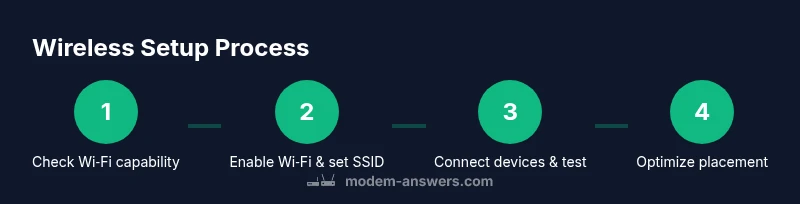
This high‑level workflow shows the typical path when connecting devices without Ethernet: 1) verify Wi‑Fi capability on your modem or gateway; 2) locate the SSID and password; 3) enable Wi‑Fi if it’s off and set a strong password; 4) connect your device to the network; 5) test basic internet access and run a quick speed check; 6) adjust placement and settings if needed to improve coverage. The goal is a stable, secure wireless network that serves phones, laptops, smart devices, and guests without running cables across rooms. This section provides the logic of the setup to reduce trial and error.
Alternative options: when a bridge or secondary router helps
If your modem’s built‑in Wi‑Fi is weak, consider a wireless bridge or a dedicated router to extend coverage. A bridge connects wirelessly to the modem and creates a new network that devices can join, often with better range in far rooms. A second router can be placed strategically to form a mesh-like layout, with careful configuration of DHCP and IP addresses to prevent conflicts. These options are especially useful in multi‑story homes or spaces with thick walls where a single device cannot provide uniform coverage.
Troubleshooting common wireless issues
Wireless connectivity can fail for several reasons: signal interference from nearby networks or appliances, incorrect SSID or password, or devices attempting to connect to the wrong network. Start by power‑cycling the modem and the device you're using to connect. Confirm the SSID is the one you expect and that you’re using the correct password. If the signal is weak in some rooms, move the modem higher or closer to the center of the home, and reduce obstructions like metal appliances or mirrors. If you still can’t connect, check for firmware updates for your modem or consider resetting wireless settings to defaults and reconfiguring from scratch.
Authority sources
- https://www.fcc.gov
- https://www.nist.gov
- https://www.ieee.org
Tools & Materials
- Smartphone, tablet, or laptop with Wi‑Fi(Make sure it can connect to a wireless network and access the modem's admin page if needed.)
- Modem with built-in Wi‑Fi or a provider gateway(Confirm the device supports Wi‑Fi and note the model for settings guidance.)
- Current SSID and Wi‑Fi password(Printed on the device label or available in the admin interface.)
- Optional: Wireless bridge or second router(Use to extend coverage if the main modem’s Wi‑Fi is weak.)
- Admin credentials for the modem(Username and password for the web interface or mobile app.)
Steps
Estimated time: 60-90 minutes
- 1
Open the modem’s wireless settings
Access the modem’s admin interface via a browser or mobile app. Look for sections named Wireless, Wi‑Fi, or Radio. If you’re using an ISP gateway, you may need to log in with the provider’s credentials. This step is essential to enable or adjust wireless on the device.
Tip: If you can’t access the interface, verify you’re on the same network as the modem and try a different browser or app. - 2
Enable Wi‑Fi and set a strong password
Turn on the wireless radio if it’s disabled. Create a unique SSID and a strong password (minimum 12 characters, with a mix of letters, numbers, and symbols). Disable broadcast of the default SSID if you want added privacy, and ensure the network mode supports your devices (e.g., WPA3 if available).
Tip: Avoid using common names or personal information in the SSID to protect privacy. - 3
Note the SSID and password and save changes
Record the network name and password in a safe place. Apply or save changes and wait for the modem to apply updates. Some modems require a brief reboot after changing wireless settings.
Tip: If you change the SSID, you’ll need to reconnect all devices. - 4
Connect your device to the new network
On your smartphone, tablet, or laptop, open the Wi‑Fi settings and select the SSID you created. Enter the password, then confirm that you have a working connection by loading a webpage or streaming a short video.
Tip: If you don’t see the network, move closer to the modem and refresh the list. - 5
Test and optimize coverage
Run a quick speed test in several rooms to identify dead zones. If needed, adjust the modem’s placement, enable 2.4 GHz and 5 GHz bands appropriately, and consider a mesh solution or a bridge to improve range.
Tip: Aim for a central, elevated location away from large metal objects and microwaves.
FAQ
Is it possible to access the internet without any Ethernet cable?
Yes, if your modem or gateway has built‑in Wi‑Fi, you can connect devices wirelessly by joining the provided network. If your device is strictly a modem, you’ll need a router or bridge to create a wireless path.
Yes. If your modem supports Wi‑Fi, just connect to its wireless network.
What should I do if my modem has no built‑in Wi‑Fi?
Use a separate wireless router or a wireless bridge to create a wireless path to your devices. You’ll connect the router to the modem via Ethernet during the initial setup, but wireless devices will reach it without cables.
If there’s no Wi‑Fi, add a router or bridge.
How do I enable Wi‑Fi on my modem gateway?
Log into the modem’s admin interface or mobile app, navigate to Wireless settings, enable Wi‑Fi, and configure the SSID and password. Save changes and reconnect your devices.
Use the modem’s app or web interface to turn on Wi‑Fi and set security details.
Why is my wireless connection slow or unstable?
Common causes are interference, weak signal, or overcrowded channels. Reposition the modem, test different channels, and consider updating firmware or adding a bridge for better stability.
Check placement and channel, and reboot devices if necessary.
Can I keep using Ethernet if I hide the SSID?
Hiding the SSID does not improve security significantly. Strong WPA2/WPA3 and a robust password are more effective. It may also make connections harder for guests and devices.
Hiding the network isn’t a substitute for good security.
Do I need to reset my modem to start over?
If wireless settings won’t save or you can’t connect, a factory reset can help. Note that this will erase all custom settings, so you’ll need to reconfigure from scratch.
A reset is a last resort if settings won’t save.
Watch Video
Key Takeaways
- Connect devices to the modem’s Wi‑Fi network (no Ethernet needed).
- Enable Wi‑Fi, set a strong SSID/password, and test in key rooms.
- Use a bridge or second router if coverage is poor.