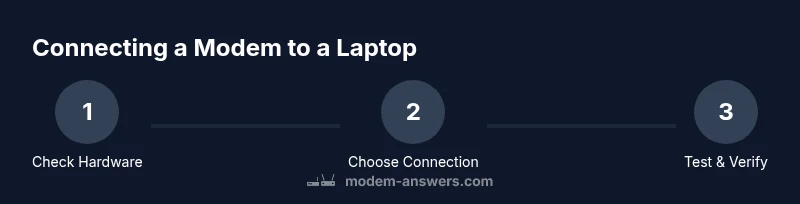
How to Connect Modem with Laptop: Step-by-Step Guide
Learn how to connect a modem to your laptop using Ethernet or Wi‑Fi. This comprehensive, step-by-step guide covers hardware, settings, testing, and troubleshooting for a reliable home network.


In this guide you’ll learn how to connect a modem with a laptop using Ethernet or Wi‑Fi. You’ll identify the right cables, confirm settings, and verify connectivity. By following these steps, you’ll test speeds and troubleshoot common issues without guesswork.
What you’ll accomplish
By the end of this article you will know how to connect a modem with a laptop using both wired Ethernet and wireless Wi‑Fi options. You will identify the right ports, gather essential tools, configure your laptop to obtain an IP automatically or set a static address if needed, and run basic tests to verify connectivity. According to Modem Answers, a stable home network starts with a reliable physical connection and correctly configured IP settings. Throughout, you will learn common pitfalls and how to avoid them, so you can enjoy uninterrupted internet access without guesswork. This article focuses on practical steps you can perform in under half an hour, even if you’re not a networking expert. We’ll cover scenarios for desktops with built-in Ethernet, laptops that rely on USB adapters, and situations where you’re sharing a modem with multiple devices. Whether you’re troubleshooting a new setup or refreshing an aging configuration, the goal is clear: a fast, dependable link between your modem and your laptop.
Wired vs wireless: choose your path
Connected tasks may vary depending on whether you opt for a wired Ethernet connection or a wireless Wi‑Fi link from the modem. A wired connection typically offers the most stability, lower latency, and fewer interference issues, making it ideal for video calls, gaming, and large downloads. A wireless connection provides mobility and fewer cables, but can be affected by distance, walls, and competing networks. In many homes, users start with Ethernet to ensure a solid baseline and then switch to Wi‑Fi if mobility is needed. Laptops often include a built-in Ethernet port; if yours lacks one, a USB-C or USB-A to Ethernet adapter can fill the gap. Before you begin, confirm that the modem's LAN port is active and that your laptop recognizes new hardware when you plug in a cable. If you cannot see the network on your laptop after wiring, revisit adapter drivers and the modem’s settings. By understanding these options, you’ll decide the best path for your situation.
What you’ll need to complete the task
Before you dive in, gather the essential equipment and verify your setup so you aren’t stopping mid-task. The main goal is to have a stable, predictable path between your modem and laptop, whether you’re wired or wireless. Ensure you have a functioning Ethernet cable (Cat5e or better) and a laptop with either a built-in Ethernet port or a USB-to-Ethernet adapter. The modem should have an active LAN port for wired connections. If you’re relying on Wi‑Fi, note the network name (SSID) and the password. It helps to have a small notepad for IP addresses if you need to configure static addresses later. Finally, confirm that your internet service is active and that you can access other devices on your home network for cross-checks during testing.
Wired connection: an organized workflow
If you’re using a wired Ethernet connection, you’ll plug one end of the Ethernet cable into the modem’s LAN port and the other end into the laptop’s Ethernet port or USB-to-Ethernet adapter. This pathway is typically the simplest and most reliable, with minimal interference and predictable speeds. After connecting, your laptop should detect a new network interface automatically. If DHCP is enabled, the device will receive an IP address automatically. If not, you may need to set a static IP within the same subnet as the modem. Once the link shows as connected, open a web browser to verify you can reach external sites. Keep in mind that some laptops require a brief reboot or a driver update after new hardware is detected.
Wireless connection: a flexible alternative
A wireless connection eliminates cables but introduces variables like distance, walls, and neighboring networks. To connect, locate the modem’s Wi‑Fi network name (SSID) in the list of available networks on your laptop, enter the password, and join. After connecting, you should see the Wi‑Fi icon showing connectivity. If your laptop supports it, enable automatic connection to the network to keep things seamless. If you for some reason cannot connect, pivot back to the wired path to confirm the modem is functioning correctly. For security, consider changing the default Wi‑Fi password and ensuring strong encryption (WPA3 or WPA2).
Setting up network basics: DHCP, IPs, and DNS
Whether you’re on wired or wireless, the typical default is to obtain an IP address automatically (DHCP). This minimizes manual configuration and reduces the risk of IP conflicts. If your device requires a static address, pick an IP in the same subnet as the modem’s LAN side (for example, 192.168.0.x) and set the gateway to the modem’s IP. DNS can usually be left to automatic settings, but you can use trusted public DNS servers if you face resolution issues. Check that the subnet mask matches what your router/modem expects (commonly 255.255.255.0). When in doubt, restart the modem and the laptop to force a clean lease. Keeping these basics in mind helps ensure a stable connection and straightforward troubleshooting.
Testing connectivity: verify and validate
Testing is essential to confirm the connection is working as expected. Start by loading a few websites in your browser to check basic reachability. Use a simple ping test to your router or a known public address (for example, a major web server) to verify latency and packet loss. Run a basic speed test from a trusted provider to gauge real-world performance. Document the results so you can compare them after changes. If results are inconsistent, repeat tests after a fresh reboot of the modem and laptop. Consistent results indicate a healthy link, while irregular scores point to potential interference or misconfiguration.
Troubleshooting common issues: quick fixes
When problems arise, approach troubleshooting methodically. First, confirm all cables are securely connected and that the modem lights indicate normal operation. If the laptop does not recognize a network, reinstall or update drivers for the Ethernet adapter. For wireless issues, ensure you’re connected to the correct SSID and that the password is accurate. Disable VPNs temporarily to rule out tunneling as a cause of problems. If problems persist, restart both the modem and laptop and consider temporarily bypassing any parental controls or firewall rules that might block traffic. Document any changes to revert if needed.
Best practices for reliability and future readiness
Keep your system dry and dust-free, and store cables neatly to prevent wear. Periodically check for firmware updates for both the modem and any adapters, as updates can improve compatibility and security. Use a consistent naming scheme for networks and devices to simplify future setup, especially in households with multiple occupants and devices. Consider labeling cables and creating a small reference sheet with the network name and password stored securely. When moving devices between rooms or using guest networks, make sure to reconnect and re‑test to ensure uninterrupted access.
Tools & Materials
- Ethernet cable (Cat5e or better)(RJ-45 connectors on both ends; length should suit your setup)
- Laptop with Ethernet port or USB-C/USB-A to Ethernet adapter(Drivers up to date; check for availability of USB adapters if needed)
- Modem with LAN port(Ensure the LAN port is active and accessible)
- Optional USB-to-Ethernet adapter(Use if your laptop lacks a built-in Ethernet port)
- Internet service active(Needed to verify external connectivity through the modem)
Steps
Estimated time: 18-25 minutes
- 1
Assess hardware compatibility
Confirm that your laptop has an Ethernet port or a compatible USB-Ethernet adapter, and verify that the modem provides an active LAN port. This upfront check saves time by preventing mid‑task hardware issues.
Tip: If you’re unsure about driver status, open Device Manager (Windows) or Network preferences (macOS) before wiring. - 2
Connect wired Ethernet cable
Plug one end of the Ethernet cable into the modem’s LAN port and the other end into the laptop’s Ethernet port (or USB adapter). A secure click confirms the connection.
Tip: Use a fresh cable to avoid intermittent drops; avoid using a damaged cord. - 3
Enable DHCP on the laptop
Set the laptop to obtain an IP address automatically (DHCP). This minimizes manual configuration and facilitates a clean lease from the modem.
Tip: If DHCP fails, temporarily assign a static IP in the modem’s subnet and re-test. - 4
Test the wired connection
Open a browser and load a website to confirm connectivity. If successful, run a basic speed test and compare results with your service plan.
Tip: If pages won’t load, reboot the modem and laptop and re-test. - 5
Alternative: connect via Wi‑Fi
If you need mobility, connect to the modem’s Wi‑Fi network by selecting the SSID and entering the password. Verify the connection is active and functioning as above.
Tip: Change the Wi‑Fi password to a strong, unique passcode if default settings are in use. - 6
Finalize settings and secure
Confirm DNS is resolving correctly and that your firewall settings allow typical web traffic. Document network details for future reference.
Tip: Keep firmware up to date on both the modem and adapter for ongoing reliability.
FAQ
Can I connect the modem to a laptop using USB?
Most modems connect to laptops via Ethernet; USB is typically for configuration or specific devices. If your laptop has no Ethernet, use a USB-to-Ethernet adapter to create a wired link.
Usually, modems connect by Ethernet. If your laptop lacks an Ethernet port, use a USB-to-Ethernet adapter to connect.
What if my laptop has no Ethernet port?
Use a USB-to-Ethernet adapter or a docking station that provides Ethernet. Install any required drivers, then repeat the wired connection steps.
If you don’t have an Ethernet port, connect with a USB adapter and try again.
How do I know if the connection is wired or wireless?
Check the network icon in your operating system. A wired connection shows an ethernet symbol, while wireless shows a Wi‑Fi icon. You can also open the network settings to see active interfaces.
Look at your network icon to tell if you’re on Ethernet or Wi‑Fi.
Why is my internet slow after connecting?
Slow speeds can result from signal interference, outdated drivers, or incorrect DNS settings. Run a fresh speed test, verify DHCP, and restart the modem and laptop to refresh the lease.
If speeds drop, check for interference and restart devices.
Do I need admin rights to modify modem settings?
Yes. Accessing the modem’s admin interface typically requires admin credentials. Use only official guidance and avoid changing settings you don’t understand.
You may need admin rights to access the modem’s settings.
How do I reset the modem safely?
Power cycling is safest: unplug, wait 30 seconds, then plug back in. If persistent problems occur, consult the provider’s support page for specific reset procedures.
Try a simple power cycle first; if needed, check provider guidance.
Watch Video
Key Takeaways
- Connect wired for stability and lowest latency
- Use Wi‑Fi when mobility matters, but secure the network
- DHCP is typically sufficient; static IP only when necessary
- Test, then troubleshoot in a methodical sequence