How to Set Up a Modem Without Coax
Step-by-step guide to wiring a modem without coax, covering Ethernet WAN setups for fiber, DSL, and mobile broadband. Includes prerequisites, configuration, security, troubleshooting, and tips for a reliable coaxless home network.


You can set up a modem without coax by using an Ethernet WAN–capable gateway connected to your internet source (fiber ONT, DSL, or mobile broadband). Connect a router to the gateway’s WAN port, then configure Wi‑Fi and security. This coaxless approach avoids coax runs while delivering a stable home network.
Understanding coaxless modem setups
Understanding coaxless modem setups means recognizing that not every internet connection requires coaxial cable. If you’re asking how to set up a modem without coax, the answer lies in Ethernet WAN alternatives such as fiber ONT with a gateway, DSL modems, or mobile broadband gateways. In these configurations the device that acts as the 'modem' has an Ethernet input from the service provider or a mobile network adapter and a WAN/Internet port that feeds your router. In practice, a coaxless setup lets you place hardware near power outlets and away from wall outlets, simplifying placement and troubleshooting. According to Modem Answers, the coaxless approach is common in modern homes that rely on fiber, fixed wireless, or mobile broadband as the primary internet source. The goal is to have a clean chain: internet source -> gateway/modem -> router -> devices. This guide will walk through specific scenarios, required gear, and stepwise actions to help you achieve a reliable coaxless home network.
Common scenarios for coaxless setups
There are several practical coaxless configurations you may encounter:
- Fiber Internet with an Ethernet-enabled ONT and a gateway/modem that provides a WAN port to your router.
- DSL service using a modem gateway that converts the DSL signal to Ethernet for your router.
- Mobile broadband or fixed wireless where a mobile hotspot or gateway feeds a router via Ethernet.
- Bridge-mode or pass-through setups where one device acts primarily as a bridge and the other provides routing.
Each scenario has its quirks, so this guide covers setup paths, required gear, and common pitfalls for reliable operation. Modem Answers emphasizes choosing equipment that supports your exact service type and staying mindful of bridging vs routing roles to avoid double NAT and IP conflicts.
Essential prerequisites and gear
Before you begin, confirm you have the right equipment for coaxless operation. You’ll typically need an Ethernet WAN–capable gateway or modem, a router with a WAN port, and reliable Ethernet cables (Cat6 or better). Have your ISP account details handy (for PPPoE or login-based services) and be prepared to enable bridging or pass-through if your setup requires it. Power adapters and a clean workspace help keep cables tidy and reduce interference. If you plan to repurpose an existing modem, ensure it supports Ethernet WAN or has a compatible bridge mode. This preparation reduces surprises during configuration and speeds up the process. Remember, your exact steps depend on whether you’re connecting to fiber ONT, DSL, or mobile broadband. At this stage, verify compatibility and collect model numbers to consult the manufacturer’s guidance.
Understanding compatibility: bridging vs routing
In coaxless installations, you’ll often choose between router mode and bridge mode. Router mode handles local wireless networks, firewall rules, and NAT, while bridge mode passes the internet connection through to another device (typically to avoid double NAT when using an ISP-supplied gateway). If you’re using a dedicated gateway for the internet source (ONT/DSL modem), bridging may give you more straightforward control over firewall settings and Wi-Fi. Always check your devices’ manuals for whether bridging is supported and how to enable it. Modem Answers notes that correct mode selection reduces troubleshooting time and yields more predictable IP addressing for connected devices.
Wiring, placement, and basic wiring diagram
Plan a clean wiring layout before you start. Place the gateway/modem near a power outlet and connect its WAN port to the internet source (ONT, DSL modem, or mobile gateway). Run an Ethernet cable to your router’s WAN port. Position the router where you want Wi-Fi coverage most, ideally in a central location away from thick walls or metal appliances. If the ISPs require certain cabling or filter usage on DSL lines, install those components per the provider’s guidance. Label cables to avoid confusion later and keep spare lengths available for reconfigurations. This careful arrangement makes future upgrades simpler and minimizes signal loss from long cable runs.
Configuration steps overview: PPPoE, DHCP, and static IP considerations
With hardware connected, you’ll configure WAN settings on the router or gateway. Most coaxless setups use DHCP for typical home networks, but some ISPs require PPPoE or a static IP. Access the device’s admin interface via a browser, locate the WAN/Internet settings, and choose the appropriate connection type. Enter credentials if PPPoE is required, or set the IP information provided by your ISP for static configurations. After saving, reboot the devices if prompted and verify the WAN status on the router’s status page. If you’re bridging, configure the gateway’s bridge mode per the manual and ensure the router handles DHCP and firewall rules.
Security best practices for coaxless networks
Securing your coaxless network is essential. Change default admin passwords on both gateway and router, disable remote management unless needed, enable WPA3 (or WPA2 if older devices persist), and create a strong, unique Wi-Fi password. Turn off WPS to prevent easier brute-force access, and enable a guest network to keep your main network private. Keep firmware updated on all devices and review connected devices periodically to spot unfamiliar clients. If you’re using bridging, ensure the router’s firewall is active and configured to block unsolicited traffic. These steps help protect your network from common threats while maintaining performance.
Troubleshooting common issues without coax
If you don’t see internet after configuring WAN settings, recheck the WAN port and connection type. Confirm you selected the correct internet source in the provider’s app or website, and verify bridging or pass-through settings on the gateway. Confirm LED indicators reflect a healthy link and review error messages in the admin UI. For mobile broadband, check data limits or SIM status and APN settings. If the issue persists, power-cycle the gateway and router in the recommended order and re-test. Modem Answers suggests keeping a simple note log of changes to identify what fixes the issue faster in future attempts.
Quick checks before going live
Before declaring success, perform a few quick checks: verify you can reach the router’s admin page, test a wired device for internet access, and run a basic speed test to gauge performance. Confirm your Wi-Fi network is visible and password-protected, and document the network name (SSID) and password in a safe place. If you have smart home devices, confirm their connectivity continues to work after the coaxless setup. These checks help ensure a smooth rollout and reduce post-setup calls to support.
Tools & Materials
- Ethernet WAN-capable modem/gateway(Ensure device has a dedicated WAN/Internet port and supports your service type.)
- Router with WAN port or bridge mode(If bridging, know how to disable router features on the gateway.)
- Ethernet cables (Cat6 or better)(Use at least one for the WAN link, extra for device connections.)
- Power adapters for all devices(Keep spares in case of power outages.)
- ISP account details (PPPoE, login, or static IP)(Have credentials ready as required by your service.)
- User manuals or quick-start guides(Helpful for device-specific steps and bridge mode enablement.)
Steps
Estimated time: 30-60 minutes
- 1
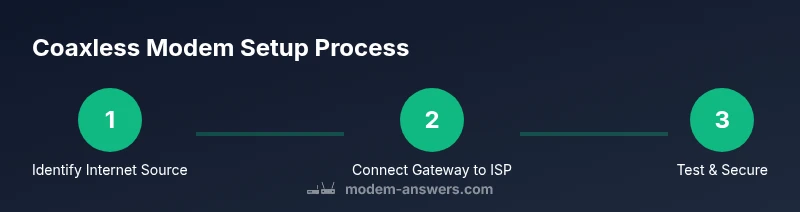
Identify your internet source
Determine whether your service is fiber with ONT, DSL with a modem gateway, or mobile broadband. This establishes whether you’ll use an Ethernet WAN connection and which hardware roles will apply (gateway vs. router).
Tip: Document the exact service type and device models before changing anything. - 2
Check equipment compatibility
Confirm your gateway/modem supports Ethernet WAN and that your router can operate in bridge or routed mode if needed. If you’re bridging, note how to enable it per the device manual.
Tip: If unsure, contact your ISP for official compatibility guidance. - 3
Power down and unplug old hardware
Safely power off any existing modem/routers and unplug them to prevent electrical shorts during installation.
Tip: Hold power buttons for a few seconds to ensure a complete shutdown. - 4
Connect the gateway to the internet source
Connect the gateway’s WAN port to the fiber ONT, DSL modem, or mobile gateway using an Ethernet cable.
Tip: Verify the link LEDs indicate a stable connection. - 5
Connect the router to the gateway
Plug the router’s WAN port into the gateway’s LAN or WAN port as per your setup. This creates the path for internet traffic to reach your devices.
Tip: Keep cable runs tidy to avoid tangling and accidental disconnections. - 6
Power up and initialize configuration
Power on all devices and wait for boot. Access the gateway’s admin page (and then the router’s if needed) to begin WAN configuration.
Tip: Refresh the page if the interface doesn’t load on the first try. - 7
Configure WAN settings
Set WAN to DHCP by default; switch to PPPoE or static IP only if your ISP requires it. Enter credentials or IP details as instructed by your provider.
Tip: Apply changes and reboot to ensure settings take effect. - 8
Set up Wi‑Fi and security
Create a strong SSID and password. Enable WPA3 if possible; disable WPS. Create a guest network if you have visitors.
Tip: Use a unique SSID separate from your main network for better security. - 9
Test, document, and backup
Test a wired device and a wireless client for internet access. Record the network name, password, and device settings; back up configuration if the router supports it.
Tip: Keep a written record so future changes are quick and predictable.
FAQ
Can I use a modem without coax with any internet service?
Not every service supports Ethernet WAN setups. Fiber ONT and DSL with compatible gateways are common, while some mobile broadband solutions require specific gateways. Always check your provider’s requirements and the device’s capabilities before starting.
Not all services support Ethernet WAN. Check your provider and device specs to confirm coaxless compatibility.
What is the difference between Ethernet WAN and LAN?
Ethernet WAN is the input from your internet source to your gateway/router, while LAN refers to the local area network you create for your devices. The WAN port typically sits on the edge device, and LAN ports connect your computers and printers.
WAN is the internet side; LAN is your home network side.
Do I need a new modem/gateway for coaxless setups?
You usually need a gateway or modem that supports Ethernet WAN and, if using an ISP-provided device, compatibility for bridging or pass-through. Check with your provider and ensure your equipment can connect via Ethernet to the router.
Most setups require a gateway with Ethernet WAN or a bridging-capable modem.
Can I bridge my existing modem to a router?
Yes, many gateways can be put into bridge or passthrough mode to let a separate router handle DHCP and firewall rules. This reduces double NAT issues but requires following the device’s bridge instructions.
Bridging lets the router handle most network tasks, avoiding double NAT.
How do I know if my equipment is compatible?
Review your device manuals or manufacturer support pages for Ethernet WAN, bridge mode, and ISP-specific requirements. Contact your provider for official guidance if you’re unsure.
Check manuals or contact your provider for official compatibility details.
Will coaxless setup affect my internet speed?
A well‑configured coaxless setup should not reduce your speed; however, poor cabling, interference, or misconfigured WAN settings can cause issues. Run speed tests and adjust placement or channels if needed.
If everything’s set up right, your speed should be unaffected by the setup type.
Watch Video
Key Takeaways
- Plan coaxless setups around Ethernet WAN compatibility
- Bridge mode can simplify networks and reduce double NAT
- Secure Wi‑Fi with modern standards and strong passwords
- Document settings and keep backups for future changes
- Test thoroughly and verify both wired and wireless devices