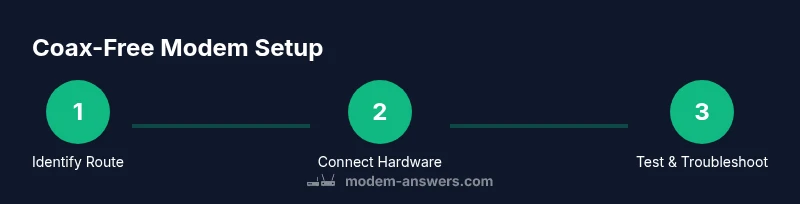
How to Connect a Modem Without a Coax Outlet
Learn safe methods to connect a modem without coax, using Ethernet WAN from a gateway or ONT, or mobile broadband. Includes setup steps and troubleshooting tips.


With no coax outlet, you can still get online by using an Ethernet WAN path from a gateway or fiber ONT, or a mobile broadband solution. This guide walks you through two practical routes, required equipment, and the quick steps to configure your modem or gateway. According to Modem Answers, start by confirming your service type.
Understanding coax-free connectivity and why it matters
When you don’t have a coax outlet, your traditional cable modem can’t connect directly to the home network. The most common paths to internet without coax are Ethernet WAN from a provider gateway or a fiber ONT, and, as a fallback, mobile broadband. In this section we define key terms like Ethernet WAN, bridge mode, and NAT, and explain when each approach makes the most sense. Modem Answers analysis shows that many households already have non-coax options in play—either because they use fiber or DSL, or because they rely on a mobile hotspot as a temporary or backup solution. Understanding these paths helps you choose the right equipment and avoid common misconfigurations.
Routes to connect a modem without coax Outlet: two practical paths
There are two primary non-coax routes you’ll likely use. Route A uses an Ethernet WAN from an ISP-provided gateway or fiber ONT, letting a separate router handle the internal network. Route B uses a mobile broadband option, where you connect a router to a cellular gateway. Each route has trade-offs: gateways with Ethernet WAN are usually fast and stable, but may require bridge mode to hand off routing duties; mobile broadband is convenient but often has data limits and higher latency. We’ll cover both so you can pick the one that matches your service.
What you need before starting (tools and materials)
Before you begin, collect the items listed in the Tools & Materials section. Having the right gear on hand speeds up setup and reduces the risk of mid-setup failures. You’ll need Ethernet cables, a WAN-capable router, power, a gateway or ONT if your service uses Ethernet WAN, and a device to configure the router. If you have multiple devices to share, a small network switch can help, though it’s optional if your router already provides enough ports.
Safety, compatibility, and common pitfalls
Coax-free setups are safe when you follow standard electrical and networking safety practices. Ensure your power supplies are stable and outlets are properly rated. Be aware of WAN authentication requirements (DHCP vs PPPoE) used by your ISP, and avoid bridging modes unless you understand how they affect your network’s security and IP addressing. Modem Answers emphasizes testing in stages and keeping documentation of your settings. The intent is to avoid misconfigurations that disable internet access or expose devices to unnecessary exposure on the network.
Authority sources and what they say about non-coax connections
For readers seeking authoritative guidance, consult national and governmental resources on internet infrastructure and consumer guidance. The FCC outlines consumer information about internet service and equipment, while NTIA highlights broadband deployment considerations. These sources help corroborate best practices for non-coax connections and equipment selection. Always verify with your local provider’s requirements before making changes to your home network.
Tools & Materials
- Ethernet cable (Cat5e/Cat6)(Use a cable long enough to reach from ONT/gateway to your router without tension)
- Wi‑Fi router with WAN port(Prefer a model that supports bridge mode if you want a separate gateway)
- ISP gateway or fiber ONT (if provided by your ISP)(Needed for Ethernet WAN path in some setups)
- Power outlets(Ensure each device has a stable power source)
- Laptop or mobile device for configuration(Used to access the router’s admin interface)
- Network switch (optional)(Useful if you need to connect multiple wired devices without a second router)
Steps
Estimated time: 30-60 minutes
- 1
Identify service type and suitable non-coax path
Confirm whether your service is delivered over Ethernet WAN (gateway/ONT), fiber, or cellular. Decide which non-coax route aligns with your plan: gateway-based Ethernet WAN or mobile broadband. This step avoids wasted effort by matching your hardware to the service model.
Tip: Have your account and device models handy to speed authentication and settings. - 2
Power down equipment
Turn off and unplug your modem, router, gateway/ONT, and any switches. This prevents electrical shorts and helps you reset hardware cleanly when reconnecting cables.
Tip: Wait 30 seconds after unplugging before reconnecting power to ensure complete reset. - 3
Connect the gateway/ONT to the router via Ethernet WAN
Use the Ethernet WAN port on your router to connect to the appropriate port on the gateway or ONT. Do not use a coax connection for this step. This creates the upstream link for your home network.
Tip: If your gateway uses a different port labeling (e.g., 'LAN' on ONT), follow the device’s manual to identify the proper WAN-LAN pairing. - 4
Choose bridge mode if you want your own router handling routing
If you’re using a separate router, enable bridge mode on the gateway/ONT to pass public IP and simplify routing on your own device. Not all providers require this, so check your service terms before changing the mode.
Tip: Bridge mode simplifies control but may disable some gateway features; document current settings before changing. - 5
Configure WAN settings on your router
Open the router’s admin page and set the WAN connection to DHCP or PPPoE per your ISP’s requirements. If you’re using a fiber ONT, DHCP is common; PPPoE is common with some DSL or fiber services. Apply and save changes.
Tip: If you’re unsure of the authentication type, contact your provider or check the service activation email. - 6
Test connectivity and LAN devices
Connect a laptop or phone to the router and load a webpage to verify internet access. Run a quick speed test and check that Wi‑Fi and wired devices both get online. If issues appear, restart the router and gateway and recheck cabling.
Tip: Test with both wired and wireless devices to rule out device-specific problems. - 7
Document settings and plan for backup
Save screenshots of WAN settings, store ISP authentication details securely, and label cables. Keep a quick reference sheet for future adjustments or ISP changes. If any problems recur, recheck connections and contact support.
Tip: Keep a spare Ethernet cable and a backup power source if outages are common in your area.
FAQ
Is it possible to connect a cable modem without a coax outlet?
Not with standard cable service. Non-coax setups rely on Ethernet WAN from a gateway/ONT or on cellular broadband. If you only have coax in your walls, a different service path or equipment is required. Always verify your service type with the provider before attempting changes.
You can’t hook a cable modem to air in most cases; you need an Ethernet WAN path or cellular service instead.
What equipment do I need to connect without coax?
You’ll typically need an Ethernet cable, a router with a WAN port, a gateway or fiber ONT if your service uses Ethernet WAN, and a device to configure the router. A network switch is optional if you need more wired ports.
You’ll need a WAN-capable router, an Ethernet connection to your gateway or ONT, and a way to configure the router.
Will my ISP still require a coax outlet in the future?
If you’re on a non-coax service (fiber, DSL, or mobile), coax outlets aren’t required. Some providers still offer coax-based plans; if you switch plans, confirm the new hardware needs.
It depends on your plan; fiber or DSL may not require coax, but confirm with your provider.
Can I use a MoCA adapter to avoid coax?
MoCA uses existing coax wiring but still requires the substrate network in place; it doesn't eliminate the need for physical network paths and is not suitable as a universal replacement for a modem connection.
MoCA can extend a network over coax, but you still need a compatible hardware path at the start.
How long does setup take?
A typical non-coax setup takes about 30 to 60 minutes, depending on your familiarity with router interfaces and whether you need bridge mode.
Most people complete it in half an hour to an hour.
What should I do if I can’t get online after setup?
Double-check all cabling and WAN settings, power cycles, and ensure the gateway/ONT is functioning. If problems persist, contact your ISP to verify authentication requirements and device compatibility.
Check cables and settings first, then contact your provider if needed.
Watch Video
Key Takeaways
- Identify an Ethernet WAN path (gateway/ONT) or mobile broadband as the non-coax option.
- Bridge mode can simplify using your own router, but verify support from your ISP.
- DHCP vs PPPoE is service-specific; confirm before configuring WAN settings.
- Test in stages and document settings for future reference.