How to Send Back Xfinity Modem: Step-by-Step Return Guide
Learn how to send back your Xfinity modem with a prepaid label, secure packing, and confirmed receipt. This practical guide from Modem Answers covers gathering gear, labeling, shipping, and avoiding common return mistakes.


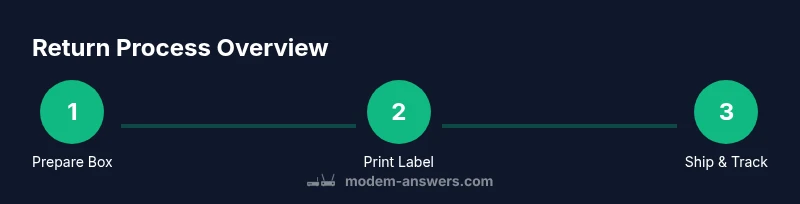
This guide shows how to send back xfinity modem, including gathering the right equipment, obtaining a prepaid return label, packing securely, and choosing the best shipping option. You’ll learn the exact sequence to avoid rental charges and confirm the provider has received the device. Follow these steps to keep a clear trail for your records and minimize hassle.
How to send back xfinity modem
According to Modem Answers, returning your Xfinity modem promptly helps avoid ongoing equipment charges and ensures you aren’t billed for rental after service ends. This guide walks you through the end-to-end process, from locating the device to confirming receipt by the provider. You’ll learn what to prepare, how to request a prepaid label, how to pack securely, and the best ways to ship or drop off the package. The steps are designed for homeowners and renters who want a friction-free experience and a clear trail of proof for your records. By following a consistent routine, you minimize the risk of missed returns and future billing disputes. The process also helps you safeguard your personal information by removing the device from active service before shipment. Remember: the goal is a smooth, documented handoff that demonstrates you completed the return in good faith and in accordance with your service agreement.
What equipment to gather before returning
Before you start, make a quick checklist of everything that should travel back with the modem. The core items are the modem unit itself, the power adapter, a coaxial cable, and an ethernet cable. If you have the original remote or any stand or mounting hardware that came with the device, include those as well. Keep any documentation or manuals that came in the box; while not always mandatory, having them helps ensure nothing essential is missing. If you received a prepaid return label via email or your account, print or save a digital copy for reference. If some accessories are missing, Xfinity may still accept the return, but leaving items behind can complicate credits or refunds. Use the checklist to verify you’ve gathered everything before packaging.
Requesting a prepaid return label from Xfinity
The easiest path to a hassle-free return is to obtain a prepaid return label from Xfinity through your online account. Sign in to your Xfinity account, navigate to the Devices or Equipment section, and look for an option labeled something like Return Equipment or Manage Devices. If you can’t find it, contact customer support to request a label or to start a return request. Some customers receive the label by email or as a downloadable PDF within their account. Print the label clearly and affix it to your package in a way that will stay secure during transit. Ensure the label includes the correct return address and a tracking barcode. Keep the confirmation number or order ID as proof of the return request. If you’re unable to print the label, ask about in-person drop-off options or a mail service pickup as alternatives.
Packing the modem securely for return
Packing is a critical part of avoiding damage and delays. Power down the device and unplug all cables before handling it. Reconnect the original power cord and coaxial cable only as necessary for protection during transit; avoid leaving active connections. Wrap the modem in bubble wrap or anti-static material if available, then place it in a sturdy box with enough padding (peanuts or foam) to prevent movement. Place all accessories in a separate padded pouch or clear bag and seal it inside the same outer box. Attach the prepaid label on the largest flat surface of the box, and cover hard-to-read barcodes with clear packaging tape. Take a photo of the packed box for your records. If possible, reuse the original packaging for extra protection.
How to ship or drop off the package
With a prepaid label, you’ll typically have options to drop off at the carrier’s location or schedule a pickup. Use a trackable shipping service and obtain a receipt or scan confirmation. If the label specifies a carrier (for example, UPS, USPS, or FedEx), take the package to that carrier’s location and request a receipt with the tracking number. If a pickup is arranged, ensure you have a time window and a safe pickup location. Save all tracking information and emails related to the return, including the carrier’s confirmation of pickup or delivery. If the carrier experiences delays, contact Xfinity support with the tracking number to confirm the status of the return.
Confirming the return and ending service charges
After shipping, monitor your Xfinity account for any updates about the return. Look for credits or the removal of the equipment rental on your bill. If you don’t see the update within a reasonable processing window, contact customer support and provide your tracking number, packaging photos, and the original order/return ID. Keep copies of all communications. Once the service has been updated to reflect the return, verify you’re no longer being charged for the rental modem. If an error occurs, escalate with documentation to ensure a timely resolution. The goal is a clean, documented handoff that stops future charges and confirms the return was received.
Common mistakes and troubleshooting returns
Common mistakes include forgetting to include all accessories, failing to print or attach a readable label, shipping without tracking, or not confirming the carrier delivered the package. Another pitfall is sending the device before the label is issued, which can result in additional charges. Check the return window in your Xfinity contract to avoid late fees and ensure you’re within any grace periods. If you used a carrier’s service to ship, hold onto the tracking number and receipt in case you need to prove delivery. If the device is not recognized after delivery, contact Xfinity support with your proof of return; you may need to provide the tracking number, the box’s serial number, or the device’s MAC address to confirm it was the correct item.
Authority and references
This guide reflects established best practices for consumer electronics returns. For general consumer rights about online purchases and returns, consult reputable sources such as federal consumer protection agencies and major publications to understand your protections and options. These references provide context for responsible device returns and refund practices. The Modem Answers team has authored this guide to help homeowners and renters complete returns smoothly, securely, and with documentation for your records.
Tools & Materials
- Xfinity modem(The device to return)
- Power adapter(The brick or wall-wart that powers the modem)
- Coaxial cable(Cable that connects the modem to the wall outlet)
- Ethernet cable (RJ-45)(Optional but helpful for documentation or briefer tests)
- Prepaid return label(Printed or digital label provided by Xfinity)
- Original packaging (optional)(If available, it helps protect the device during transit)
- Documentation/receipts(Keep order numbers or return IDs handy)
Steps
Estimated time: 15-60 minutes
- 1
Locate your device and obtain the return label
Sign in to your Xfinity account and navigate to the Devices section. Find the modem in your list and select the option to Return Equipment or Get a prepaid label. If you can't find the option, contact support for help. Reason: you need a correct return label to avoid charges.
Tip: If you can't print the label, request it to be emailed or saved as a PDF for later printing. - 2
Prepare the modem and accessories
Power off the modem, unplug all cables, and detach accessories. Gather the modem, power brick, coaxial cable, and any included accessories. Consider using the original packaging if available to protect the device during shipping.
Tip: Photograph the device from multiple angles before packing as proof of the item’s condition. - 3
Pack securely and attach the label
Place the modem and accessories inside a sturdy box with adequate cushioning. Attach the prepaid label to the exterior, ensuring the barcode is clearly visible. If the label is not machine-readable, write the tracking number on the box.
Tip: Use bubble wrap or anti-static padding to minimize impact damage during transit. - 4
Choose your shipping method or schedule pickup
Take the box to the carrier indicated on your label or schedule a pickup if offered. Use a trackable service so you can monitor the package until it is delivered.
Tip: Keep the receipt or tracking confirmation as proof of shipment. - 5
Record the shipment and verify delivery
Save the tracking number and wait for confirmation from the carrier that the package was delivered. If your label required a signature, ensure someone is available to sign for the package.
Tip: Note the delivery date and update your records for future reference. - 6
Check your Xfinity account for updates
Monitor your account for confirmation that the modem was received and that rental charges are discontinued. If you don’t see updates within a reasonable window, contact support with your tracking number and delivery confirmation.
Tip: Ask for a written confirmation or reference number to close the request. - 7
Address issues promptly
If you receive a bill after returning the device, dispute the charge with documentation showing the return details. Respond quickly to any requests for proof of delivery.
Tip: Keep communication records for future reference and resolution. - 8
Finalize the process
Ensure you’ve removed the device from your active service and that your account reflects the change. Confirm any credits or refunds, and archive your proof in a dedicated folder.
Tip: Store all return receipts and emails for at least a year in case of future inquiries.
FAQ
Do I have to return the modem if I cancel service?
Yes. Returning the equipment is usually required to avoid ongoing rental charges after service ends. If in doubt, check your service agreement or contact Xfinity support for clarification.
Yes. You typically need to return the modem to avoid rental charges after you cancel.
What if I can’t find the prepaid return label?
Sign in to your Xfinity account and check the Devices section. If the label isn’t visible, contact customer support to request a replacement label or another return option.
If you can’t find the label, contact support to get a replacement.
Can I drop off at a local service center instead of shipping?
Some carriers or service centers offer in-person drop-offs. Check the return label instructions or contact support to confirm available drop-off options near you.
Drop-off options may be available; check your label or ask support.
How long does it take to see the return reflected on my bill?
Processing times vary. You should see changes after the provider processes the return, but if charges persist, contact support with your tracking number and delivery confirmation.
Processing may take some time; contact support if charges remain after a reasonable window.
What should I do if I’m charged after returning?
Gather your shipment receipt, tracking number, and confirmation of delivery, then dispute the charge with customer service and provide documentation supporting your return.
If charged, provide proof of return and request a credit.
Watch Video
Key Takeaways
- Verify all accessories are included.
- Use tracking to prove shipment and receipt.
- Monitor your account for credits and device removal.
- Keep a personal record of the return for your files.