Verizon Modem vs Router: A Practical Side-by-Side Guide
Compare Verizon gateways (modem+router) with separate modem and router setups. Learn which option fits your home, network goals, and tech comfort—plus setup tips, security notes, and future-proofing strategies.


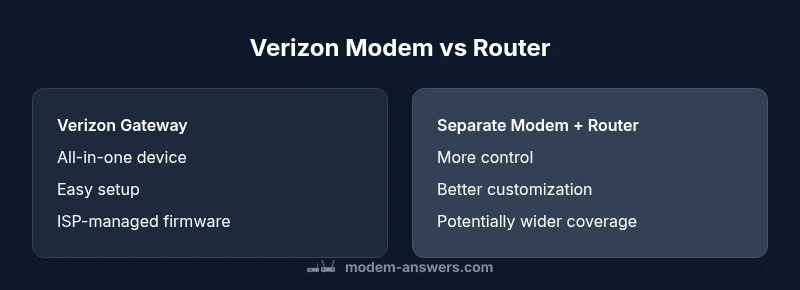
In the ongoing comparison of verizon modem vs router, the decision hinges on control, performance, and convenience. Verizon typically provides a gateway that combines both functions, while a separate modem plus router gives you more customization and potentially better Wi‑Fi coverage. In many homes, a dedicated router yields stronger signal and richer features, but the all-in-one gateway remains the simplest, hands-off option.
Understanding the Verizon Ecosystem
When you subscribe to Verizon home internet, you are often choosing between a gateway device that combines a modem and a router in a single box, or using your own modem with a separately managed router. In the ongoing comparison of verizon modem vs router, the practical difference comes down to where control sits: inside a single ISP-provided device, or distributed across two devices that you own and configure. For fiber service (FiOS), the optical network terminal (ONT) feeds a gateway that Verizon supplies, delivering both data termination and wireless distribution. For wireless home internet, the gateway may be a mobile router rather than a fixed unit, with built-in NAT and firewall settings. The gateway approach prioritizes simplicity and ISP support, while a two-device setup emphasizes flexibility, customization, and sometimes broader coverage in larger spaces. According to Modem Answers, the choice should align with your household topology, device count, and comfort level with network settings. This initial framing helps homeowners assess goals before diving deeper into specs and real-world results.
Distinguishing Modem From Router in Verizon Service
A modem is the device that communicates with your internet service provider’s network, translating the signal into data your devices can understand. A router then takes that data and creates a local network, distributing it to phones, computers, TVs, and smart home gear. With Verizon, you often see these two functions bundled into a single gateway, but you can separate them if you prefer: a third-party router paired with a standalone modem. The key distinction in the verizon modem vs router decision is where you want control over features like QoS, guest networks, parental controls, and advanced firewall options. If you rely on Verizon’s default settings, your experience may be smoother, but you’ll sacrifice some customization. If you opt for a separate modem and router, you gain the flexibility to fine-tune performance and expand capabilities over time.
Integrated Gateways: Pros and Cons
Integrated gateways simplify installation and management. With a single device, you get fewer cables, streamlined support from Verizon, and automatic firmware updates that keep security current without manual intervention. The trade-off is limited customization: gateway firmware often restricts advanced features such as granular QoS rules, detailed port forwarding, and multi-user network segmentation. In dense apartment buildings or homes with many devices, a gateway can struggle to evenly distribute bandwidth, especially if the built-in antenna set is not optimized for your space. However, modern gateways frequently support latest wireless standards and band steering, which can deliver reliable performance for typical households. For many users, the convenience and solid coverage of an integrated device outweigh the benefits of a more complex two-device setup.
Using a Separate Modem and Router with Verizon
If you opt for a separate modem and router, you gain enhanced control, greater feature depth, and the potential for stronger or more stable wireless performance through a higher-end router. The setup becomes two-stage: the modem connects to Verizon’s network, and the router creates a robust local network with features like advanced QoS, richer WPA3 security options, and wider third‑party support for smart home ecosystems. Be prepared for two potential caveats: higher initial cost and more complex troubleshooting if both devices require configuration tweaks. In verizon modem vs router scenarios where gaming or streaming high‑definition content is common, a capable router can curb latency and improve throughput even when the gateway’s performance is adequate. If you value hands-on control, this path is often worth the extra effort.
Bridging Modes and Network Management
Bridging mode (or IP passthrough) is a common strategy when you want a third‑party router to manage your home network while the Verizon device functions solely as a modem. This eliminates double NAT, which can hinder certain applications like multiplayer gaming or VPNs. Enabling bridge mode usually requires access to the gateway’s admin interface and may entail turning off Wi‑Fi on the gateway to avoid interference. If you prefer not to touch complex settings, a dedicated router with proper default configurations can simplify things. In verizon modem vs router discussions, bridging is often the deciding factor for enthusiasts who want to maximize performance while keeping the support channel straightforward.
Real-World Scenarios: When to Use Each Setup
Small apartments with modest device counts often perform well with Verizon’s gateway, delivering reliable Wi‑Fi without extra hardware or setup steps. A two-device setup shines in larger homes with multiple floors or many smart devices, where a high‑quality router can extend coverage and tailor bandwidth distribution. For households with gamers, streamers, or smart homes that rely on stable connections, a separate modem and router can reduce latency and deliver more predictable performance. If you’re renting and want a worry-free experience, the gateway reduces maintenance; if you own your home and enjoy tinkering with settings, a dedicated router and modem offer a longer horizon for customization and upgrades. In verizon modem vs router conversations, the best choice balances space constraints, performance expectations, and your comfort with network management.
Performance Considerations: Speed, Range, and Reliability
Performance depends on more than just device labels. Bandwidth is influenced by the quality of your interior layout, interference from neighbors, the ages of devices, and how many concurrent streams you run. A gateway can deliver solid performance for typical households, particularly when it benefits from vendor optimizations and firmware updates. A dedicated router, especially one with multiple high‑gain antennas and modern Wi‑Fi standards, can extend coverage and support advanced features such as QoS prioritization for gaming or video conferencing. In verizon modem vs router decisions, consider your space, your devices’ needs, and how much you value customization versus convenience. The goal is consistent Wi‑Fi performance across all rooms and floors without bottlenecking critical activities.
Security and Firmware: Keeping Your Network Safe
Security depends on timely firmware updates, strong passwords, and well‑designed network segmentation. Verizon gateways push firmware updates automatically, reducing the risk of outdated software, but they may offer fewer security customization options. A standalone router lets you implement advanced security features, parental controls, and guest networks with greater precision. Regardless of setup, enable WPA3 or equivalent encryption, disable WPS for improved security, and regularly review connected devices. Verifying that both modem and router receive updates is essential if you use a two‑device configuration. In verizon modem vs router discussions, security should be treated as an ongoing process rather than a one‑time setup.
Setup and Maintenance: Step-by-Step Tips
To minimize friction, start with a clear plan. If you choose a gateway, place it centrally, update the device, and enable guest networks if needed. If you go with separate devices, document cables, power sources, and default credentials. Create a named Wi‑Fi network, pick strong passwords, and configure a basic QoS rule to prioritize work devices or gaming consoles. Regularly reboot normal operation to clear transient issues and recheck coverage if you notice dead zones. In verizon modem vs router scenarios, establishing a routine maintenance cadence helps maintain long‑term performance and reliability.
Troubleshooting Common Issues
Double NAT, IP address conflicts, and poor coverage are common headaches when combining or separating devices. If you experience connectivity drops, verify that the gateway’s bridge mode is correctly configured if you’re using a third‑party router. Check firmware versions on both devices and ensure the router’s DHCP range does not collide with the modem’s. When in doubt, revert to the gateway’s default settings to confirm baseline performance, then reapply bridge mode or couple the devices only after testing. In verizon modem vs router debates, a systematic approach to troubleshooting saves time and reduces frustration.
Cost and Convenience: Value Over Time
A gateway is typically the simplest path and often includes ongoing support from Verizon, which reduces management overhead. A separate modem and router may entail higher upfront costs but can pay dividends through enhanced performance and longer‑term flexibility as technology evolves. Consider your long‑term plans: if you expect to upgrade to higher speeds or expand home devices, a two‑device setup can scale more effectively. In verizon modem vs router discussions, balance the convenience of a single device against the potential future gains from higher‑quality hardware and better network control.
Best Practice Checklist for Verizon Modem vs Router
- Define space layout and device count to set expectations.
- Decide between gateway simplicity versus two‑device customization.
- If using a third‑party router, plan for bridge mode or IP passthrough.
- Update firmware on all devices and enable WPA3.
- Test coverage after placement changes and adjust antennas if needed.
- Document steps taken for future reference and troubleshooting.
Comparison
| Feature | Verizon Gateway (Integrated Modem+Router) | Dedicated Modem + Standalone Router |
|---|---|---|
| Setup Complexity | Low; plug in, follow prompts, and you're online | Higher; two devices, more configuration steps |
| Wireless Performance | Unified optimization; often solid for typical homes | Potentially stronger coverage with a premium router |
| Customization & Features | Limited by gateway firmware | Full control over QoS, ports, and advanced features |
| Firmware Updates | ISP-managed updates on the gateway | Independent updates for modem and router (can be dual) |
| Future-Proofing | Depends on gateway model; may require replacement for higher speeds | Easier to swap router while keeping the same modem |
| Support & Troubleshooting | Single point of contact with ISP | Two devices; support can be more complex if issues arise |
Positives
- Simple setup with a single device
- Integrated support from Verizon for gateway
- Automatic firmware updates and simplified maintenance
What's Bad
- Limited customization and advanced features
- Potential bottlenecks if the gateway is undersized for your space
- Rental or ongoing subscription costs may apply for the gateway
Separate modem and router generally offer better performance and control; gateways favor simplicity.
Choose a two‑device setup if you crave customization and robust Wi‑Fi coverage. Opt for the gateway if you want straightforward setup and ISP support without ongoing tinkering.
FAQ
What is the difference between a Verizon modem and router?
A modem connects to Verizon’s network and translates the signal for your home. A router creates and manages your local network, distributing that signal to devices. Verizon often bundles these functions in a gateway, but you can use a separate modem and router for more control.
A modem speaks to the internet; a router speaks to devices in your home. With Verizon, you can use a gateway or split the roles between two devices.
Can I use my own router with Verizon service?
Yes. You can connect your own router to Verizon’s gateway or use a separate modem and router. Depending on the setup, you may need bridge mode to avoid double NAT and ensure the third‑party router handles your network.
Yes, you can use your own router; you may need bridge mode to avoid double NAT.
What is bridge mode and should I enable it?
Bridge mode disables the gateway’s routing functions so a separate router can manage the network. It helps prevent double NAT and improves performance for advanced setups. If you don’t need extra features, keeping the gateway in standard mode is fine.
Bridge mode lets your own router control the network; it avoids double NAT issues.
Is a gateway sufficient for small homes?
For many small apartments or studios, a Verizon gateway provides reliable coverage with minimal setup. If you run into dead zones or heavier usage, adding a dedicated router can boost performance without a full overhaul.
For small spaces, the gateway usually works well, but a separate router can help if you need extra range.
What are the steps to replace the Verizon gateway with another router?
First, decide between bridge mode or standard routing. Connect your modem to the ONT or fiber terminal, connect the new router to the modem, and configure your network settings. Test coverage and speeds, then adjust placements and settings as needed.
Shut off the gateway, set up bridge mode if needed, connect the new router, and test the network.
How does Wi‑Fi performance differ between gateway and standalone router?
Standalone routers often offer stronger performance with higher‑end antennas and advanced features. Gateways can be perfectly adequate for many households, but you may see improved range and stability with a dedicated router in larger or multi‑story homes.
A separate router typically gives you better Wi-Fi range and features, especially in larger homes.
Key Takeaways
- Assess space, device count, and tech comfort before choosing.
- Dedicated router often yields better Wi‑Fi and customization.
- Bridge mode unlocks flexibility for third‑party gear.
- Regular firmware updates improve security and stability.
- Plan for future upgrades with Wi‑Fi 6/6E hardware.