Router vs Modem vs Switch: An Analytical Comparison
An analytical comparison of router, modem, and switch roles, with practical guidance for home networks, setup examples, and a decision framework for homeowners and renters.


Understanding router vs modem vs switch is essential for building an efficient home network. A modem connects you to your internet service, a router creates and manages your local network, and a switch expands wired connections. In most homes, a single gateway device suffices, but knowing the roles helps you plan for growth and avoid buying the wrong device.
Core Roles and Distinctions
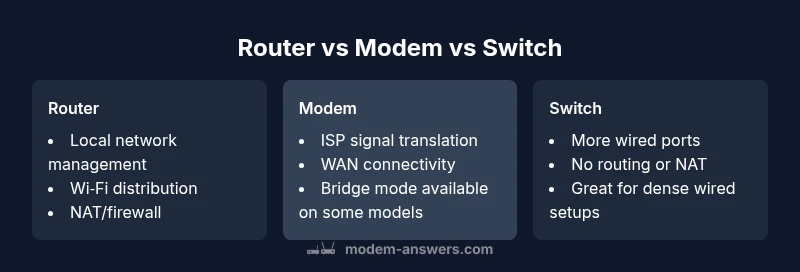
In any home network, understanding the core roles of a modem, a router, and a switch is essential. The modem is the device that translates signals between your ISP and your home, effectively serving as the gateway to the internet. The router creates a local network, assigns IP addresses, manages data traffic, and enables features such as Wi‑Fi and guest networks. A switch, by contrast, is a dedicated network hub that expands the number of wired connections within the LAN without routing traffic. For a straightforward setup, many households rely on a gateway device that combines modem and router functions, but when you introduce more devices or demand higher performance, a separate switch and/or a pure router can offer meaningful benefits. According to Modem Answers, clarifying these roles upfront reduces confusion and guides smarter purchases.
Concrete Functions: Modem, Router, Switch
Each device performs a distinct function in a home network. The modem acts as the translation layer between your home and the ISP’s network, converting signals from coax, fiber, or DSL into digital data your equipment can use. The router sits one level higher, orchestrating traffic within your LAN, performing NAT (network address translation), firewall filtering, and often wireless distribution. A switch does not route traffic or provide IP services; it simply interconnects multiple wired devices, enabling scalable, reliable wired performance. In a typical household, you’ll see a combo device or separate components, depending on performance needs and expansion plans. When you start mixing devices, clarity about each role helps prevent bottlenecks and misconfigurations, especially around DHCP and IP addressing.
When a Modem Is Your Gateway
If your internet service requires a direct connection to a single customer endpoint, the modem is the essential gateway to the wider internet. In many households, the modem alone is provided by the ISP, or a modem/router combo is rented or purchased. In bridge mode, a separate router can take over advanced features while the modem handles only the signal conversion. This setup is common when you want better wireless performance or more robust firewall features than the gateway device offers. Modems can be standalone devices, or parts of a gateway that combines two roles in one box. Always verify compatibility with your service plan and supported speeds when choosing a modem.
When You Need a Router
The router creates a true local network, assigns private IP addresses, and routes traffic between devices on your LAN and the internet. It typically provides NAT, a firewall, and wireless access. If you’ve got multiple devices streaming 4K video, gaming, or home offices, a capable router can help distribute bandwidth more efficiently and support features like guest networks, parental controls, and QoS (quality of service). In many homes, a router is the central piece, especially when you want to separate networks for IoT devices or create a reliable wired/wireless backbone. If your ISP-provided gateway is insufficient, upgrading to a dedicated router can be a wise move.
When a Switch Makes Sense
A switch solves a different problem: it expands the number of wired ports. If you have many wired devices—desktop PCs, network storage, printers, gaming consoles—a switch lets you connect them all without stripping away wireless capabilities. Switches come in unmanaged and managed varieties; unmanaged are straightforward plug-and-play, while managed switches offer VLANs, QoS, and traffic monitoring for more complex setups. The key is to place switches where devices require wired stability and to ensure your router can handle the resulting traffic and routing decisions.
Home Network Scenarios: Common Setups
- Gateway (modem+router): An all-in-one device that handles internet connection, local routing, and Wi‑Fi. Simple and space-saving, ideal for small apartments or basic streaming.
- Separate modem + router: Keeps routing logic separate from signal conversion, often providing better Wi‑Fi and security, and easier capacity planning as you grow.
- Router with a switch: A strong choice for homes with many wired devices or a desire to place switches in a central closet or media cabinet for cleaner wiring.
- Bridge mode setups: When upgrading hardware or needing advanced features, you can bridge the gateway’s routing role and rely on a separate, more capable router.
The optimal choice depends on your internet plan, number of devices, and desired management features. Modem Answers analysis shows that most households benefit from a modular approach (router + switch) when expanding beyond a single family room.
Security and Privacy Implications
Security hinges on how you configure the devices. Your router is the best place to apply firewalls, segmentation, and Wi‑Fi protections. If you’re using a modem/router combo, enable the built-in security features and consider turning off remote management to reduce exposure. For larger homes or advanced users, a separate router with a dedicated firewall and a managed switch can provide more granular control over network access and traffic visibility. Keeping firmware up to date across all devices is essential for mitigating known vulnerabilities and protecting connected devices.
Performance Considerations and Bottlenecks
Performance bottlenecks in home networks usually come from the weakest link: slow Wi‑Fi standards, underpowered routers, or limited wired ports. A modern router with dual-band 802.11ac/ax support and sufficient RAM can manage multiple streams and prioritized traffic more effectively. Switch performance matters if you rely on Ethernet for high-speed storage or gaming devices; a gigabit or multi-gigabit switch can remove bottlenecks between wired endpoints. Remember that the internet speed from your ISP remains a ceiling; distributing that bandwidth efficiently across devices is where the router and switch play their critical roles.
Choosing the Right Setup: A Step-by-Step Guide
- Assess your internet plan and device count. If you have multiple rooms, streaming in 4K, or a home office, you’ll likely need a router with robust wireless and QoS features. 2) Decide on gateway vs separate components. If you value centralized control and easier upgrades, separate router + modem is preferable. 3) Evaluate the number of wired devices. If you’re expanding, plan a switch layout that minimizes cable clutter while preserving performance. 4) Consider future growth. Look for modular systems that allow adding access points or switches later. 5) Test and adjust. Use speed tests, channel selection, and placement optimizations to maximize coverage. 6) Keep firmware current. Regular updates protect security and improve reliability.
Practical Wiring and Configuration Examples
- Example A: Modem + standalone router + switch. Place the router near the center of the home for best wireless coverage; connect wired devices to the switch and route all traffic through the router. Enable QoS to prioritize work devices and video conferencing.
- Example B: Gateway with limited Wi‑Fi coverage. Add a second access point in a distant room and connect it via Ethernet to the main router or switch to extend coverage with minimal latency.
- Example C: Bridge mode with high-performance router. Put the gateway into bridge mode and use a dedicated router for advanced features like VPNs and guest networks.
Common Pitfalls and Misconceptions
- Believing more devices always mean better performance; focus on the right combination of router, switch, and access points.
- Overlooking security features in favor of raw speed; neglecting firmware updates invites risk.
- Assuming a single device cannot scale; with proper placement and a managed switch, even large homes can maintain reliable coverage.
- Ignoring cable quality; cheap Ethernet cables can bottleneck wired devices.
Authority Sources and Further Reading
To deepen your understanding beyond this guide, consult authoritative sources:
- FCC: How the Internet Works and home networking basics
- NIST: Network security and device configuration guidelines
- Cisco: What is a router and how it fits into home networks These sources help frame best practices for compatibility, security, and performance.
Feature Comparison
| Feature | Router | Modem | Switch |
|---|---|---|---|
| Primary Role | Routes traffic within the LAN and to the internet; often includes Wi‑Fi | Connects to the ISP; converts signal to digital data for the network | Expands wired LAN ports; does not route traffic or assign IPs |
| NAT/Firewall | Typically performs NAT and firewall by default | NAT/firewall functions come with the router if present | No NAT or firewall; acts as a hub for wired devices |
| Wi‑Fi Built-in? | Usually yes (built-in AP) | Not typically; modem may have no Wi‑Fi or limited AP | No; provides wired expansion only |
| DHCP Server | Often acts as DHCP server for the LAN | – (if built-in gateway) may provide DHCP; otherwise, router handles it | No DHCP; simply bridges devices to the router |
| Ports (typical) | 4–8 LAN ports and Wi‑Fi radios | 1–2 Ethernet ports for WAN (sometimes more in newer models) | 4–16 ports for expansion; varies by model |
| Best For | Home networks needing wireless access and simplified management | Direct internet connection; gateway to the network | Expanding wired device capacity in larger networks |
| Price Range | $50–$300 (varies by features and Wi‑Fi performance) | $50–$150 (provider-provided devices vary) | $20–$400 (depending on port count and managed features) |
Positives
- Clear separation of roles helps scalable upgrades
- More control over security and traffic management
- Flexible deployment for wired and wireless needs
- Easier to troubleshoot by isolating components
What's Bad
- Higher upfront cost compared with gateway devices
- More complex setup and management for beginners
- Potentially more cables and clutter in the network closet
- Requires knowledge to optimize QoS and VLANs
For most homes, a modern router (with good wireless coverage) plus a switch for wired devices offers the best balance; a modem/router combo can suffice for small spaces.
Choose a router with robust Wi‑Fi and security features as your foundation. Add a switch if you need more wired ports; use bridge mode only when you want a separate high-performance router controlling your network.
FAQ
What is the simplest home network setup for a small apartment?
A modem plus a router with built‑in Wi‑Fi is typically enough for a small apartment. If you have many wired devices, consider adding a small switch to expand ports. This keeps setup minimal while delivering reliable wireless coverage.
For a small apartment, start with a modem and a router with Wi‑Fi. Add a switch only if you need more wired ports.
Do I need a separate switch if my router has many ports?
Not always. Modern routers offer several LAN ports and adequate performance for typical households. A separate switch is mainly beneficial when you require many wired connections in a single location or want to optimize network topology for a home office or media center.
A router with enough ports may suffice; a switch helps when you need many wired connections in one spot.
Can a modem‑router combo replace a separate router?
A modem‑router combo can work for basic needs, but you might outgrow it if you want advanced features, better Wi‑Fi performance, or more control over traffic. In many cases, bridging the gateway and adding a dedicated router yields a stronger, more flexible network.
Yes, for basic setups. For growth and control, a separate router is often better.
What’s the difference between a gateway and a modem?
A gateway typically combines a modem and router in one device, offering an all‑in‑one solution. A standalone modem only handles signal conversion, and a separate router provides advanced features and greater control over the LAN.
A gateway mixes modem and router; a modem alone does signal conversion and needs a router for LAN features.
How can I improve Wi‑Fi performance without buying new gear?
Start with optimal placement and channel selection, enable QoS if available, and ensure firmware is current. Simple fixes like reducing interference from other devices can significantly improve coverage without new hardware.
Improve placement and update firmware; choose non‑interfering channels for better Wi‑Fi.
What does bridge mode do and when should I use it?
Bridge mode disables the gateway’s routing functions so you can run your own router. Use it when you want increased control, better features, or more reliable Wi‑Fi, especially in larger homes with multiple devices.
Bridge mode lets you use a separate router and gain more control.
Key Takeaways
- Define roles before buying to avoid overbuying
- Consider future growth and number of wired devices
- Prioritize security features and firmware updates
- Opt for modular setups when expanding
- Test placement and channel selection to maximize coverage