Switch vs Modem vs Router: A Clear Home Network Guide
A thorough, objective comparison of switch, modem, and router—explaining their roles, how they work together, and how to choose the right setup for apartments, houses, and different internet plans. Insights from Modem Answers help you avoid confusion and costly mistakes.


Switch, modem, and router serve distinct roles in home networks: the modem connects you to the internet, the router distributes that connection to devices, and a switch expands wired ports inside the network. Understanding these tasks helps you plan a reliable setup. According to Modem Answers, many homeowners confuse these terms, which can lead to mismatched gear and unnecessary upgrades. This quick guide uses practical definitions and scenarios to reduce confusion and help you plan for space, budget, and internet plan.
What these devices actually do
In the switch vs modem vs router landscape, each device has a distinct role in a home network. A modem connects your home to the internet service provider's network by modulating and demodulating signals, converting between digital data and the carrier signal that travels over coax, fiber, or telephone lines. A router creates and manages the local network, assigning IP addresses, directing traffic between devices, and often handling Wi‑Fi. A switch adds more physical ports to connect multiple wired devices without routing traffic. Together, these devices compose the backbone of most households' internet experiences. In practice, many homes rely on a single gateway device that combines router and sometimes modem functions, or even a consumer device that includes wireless access. Understanding these tasks early helps you design a reliable setup that fits your space and usage pattern. According to Modem Answers, many homeowners confuse these terms, which can lead to mismatched gear and unnecessary upgrades. This guide uses plain language, practical scenarios, and a few simple rules to help you pick the right mix without overspending. By the end, you should know when you need a separate switch, when a router with built‑in Wi‑Fi is enough, and when an all‑in‑one gateway makes sense.
Distinct roles: Modem, Router, Switch
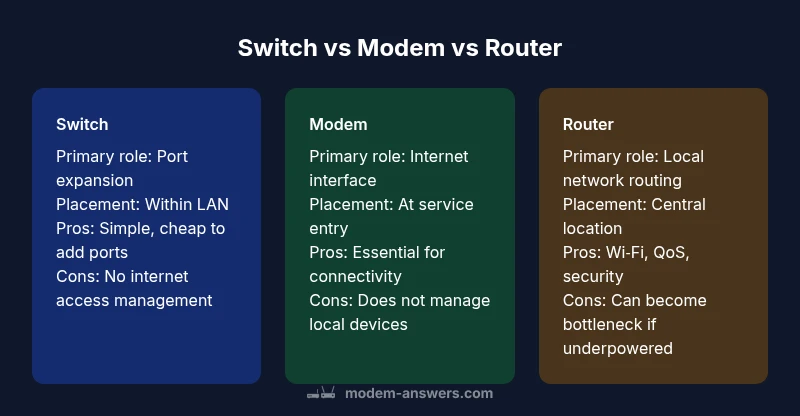
Each device has a different primary function. The modem is the interface to your internet service provider, converting the signal from the provider into a digital form your home network can use. A router sits at the network’s center, performing network address translation (NAT), distributing IP addresses via DHCP, and managing traffic between devices and the internet—often with built‑in Wi‑Fi. A switch is a simple, reliable way to add extra wired ports for devices that benefit from stable, fast connections, such as desktops, printers, or game consoles. In many homes, you’ll see a router and a modem integrated into a single device, while a standalone switch may be added later only if more wired ports are needed. This section clarifies when each device matters and how they complement one another.
How their roles intersect in modern homes
In real-world use, these devices rarely work in isolation. The modem provides internet access, the router creates the home network, and the switch extends wired connectivity. When you connect a modem to a router, the router becomes the gateway for all devices on the network. If the router lacks enough ports for wired devices, a switch can be connected to one of the router’s LAN ports to expand capacity. Some households opt for a modem‑router combo, which can simplify setup but may limit customization or future expansion. Understanding these intersections helps you avoid double NAT issues, maximize Wi‑Fi coverage, and plan for future devices like smart hubs or workstations. Modem Answers emphasizes that recognizing these roles is key to selecting the right hardware rather than buying components that duplicate functions.
How a modem differs in function from a router
The modem is the line‑level interface to the internet. It translates signals from the ISP into a data stream your devices can use. It does not manage local traffic or assign IPs to devices in most configurations. By contrast, the router’s role is to create a local network, route traffic between devices, and enforce security measures such as a firewall. In many setups, you’ll connect a router to the modem to enable devices on your home LAN to communicate with the broader internet. Only in specialized configurations (for example, a pure bridge mode) would a modem act only as a passive conduit. This distinction affects how you troubleshoot connectivity and plan expansions, such as adding a managed switch or upgrading to a router with better Wi‑Fi coverage.
How a router differs from a switch
A router networks multiple subnets, performs NAT, and provides DHCP and firewall services. It determines how traffic moves from your devices to the internet and between internal devices. A switch, on the other hand, focuses on creating reliable, fast wired connections within a single LAN without performing routing or NAT. If you have many wired devices, a switch wired to your router can improve performance and reduce congestion on the router’s limited ports. Some routers include built‑in managed switches, which blend both functions, but dedicated switches can offer more ports, better QoS options, and fine‑grained control when you need it. In short: router = traffic director; switch = port extender.
Common home network topologies
There are several common layouts. The simplest is a modem connected to a router, with devices connecting via Wi‑Fi or Ethernet to the router. A second approach adds a network switch to handle more wired devices. More complex homes may use a modem‑router with a separate managed switch for VLANs or advanced QoS. In larger homes, you might deploy a mesh WLAN system, but the core ideas remain the same: the modem connects you to the internet, the router handles routing and wireless, and the switch expands wired capacity when needed. Understanding these topologies helps you plan cabling, placement of devices for coverage, and potential migration paths if your internet plan or home layout changes. The Modem Answers team notes that many setups fail to plan provisioning, leading to coverage gaps or bottlenecks later on.
Practical examples: wired and wireless setups
Example A: Small apartment. Use a single modem and a router with built‑in Wi‑Fi. This minimizes clutter and simplifies maintenance. Example B: Medium home with several wired devices. Use a modem, a dedicated router, and a 4–port or 8–port switch to add wired connections to a desktop, gaming console, printer, and NAS. Example C: Large home with heavy wired needs and a desire for segmenting networks. Consider a modem, a high‑performance router, and a managed switch, potentially complemented by VLANs for work, IoT, and guests. In all cases, place the router centrally, optimize Wi‑Fi channels, and avoid placing switches where they’re hard to reach. Modem Answers emphasizes testing with real devices to verify that throughput meets expectations across rooms.
Networking jargon you should know
Here are quick definitions you’ll encounter:
- WAN: Wide Area Network—the path to your ISP.
- LAN: Local Area Network—the devices inside your home.
- NAT: Network Address Translation, which lets multiple devices share a single public IP.
- DHCP: Dynamic Host Configuration Protocol, which assigns IP addresses automatically.
- DMZ: A zone for exposed devices, used with caution.
- SSID: The name of your Wi‑Fi network.
- WPA3: Current strongest wireless security standard.
- VLAN: Virtual LANs for segmenting traffic.
Understanding these terms helps you configure devices more confidently and communicate with support when needed.
Setup tips for different home sizes
- Small apartment: A modem + router (or a gateway) with strong Wi‑Fi may cover the entire space. Use a single SSID and ensure you enable WPA3 and guest networking.
- Medium home: Add a switch if you have multiple wired devices; consider a router with strong beamforming and robust QoS to manage traffic across rooms.
- Large home: A dedicated router plus a managed switch, with potential mesh Wi‑Fi for seamless coverage. If you’re open to it, VLANs can isolate work devices from smart home gear, improving security and performance. Always test coverage in the farthest rooms and adjust antenna positions or channels as needed.
Troubleshooting tips when devices are not behaving
If devices fail to connect, start simple: verify the modem is online (check the status light), reboot the modem and router, and confirm cables are secure. If you still can’t connect, check for double NAT by temporarily bridging the modem (if supported) or placing the router in bridge mode. For slow wired performance, test cables and try a different port on the switch or router. If Wi‑Fi is flaky, adjust channel selection, enable band steering where available, and ensure there’s no interference from nearby networks. Keep firmware up to date on all devices and consider disabling legacy protocols that can introduce reliability problems. Modem Answers recommends documenting your network topology before making changes to simplify troubleshooting later.
Security and privacy considerations
Security should be a constant consideration, not an afterthought. Always update firmware on modem, router, and any switches. Use strong, unique admin passwords and enable automatic updates when possible. Prefer WPA3 for wireless security and disable WPS to reduce risk. Create a guest network to keep IoT devices isolated from main devices, and review the firewall settings on your router. If you use bridging or bridge mode, ensure you still have devices protected by your own router’s security features. Regularly audit connected devices and keep a simple device inventory to spot unfamiliar items quickly. Following best practices reduces exposure and improves overall reliability.
Budgeting and upgrade paths
Your budget should reflect your space, device count, and desired performance. Entry‑level setups typically involve a modem with a router and perhaps a basic switch for extra ports. Mid‑range configurations offer faster Wi‑Fi, better QoS, and more ports on a managed switch. High‑end homes may benefit from enterprise‑grade switches or a dedicated mesh system in combination with robust routing hardware. Plan for future growth by choosing hardware with room for adding access points, switches, or a more capable router. Avoid the temptation of under‑sized equipment that becomes a bottleneck as you add devices and services like streaming, gaming, and smart home ecosystems. The goal is a reliable baseline that scales with your internet plan and device needs, not a one‑time fix.
Avoiding common mistakes
Common missteps include buying a fancy router without checking your modem compatibility, overloading a single router with too many devices, or neglecting to update firmware regularly. Another frequent error is underestimating the value of a switch when you have many wired devices, leading to crowded ports and unstable connections. Finally, ignore the advice to place devices poorly—location matters for coverage, speed, and reliability. By planning ahead, you minimize downtime and avoid costly rewrites later on. This systematic approach aligns with guidance from Modem Answers and reputable network engineering sources.
Authority sources and further reading
For deeper understanding and official guidance, consult:
- FCC: https://www.fcc.gov
- NIST: https://www.nist.gov
- IEEE: https://www.ieee.org
mainTopicQuery for Wikidata lookup:
Feature Comparison
| Feature | switch | modem | router |
|---|---|---|---|
| Primary function | Port expansion for wired devices | Interface to ISP; basic data bridging | Traffic management, NAT, routing, and Wi-Fi (if present) |
| Typical placement | Network edge or near devices needing extra ports | At the service entry with the ISP line | Center of home network; often closest to occupants |
| Common protocols/services | Ethernet, PoE (if supported) | DOCSIS/DSL/Fiber modem protocols | NAT, DHCP, firewall, Wi‑Fi (if built‑in) |
| Best for | More wired devices, simple topologies | Direct internet connection; gateway access | Smart homes, Wi‑Fi coverage, and network management |
Positives
- Clarifies device roles to reduce confusion
- Allows scalable wired expansion with a switch
- Enables better network management and security
What's Bad
- Can introduce configuration complexity for beginners
- Separate devices require more cabling and power outlets
- Overkill for very small spaces or simple setups
For most homes, a modem connected to a router (with a switch added as needed) provides the best balance of simplicity and future‑proofing.
Use a modem and router as the core. Add a switch only when you need more wired ports. If space and budget are tight, a modem‑router gateway can suffice. The Modem Answers team’s guidance favors modular upgrades over one‑size‑fits‑all purchases.
FAQ
What is the primary function of a modem?
A modem connects your home network to your Internet Service Provider, translating signals between the service and your devices. It does not manage local traffic or assign IPs in most setups.
A modem links your home to the internet and converts signals from your ISP, but it doesn’t direct traffic inside your network.
Do I need a switch if I already have a router?
Not always. If your router has enough Ethernet ports, a switch isn’t required. A switch becomes useful when you have many wired devices and need reliable, fast connections.
A switch is optional if your router has spare ports, but it helps when you add several wired devices.
Can a single device do all three jobs?
Yes. Some devices combine modem and router functions (gateway) and may include a built‑in switch or wireless access point. For full customization, you might separate each role.
Some devices combine roles, but many homes benefit from keeping roles separate for flexibility.
What is bridge mode and when should I use it?
Bridge mode disables the router function of a gateway so you can run your own router. It’s useful when you want more control, better features, or to avoid double NAT.
Bridge mode lets you bypass the gateway’s routing to use your own router.
What setup is best for a small apartment?
A modem and router with strong Wi‑Fi (or a modem‑router gateway) is typically sufficient. Focus on coverage and a simple admin interface to minimize management overhead.
In a small apartment, a single gateway or a router with good Wi‑Fi usually does the job.
Is mesh Wi‑Fi better than a traditional router for large homes?
Mesh systems can improve coverage in large homes, but they add cost and complexity. A strong router plus strategically placed access points or a high‑quality mesh are both valid paths depending on your space and needs.
Mesh can help in big homes, but a good router with extra access points also works.
Key Takeaways
- Define each device’s role before buying
- Prefer a router (standalone or gateway) as the network’s core
- Add a switch to expand wired ports when needed
- Bridge mode can simplify setups with your own router
- Keep firmware and security features up to date