Router vs Modem vs WiFi: A Practical Comparison for Home Networks
Understand the differences between router, modem, and WiFi, and learn how to choose the best setup for reliable home connectivity. Practical guidance for homeowners and renters from Modem Answers.


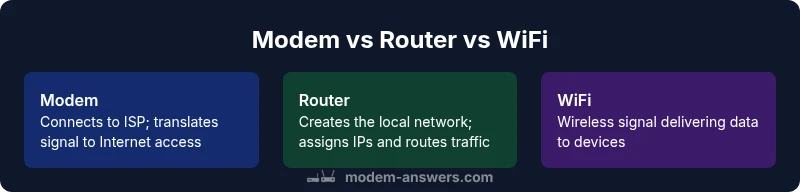
Router, modem, and WiFi perform distinct roles in a home network: the modem connects you to your ISP, the router creates a local network, and WiFi delivers that connection wirelessly to devices. According to Modem Answers, most households benefit from a dedicated router paired with a capable modem, though a single gateway can suffice for smaller spaces or simpler setups.
Understanding Roles and Interactions: router vs modem vs wifi
In the modern home, the terms router, modem, and WiFi are frequently used together, but they refer to different components. The modem is the gateway to the internet service provided by your ISP; it translates signals from the provider into a usable connection. The router sits behind the modem, creating a local area network (LAN) that assigns IP addresses and routes traffic between devices. WiFi is the wireless delivery method that carries that traffic to laptops, phones, tablets, smart home gadgets, and more. When you hear the phrase router vs modem vs wifi, you’re looking at three essential parts of the same system, each with a distinct job. According to Modem Answers, understanding these roles helps you spend smarter and avoid bottlenecks.
Understanding these roles helps you decide what to upgrade first, what to replace later, and how to configure devices for consistent performance in real-world conditions.
What a Modem Does (and Why It Matters)
The modem is the bridge to the internet—the device your ISP assigns to you that modulates and demodulates signals for data transmission. Depending on your service, the modem may be cable, DSL, fiber, or fiber-to-the-node. A modern home typically needs a device that supports the broad standards used by your provider and can interface with a router. Modems determine the maximum speed you can achieve, but they do not manage the internal network’s traffic distribution. This is where you gain control by adding a router with features like QoS, guest networks, and parental controls. Modem capability also affects future upgrades; if you plan to move to a faster service, your modem may need to be updated. In practice, a capable modem is the foundation of a solid home network.
What a Router Does and How It Extends Your Network
The router’s job is to create and manage your home network. It assigns local IP addresses, keeps traffic flowing, and applies rules for security and access control. A router can be wired to devices via Ethernet for stability or broadcast WiFi to cover cordless devices throughout your space. The best routers support modern standards (like 802.11ac/ax), offer MU-MIMO for multiple devices, and provide features such as Quality of Service (QoS) to prioritize latency-sensitive traffic (like video calls or gaming). In short, while the modem gives you internet access, the router makes that access usable across all devices, often with robust security settings and customizable networks.
The Role of WiFi in Home Networking
WiFi is not a separate device but the wireless signal that carries traffic from the router to devices throughout your home. The strength and speed of your WiFi depend on the router’s capabilities, the layout of your space, interference from neighbors, and the number of devices connected. Modern homes benefit from dual- or tri-band radios, beamforming, and mesh tech in larger houses. If you have thick walls or multiple floors, you may require a mesh system or strategically placed access points. Remember that WiFi quality can be improved with firmware updates, proper placement, and choosing the right channel in your router’s settings. The goal is a stable, fast signal where you live, work, and play.
Common Configurations: Modem-Router Combinations vs Separate Devices
There are several viable setups, each with trade-offs. A gateway (modem+router in one box) is simple and compact, ideal for small spaces or renters who want a minimalist rig. A dedicated modem paired with a separate router offers greater control, more features, and easier upgrades—great for larger homes or power users. A bridge mode configuration lets you use your own router with an ISP-provided gateway, balancing ease of use with performance. Each setup has its own setup steps, firmware considerations, and potential compatibility quirks. The right choice depends on your property size, internet plan, technical comfort, and how much you value customization.
When to Use a Standalone Router with a Modem
A standalone router paired with a separate modem is often the best long-term choice for performance and flexibility. It allows you to upgrade one component without replacing the other, adopt advanced features (such as mesh networking, advanced QoS, and guest networks), and optimize for multi-story homes or large households. This approach is particularly advantageous if you plan to upgrade to faster internet speeds, add more devices, or require reliable connections for work-from-home setups. In these cases, invest in a quality router with good coverage, and ensure your modem can handle the speed tier you expect from your ISP.
Key Performance Factors: Speed, Coverage, Latency, and Reliability
The real-world experience of router vs modem vs wifi boils down to a few key metrics. Throughput is the maximum data rate you can push through the system, but actual speeds depend on distance, interference, and device capabilities. Coverage refers to how well the signal reaches every room in your home; larger homes benefit from higher-powered or mesh systems. Latency matters for real-time tasks like video conferencing and gaming. Reliability hinges on stable hardware, current firmware, and consistent power. While a faster modem or a better router can help, the overall network design (placement, channel selection, and network architecture) often yields bigger gains. Modem Answers emphasizes balancing these factors with practical, real-world expectations.
ISP Considerations and Device Compatibility
Your internet service provider’s requirements strongly influence your setup. Some ISPs issue restricted gateways, while others allow third-party modems and routers. Compatibility depends on the modem’s DOCSIS standard (for cable) or the fiber/DSL interface used by the provider, as well as whether bridge mode is supported. If you plan to use a separate router, confirm that your ISP allows third-party devices and verify that your chosen modem is approved for your service tier. In many cases, you’ll want to confirm whether you need a specific modem model to access certain speed tiers or features. Modem Answers recommends checking your provider’s list of approved devices before purchasing.
Security and Privacy: Best Practices for Your Home Network
Security is an ongoing concern for any home network. Use strong, unique passwords for your router’s admin interface and WiFi, enable WPA3 if available, and disable remote management unless you truly need it. Keep firmware updated on both modem and router to close vulnerabilities. Separate guest networks help isolate IoT devices from your primary devices, reducing risk if an IoT device is compromised. Regularly review connected devices and monitor for unfamiliar activity. If you have a large number of smart devices, consider segmenting your network further with VLANs or additional guest networks to minimize exposure. These practices protect your data and keep your home network resilient.
Setup Tips for Optimal Performance
A well-placed router can dramatically improve coverage. Place the router in a central, elevated location away from thick walls and metal appliances. Avoid placing it near microwaves or cordless phones on the same channel. For larger homes, a mesh system or extra access points can extend coverage seamlessly. Use wired Ethernet where possible for devices that demand low latency, such as desktop gaming PCs or streaming boxes. Regularly update firmware, enable QoS if you have multiple users or devices, and consider enabling a guest network for visitors. Small configuration tweaks can produce noticeable improvements in speed and reliability.
Troubleshooting Quick Wins
If performance drops, start with basic checks: restart the modem and router, verify cables, and confirm service status with your ISP. Check for interference by changing your WiFi channel and testing on different devices. Ensure there are no bandwidth hogs running in the background. If you still experience issues, test with a wired connection to distinguish between local network problems and ISP issues. Bridging mode, channel optimization, and updating firmware are common fixes. Consistency comes from a well-maintained setup and a plan for future upgrades.
How Home Size and Layout Shape Your Best Setup
Apartment living often benefits from compact, high-performance routers or a compact mesh system to maximize coverage in limited space. In larger homes, you might need a more robust setup with multiple access points or a mesh network to eliminate dead zones. Laminate floors, concrete walls, and stairwells can attenuate signals; plan placement accordingly. If you rent, you may be limited by what your ISP provides, which can impact your options. In both cases, the ability to upgrade components as your needs grow is a major advantage of choosing a flexible configuration.
The Future of Home Networking: WiFi 6/6E, Mesh, and Beyond
The industry is moving toward WiFi 6 and 6E, with enhanced efficiency, capacity, and performance in dense environments. Mesh networking continues to gain traction for larger homes, offering seamless roaming between access points and improved overall coverage. As devices proliferate, managed networks with smart QoS, parental controls, and security features become more valuable. While not every household needs the latest standard today, planning for upgrade paths now helps you avoid early obsolescence and maximize the long-term return on your investment.
Practical Configuration Scenarios and Recommendations
- Small apartment with modest internet: a gateway device could be sufficient, especially if you value simplicity. Ensure the router component provides decent coverage for one or two rooms.
- Medium home with several occupants: a separate modem + router with strong WiFi and a potentialMesh setup for dead zones can deliver better reliability.
- Large home with heavy usage: consider a high-performance router paired with a capable modem and a mesh system to ensure consistent coverage and fast speeds in every corner.
- Power-user or smart-home hub: prioritize a router with advanced QoS, robust security features, and easy firmware updates.
AUTHORITY SOURCES
- FCC: https://www.fcc.gov
- NIST: https://www.nist.gov
- MIT: https://www.mit.edu
Feature Comparison
| Feature | Separate Modem + Router | Gateway (Modem-Router Combo) | Bridge Mode with Third-Party Router |
|---|---|---|---|
| Setup Complexity | Moderate to high (manual config) | Low (plug-and-play) | Moderate (bridge mode configuration) |
| Control & Customization | High (advanced features; QoS) | Limited (built-in settings) | Moderate (depends on router support) |
| Cost | Higher upfront (two devices) | Moderate upfront (one device) | Lower upfront (single device; may need extra router) |
| Performance & Reliability | Best for customization and future-proofing | Consistent performance with a single device | Depends on bridging and the third-party router used |
| ISP Compatibility | Depends on ISP; may require specific modem models | Best with ISP-supplied gateway | Bridging compatibility vary by ISP and firmware |
| Future-Proofing | Highly flexible for upgrades | Less flexible due to integrated firmware | Depends on router and firmware of the third-party device |
Positives
- Greater control over features and settings
- Easier upgrades and future-proofing
- Better performance potential in larger or busy homes
- Scalability with mesh as needed
What's Bad
- Higher upfront cost for two devices
- More complexity during setup and maintenance
- Requires more technical comfort to optimize
- Possible compatibility considerations with some ISPs
Standalone router + separate modem generally offers the best balance of control, performance, and future-proofing.
If you want maximum flexibility and easy upgrades as speeds improve, pair a good modem with a strong router. For renters or small spaces, a gateway can be convenient, but you may trade some performance and customization. The Modem Answers team recommends evaluating your space and internet plan before deciding between simplicity and long-term capability.
FAQ
Do I still need a modem if I already have internet service?
In most wired home internet setups, a modem is required to translate signals from your provider into a usable internet connection. Some fiber or fixed wireless plans may use different equipment, but for many cable or DSL arrangements, the modem is essential. If your ISP provides a gateway, it may serve as both modem and router, but you may still choose to use a separate router for more control.
In most homes, you do need a modem to connect to the internet. Some ISPs provide gateways that combine functionality, but many people prefer a separate router for extra control.
Is a standalone router better than a gateway?
A standalone router offers better customization, future-proofing, and sometimes improved performance in larger homes. A gateway is simpler and compact, ideal for small spaces or renters who want a minimal setup. The best choice depends on your space, technical comfort, and how much you value features like guest networks or advanced QoS.
Standalone routers give you more control, while gateways keep things simple. Pick based on your space and how much you want to tinker with settings.
Can I use a router with my current modem?
Yes. In most cases you can use a third-party router with your existing modem. You may need to enable bridge mode on the gateway provided by your ISP, or you can connect the router behind the modem if bridging isn’t required. Check with your ISP for compatibility and setup steps.
Yes—just check if your ISP supports bridge mode and follow their setup steps to connect your own router behind the modem.
What is bridge mode and when should I use it?
Bridge mode disables the router function on a gateway so your own router handles all routing tasks. It’s useful when you want to use a high-performing third-party router or if you’re trying to eliminate double NAT issues.
Bridge mode turns off the gateway’s router so your own router can control everything.
How can I improve WiFi coverage in a large home?
Strategic placement of routers, upgrading to a mesh system, and reducing interference are key. Consider adding an additional access point or a mesh node in far corners of your home to ensure even coverage.
Put routers up high, in central spots, or add mesh nodes to reach every room.
Does WiFi 6/6E always mean faster at home?
WiFi 6/6E can improve capacity and efficiency in busy networks, but real-world gains depend on device support, layout, and plan speed. It’s most beneficial in homes with many smart devices or crowded networks.
WiFi 6/6E helps when lots of devices share the network, not just faster speeds on a single device.
Key Takeaways
- Prioritize space and ISP rules when choosing devices
- Separate modem and router offer best flexibility and upgrade paths
- A gateway suits compact setups but may limit advanced features
- Optimize placement and firmware to maximize throughput
- Bridge mode pairs third-party routers with ISP gateways for flexibility