Internet Modem vs Router: Key Differences for Home Networks
Explore the essential differences between internet modems and routers, when to use each, and how to optimize your home network for speed, security, and reliability with practical guidance from Modem Answers.


The internet modem and the router perform distinct roles in a home network: the modem connects you to your ISP, while the router creates and manages your local Wi‑Fi and wired network. In most homes, using a standalone modem with a separate router offers better performance, control, and future-proofing. A gateway device combines both, delivering simplicity at the cost of some flexibility.
What is an Internet Modem? The Bridge to Your Internet Service
An internet modem is the bridge between your home network and the wider internet. When people discuss the internet modem vs router, they’re comparing two devices that perform different jobs in the same chain. The modem’s job is to speak the language your ISP uses and convert the signal into a digital form your devices can understand. According to Modem Answers, the modem’s primary task is to establish the link to your internet service and provide a single public IP address to the router side. This setup is heavily influenced by your ISP’s technology (cable, fiber, or DSL) and the DOCSIS or fiber standards in use. The Modem Answers analysis, 2026, shows that most households will see the best results when the modem is well-matched to their plan and is kept up to date with firmware. The takeaway: the modem is not a decision about speed on its own; it is the gateway through which your entire home network receives connectivity.
What is a Router? Core Functions and Features
A router is the device that takes the internet connection from the modem and distributes it to your devices. It creates a local network, assigns private IP addresses via DHCP, and manages traffic between devices and the internet. Modern routers also handle Wi‑Fi, guest networks, firewall protection, and features like QoS (quality of service) to prioritize bandwidth for video calls or gaming. A router makes decisions about how data travels within your home, and it often includes advanced settings for parental controls, device prioritization, and multi‑band support. The key distinction is that while a modem connects you to the internet, the router builds and controls your home network.
How They Work Together: From Internet to Local Network
In a typical home setup, the ISP delivers a signal to the modem, which converts it into a usable data stream and passes it to the router. The router then creates a local network, assigns IP addresses to devices, and routes traffic between your devices and the internet. If you use a gateway (modem‑router combo), the device performs both jobs, but you may lose some flexibility in upgrading or tuning one side without affecting the other. Bridging the modem into pure passthrough mode can let a separate router take full control, which is common for homes needing robust Wi‑Fi coverage or specialized configurations.
Standalone Modem vs Standalone Router: Core Differences
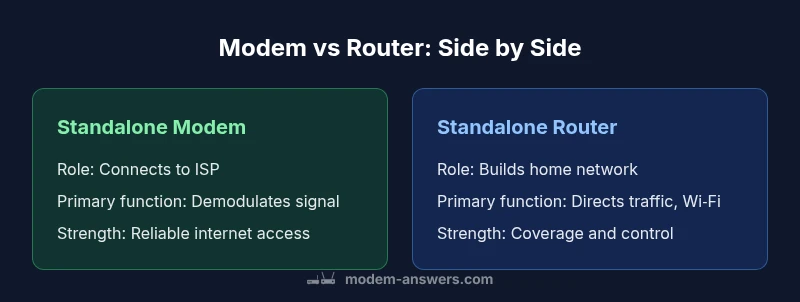
- Core function: Standalone modem focuses on connecting to your ISP and demodulating signals; a standalone router focuses on routing traffic and enabling a home network.
- IP management: Modems generally do not manage a local LAN; routers handle DHCP, NAT, and internal addressing.
- Wireless capability: Modems rarely provide strong, reliable Wi‑Fi by design; dedicated routers deliver advanced Wi‑Fi features and coverage.
- Upgrade path: If you want faster speeds or new features, you usually upgrade the router first, then the modem as your plan changes.
- Complexity and cost: A modem + router combo is simpler but less flexible; separate devices can be more expensive but offer better long‑term value and customization.
Performance Implications: Speed, Coverage, and Reliability
Performance for a home network depends on both the internet plan and the hardware that distributes that plan inside your home. A capable modem is essential to support your plan, but a high‑quality router is often what determines real‑world Wi‑Fi speed and reliability. Wi‑Fi standards (such as Wi‑Fi 5, 6, or 6E), the number of streams, beamforming, and MU‑MIMO support influence coverage and multi‑device performance. In dense households with many devices, a modern router can dramatically improve stability, even if the modem is already fast enough on paper. The balance between modem capability and router strength is a common source of bottlenecks and is a frequent topic in Modem Answers analyses.
Network Architectures: NAT, Bridge Mode, and DHCP
A typical home network uses NAT (Network Address Translation) to share a single public IP across many devices. DHCP assigns private IPs to devices on the LAN, making setup easy. Bridge mode on a gateway disables the router portion, handing full control to an external router. This is useful when you want to run a high‑performance router with advanced features. Understanding these concepts helps you decide whether to keep devices as separate, or to enable bridge mode to avoid double NAT in some configurations. Your choice will affect port forwarding, VPN usage, and gaming latency.
Setup Scenarios: Step-by-Step for Real Homes
- Assess your plan and whether you need extra features beyond basic internet access. 2) If you have a separate modem and router, connect the modem to the ISP cable or line and power it on. 3) Connect the router to the modem via the WAN/Internet port and power it on. 4) Access the router’s admin page to configure SSID, password, and security settings. 5) Update firmware on both devices and enable automatic updates if available. 6) Test network speed across wired and wireless devices, and adjust QoS or guest networks as needed. 7) Consider enabling bridge mode on the modem if you plan to use a separate router for more advanced features.
Security, Privacy, and Firmware: Keeping Your Network Safe
Regular firmware updates on both modem and router close security gaps and fix performance issues. Use strong, unique admin passwords and enable WPA3 (or at least WPA2) for Wi‑Fi. Disable WPS if possible and review open ports and UPnP settings. A separate router often provides more granular security options, including advanced parental controls and device‑level firewall settings. In practice, staying current with firmware and using strong authentication dramatically improves resilience against common home‑network threats.
Buying Guide for 2026: What to Look For
When selecting devices for a modem‑router setup, prioritize compatibility with your ISP and plan, then consider future‑proofing. Key features to look for include DOCSIS 3.1 support for cable, fiber modem options where applicable, and a router with Wi‑Fi 6/6E support for faster wireless speeds and better device handling. Assess the number of Ethernet ports, USB ports for network storage or printers, and the size and efficiency of the antenna array for coverage in larger homes. If you anticipate adding many IoT devices or 4K streaming, invest in a router with robust multi‑user performance and advanced QoS.
Quick Start Checklist for Your Home Network
- Confirm your ISP plan and device compatibility.
- Decide between separate devices or a gateway based on your space, budget, and performance goals.
- Prepare cables and a secure place to position the router for best coverage.
- Update firmware on both modem and router before configuration.
- Create strong, unique admin credentials and a guest network if needed.
- Test wired and wireless speeds; adjust settings for optimal performance.
- Enable security features and schedule regular reboots for reliability.
Real-World Scenarios: Small Apartments vs Large Homes
In compact spaces, a single high‑quality router can provide solid coverage and reduce cable clutter. In larger homes or multi‑story layouts, a separate modem and router or a mesh system may be preferable to eliminate dead zones. In all cases, symmetrical upgrades (e.g., faster routers or a DOCSIS 3.1 modem) improve performance more reliably than changing a single device. Understanding your floor plan, device count, and typical usage (gaming, streaming, video calls) helps you tailor a setup that balances speed, reliability, and cost.
Comparison
| Feature | Standalone modem | Standalone router |
|---|---|---|
| Core function | Connects to ISP and terminates signal | Creates and manages the local network (Wi‑Fi and LAN) |
| Local network management | Limited or no DHCP/NAT features | Full DHCP, NAT, QoS, and segmentation |
| Wireless capability | Typically no advanced Wi‑Fi features | Advanced Wi‑Fi with MU‑MIMO and beamforming |
| Security features | Basic firewall, vendor dependent | Advanced firewall options and guest networks |
| Upgrade path | Upgrade plan may require new modem | Separate device upgrades flexibility (router first) |
| Best for | Direct ISP connection with minimal setup | Best for custom networks, coverage, and speed |
Positives
- Greater customization and performance tuning
- Independent upgrades for speed and features
- Potentially stronger Wi‑Fi with a modern router
- Easier to isolate issues to one device
What's Bad
- Higher upfront cost and more complex setup
- More cables and power usage
- Two devices to manage instead of one
Standalone modem + separate router often offers the best balance of performance and flexibility
Separating the modem and router gives you better control, future-proofing, and potential for higher Wi‑Fi performance. A gateway is simpler but limits customization and may cap long‑term upgrade options.
FAQ
What is the primary difference between a modem and a router?
A modem connects you to your internet service provider and demodulates the signal for use by devices, while a router builds and manages your home network, distributing IP addresses and directing traffic between devices and the internet.
The modem gets you online; the router creates your home network.
Can I use devices from different brands for my modem and router?
Yes, you can mix brands for modem and router in most setups. You may need to configure the connection type (DHCP or PPPoE) and ensure the modem is approved for your plan.
Yes, you can mix brands; just verify compatibility and update firmware.
What is bridge mode, and when should I use it?
Bridge mode disables the gateway’s router functionality, turning the device into a pure modem. Use it when you want to run your own high‑performance router for better control and features.
Bridge mode lets your own router take over; great for more control.
Do I need a router if my modem is a gateway?
If your device is a gateway, you have a built‑in router. You can still add a separate router for better coverage or features if desired.
A gateway includes a router, but you can add a better one if you want.
Is the Wi‑Fi from a modem reliable enough for a busy household?
Built‑in Wi‑Fi from a gateway or modem is often adequate for small spaces, but a dedicated router with modern standards typically provides stronger coverage for many devices.
Built‑in Wi‑Fi is convenient, but a separate router usually performs better in busy homes.
How do I know when to upgrade my equipment?
Upgrade considerations include frequent buffering, many connected devices, or the need for faster Wi‑Fi standards (Wi‑Fi 6/6E). Upgrading one component can unlock significant improvements.
If streaming or gaming lags or you add many devices, upgrade is warranted.
Key Takeaways
- Assess your ISP plan compatibility before buying
- Choose separate devices for maximum performance and upgradeability
- Consider a gateway only if you want minimal setup and fewer cables
- Prioritize modern Wi‑Fi standards and security features
- Use bridge mode to optimize when mixing devices