Which is Modem and Which is Router? A Practical Guide
A clear, data-driven comparison of modem and router roles, how to tell them apart, and guidelines for choosing the right setup for your home network.


The modem and the router perform distinct roles in your home network. The modem connects to your internet service provider and converts the signal into a usable data stream, while the router creates and manages your local network, distributing that signal to wired and wireless devices. In many homes you’ll use separate devices; in others a modem-router combo may cover both tasks, depending on your ISP.
Understanding the basics: what is a modem vs router?
In everyday conversations, people often mix up the terms modem and router, but they refer to different hardware with distinct duties. The modem is the portal to the Internet Service Provider (ISP). It communicates with the ISP’s network, receives the signal, and translates it into a digital stream your devices can understand. The router sits behind the modem and builds your local network. It assigns IP addresses, routes traffic between devices, and distributes both wired Ethernet and wireless Wi‑Fi signals. Because these roles impact performance, reliability, and security, it’s essential to know which device is handling which task in your setup. According to Modem Answers, many households mislabel a gateway device as a modem-plus-router, not realizing the gateway still separates the ISP connection from the home network logic. Understanding this distinction helps you plan upgrades, diagnose issues, and optimize your home network. When you search for “which is modem and which is router,” clarity matters for future-proofing and budgeting. The Modem Answers team emphasizes that the terminology matters less than understanding the function—so you can choose the right gear for your home.
The practical differences in function and performance
The most obvious contrast is role. A modem is a passive translator between your home network and the ISP. A router actively manages traffic, creates a local network, and provides security features such as firewalls and NAT (Network Address Translation). Performance-wise, the router often determines Wi‑Fi strength and device responsiveness, while the modem controls broadband access speed as dictated by your plan. Modern setups increasingly blend both functions in gateways, but the core principles remain unchanged: the modem handles the external connection; the router handles the internal network. If you’re planning upgrades, separate devices typically offer more flexibility for future-proofing, as you can swap one piece (the router) without reconfiguring the other (the modem).
How to identify which device is doing what in your setup
Start by physically inspecting the equipment: locate the device connected directly to the coaxial or fiber line — that is typically the modem. If you have multiple devices, note which one provides the Wi‑Fi network and multiple Ethernet ports; that device is your router. In the admin interfaces, look for terms like NAT, DHCP, and IP routing; the device reporting these features is the router. If your ISP provided a single box with branding like ‘gateway,’ it may be both modem and router in one housing, but you’ll still manage two functions from that unit. Finally, run a quick speed test while connected to different ports. If one device provides both WAN access and local routing, you’re likely using a gateway.
Separate modem + router vs gateway: When to choose each
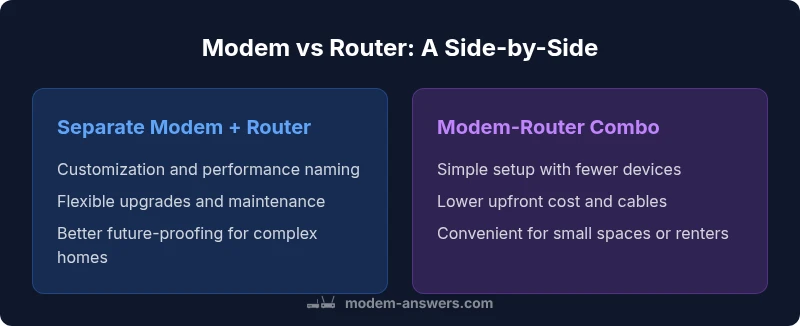
Separate devices offer the most flexibility and performance headroom, especially in larger homes or homes with demanding Wi‑Fi needs. You can upgrade the router without touching the modem, and vice versa, which is useful as technologies evolve. A modem-router combo (gateway) provides simplicity and fewer cables, ideal for smaller homes or renters who want a plug‑and‑play setup. Some ISPs charge rental on gateways, which can increase total cost over time. In bridge mode situations, gateways can still serve as modems while a separate router handles internal networking; however, this adds a configuration step that may be intimidating for non-technical users.
Performance implications: speed, coverage, and reliability
When you pair a high‑quality separate modem and router, you can tailor each component to match your environment. A good router can optimize coverage with tri-band or mesh configurations, advanced Quality of Service (QoS) rules, and stronger security options. The modem’s job is to deliver the maximum sustainable speed from your ISP plan; an older or lower‑tier modem can bottleneck performance even with a top‑tier router. In gateways, the integrated Wi‑Fi and ports are convenient but often limited by the base device’s hardware. If you have a multi‑story home or thick walls, a separate router with good antenna placement or a mesh network may provide more reliable coverage than a single gateway.
Security considerations: firmware updates, NAT, and firewall
Security is a critical factor in any home network design. Routers provide essential protections like firewalls, NAT, and regular firmware updates to address vulnerabilities. A separate modem exposes the router to updates suitable for your internal network, decoupling ISP‑driven changes from your home security posture. Gateways simplify maintenance but can obscure update timing, potentially delaying important patches. Regardless of setup, enable automatic updates when possible, change default passwords, and use a strong Wi‑Fi password with WPA3 when available. Regularly review connected devices and apply the latest security practices to minimize exposure.
Bridge mode, double NAT, and placement tips
Bridge mode is a feature that lets the gateway pass the public IP directly to your own router, eliminating double NAT that can cause issues with online gaming, VPNs, and some VoIP services. If you use a separate router behind a gateway, enable bridge mode on the gateway and configure your router for a single NAT. Correct placement matters: central, elevated spots typically deliver the best coverage; avoid placing devices near metal objects or microwaves, which can cause interference. If you’re using a mesh system, position nodes strategically to fill weak zones rather than piling devices in one location.
Provider considerations: cable, fiber, DSL, and equipment rental
Different ISPs impose different constraints on modem and router hardware. Cable modems often require specific DOCSIS versions for best performance; fiber connections may use an optical network terminal (ONT) with an Ethernet connection to your router. DSL providers depend on compatible DSL modems. If you own your own equipment, verify compatibility with your provider and understand how to enable bridge mode if needed. Some ISPs offer an approved list of modems; using a non‑supported device may necessitate a service call or reduce speeds. Evaluate total cost of ownership, including rental fees, after factoring in longer‑term upgrade potential.
Step-by-step: configuring a new modem/router or replacing aging gear
- Inventory current hardware and note model numbers. 2) Decide between separate devices and gateway based on home size and planned upgrades. 3) If using separate devices, connect the modem to the ISP line, then connect the router to the modem’s Ethernet port. 4) Access the router’s admin page to set a strong SSID, WPA3 (or WPA2 if needed), and guest network. 5) Update firmware on both devices and run a speed test to verify performance. 6) If you choose to replace older gear, follow the manufacturer’s setup wizard and back up configs before making changes.
Troubleshooting common issues during migration
If you experience connectivity dropouts after a switch, verify cables are securely connected, reboot both devices, and check for firmware updates. If speeds are inconsistent, try moving the router to a more central location; adjust band steering if your device supports it. For double NAT problems, reconfigure bridging on the gateway or enable bridge mode and reset the network. Finally, consult your ISP’s status page for known outages that could affect performance during the transition.
Quick-start playbook for common home layouts
Small apartments: a single gateway can suffice; place it centrally for even coverage. Medium homes: consider a separate router with a solid modem, or a gateway with a mesh system for better coverage. Large multi‑story homes: a high‑performing router plus additional mesh nodes or a multi‑AP system delivers the most reliable experience. For gamers or power users, optimize QoS, enable parental controls, and tailor port forwarding to your devices.
Comparison
| Feature | Separate modem + router | Modem-router combo (gateway) |
|---|---|---|
| Functionality | Best for customization and performance tuning | All‑in‑one convenience with simpler setup |
| Upgrade path | Flexible upgrades for each component | Upgrade tied to a single device |
| Wired/Wi-Fi performance | Typically stronger Wi‑Fi and wired options with a capable router | Wi‑Fi built in; performance depends on the gateway hardware |
| Space and clutter | Two devices, more cables | Fewer devices, less clutter |
| Cost upfront | Higher upfront cost for two devices | Lower upfront cost for a single device |
| Bridge mode support | Depends on devices; can use bridging | Bridge mode availability varies by model |
| Provider compatibility | Works well across most cable/fiber setups | Depends on ISP equipment and rental policies |
| Control and settings | Deeper control with advanced features | Simplified controls; user-friendly |
Positives
- Greater performance headroom with customizable routers
- Flexible upgrades and fault isolation
- Better coverage with mesh-capable systems
- Independent ownership options for each device
What's Bad
- Higher upfront cost and more devices to manage
- More cables and setup complexity
- Potentially more complex maintenance
Separate modem + router generally offers the best balance of performance and flexibility
Choose separate devices when you want maximal control and future-proofing. Pick a gateway for simplicity and compact setups, especially in smaller homes or rentals.
FAQ
What is the difference between a modem and a router?
A modem connects you to your ISP and translates that signal into a usable internet stream. A router creates your local network, assigns IP addresses, and distributes your connection to devices via Ethernet and Wi‑Fi.
A modem connects you to the internet, and a router shares that connection with all your devices.
Can I use my own router with my ISP-provided modem?
Yes. You can usually use your own router behind the ISP’s modem. If you experience double NAT issues, enable bridge mode on the modem or place the modem in passthrough/bridge mode.
Yes—just connect your router to the modem and consider bridge mode if you run into NAT problems.
What is bridge mode and when should I use it?
Bridge mode turns off the router functions in a gateway so your own router handles the local network. Use it when you need advanced routing features or to avoid double NAT in a complex home setup.
Bridge mode lets your router take charge of the network, avoiding conflicts.
Is a modem-router combo slower than separate devices?
Performance depends on the hardware. A high-quality gateway can perform very well, but you typically get more customization and higher throughput with separate devices configured for your space.
A good gateway can be fast, but separate devices offer more tuning options.
How do I know if I have double NAT?
If devices behind two routers experience connectivity issues or you cannot port-forward, you may have double NAT. Confirm by checking device WAN IPs or enabling bridge mode on the gateway.
Double NAT happens when two devices try to do router duties at once. Bridge mode can fix it.
For fiber connections, do I still need a modem?
Yes. Fibersystems typically require an ONT or a compatible modem/router to convert fiber signals to a usable Ethernet interface for the home network.
Fiber needs a device to translate the fiber signal to your home network, usually an ONT plus router.
Key Takeaways
- Assess home size and device needs before choosing
- Separate devices favor performance and flexibility
- Gateways offer simplicity and fewer cables
- Bridge mode can mitigate double NAT issues
- Always secure firmware updates and strong passwords