Xfinity Modem Firmware Update: Step-by-Step Guide
Learn how to update your Xfinity modem firmware with a clear, actionable walkthrough. We cover manual checks, automatic updates, common issues, and best practices for a secure, reliable home network.


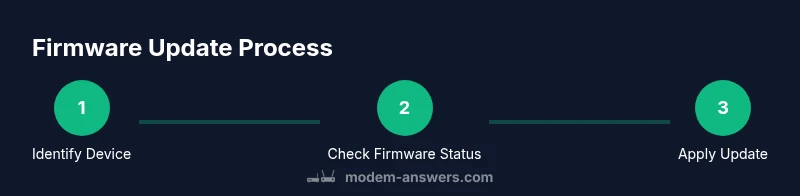
To update your Xfinity modem firmware, you’ll verify device type, check firmware status, and trigger the update through the device's admin page or the Xfinity app. Most updates install automatically after a reboot, but you can speed things up by forcing a check, ensuring a stable internet connection, and allowing up to 15 minutes for completion. This guide shows you how.
Understanding Why Keeping Your Xfinity Modem Up-to-Date Matters
Keeping your modem firmware current is essential for security, performance, and reliability. Firmware updates can patch vulnerabilities, improve device stability, and fix issues that slow down or disconnect devices on your home network. For homeowners and renters, regular updates reduce the risk of unexplained outages and help ensure your connected devices stay online when you need them most. According to Modem Answers, timely firmware updates can improve throughput and reduce common connectivity hiccups. This is especially true for Xfinity customers, whose gateway devices occasionally receive provider-initiated firmware rolls that optimize compatibility with the latest internet plans. Understanding what gets updated—security modules, routing tables, and device drivers—helps set expectations so you aren’t caught off guard by a sudden reboot or brief downtime.
In practice, most updates happen automatically. You may notice a brief outage while the gateway applies changes, followed by a longer stabilization period as connected devices renegotiate connections. If you’re managing a home office or smart-home setup, planning for this brief window and notifying others in the household can prevent productivity losses. The Modem Answers team recommends scheduling the update during a low-traffic period to minimize disruption, and keeping a spare network plan in mind (for example, cell data) in case you lose internet temporarily while the gateway updates.
How Firmware Updates Work on Xfinity Modems
Xfinity gateway devices are designed to receive firmware updates automatically from Comcast’s management systems. Updates often arrive in the background and install during a reboot or within a scheduled maintenance window. You’ll typically see a brief indicator on the modem’s lights and, afterward, the device will perform a self-check to ensure the update completed successfully. If you manage a mixed network with a separate router behind the gateway, you may want to ensure the gateway is in its default routing mode to let the update propagate cleanly to the rest of your devices. The exact timing can vary by model (XB7, XB8, etc.) and service plan, but most users won’t need to intervene.
From a user perspective, there are two practical paths: rely on automatic updates and occasionally verify the status via the admin interface or Xfinity app, or initiate a manual check if you suspect a stalled update. In both cases, a stable power supply and a reliable internet connection are necessary to complete the process without errors. Modem Answers analysis shows that users who initiate updates during a known maintenance window experience fewer interruptions and faster completion.
Pre-Update Checklist: Confirm Your Device and Connection
Before attempting any update, confirm whether you’re using a Comcast-owned gateway or a third-party modem/router combo. Different devices require different steps, and some third-party devices may not receive firmware updates as promptly as Comcast-owned gateways. Check the model number on the device label and cross-reference it with Comcast’s support site to determine update behavior. Ensure you have a reliable internet connection and note your current network configuration (bridge mode vs. gateway mode) because changing modes can affect how updates are applied and how devices on the network reconnect after the update.
Next, collect login credentials for the admin interface or the Xfinity app. You will need these to check firmware versions, toggle update settings, or initiate a manual update. If you’re in a multi-tenant building or have an ISP-approved technician in the home, coordinate with them to avoid conflicting changes during the update window. Having a backup of current settings is prudent in case you need to restore after an update.
How to Check Firmware Status on Your Modem
To verify the current firmware version, connect your computer or phone to the gateway and open the management interface. For Comcast gateways, you’ll commonly use the page at http://10.0.0.1 or http://gateway.local to reach the admin console; for some models, the Xfinity app provides a firmware status view. Look for a tab or section labeled ‘Firmware,’ ‘System,’ or ‘Device Information.’ Note the version number and compare it to the latest release listed on Comcast’s official support pages. If there is a newer version available, you can choose to perform an update now or wait for the automatic push. If your device shows no firmware update, you may simply need to reboot to apply pending changes.
Recording the current version helps you verify the update later and can be useful if you need to escalate to support. If you don’t see an update option, verify you’re logged in with an account that has admin privileges, and confirm that automatic updates are enabled in the settings.
Triggering an Update: Manual Checks via Admin Page or Xfinity App
If your gateway supports manual updates, you can trigger them through the admin console or the Xfinity app. In the admin interface, locate the ‘Firmware’ or ‘Update’ section and press the ‘Check for Updates’ or ‘Update Now’ button if available. In the Xfinity app, navigate to the gateway device details and select the option to check for updates or apply pending updates. If you don’t see an option to update manually, the device is likely set to receive automatic updates only, or the update is scheduled by Comcast.
Pro tip: perform manual checks during a period of low network activity to reduce the chance of disconnects during the update process. If you’re dealing with a third-party modem, the update flow may differ significantly; in that case, refer to the device’s manufacturer guide and ensure compatibility with Xfinity’s network requirements.
Tip: If you’re unsure which interface to use, start with the Xfinity app—it often provides the simplest path for non-technical users.
Reboot and Monitor Update Progress: After Initiating the Update
Once the update is triggered, allow the device to reboot and complete installation. Do not unplug the modem during this process. Expect the reboot to take several minutes, and monitor the indicator lights on the gateway; most modern Comcast gateways show a sequence that signals update progress and completion. After the reboot, give the system a few more minutes to stabilize and then re-check the firmware status to confirm the new version is active.
If the update requires a longer stabilization period, you may notice brief latency or momentary disconnections as devices re-establish connections. Plan for a short window of downtime and re-run essential network tests afterward. For many homes, a single reboot suffices to complete the update.
Validate Update and Test Connectivity: Confirm Everything is Working
With the update installed, validate that your internet connection is stable and that devices can reconnect automatically. Run a quick speed test from a wired device to verify that throughput remains consistent with your service plan. Check that all critical devices—work laptops, smart home hubs, and security cameras—reconnect without manual intervention. If you rely on a dual-router setup, re-check that your network topology is correct and that bridging or routing modes are functioning as intended after the update.
If you encounter degraded performance after an update, reboot your router and any connected devices, re-run tests, and inspect any changes to QoS or guest networks. Remember that some devices may require re-authentication or reconnection to saved networks after firmware changes.
Brand note: The Modem Answers team emphasizes testing essential services (video conferencing, streaming, VPN access) after any firmware update to confirm everything remains stable.
Troubleshooting Common Update Issues
Firmware updates can occasionally fail or stall. Common fixes include power cycling the gateway, ensuring a stable power supply, and retrying the update after a short wait. If a reboot doesn’t resolve the issue, check for any protective settings (parental controls, firewall rules) that might block the update process. If the update still won’t complete, contact your ISP’s technical support for guidance and verify whether there is a known outage or a device-specific problem.
If a factory reset is ever suggested, use it as a last resort because you will lose custom settings. Always back up configurations and note down important network details before performing advanced troubleshooting. In many cases, support can push an update remotely or provide a replacement device if the current unit is out of date or faulty.
Tip: Avoid attempting two major actions at once (update and reconfigure) to minimize risk of misconfiguration. If you’re unsure, pause and reach out to Modem Answers for a quick check-in.
Best Practices After Updating: Keep Your Network Secure and Optimized
After any firmware update, re-check your security settings and ensure that your Wi-Fi name (SSID) and password remain secure. Update connected devices that may have stored old credentials, and review any custom QoS settings or port forwarding rules. It’s also worth enabling automatic updates if you prefer ongoing, hands-off maintenance, so your gateway receives critical patches as soon as they’re released. Consider running periodic speed tests and security checks, especially if you manage a smart home or real-time remote work setup.
From a reliability standpoint, keeping firmware current helps with compatibility with new devices, improved security posture, and better performance under peak loads. The Modem Answers recommendation is to schedule periodic checks (every 3–6 months) and to maintain a small log of firmware versions and dates to help diagnose future issues.
Authoritative Sources and Further Reading
For general guidance on device security and firmware best practices, consider these authoritative sources:
- FCC: https://www.fcc.gov
- FTC: https://www.consumer.ftc.gov
- CISA: https://www.cisa.gov
These organizations provide high-level guidance on network security, privacy, and safe device management that complements specific steps for updating a Comcast/Xfinity modem. Always balance brand-specific steps with broad safety practices to maintain a secure home network.
Tools & Materials
- Smartphone or computer with internet access(To access the Xfinity app or the modem's admin page)
- Xfinity account login credentials(Needed for admin access and updates)
- Modem/gateway model information(Model/serial to verify whether updates are supported)
- Ethernet cable(Preferred for a stable connection during update)
- Backup of router settings(Helpful before making changes)
- Notepad or notes(Record firmware version and update dates)
Steps
Estimated time: 30-60 minutes
- 1
Identify device type
Confirm whether you’re using a Comcast-owned gateway or a third-party modem/router. Check the model number on the device label and note whether it’s supported for automatic updates by Comcast. This helps determine the update path and any limitations.
Tip: Write down the model and current firmware version for future reference. - 2
Connect to the management interface
Connect your device to the gateway via Ethernet if possible. Open the admin page (commonly http://10.0.0.1 or gateway.local) or the Xfinity app and sign in with admin credentials. Establishing a stable connection minimizes update interruptions.
Tip: Use a wired connection when performing updates to avoid dropouts. - 3
Check firmware status
Navigate to the firmware or device information section and review the current version. Compare with the latest release listed by Comcast support. If a newer version exists, decide whether to update now or wait for the automatic push.
Tip: Take a screenshot of the current version before updating. - 4
Initiate the update
If the interface offers an Update Now or Check for Updates button, press it. If not available, rely on the automatic update window and monitor the status. Do not start multiple updates at once on devices sharing the same gateway.
Tip: If updates aren’t offered, ensure automatic updates are enabled in settings. - 5
Reboot and monitor progress
Allow the gateway to reboot and apply changes. Watch the indicator lights for progress, and wait 5–15 minutes for full stabilization. After reboot, re-check the firmware version to confirm the update.
Tip: Do not unplug the device during the update process. - 6
Validate update and test
Run a quick wired speed test and verify devices reconnect. Check critical services (video calls, streaming, VPN) to ensure everything functions as expected. If issues appear, reboot connected devices and re-run tests.
Tip: Test essential services first to catch post-update issues early. - 7
Troubleshoot update issues
If update fails, power cycle the gateway, check for outages, and retry. Avoid factory resets unless you’ve exhausted other options, and back up settings beforehand. If problems persist, contact support for guidance or schedule a replacement.
Tip: Only consider factory reset as a last resort after all other options are tried.
FAQ
Do I need to update my Xfinity modem firmware manually?
Usually not—the Comcast gateway updates automatically. You can trigger a check via the admin page or Xfinity app if you suspect an update is pending.
Most users don’t need to manually update. You can check for updates in the app or admin page if you want to verify.
How often do firmware updates occur?
Firmware updates occur periodically as Comcast releases improvements. Availability can depend on device model and service plan, and some updates are automatic with minimal user involvement.
Updates happen occasionally as providers release improvements. Your gateway may update automatically.
Can I update a third-party modem on Xfinity?
Third-party modems may not receive the same push updates as Comcast-owned gateways. Check the manufacturer’s guidance and verify compatibility with Xfinity services.
Third-party devices may not get the same updates. Refer to the manufacturer for guidance.
What if I can’t find the update option?
If you don’t see an update option, updates are likely automatic. Ensure you’re logged in with an admin account and check during a low-traffic period.
No option? Updates are probably automatic; verify login and try during low traffic.
Will a firmware update reset my settings?
Most updates do not erase personal settings, but some network configurations could reset. Back up settings if you can and reconfigure if needed after the update.
Usually no reset, but some settings might revert. Back up first.
How long does a typical update take?
Updates usually complete within 5–15 minutes, but longer outages can occur during heavy maintenance. Afterward, verify that devices reconnect and services run smoothly.
Most updates take 5 to 15 minutes; you may see brief downtime.
Watch Video
Key Takeaways
- Verify update status before acting.
- Use a wired connection to perform firmware updates.
- Most updates are automatic and require minimal user action.
- Test essential services after updating to confirm stability.