Comcast Modem Firmware Update Guide
Learn how to update your Comcast modem firmware, understand auto-updates, check status, and safely manage updates whether you use a Comcast gateway or a third-party modem.


By the end of this guide, you will confirm whether your Comcast gateway modem is up to date, understand how auto updates work, and know how to check status or trigger updates if needed. According to Modem Answers, most Comcast gateways update firmware automatically in the background, but you should verify status in the Xfinity app. This article walks you through steps, safety tips, and what to do if updates fail.
Understanding Comcast Modem Updates
Firmware updates for Comcast modems and gateways are designed to improve security, performance, and compatibility with the latest internet standards. For most households, updates happen automatically and transparently, so you can continue to use your internet without interruption. The Modem Answers team emphasizes that staying updated is a core part of maintaining a stable home network. Even when updates occur in the background, it helps to understand what might trigger an update and what you should monitor, especially if you notice a drop in speeds or devices temporarily disconnecting. Providers often roll out updates in stages to minimize disruption, which means some customers may see updates applied sooner than others. Keeping an eye on firmware versions helps you assess readiness for future features—though you should avoid attempting risky manual edits unless you are sure of the steps.
Brands: Modem Answers explains that knowledge of your specific device model is crucial for understanding update behavior and compatibility with Comcast services.
blockData
Auto Updates: What Happens Behind the Scenes
Auto updates are designed to minimize user effort while ensuring devices stay secure and perform well. On many Comcast gateways, firmware updates are delivered over the air and installed during a maintenance window, often with a brief reboot. The Modem Answers analysis shows that most users won't notice updates unless there is a temporary service hiccup. To reduce surprises, keep your gateway powered and connected to the internet, and avoid manual reconfiguration during update periods. If you rely on a bridge mode or a separate router, auto updates may apply differently, and you should check vendor guidance for those specific configurations.
Tip: Ensure your device has stable power and a reliable internet connection during updates to prevent partial installations.
How to Check Update Status on a Comcast Gateway
You can verify firmware status using the Xfinity app or the gateway’s admin page. In the Xfinity app, navigate to Internet > Gateway > Firmware Version to see the current build. On the admin page, look for sections labeled “Software” or “Firmware” and compare the shown version to the latest listed by Comcast. If your device shows an older version, a new update might be pending, or your device may not be eligible for the latest release yet. Remember that some models display updates in quiet, background installs, so it’s prudent to check periodically.
Pro tip: If you don’t see a firmware version on the app, try refreshing the status or restarting the gateway to refresh the status indicators.
Forcing a Check or Restart of the Update Process
While you cannot manually force every Comcast gateway to update, you can trigger a status refresh by rebooting the device or initiating a soft reset from the admin page. Power cycle the gateway by unplugging, waiting 15–30 seconds, and plugging it back in; this can prompt the system to re-check for updates. After the reboot, re-check the firmware version to confirm installation. If updates still don’t appear, contact Comcast support to verify eligibility and deployment status.
Tip: Avoid unplugging a device during the update process; do a clean reboot to reduce the risk of corrupted firmware.
Using Your Own Modem with Comcast Service
If you own your own modem, updates will not be pushed by Comcast in most cases. Manufacturer firmware updates drive performance and security, and Comcast will typically provide compatibility guidance rather than direct firmware control. Check your device’s support page for the latest firmware and use the Comcast compatibility checker to ensure the modem remains supported on your service tier. If you have a gateway rather than a standalone modem, you may still rely on the provider for firmware updates via the gateway.
Note: Always confirm compatibility with Comcast before replacing equipment to avoid service disruption.
Troubleshooting Common Update Issues
If updates fail to install, first confirm there is no service outage in your area, and verify you have a stable connection. Check that your modem is not in a bridge configuration that could affect the update path. Run a quick speed test to ensure normal connectivity, then reboot and re-check the firmware status. If problems persist, collect device details (model, serial number, current firmware) and contact Comcast support or your device manufacturer for guidance.
Warning: Never attempt unverified firmware files from third-party sources; these can brick devices or void warranties.
Security Best Practices and Update Hygiene
Enable automatic updates when possible to reduce risk from vulnerabilities. Regularly review connected devices and change your Wi‑Fi password if you suspect a compromise. Keep your router’s admin credentials strong and enable logout timers if supported. Regular checks for updates, along with good network hygiene, help protect your home network from emerging threats.
Note: Security benefits from timely updates depend on both provider and device manufacturers.
Next Steps and Best Practices (Modem Answers Recommendation)
The Modem Answers team recommends combining automatic updates with periodic manual checks to ensure you’re not missing critical patches. Maintain an up-to-date inventory of your devices and firmware versions, especially if you use multiple gateways or third-party hardware. Consider setting a monthly reminder to review update status. Following these steps reduces the chance of surprise outages and keeps your home network secure and reliable.
Tools & Materials
- Internet-connected device (phone, tablet, or computer)(Used to access the Xfinity app or gateway admin page to check updates.)
- Active Xfinity/Comcast account(Needed to sign in to the Xfinity app and view device status.)
- Modem/gateway model information(Keep the model and serial number handy for reference.)
- Ethernet cable (optional)(Useful for direct admin-page access if Wi‑Fi is unstable.)
- Backup plan for network settings(Optional if you plan to reconfigure after updates.)
Steps
Estimated time: 60-90 minutes
- 1
Identify device type
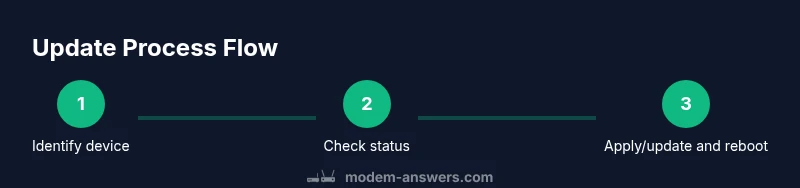
Determine whether you are updating a Comcast gateway (all-in-one modem/router) or a standalone modem. This choice affects where you check for updates and how you apply them. If you’re unsure, start with the Xfinity app’s Internet > Gateway view.
Tip: Knowing your device type saves time and avoids applying the wrong update path. - 2
Open the update interface
Access the Xfinity app or gateway admin page to locate firmware information. Use the app for a quick check, or connect via a web browser to your gateway at its local IP address and log in with your admin credentials.
Tip: If you can’t log in, reset your password or use the guest network to reach the admin page. - 3
Check the firmware version
Locate the firmware or software version to compare with the latest available from Comcast. If the app shows a version number, note it down for later comparison.
Tip: Take a screenshot of the version panel if possible for reference. - 4
Trigger a check for updates
If the interface offers a ‘Check for updates’ option, select it. If not, reboot the gateway to prompt a status refresh and potential update.
Tip: Avoid repeated checks in rapid succession; give the system time to process. - 5
Apply the update and reboot
If an update is available, apply it and allow the gateway to reboot. Do not unplug the device during installation.
Tip: After reboot, re-check the firmware version to confirm a successful install. - 6
Verify post-update status
Test basic connectivity and run a quick device check to ensure the network is functioning as expected. Confirm your devices reconnect properly.
Tip: If devices don’t reconnect, reboot the router again or re-pair the devices. - 7
For third-party modems
If using a customer-owned modem, rely on the manufacturer’s update process and check Comcast’s compatibility guidance. Avoid making risky firmware changes without vendor support.
Tip: Keep a note of your modem’s supported firmware version and update schedule. - 8
Recordkeeping and safety
Document the update date and firmware version for future reference. Back up your network settings where possible and monitor for unusual behavior for a few days after updates.
Tip: Documenting updates helps troubleshoot future connectivity issues.
FAQ
Do Comcast gateways auto-update firmware, and how can I tell if mine did?
Yes, most Comcast gateways update firmware automatically in the background. You can verify status in the Xfinity app under Internet > Gateway > Firmware Version or on the gateway’s admin page. If you don’t see a new version, updates may still be pending or rolling out to your device.
Most Comcast gateways update automatically. Check Firmware Version in the Xfinity app or gateway admin page to confirm.
Can I force a firmware update on a Comcast gateway or my own modem?
For Comcast gateways, manual forcing isn’t always available; a reboot can prompt a status refresh. For customer-owned modems, updates come from the manufacturer. Always consult official guidance before forcing or installing updates.
Forcing often isn’t available for gateways; reboot to refresh status. For third-party modems, rely on the manufacturer.
Where can I view the current firmware version on my gateway?
Open the Xfinity app and navigate to Internet > Gateway > Firmware Version, or access the gateway’s admin page to see the current software/firmware build.
Check Firmware Version in the Xfinity app or gateway admin page.
Will a firmware update reset my network settings or passwords?
Firmware updates are designed to preserve existing settings, but some updates may prompt a reboot that briefly interrupts service. It’s best to review settings after updates and reapply any custom configurations if needed.
Updates may cause a brief outage; check your settings afterward.
Do customer-owned modems receive updates from Comcast?
No, Comcast does not push firmware updates to customer-owned modems. Update those devices via the modem manufacturer’s process and verify compatibility with Comcast services.
Manufacturer updates matter for third-party modems; Comcast won’t push them.
What should I do if updates fail or the device won’t update?
First, check for outages, ensure a stable connection, and reboot. If failures persist, contact Comcast support or the device manufacturer for guidance and possible replacement options.
Restart and verify, then contact support if updates still fail.
Watch Video
Key Takeaways
- Check firmware status regularly to stay secure
- Auto updates reduce manual work but verify status
- Use Xfinity app for quick checks and admin access
- Own your modem by confirming manufacturer updates and Comcast compatibility