How to Check Modem Firmware: A Step-by-Step Guide
Learn how to check modem firmware, compare versions, and safely update. This comprehensive guide covers steps, tips, and troubleshooting for all major brands in 2026.


This guide explains how to check modem firmware on a typical home network. You will identify your modem model, locate the current firmware version, compare it with the latest release from the manufacturer, and perform a safe update if needed. It covers standalone modems and gateway devices, plus tips for auto-updates and avoiding risky sources.
Why Check Modem Firmware Matters
Keeping your modem firmware up to date matters for security, performance, and compatibility. If you're wondering how to check modem firmware, you're taking a proactive step that reduces vulnerabilities and intermittent connectivity. Firmware is the software that runs inside the modem hardware and controls core functions like signal processing, error correction, and device management. Unlike apps on your phone or browser settings, firmware operates at the lowest level of the device; a small misstep can cause larger problems.
Modem Answers' research indicates that many home networks suffer from outdated firmware even when the hardware is reasonably new. Vendors push updates to address security flaws and improve stability, but automatic updates are sometimes disabled by default or delayed by ISPs. This section explains why firmware updates matter and how to recognize when you should check for one. You will learn to locate the firmware version on many devices, understand build numbers, and interpret release notes. The process is not inherently dangerous, but performing updates during a storm, a power outage, or when the device is in the middle of critical tasks can create problems. Plan a maintenance window, ensure you have a stable power source, and back up your configuration if possible.
The central idea is to treat firmware as part of your home network's upkeep. A well-timed update can fix security holes, improve performance, and restore compatibility with new routers or devices. After you finish this section, you will have a clear, repeatable routine to check firmware status on most modern modems, whether you own a standalone unit or a gateway provided by your provider.
How Firmware Differs From Other Updates
Firmware is distinct from the software apps you install on devices. It is the low-level code that runs the modem hardware itself—controlling radio interfaces, boot processes, and hardware drivers. Software updates you run on a computer or phone are layers above the firmware and generally don’t affect hardware behavior directly. When you update firmware, you’re changing the device's internal instructions at a fundamental level. This means a failed or interrupted firmware update can render the device temporarily unusable or require a recovery process.
You’ll often see two kinds of updates: a firmware update that comes from the hardware manufacturer and a configuration update pushed by an ISP. The former changes how the device operates; the latter adjusts settings or features. Be mindful of the source: manufacturer updates are usually more reliable, while ISP updates may come bundled with provider-specific optimizations. Always verify the source, read the release notes, and ensure you have a stable power supply before proceeding.
Pre-Check: Gather Details & Prereqs
Before you start, collect essential information and prepare the environment. Confirm your modem’s exact model and hardware revision, current firmware version (often shown on the status page), and your login credentials for the admin interface. Have a computer or smartphone ready, connected to the modem via Wi‑Fi or Ethernet, and ensure you have a stable internet connection for verifying updates and downloading firmware if needed. If you intend to reset or reconfigure the device, back up your settings first. It’s also wise to note your ISP’s guidance on auto-update behavior, as some networks pause updates during peak hours or restrict reboots to maintenance windows.
With these details on hand, you’ll avoid installing an incompatible update and minimize downtime. If you’re unsure of the exact model, look for a label on the device itself or check the packaging. Your goal is to confirm that you are checking the correct firmware for the specific hardware revision you own.
Step-by-Step: Checking Firmware on Different Brands (High-Level Overview)
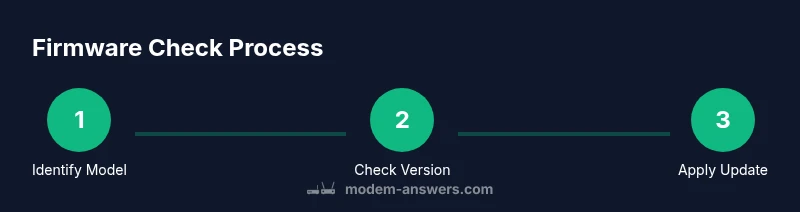
Different modem brands and gateways use slightly different paths to view firmware status, but the core actions are similar. Start by identifying the device model and visiting the official support page for firmware information. Log in to the modem’s admin interface and navigate to a status or firmware section to view the current version. Compare this against the latest release notes published by the manufacturer. If an update is available, follow the manufacturer’s instructions to install it, allowing adequate time and avoiding interruptions. Reboot the device to ensure the new firmware loads correctly. If no update is listed, consider enabling auto-update where available and schedule periodic checks.
Throughout the process, keep security in mind: avoid downloading firmware from third-party sites and only use official channels. This approach minimizes the risk of corrupted firmware or malware and ensures compatibility with your hardware. After completing the steps, verify your internet connectivity and re-check the firmware version to confirm the update took effect.
Interpreting Firmware Version and Update Status
Firmware versions typically consist of a major version, a minor update, and a build or revision number. Build notes describe what’s included in the update—security patches, performance tweaks, bug fixes, or new features. When you compare your current version to the latest release, look for key increments in the build number or version string. If the latest version is newer, plan the update. If your device already shows the latest version, check the release notes for the date and context; sometimes a newer version exists but is blocked by regional availability or device reboots.
Not all devices publish clear versioning; in some cases, you’ll see a status indicator such as “Up to date,” “Updating,” or “Required.” If you repeatedly see “update available” but the upgrade fails, note any error codes and consult the manufacturer’s support resources or forums. Keeping a simple log of firmware versions and dates helps you follow a consistent maintenance cadence.
Troubleshooting Common Firmware Issues
Firmware updates can fail for a variety of reasons, from power interruptions to interrupted downloads. If a firmware update fails, do not restart the process repeatedly; instead, recheck the power source and network stability, then retry from the official update path. If failure persists, try a soft reset or a factory reset as recommended by the manufacturer, followed by re-entering your network settings. Always back up configurations before resetting to protect custom settings.
Other common problems include post-update connectivity issues, slower speeds, or devices dropping offline. In many cases, simply rebooting the modem, router, and any connected devices resolves the issue. If problems continue, consult the manufacturer’s troubleshooting guides or contact their support line. Remember, if you’re in a critical window (like a storm), postpone firmware updates until stability is restored to minimize risk.
Security and Privacy Implications of Firmware
Firmware updates often include security patches that protect your network from known vulnerabilities. Keeping firmware current reduces exposure to exploits that could compromise your devices or ISP connections. However, updates from untrusted sources can introduce backdoors or malware, so always use official channels. Consider enabling automatic updates if your device supports it, and review privacy settings introduced with new firmware—some updates alter data collection or diagnostic reporting options. For most home networks, a timely firmware update is a key part of a robust security posture, alongside strong Wi‑Fi passwords and network segmentation.
Tools & Materials
- Modem model number and hardware revision(Found on the device label or packaging.)
- A computer or smartphone(Connected to the modem via Wi‑Fi or Ethernet.)
- Admin login credentials for the modem(Username and password for the admin page.)
- Stable internet connection(Needed to access official firmware sources.)
- Backup of current configuration(Helpful if you need to restore settings after a reset.)
- Uninterruptible power source (optional)(Prevents mid-update power loss.)
Steps
Estimated time: 20-60 minutes
- 1
Gather device details
Identify your modem model, hardware revision, and current firmware version. This ensures you check the correct firmware and avoid installing an incompatible update. Note any error codes or recent changes that might affect the update process.
Tip: Use the device label or admin interface to confirm model and revision before proceeding. - 2
Access the official firmware source
Visit the manufacturer’s support page or the ISP’s device portal and locate the firmware section for your exact model. Compare the listed latest version with your current version.
Tip: Only download updates from official sources to prevent corruption or hijacking. - 3
Log in to the modem admin page
Enter the admin URL in a browser, sign in with your credentials, and navigate to the status or firmware page. If you’re unsure of the URL, consult the manual or use the auto-detect feature if available.
Tip: Have credentials ready; locked accounts can block updates. - 4
Check current version versus latest
Read the displayed firmware version and compare it against the official release notes. Note the version number and release date for your records.
Tip: If the version matches, consider enabling auto-update for future updates. - 5
Prepare to update if needed
If a newer version exists, prepare the update by ensuring power stability and a stable network connection. Read any prerequisites in the release notes (e.g., need to reboot after install).
Tip: Back up settings if the option exists before updating. - 6
Run the update
Initiate the update from the admin page and let the process complete without interruption. Do not unplug the device during the update.
Tip: If the update stalls, pause, verify power, then retry according to official guidance. - 7
Reboot and verify
After update finishes, reboot if prompted and re-check the firmware version to confirm the update applied. Test basic connectivity on a few devices.
Tip: Record the new version for future reference. - 8
Set up ongoing checks
If available, enable automatic updates and periodic manual checks. Maintain a simple log of versions and dates to track maintenance.
Tip: Schedule quarterly checks to stay current without overloading the network.
FAQ
What is firmware on a modem?
Firmware is the low-level software that runs the modem hardware, controlling core functions. It is separate from apps and settings and determines stability, security, and compatibility with devices and ISPs.
Firmware is the built-in software that powers your modem’s hardware, affecting stability and security. It’s different from app software and is updated through official channels.
How do I know if my firmware is up to date?
Check the firmware version in the modem’s status page and compare it to the latest version listed on the manufacturer’s site or ISP portal. If the versions differ, an update may be available.
Open the modem’s status page and compare the version to the latest release from the manufacturer.
Can firmware updates cause outages?
Updates can cause brief outages while the device reboots and applies changes. Schedule maintenance during low-usage periods if possible and avoid updates during storms or power instability.
Yes, updates may cause short outages; plan for a maintenance window.
What should I do before updating firmware?
Back up your configurations, ensure power stability, and read the release notes for any prerequisites. Use official sources and verify compatibility with your hardware revision.
Back up settings and review the release notes before updating.
How often should I check for firmware updates?
Check for updates at least quarterly, and after major ISP changes. Enable auto-update if your device supports it to minimize manual checks.
Check every few months and enable auto-updates if available.
Do I need to reboot after updates?
Most updates require a reboot to apply changes fully. After reboot, verify the new version and test connectivity.
Yes, reboot and verify the new firmware is active.
Watch Video
Key Takeaways
- Identify exact device model before updating.
- Always use official sources for firmware.
- Back up settings and plan for a maintenance window.
- Verify the update post-install and enable auto-checks.
- Keep firmware up to date to maintain security and stability.