What to Do If You Forgot Your Modem Password
Learn what to do if you forgot your modem password. This guide covers safe recovery, admin access, re-provisioning with your ISP, and securing your network to prevent future lockouts.


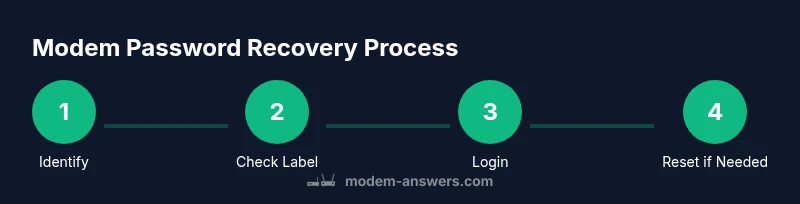
Forgot your modem password? You can regain access by checking the device label for default admin credentials, using the router’s web portal to reset, or performing a controlled factory reset if needed. This guide walks you through safe recovery, re-provisioning with your ISP, and securing your network so you won’t get locked out again.
Understanding the problem: admin vs Wi-Fi password
Losing access to your modem can feel urgent, but the recovery path hinges on which credential you forgot. The admin password grants access to the device’s settings, while the Wi‑Fi password protects your wireless network. If you’re locked out of the admin interface, you cannot change security settings or view network details. The Modem Answers team found that many homeowners confuse these two passwords and chase the wrong recovery path first. Before taking drastic actions, confirm which password is missing by noting the on-screen prompt and checking the device label for guidance. This distinction shapes every subsequent step and helps you avoid unnecessary resets.
For homeowners and renters, the simplest first move is to verify exactly which credential is inaccessible. If you can still connect devices to the network, you might be able to temporarily use the Wi‑Fi password while you address the admin password. Having clarity on the password type reduces risk and speeds up the recovery process.
Start with safe options before resetting
Factory resets should be a last resort because they wipe custom settings, port forwards, and saved Wi‑Fi networks. Before you reset, search the device label or the manual for default admin credentials. If available, attempt login in the browser-based admin interface using those credentials. If login succeeds, immediately create a strong new admin password and back up any important configurations. If a family member previously saved credentials, re-check notes or password managers. Taking these steps preserves your setup and reduces downtime.
Pro tip: always document changes you make so you can revert if needed.
How to regain access through the admin portal
If you can access the admin portal, navigate to the security or password section and choose a password reset option. Use a unique, strong password for admin access and avoid reusing credentials from other sites. After updating the admin password, verify Wi‑Fi settings to ensure devices reconnect automatically. If the portal offers a recovery email or security questions, complete those steps to secure your account. If you don’t receive the reset email, check your ISP’s email routing or search for recovery options on their support site.
Avoid default credentials and enable password updates across linked devices to prevent lockouts.
When a reset is necessary: factory reset steps and cautions
If no recovery options work and you cannot access the admin interface, a factory reset may be required. Locate the reset button on the back or underside of the modem. Press and hold it with a paperclip or pin for 10-15 seconds, then release. The device will reboot and return to factory settings. You will then log in with the default admin credentials and re‑provision the device through your ISP if needed. Remember, a reset erases custom settings, saved Wi‑Fi networks, and port forwards, so prepare to reconfigure.
Warning: perform resets only when you have exhausted safer options and ensure you can re‑provision afterward.
Reconfiguring after reset and securing your network
After a reset, connect a computer or phone to the modem via Ethernet or Wi‑Fi. Open the admin URL and log in with the default credentials provided by the label or manual. Change the admin password to a strong, unique one, and then update the Wi‑Fi network name (SSID) and password. Enable strong security (WPA3 if available, or WPA2 with a long passphrase) and check for firmware updates. Consider exporting a backup of the configuration if the option exists. Store all passwords securely in a password manager.
This step ensures your network is both functional and protected from common threats.
If you still can't access: contact ISP and gather evidence
If login remains impossible after a reset or you’re unsure about device provisioning, contact your Internet Service Provider. Have your account number, modem serial, and service address ready. Explain what happened and ask for a temporary access solution or guidance on re-provisioning the device to your account. If the modem was ISP-provisioned, they may need to re-lock it to your service profile. Document every step you take for reference.
Best practices to prevent future lockouts
To avoid repeat incidents, store admin and Wi‑Fi passwords securely, use a password manager, and avoid reusing credentials across devices and services. Regularly back up modem configurations after changes, keep firmware up to date, and restrict remote management unless you actively need it. Consider making a short recovery guide for your household to follow in future situations, so you respond calmly rather than panicking.
Tools & Materials
- A computer or smartphone with a web browser(Needed to access the modem's admin interface (usually at a local IP).)
- Modem power adapter and access to power(Keep the device powered during recovery steps.)
- Default credentials label/manual(Check for admin username/password and Wi‑Fi details.)
- Ethernet cable (optional)(Wired connection can be more reliable for admin login.)
- Notepad or password manager(Record new credentials securely.)
- ISP account details (if needed)(Helpful for re-provisioning after reset.)
Steps
Estimated time: 30-45 minutes
- 1
Identify which password is forgotten
Clarify whether the admin password or the Wi‑Fi password is missing. This determines the recovery path. Check prompts and device labels to confirm the exact credential you need to recover.
Tip: Label findings in a dedicated notebook for quick reference. - 2
Find the default credentials on the device label
Look at the bottom or back of the modem for the default admin username/password or the default Wi‑Fi password. If found, try logging into the admin interface using those credentials.
Tip: Take a photo of the label for future reference. - 3
Connect to the modem's admin interface
Ensure your device is connected to the modem via Ethernet or a trusted Wi‑Fi connection so you can access 192.168.x.x or a similar local address.
Tip: A wired connection minimizes login dropouts. - 4
Open the admin portal URL in a browser
Enter common local IPs (for example, 192.168.1.1 or 192.168.0.1) and load the login page. If these don’t work, check the device label or ISP support for the exact address.
Tip: If provided, use the ISP’s official portal URL to avoid phishing. - 5
Attempt login with default or remembered password
Enter the credentials you identified. If the portal offers a 'Forgot password' option, follow the prompts. If login succeeds, immediately create a new admin password and back up configurations.
Tip: Never reuse old passwords for admin access. - 6
If login fails, perform a controlled reset
If you cannot log in after trying defaults, perform a controlled reset only after confirming no other recovery options remain. This resets the device to factory settings.
Tip: Note down the reset procedure before attempting. - 7
Reprovision the device after reset
Log in with default credentials, set a new admin password, reconfigure Wi‑Fi, and reapply your ISP provisioning if needed. Verify that your devices reconnect.
Tip: Document the new configuration for future reference. - 8
Secure and backup your settings
Enable firmware updates, set up a password manager entry, and export a configuration backup if possible. Store backups in a safe location.
Tip: Regularly review access permissions and disable unused remote management. - 9
Verify connectivity and security
Test internet access on multiple devices and confirm all smart home devices reconnect. Run a quick check for device security settings and SSID visibility.
Tip: Keep a list of connected devices and their MACs for quick audits.
FAQ
Is it safe to reset my modem to regain access?
Resetting is safe for recovery, but it erases custom settings and saved networks. You’ll need to reconfigure the device afterward. Always attempt safer options before a reset.
Resetting is safe but erases settings, so only use it after trying other options.
What should I do if I can't locate the default credentials?
Check the ISP’s support site or contact customer service for the exact default credentials and recovery steps. They can guide you through secure login without losing service.
If you can’t find the defaults, contact your ISP for help.
Will resetting void my service or billing?
A reset does not affect your service subscription, but you may need to re-provision the modem to your account. Billing is unaffected by a reset.
Resetting won’t change your service, but provisioning might be required.
How long does a typical reset take?
A typical reset is quick, but reconfiguring the network and settings can take additional time depending on your setup and ISP requirements.
The reset itself is fast; reconfiguring takes a bit longer.
Can I recover my Wi‑Fi password without admin access?
In most cases you’ll need admin access to change or view the Wi‑Fi password. If devices are already connected, you can view it on some devices; otherwise, recover admin access first.
Usually you need admin access to change or view the Wi‑Fi password.
What are best practices to prevent future lockouts?
Store credentials securely, back up configurations after changes, keep firmware up to date, and avoid remote management unless necessary. Having a documented recovery plan helps you stay calm.
Keep credentials safe and up to date; have a recovery plan.
Watch Video
Key Takeaways
- Identify which password is forgotten before acting.
- Avoid resets if you can recover through the admin portal.
- Reset only when necessary and re‑provision promptly.
- Securely store new credentials after recovery.
- Preempt future lockouts with backups and updated firmware.