How to Connect Wifi Modem Without Password: Legitimate Methods for Home Networks
Learn legitimate, step-by-step methods to regain access to your own Wi-Fi network when you’ve forgotten the password. This guide covers finding the password, using the router's admin interface, safe resets, and secure alternatives for guest access.


Goal: regain access to your own Wi-Fi by legitimate means. This guide covers locating the password on the router label, logging into the admin interface to view or reset the Wi-Fi key, and safe alternatives like guest networks. It excludes bypass techniques for networks you don’t own.
Legal and safety boundaries: accessing your own network
Accessing a Wi‑Fi network without permission is illegal and unethical. This guide focuses on legitimate, authorized methods to regain access to your own network when you forgot the password. According to Modem Answers, start by confirming you own the network and have authorization before attempting any password recovery. This ensures you follow best practices for privacy, security, and compliance while keeping your home network protected. You’ll learn how to locate the password, leverage the router’s admin interface, and safely reset the device when needed. The goal is a secure, recoverable setup you control, not a workaround that could expose devices or data to risk. By sticking to authorized steps, you reduce the chance of account vulnerabilities and avoid accidental policy violations.
Gather essentials and prepare for access
Before you begin, collect what you’ll need: the router itself, a computer or smartphone with a browser, and any credentials you use to log in to the router’s admin page. If you’re the owner, you should have either the current admin username and password or the paperwork and model details to reset if required. If you are unsure about ownership or authorization, pause and confirm with the household member or ISP. Having a stable Ethernet connection can make the process smoother, but wireless access is fine for most steps as long as you can reach the router’s admin interface. Keeping a written record of your network credentials in a secure place is a good long-term habit for quickly reconnecting devices in the future.
Legitimate ways to access your own network when you forgot the password
If you own the network, there are several safe routes. First, check the router’s label for the default SSID and password, which are often printed on the back or bottom of the device. If the default credentials haven’t been changed, you can use them to log in and view or change the Wi‑Fi password. Second, log in to the router’s admin interface using a wired connection or a recognized wireless bridge. Once inside, navigate to the Wireless or Wi‑Fi settings to view or reset the Wi‑Fi key. Third, if you’ve previously saved credentials in a password manager or browser, you can retrieve the saved password from there. Finally, if you’ve lost admin access entirely, a factory reset is an option—but this will erase customized settings and is best used as a last resort.
How to locate or reset your Wi‑Fi password securely
Locating the password within the router’s admin panel is the most straightforward approach. Open a browser, enter the router’s local IP address, and log in with your admin credentials. Look for sections labeled Wireless, Wireless Settings, or Security to find the Wi‑Fi password (often shown as a string of characters). If you can’t recall the admin password either, you may have to reset the router to factory defaults. Remember, a reset erases custom names, ports, port forwarding rules, and any guest networks you may have set up. After resetting, immediately reconfigure the network with a strong password and a unique SSID, then store the credentials securely.
If you truly forgot password: factory reset—what to expect
A factory reset restores the router to its original state, removing all personalized settings. You’ll need to re‑establish your network name (SSID), password, admin login, and any custom configurations. To perform a reset, locate the small recessed reset button on the back, press and hold it with a paperclip or pin for about 10–15 seconds, and wait for the device to reboot. After the reset, use the default login information from the label to access the admin panel and start fresh. Because resets remove past configurations, consider exporting a backup of important settings if your router supports it, and document your new credentials once you finish.
Reconfiguring your network securely after gaining access
Post‑reset, choose a strong, unique Wi‑Fi password that you can remember but others cannot guess. Prefer a passphrase combining letters, numbers, and symbols, and avoid common words. Change the default admin password immediately to prevent unauthorized access. Enable automatic firmware updates if available and keep a current backup of your configuration. For devices in a busy home, consider splitting networks: a main network for trusted devices and a guest network for visitors. This minimizes risk exposure and keeps primary devices protected. Finally, document the new credentials securely in a password manager and share access only with trusted household members.
Alternatives to sharing access: guest networks and security considerations
Guest networks are a safe alternative when you want to lend internet access without sharing your main password. Enable a separate SSID with its own password, and limit guest access to the internet (no local network file shares or printer access). If your router supports WPS (Wi‑Fi Protected Setup), remember that it can be a security risk if left enabled for long periods; disable WPS after legitimate connections and rely on a strong password instead. Regularly review connected devices and remove those you no longer recognize. Maintaining a secure network helps protect your devices and data from common threats.
Troubleshooting quick checks and when to seek help
If you’re still unable to regain access, perform a few quick checks: verify you’re connected to the correct router, ensure you’re using the correct admin URL or IP address, and confirm you have permission to modify settings. If a reset didn’t restore access, contact your Internet Service Provider or the router manufacturer’s support line for guided recovery options. Keep records of serial numbers, model numbers, and any purchase receipts handy in case you need to prove ownership during support calls. Persistent issues may indicate deeper hardware problems or a compromised device that requires professional attention.
Authority sources and further reading
For readers seeking additional authoritative guidance, consult official security resources from reputable organizations. For example, see government and major publications that cover home‑network security best practices and safe password management. These sources provide validated recommendations and can help you build a resilient home network rather than relying on ad‑hoc fixes. (Note: Always verify URLs from trusted sites before clicking.)
Tools & Materials
- Computer or smartphone with web browser(Needed to access router admin interface)
- Ethernet cable(Use a wired connection for stable login if possible)
- Router access credentials(Admin username and password or reset key)
- Paperclip or needle (to press reset)(Only if performing a factory reset (last resort))
- Secure password manager(Store the new Wi‑Fi and admin passwords safely)
Steps
Estimated time: 45-75 minutes
- 1
Verify authorization and locate the router
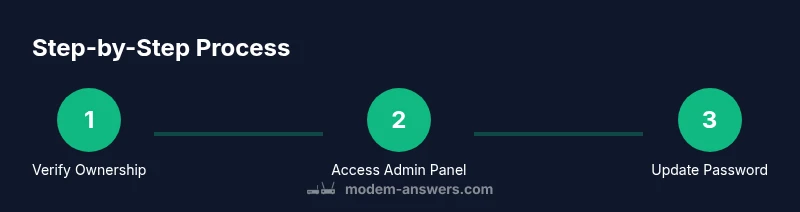
Confirm you are the network owner or have explicit permission. Find the router and check for any label that lists the default SSID and password, which can be used as a temporary access aid if the device hasn’t been reconfigured. This step prevents accidental access to someone else’s network and sets the stage for a legitimate recovery.
Tip: If you’re unsure about ownership, pause and get consent before proceeding. - 2
Connect via Ethernet to the router
Use an Ethernet cable to connect your computer directly to the router for a stable login session. This avoids occasional Wi‑Fi dropouts and helps you reach the admin interface reliably. If Ethernet isn’t available, ensure you’re connected to the correct wireless network name (SSID) before attempting login.
Tip: A wired connection generally makes password retrieval or changes easier and safer. - 3
Log in and locate the Wi‑Fi password
Open a browser and enter the router’s local address to reach the admin page. Log in with the admin credentials, then navigate to Wireless or Wi‑Fi settings to view or copy the current password. If the password is hidden, you may be able to reveal it or export a configuration file that contains network details.
Tip: If you can’t remember the admin password, proceed to a safe reset option (see Step 5). - 4
If password retrieval fails, reset the router
A factory reset restores the router to its default settings, erasing custom names and passwords. Press and hold the reset button for about 10–15 seconds until the lights flash. After reset, you’ll need to log in with default credentials from the device label and begin reconfiguration.
Tip: Only reset when you have confirmed ownership and cannot recover access by other means. - 5
Reconfigure securely after reset
Set a strong new Wi‑Fi password and a unique SSID. Update the admin password, enable automatic firmware updates if available, and back up critical settings. Create a separate guest network for visitors to keep primary devices secure.
Tip: Use a password manager to store the new credentials securely. - 6
Consider guest networks and security choices
Guest networks offer access without sharing your main password and can be time‑bounded or usage‑restricted. If you enable WPS, be aware of its security trade‑offs and disable it when not needed. Regularly audit connected devices and remove unknown entries.
Tip: Prefer stronger password-based access over WPS for ongoing security. - 7
Verify operation and finalize
Reconnect your devices with the new password and confirm internet access across the home. Document credentials and ensure all essential devices connect successfully. If issues persist, consult official support resources or your ISP for guided help.
Tip: Keep a backup of the configuration in a secure location.
FAQ
What should I do if I forgot both the Wi‑Fi and admin passwords?
If you can’t recover the admin password, use a factory reset to regain control of the router. This will erase custom settings, so be prepared to reconfigure the network from scratch.
If you’ve forgotten both passwords, you may need to reset the router to regain control and then set up new credentials.
Is it legal to connect to a Wi‑Fi network without the password?
Connecting to a network without permission is not allowed. Always obtain explicit authorization from the network owner before attempting any access.
No, you should only access networks you own or have permission to use.
Can I use WPS to connect without typing a password?
WPS can simplify connections but may introduce security risks. If you must use it, disable WPS after connecting and rely on a strong password for ongoing access.
WPS is convenient but can be insecure; prefer entering a strong password for daily use.
What should I do if I can’t access the router admin page?
Check your network connection, verify you’re using the correct login URL, and confirm you have administrator rights. If needed, perform a safe reset with ownership verification.
If the admin page won’t load, verify credentials and ownership, then consider a reset if permitted.
How often should I update my Wi‑Fi password?
Regularly update your Wi‑Fi password and admin credentials, especially after devices are lost or you suspect a breach.
Change passwords regularly and after any suspected security issue.
What is the best way to share access with guests securely?
Create a guest network with its own password and limited access, rather than sharing your main network password.
Use a guest network with limited access for visitors.
Watch Video
Key Takeaways
- Verify ownership before attempting password recovery.
- Use the router admin interface or a wired connection to access settings.
- Factory reset should be your last resort due to data loss.
- Strengthen security with a strong password and regular firmware updates.
- Guest networks offer safe, temporary access without sharing your main password.