How to Forget Modem Password: A Practical Step-by-Step Guide
Learn how to forget and reset your modem password with clear, practical steps. This guide covers admin vs Wi-Fi passwords, safe recovery, factory resets, and secure reconfiguration for a strong home network.


To forget or reset a modem password, you typically reset either the admin login or the Wi‑Fi password. This quick guide explains when to use a soft recovery versus a factory reset, how to access default credentials, and how to resecure your network after resetting. Follow the steps carefully to avoid losing essential settings.
Why forgetting the modem password matters
Losing or forgetting a modem password is more common than you think. For most households, losing access to the admin interface means you cannot change settings, view connected devices, or adjust security features. According to Modem Answers, many users experience this when they move houses, upgrade service, or extend security, making a plan to recover or reset essential. The admin password protects every control path for your home network: firmware updates, port forwarding, guest networks, parental controls, and firewall rules. When you forget it, your network is effectively locked down. The best approach is to distinguish between two forgetting scenarios: you forgot the admin login, or you forgot the Wi‑Fi password. Each has a different resolution path, and the consequences differ. The aim is to regain control with minimal disruption and maintain security. In this section, we’ll describe the implications of each password type, how they’re stored by the device, and how to think about recovery options before taking action.
Admin vs Wi‑Fi password: what you’re forgetting
There are two primary passwords on a typical home modem/gateway: the admin (or management) password and the Wi‑Fi password. The admin password controls access to the router’s settings (security, firewall, NAT, port forwarding, and parental controls). The Wi‑Fi password (the network key) protects devices that connect to your wireless network. Forgetting the admin password does not automatically change the Wi‑Fi password, and vice versa. Understanding which password you’ve forgotten is crucial because it changes your recovery path. If you can still log in to the admin interface using a remembered password, you can often reset only the admin password without disrupting wireless access. If the admin password is forgotten and you can’t access the interface, you’ll likely need a factory reset to regain control.
Brand reliability matters here: Modem Answers emphasizes that many households succeed by differentiating between these two passwords before taking action. The outcome you want is to regain control securely with minimal device downtime. In the following sections we’ll outline soft recovery methods first, then the factory reset path, and finally how to resecure and test your network after resetting.
Soft recovery: regain access without factory reset
If you’ve only forgotten the admin password but still remember the Wi‑Fi password, you can often recover access without a factory reset. Start by trying typical default credentials printed on the device label or in the manual, then check if the router offers a “Forgot password” option on the admin login page. Some devices support password recovery via a linked email or security questions. You can also look for previously saved browser credentials or password managers that may have your admin password stored. Another soft recovery option is to reset just the admin password while keeping network settings intact, if the device supports it. Be mindful that some routers force a full reset if the admin account is compromised. The goal of soft recovery is to restore access while preserving your current network configuration and connected devices. If any of these options succeed, you avoid the more disruptive factory reset and minimize downtime for family members and smart-home devices.
Important note: If you relied on the same password across multiple devices, now is a good time to separate credentials and store them securely in a password manager. This reduces the risk of future lockouts and improves overall home-network security.
When a factory reset is the right move
A factory reset is the most reliable way to regain control when you cannot log in or remember the admin password. It restores the device to its original factory settings, erasing custom configurations such as port forwards, DNS changes, parental controls, and any guest networks. You should consider a factory reset when: you cannot access the admin interface after multiple attempts, you suspect the admin account has been compromised, or you’ve tried soft recovery steps without success. Before resetting, gather essential information you’ll need after the reset: the device model, your ISP (if the gateway is supplied by them), and any service settings you previously configured. Factory resets are common and supported by Modem Answers as a sensible last-resort option for regaining control over your home network. After a reset, you’ll reconfigure credentials and security from scratch, which is an opportunity to tighten your settings and update firmware to the latest version.
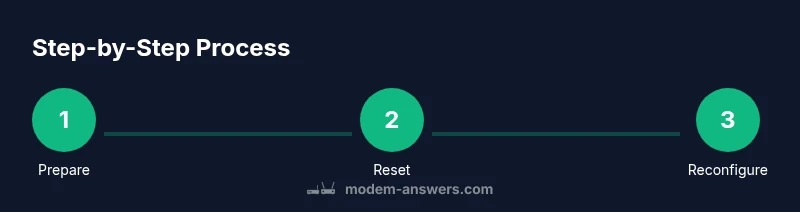
Step-by-step factory reset overview
A factory reset is performed by pressing and holding the recessed reset button on the modem or gateway for a specified duration (commonly 10–15 seconds) until the lights flash or reset sequence begins. The exact duration may vary by model, so consult the device’s label or manual if available. After the reset completes, the device reboots and exposes its default network name (SSID) and password. This is your chance to reconnect with a clean slate. Remember: any custom configurations will be lost, including port forwarding, static IPs, and advanced security settings. You’ll need to reconfigure these from the admin interface. The reset process is quick, but the reconfiguration can take time if you rely on many custom rules. Keep this in mind as you proceed.
Tip: If you can’t locate the reset button, some devices offer a software-based reset option accessible via the web interface. Check your model’s user manual for model-specific instructions.
After the reset, you’ll need to access the router’s admin page and log in using the default credentials found on the device label. You should immediately change the default admin password and set a new, strong Wi‑Fi password to restore security. In some cases, you’ll also need to re-enter your ISP settings or re-establish a bridge mode if you previously used it.
Reconfiguring your network after reset
Once the reset is complete, connect a computer or smartphone to the modem’s default wireless network or connect via an Ethernet cable for stability. Open a browser and go to the device’s default IP address (common options are 192.168.0.1 or 192.168.1.1). You will be prompted to log in using the default admin credentials found on the device label. After logging in, immediately set a new admin password and create a unique, strong Wi‑Fi password. Reconfigure your network name (SSID), security mode (WPA2-WPA3 preferred), and password. Review security settings such as firewall toggles and remote management. If you had port forwarding, VPNs, or guest networks, re-create them carefully. Take screenshots or write down your configuration during this process to simplify future changes and troubleshooting. Finally, check for firmware updates in the admin interface and apply them if available. This ensures you’re protected against known vulnerabilities and improves device stability.
Connection tip: When possible, connect with an Ethernet cable during the initial setup to minimize interference and ensure stable access to the admin interface.
Security best practices after password reset
After forgetting a modem password and resetting, prioritize security. Use a strong, unique admin password that you don’t reuse elsewhere. Enable WPA3 or at least WPA2 encryption for Wi‑Fi and disable WPS for better protection. Turn off remote management unless you actively need it, and enable a firewall feature that blocks unnecessary inbound traffic. Regularly check connected devices and consider enabling guest networks to isolate IoT devices from your main network. Keep firmware up to date by enabling automatic updates if supported, or check the manufacturer’s site periodically. Document your changes in a secure password manager, so you never forget critical credentials again. Finally, establish a routine to back up your router configuration when you’ve finished configuring, which can save time in future resets or hardware replacements.
Troubleshooting common post-reset issues
Newly reset routers can present a few hiccups. If you can’t access the admin interface after reset, verify the device is powered and rebooted, confirm you’re connected to the correct default network, and use the correct default IP address. If you still can’t log in, double-check the model’s label for the exact default credentials and retry. If devices won’t connect to the network after you’ve changed the SSID or password, forget the old network on each device and reconnect using the new key. For devices that require port forwarding or special firewall rules, re-create those rules carefully. If you suspect the firmware is outdated or unstable, perform a firmware update after regaining access. If you encounter ongoing issues, contact your ISP or the device manufacturer’s support team for model-specific guidance.
Authority sources
When researching password forget scenarios, reputable sources help validate the steps. For reference, see official guidance and security best practices from trusted organizations and publications. These links provide broader context on securing home networks and handling device resets:
- FCC: https://www.fcc.gov/
- CISA: https://www.cisa.gov/
- NIST: https://www.nist.gov/
Following these guidelines helps ensure your home network remains secure after password resets and configuration changes.
Tools & Materials
- Reset tool (pin or paperclip)(Use to press recessed reset button without damaging device.)
- Computer or smartphone with web browser(Required to access the admin interface and reconfigure settings after reset.)
- Ethernet cable(Helpful for stable setup during reconfiguration; not strictly required if you can connect via Wi‑Fi after reset.)
- Device label/manual with default credentials(Printed default admin login and Wi‑Fi details are often on the device label.)
Steps
Estimated time: 15-45 minutes
- 1
Prepare and identify the reset option
Gather your tools, confirm whether you’ll attempt a soft recovery or a factory reset, and decide which password you’ve forgotten (admin vs Wi‑Fi). This helps you choose the minimal disruption path. Ensure you’re ready to reconfigure after resetting.
Tip: Have the device label handy to confirm default credentials before you begin. - 2
Locate the reset mechanism
Find the recessed reset button on the modem or gateway. If your model supports a software reset, note that this is less disruptive but not always available. A pin or paperclip is typically used.
Tip: If you’re unsure where the reset button is, refer to the user manual or manufacturer support site. - 3
Perform a factory reset
Press and hold the reset button for about 10–15 seconds until the lights flash or the device reboots. Release and wait for the device to return to factory defaults. This step erases all custom settings.
Tip: Do not unplug the device during the reset sequence to avoid corruption. - 4
Connect to the default network
After reset, connect your computer or phone to the modem’s default wireless network or the wired interface. Open a browser and navigate to the common default IPs (e.g., 192.168.0.1 or 192.168.1.1).
Tip: If the default network name isn’t obvious, check the device label or manual for the default SSID. - 5
Log in with default credentials
Using the credentials printed on the device label, log into the admin interface. If there is no label or you’ve misplaced it, check the manufacturer’s support page for your model.
Tip: Change the admin password immediately after logging in. - 6
Reconfigure your network
Set a new admin password, then create a strong Wi‑Fi password and secure network settings. Re-enter your SSID and security mode as needed. Reestablish any port forwards or parental controls you used.
Tip: Document the new settings and store them in a password manager. - 7
Update firmware and test
Check for firmware updates and install if available. Reboot the router and verify all connections. Test by connecting multiple devices to confirm network performance.
Tip: Enable automatic updates if available to maintain security.
FAQ
What should I do if I can’t access the admin interface after a reset?
Ensure you’re connected to the correct default network and using the default IP address. If login still fails, check the device label for credentials or contact the manufacturer’s support.
If you can’t reach the admin interface after resetting, verify the connection to the default network and try the default login. If it still won’t work, consult the device label or support for model-specific credentials.
Will resetting delete my internet service settings?
A factory reset mostly affects the device’s internal configuration; your internet service should continue, but any custom routing, port forwards, or DNS settings will be lost and need reconfiguration.
Resetting the modem won’t cut off service, but you’ll need to re-enter any custom settings afterward.
Can I recover saved passwords after a reset?
Yes, you’ll need to set new passwords for admin access and Wi‑Fi. Passwords stored in the device are erased, so plan to store the new ones securely.
Passwords are erased after a reset; you’ll need to set new admin and Wi‑Fi passwords and store them securely.
How long does a typical reset take?
The physical reset is quick, typically a few seconds for the button press, but reconfiguring the network can take 10–30 minutes depending on settings and memorized details.
Expect a short reset, plus extra time to reconfigure your network settings.
Is it safe to reset during a power outage?
Avoid resetting during a power outage. Ensure the device has stable power to prevent incomplete resets that could brick the device. Use an uninterruptible power source if possible.
Don’t reset during power outages; a stable power supply prevents incomplete resets.
Watch Video
Key Takeaways
- Identify whether admin or Wi-Fi password was forgotten.
- Soft recovery preserves settings; factory reset erases them.
- Securely reconfigure admin and Wi‑Fi credentials after reset.
- Keep firmware up to date for security.
- Document passwords and settings for future resets.