Where to Find Wi-Fi Password on Modem: A Step-by-Step Guide
Learn exactly where to locate your Wi-Fi password on a modem, including device labels, admin pages, and safe reset options. A practical, step-by-step guide from Modem Answers to help homeowners and renters reconnect quickly.


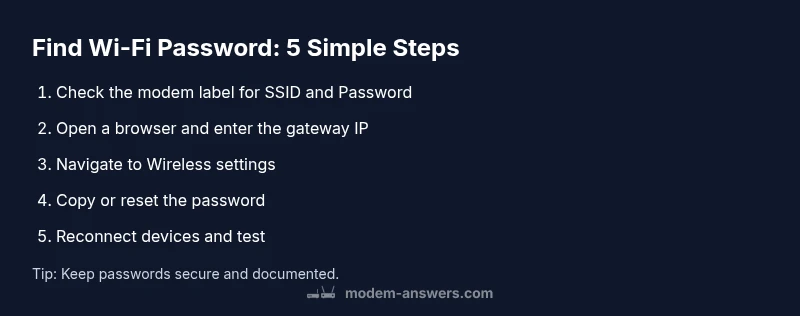
To locate the wifi password on a modem, start with the device label for the default password. If it's not visible, log in to the modem's admin page using the gateway IP printed on the device, then open Wireless settings to view or copy the password. If needed, reset to a new password and reconnect. According to Modem Answers, these sources cover most common scenarios.
How to locate the wifi password on a modem
If you’re trying to locate the wifi password on a modem, you’ll want a reliable, step-by-step approach. This guide helps homeowners and renters, with practical tips that work for most common brands and ISP-provided gateways. According to Modem Answers, many users begin with the device label, then verify the password in the admin interface if needed. The goal is to identify the exact string that unlocks wireless access for all devices in your home, without guessing or exposing insecure defaults. By following a deliberate process, you’ll reduce the risk of mistakenly sharing the wrong password or leaving your network open to neighbors or guests.
Look on the device label first
Most modems and gateway devices print a sticker on the bottom or back that lists the default network name (SSID) and the corresponding password. This sticker is your quickest route to the Wi-Fi key, especially if you haven’t changed the password since setup. The label may show two passwords: one for the 2.4 GHz band and another for the 5 GHz band, or a single key that applies to both bands. If you rented your equipment from an Internet Service Provider (ISP), the label often reflects the ISP’s branding and may differ from the one shipped with a standalone modem. If you can locate this sticker, you’ll save time and avoid login steps.
Use the admin page when the label is unclear
If the label is smudged, taped over, or you’ve changed the password and forgotten it, you’ll need to access the modem’s admin interface. Open a web browser on a device connected to the modem’s network and enter the gateway IP address shown on the label or in the manual (common options are 192.168.0.1 or 192.168.1.1). You’ll be prompted for credentials—often, the default username is admin and the password is admin or password unless you’ve changed them. Once logged in, navigate to the Wireless or Wi-Fi section to view the current password. If the admin credentials were previously changed and you don’t remember them, you may need to perform a factory reset as a last resort.
The Wireless settings section: what to look for
Within the admin interface, Wireless settings typically present details for both 2.4 GHz and 5 GHz networks. Look for fields labeled SSID (network name) and Wi‑Fi Password or Security Key. Some interfaces hide the password behind a reveal icon—click to reveal if needed. If you use a dual-band network, take note of both passwords and ensure you connect each band with the correct key. If you do not see a password in plain text, try clicking a show/hide toggle or check a separate “Passphrase” or “Security” subsection.
When the password has been changed and you forgot it
If you previously changed the password and can’t recall it, you have two primary options: view it again in the admin dashboard or reset the password to a new value. Viewing requires admin access; resetting will create a new password which will disconnect all devices until you reconnect with the new key. After changing, save the settings and test by reconnecting a device to ensure the new password works as expected.
Reconnect and verify your devices
After you’ve retrieved or reset the password, reconnect your devices one by one. On each device, select the Wi‑Fi network name (SSID) and enter the password exactly as shown. If a device auto-connects and asks to save the password, choose yes to store it securely. It’s a good practice to run a quick speed test on a few devices to confirm that you’re connected to the correct network and that performance meets your expectations.
Special cases: ISP gateways and bridge mode
Some ISPs provide gateway devices that combine a modem and router in one unit. The process described above still applies, but you may be working with a slightly different UI or a separate admin portal for the router portion. If you’re using bridge mode to connect your own router, you’ll typically manage the Wi‑Fi password from the router you own. In that case, note that the gateway’s Wi‑Fi is disabled, and you’ll configure your own router’s SSID/password.
Security best practices when handling passwords
Never share your Wi‑Fi password publicly or leave it written in easily accessible places. If you must write it down, store it in a secure location or use a password manager. Consider changing default usernames and passwords on the admin page to prevent unauthorized access. Regularly review connected devices and remove any that you don’t recognize. By following these practices, you reduce risk while keeping your home network convenient for trusted users.
Quick reference: common locations to check
To recap, the primary places to locate the wifi password are: 1) the device label on the modem, 2) the admin web interface under Wireless settings, and 3) a factory reset if you cannot recover it. In many cases, you’ll only need one of these sources to regain access. Keep this quick reference handy so you can act quickly if guests need access or you need to reconnect after a device reset.
Final thoughts and next steps
Learning where to find wifi password on a modem empowers you to manage your home network efficiently. With the password secured, you can add new devices, reorganize connections, and enforce better security practices. If you ever forget or lose the password again, you now have a reliable, repeatable process to recover or reset it. For ongoing guidance, rely on trusted sources like Modem Answers and your device’s documentation.
Tools & Materials
- Modem or gateway device(The device you’re retrieving the password from)
- Printed label or sticker on the modem(Often lists the default SSID and password)
- Computer, smartphone, or tablet(To access the admin page and copy/save the password)
- Web browser(To navigate the admin interface)
- Pen and notebook or password manager(For secure storage of the password)
- User manual or quick-start guide(Helpful for finding the gateway IP and default credentials)
Steps
Estimated time: 15-25 minutes
- 1
Locate the password source on the modem
Inspect the physical modem for a sticker that lists the SSID and the Wi‑Fi password. If the device is new or unused, this sticker is usually the fastest route. If the sticker is damaged or the password isn’t visible, proceed to the admin interface. This step is quick but essential to avoid guessing.
Tip: Check both front and back panels; some manufacturers place labels in tight corners. - 2
Open the admin page with the gateway IP
Connect your computer or mobile device to the modem’s network, then open a browser and enter the gateway IP printed on the label or in the manual (common IPs are 192.168.0.1 or 192.168.1.1). Log in with the router’s admin credentials; if you never changed them, try the default username/password from the manual or sticker.
Tip: If you forgot the admin password, look for a separate reset option on the device or in the manual. - 3
Navigate to Wireless settings
Within the admin portal, find the Wireless or Wi‑Fi section. You’ll see fields showing the SSID and the password. Some interfaces hide the password behind a reveal icon; click to view. Make sure you’re viewing the correct band (2.4 GHz or 5 GHz) if you use a dual-band network.
Tip: If you don’t see a password, you may need to switch from a basic to an advanced view or check a submenu labeled Security or Passphrase. - 4
Copy or reset the password
Copy the current Wi‑Fi password exactly as shown, including any capital letters and symbols. If you’ve forgotten the password, use the reset option to create a new one and save changes. After resetting, you must reconnect all devices using the new password.
Tip: After changing, test with a nearby device to confirm the new password works immediately. - 5
Reconnect your devices
On each device, select the correct SSID and enter the password. If your device auto-connects to an old network, forget the old network in settings to avoid automatic reconnects. Ensure the password is saved on each device for convenience.
Tip: Consider labeling devices with a simple alias to remember which one uses which band. - 6
Secure your network afterward
Update the admin password if you haven’t in a while, disable unnecessary guest networks, and enable WPA3 if your hardware supports it. Regular security checks reduce exposure to unauthorized users.
Tip: Use a strong, unique password combining letters, numbers, and symbols. - 7
Document and back up your credentials
Store the current Wi‑Fi password and the admin credentials in a secure location or a trusted password manager. Regular backups prevent loss when devices are reset or upgraded.
Tip: Keep a recovery phrase or a secure note that’s accessible to trusted household members.
FAQ
Where can I find the wifi password on my modem?
Look on the physical label on the modem first. If the password isn’t readable or you’ve changed it, log in to the modem’s admin page and navigate to Wireless settings to view or reset the password.
Check the modem's label, then the admin page under Wireless settings to view or reset the password.
What if I changed the password and can't remember it?
Use the admin interface to view or reset the password. If you can’t access the admin page, a factory reset will restore defaults, but you will need to reconfigure the network afterward.
Use the admin page to reset the password; if that fails, a factory reset will restore defaults but you’ll need to reconfigure.
Is the password the same as the network name (SSID)?
No. The SSID is the network name you see when connecting devices, while the password is the key you enter to access that network.
The password is not the same as the SSID; the SSID is the network name, and the password unlocks it.
Can I change the wifi password without a reset?
Yes. You can update the password directly in the Wireless or Security section of the admin page without resetting the device.
You can change it from the admin page without a reset.
What should I do if I can’t access the admin page?
Ensure you’re connected to the modem’s network and use the correct gateway IP. If login credentials are unknown, consult the manual or contact your ISP for guidance.
Make sure you’re on the correct network and use the gateway IP; if you forgot the login, check the manual or ISP.
Should I use the default password printed on the device?
Default passwords are there for initial setup. It’s best to change them promptly to improve security and prevent unauthorized access.
Default passwords should be changed after setup to protect your network.
Watch Video
Key Takeaways
- Check the device label first for speed and accuracy
- Use the admin page if the label is unreadable or outdated
- Change default passwords to strengthen security
- Store and manage passwords securely for easy future access