What to Do After Resetting Your Modem: A Complete Guide
Learn exactly what to do after resetting your modem, including reconfiguring Wi‑Fi, updating firmware, securing settings, and verifying connectivity with practical, homeowner-friendly steps.


After resetting your modem, your goal is to restore internet access securely and reliably. This quick guide walks you through reconfiguring the device, securing Wi‑Fi, updating firmware, and testing connections. You’ll need a computer or phone and access to the modem’s admin page. According to Modem Answers, following these steps helps prevent common post-reset issues and keeps your home network protected.
Why Resetting Your Modem Is Not the End of the Story
A factory reset clears many settings, but it also wipes critical configuration that your network relies on. If you’re wondering what to do after resetting modem, you’re in the right place. The moment the lights stabilize, your priorities shift to secure access, proper Wi‑Fi naming, and a clean connection to your ISP. This approach minimizes downtime and reduces recurring problems, especially in households with multiple devices. By following the steps below, you’ll restore service quickly while keeping your network safe.
Quick path to get back online
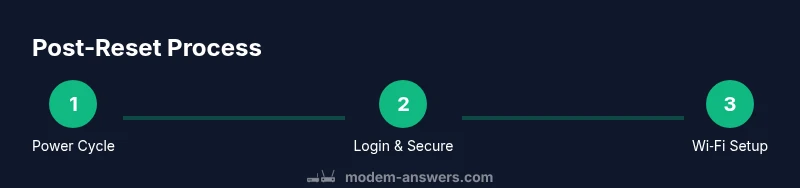
Start by power cycling the modem. Unplug the power, wait 30 seconds, plug back in, and give the device 2-5 minutes to boot fully. If you have a separate router, you may need to reconnect it as well. Use a computer or smartphone to confirm basic connectivity by loading a web page or running a quick diagnostic test. Having a stable connection at this stage reduces confusion during later steps and helps you measure improvements after reconfiguration. According to Modem Answers, a calm, methodical approach reduces common post-reset issues and speeds up restoration.
Accessing the modem admin interface and securing it
To customize settings, you must log in to the modem’s administrative interface. Connect to the modem with a wired Ethernet cable for reliability or join the network if you must. Open a browser and enter the device’s IP address (commonly 192.168.0.1 or 192.168.1.1) or use the auto-discovery page shown on the device label. Use the credentials printed on the label or your provider’s instructions; if you’ve never changed them, assume the default and change immediately. Modem Answers analysis shows that changing the default login and enabling strong encryption dramatically reduces risk. After logging in, check the status page for current connection type and signal strength.
Reconfigure Wi‑Fi network name, password, and security
Your next focus is your wireless network. Create a unique SSID (network name) for your home and set a strong, unique password—preferably 12-16 characters combining letters, numbers, and symbols. Enable WPA2 or WPA3 encryption, and disable WEP. If you have a guest network, set it up with separate credentials to protect your main network. Record the new settings in a safe place. If you use multiple bands (2.4 GHz and 5 GHz), consider giving them distinct names to avoid confusion during device setup. This step improves both security and usability for every connected device.
Firmware updates and provider settings
Check for firmware updates in the admin panel and install any available upgrades. Firmware updates fix bugs, patch security vulnerabilities, and improve performance. If your provider uses specific settings (e.g., IP passthrough, DNS, or DNS over HTTPS), apply them as instructed in your account portal or the device’s setup guide. Keep the modem’s firmware current to ensure compatibility with new devices and services. After updating, reboot the device to apply changes cleanly.
Bridge mode, router mode, and provider configurations
If you own a separate router, you may want to enable bridge mode to let your router handle DHCP and NAT. If you’re using the modem as a router, ensure NAT is enabled and the firewall is active. Clarify whether your internet service requires a true bridge or a simple double‑NAT configuration by checking your ISP’s support docs. Misconfigurations here can cause double NAT, IP conflicts, or wireless dropouts. Adjust the settings only after you’ve backed up current configurations.
Test, backup, and ongoing maintenance
With the basics in place, test your internet by visiting multiple sites, streaming a video, and running a speed test. Confirm that all devices can reconnect and that your new settings persist after a reboot. Use the admin interface to back up your configuration so you can restore quickly if needed. Consider setting automatic firmware updates if offered, and keep a record of your network names and passwords in a secure password manager. Regular checks help keep the network healthy.
Common pitfalls and troubleshooting after reset
If you still see issues after reconfiguration, rule out simple culprits first: loose cables, faulty power supply, or ISP outages. Recycle power and re-test. If you cannot access the admin page, verify you’re connected to the correct network and try a different browser or device. Disable any VPNs temporarily to rule out connectivity conflicts. If problems persist, contact your ISP or consult Modem Answers for step-by-step guidance.
Final security-minded checklist after a reset
Before closing, run a final security check: change the admin password from the default, enable auto‑updates, and keep your Wi‑Fi password private. Review connected devices and remove anything you don’t recognize. Consider enabling firewall features and guest networks for visitors. Document changes and store them securely. This final pass helps ensure long‑term stability and safeguards your home network. The Modem Answers team recommends maintaining a routine of periodic checks to prevent future issues and to stay aligned with best practices in home networking.
Tools & Materials
- Ethernet cable(Cat5e or better; use a wired connection for admin setup)
- Smartphone or computer(Needed to access the modem admin page)
- Modem label with admin credentials(Check default IP and login if you never changed them)
- Pen and paper or password manager(Record new SSIDs, passwords, and admin credentials)
- Notepad or backup storage(Back up configuration after setup)
- Stable power supply(Avoid power interruptions during updates)
- Optional: separate router(Needed if you plan to enable bridge mode or use a dedicated router)
Steps
Estimated time: 30-60 minutes
- 1
Power cycle the modem and devices
Unplug the modem (and any connected router) for 30 seconds, then plug back in. Allow 2-5 minutes for reboot. This clears transient errors and ensures hardware starts from a clean state.
Tip: Label the time you powered off/on to track reboot duration. - 2
Connect a configuration device
Use a wired Ethernet connection if possible; this provides the most stable link to the admin page. If you must use Wi‑Fi, stay within one room to maintain a strong signal during setup.
Tip: Avoid public or guest networks during initial login to prevent credential exposure. - 3
Log in to the modem admin page
Open a browser and enter the default IP (e.g., 192.168.0.1). Enter the credentials from the device label or provider documentation. If you’re prompted to change the password, do so immediately for security.
Tip: If the page doesn’t load, try a different browser or clear cache; confirm you’re connected to the correct network. - 4
Check current status and signal quality
Review the connection status, uptime, and signal strength. Note any errors or warnings. This baseline helps you measure improvements after reconfiguration.
Tip: Take a screenshot of the status page for reference. - 5
Configure Wi‑Fi: SSID and password
Create a unique SSID, set a strong password (12-16 chars with letters, numbers, symbols), and enable WPA2 or WPA3. If you have multiple bands, name them distinctly.
Tip: Avoid common names; do not reuse passwords from other services. - 6
Update firmware and apply provider settings
Check for firmware updates and install them. If your ISP requires specific settings (DNS, IP passthrough), apply them as directed by your account portal or setup guide.
Tip: Do not interrupt power during firmware installation. - 7
Decide on bridge vs router mode
If using a separate router, consider bridge mode to hand off DHCP/NAT. If not, keep the modem in router mode with firewall enabled. Confirm with ISP docs if needed.
Tip: Back up current config before changing mode to enable quick revert. - 8
Test connectivity across devices
Run a speed test, load multiple sites, and try streaming a video to verify reliability across devices. Ensure all clients reconnect automatically after a reboot.
Tip: Test both 2.4 GHz and 5 GHz bands if you use a dual-band network. - 9
Back up and document settings
Export a copy of the modem config and record all network credentials in a safe place. Enable auto-updates if available and set a reminder for periodic checks.
Tip: Keep a separate secure backup in a password manager or encrypted storage.
FAQ
What is a modem reset, and does it erase all settings?
A factory reset returns the device to its default state, removing custom network settings. You’ll need to reconfigure Wi‑Fi, passwords, and any provider-specific options afterward.
A reset returns the modem to default settings, so you’ll need to set up your network again.
Do I need to log in again after reset?
Yes. After a reset, you must log in to the admin page and reapply your network settings, including Wi‑Fi name and password.
Yes, you’ll need to log in again and reconfigure your network.
What if I can't access the admin page after reset?
Ensure you’re connected to the device, try a different browser or device, and confirm you’re using the correct default IP and credentials. If necessary, perform another reset following the manufacturer’s instructions.
Check connections, try another device, and verify the default IP and credentials.
Bridge mode vs router mode after reset?
If you have a separate router, bridge mode can be beneficial to avoid double NAT. If you’re relying on the modem, keep it in router mode with firewall enabled.
Bridge mode is best with a separate router; otherwise, use router mode with firewall on.
How do I change my Wi‑Fi name and password?
Log in to the admin interface, navigate to Wireless settings, and update the SSID and security key. Save changes and test connections.
Log in, go to Wireless settings, update SSID and password.
How often should I update firmware after reset?
Check for updates periodically and enable automatic updates if the option is available. This keeps security and performance current.
Check for updates regularly and enable auto updates if possible.
What should I do if devices can’t connect after reset?
Verify cables and power, confirm device compatibility, and recheck Wi‑Fi settings. If issues persist, reattempt setup or contact support.
Check cables, power, and Wi‑Fi settings; contact support if needed.
Watch Video
Key Takeaways
- Power cycle first to clear transient issues.
- Secure admin access before reconfiguring Wi‑Fi.
- Use strong WPA2/WPA3 encryption for all networks.
- Keep firmware up to date and backup configurations.
- Document credentials and monitor network health regularly.