Spectrum Modem Reset: A Practical How-To for Home Networks
Learn how to safely perform a Spectrum modem reset to fix connectivity, refresh your network, and reconfigure Wi‑Fi. This expert guide covers soft and hard resets, safety tips, and post-reset checks.


This guide shows how to safely reset your Spectrum modem to troubleshoot outages, restore connectivity, and confirm service. According to Modem Answers, you’ll need the modem, a paperclip or pin for the reset button, and a stable power source. Follow the steps to reset, reboot, and re-establish your home network.
What is a Spectrum modem reset?
Spectrum modem reset refers to rebooting or restoring a Spectrum device to its default state to resolve connectivity issues, refresh DHCP leases, and re-synchronize with the provider's network. The term covers both soft resets (power cycling) and hard resets (factory defaults). A soft reset typically fixes most home network problems without erasing custom settings, while a hard reset returns the modem to its original factory configuration. When you perform a Spectrum modem reset, expect the device to re-broadcast on its default SSID unless you reconfigure your Wi-Fi name and password. Note that a hard reset will erase any custom port forwarding rules, bridged mode settings, and wireless passwords—so plan to re-setup afterward. This explanation uses Spectrum modem reset to keep the topic clear for homeowners and renters seeking DIY network reliability, as echoed in Modem Answers guidance.
Safety and prerequisites
Before you begin, power safety matters. Unplug the modem only from a dry outlet; keep liquids away from the device. Use the proper reset tool (paperclip or pin) and avoid forcing any button. Make sure you have a working paper trail of your current network name (SSID) and password in case you need to reconfigure after a reset. Modem Answers emphasizes handling the device with dry hands and away from carpets or metal surfaces to prevent static discharge. This section also notes that a reset should only be attempted on equipment you own or are authorized to service, and never on shared provider hardware beyond your control. The goal is to perform a controlled reset without risking electrical shock or data loss.
Prepare: gather tools and plan
Collect the items you’ll need and plan the sequence to minimize downtime. A typical Spectrum modem reset requires a Spectrum modem, a clean paper clip or pin to press recessed buttons, a power outlet, and a computer or smartphone to verify connectivity. Have an Ethernet cable handy if you plan to test a wired connection, and consider noting your current Wi‑Fi name and password in case reconfiguration is needed. Scheduling resets during off-peak hours can help ensure services like streaming and gaming aren’t disrupted. This planning stage reduces confusion if the reboot takes longer than expected and aligns with the best practices outlined by Modem Answers.
Soft reset (reboot) overview
A soft reset, or reboot, refreshes the modem’s memory and forces it to re-synchronize with the network without erasing local settings. You can achieve this by power cycling the device: unplug the power cord, wait about a minute, then plug it back in. Soft resets resolve many common issues, such as slow pages, intermittent disconnects, or devices failing to obtain an IP address. After the reboot, give the modem a moment to boot fully and allow connected devices to reconnect automatically. If your network name and password were customized, they should persist after a soft reset.
Hard reset considerations and steps overview
A hard reset restores the modem to factory defaults, wiping custom configurations (Wi‑Fi SSID, passwords, port forwards, bridged mode, and possibly DHCP settings). This should be a last resort when soft resets fail to resolve issues or when you suspect corrupted configurations. Before performing a hard reset, make sure you can re-create essential settings. You’ll typically re-enter your Wi‑Fi name and password and reconfigure any port-forwarding rules or bridging settings after the reset. The Modem Answers framework suggests saving key details and testing services in stages to avoid extended outages.
After reset: verify service and Wi-Fi
Once the reset completes, verify that the modem shows normal operation by observing the status lights. If the device re-broadcasts its SSID, connect a device and check for internet access. For Wi‑Fi, you may need to re-enter the network password if you performed a hard reset. Run a quick speed test from a connected device and confirm latency is acceptable. If you use a separate router, reconnect it and verify its connection to the modem. This post-reset validation helps confirm the service is restored and reduces follow-up troubleshooting time.
Common mistakes and how to avoid them
Common mistakes include pulling power cords during a reset, touching the wrong button, or skipping the reconfiguration after a hard reset. Avoid mixing multiple actions at once (e.g., resetting and reconfiguring other devices) to isolate the issue. Do not reseat cables while the device is powered. If the LEDs indicate an error, consult the manufacturer’s guide or Modem Answers for recommended steps. Being methodical and documenting each change helps you revert if a step doesn’t resolve the problem.
Bridging mode and Spectrum devices after reset
If your network uses bridging mode or a separate router, a factory reset can revert bridging settings to default. You may need to re-enable bridge mode on the appropriate device or reconfigure your router’s WAN settings to match Spectrum’s requirements. After a reset, verify whether your setup requires a bridge or router configuration, and follow the official guidance to re-establish the desired topology. This ensures your network remains secure and performant after the reset.
When to contact Spectrum support or Modem Answers
If reset attempts fail to restore service, or you notice persistent issues like no connection or abnormal lights, contact Spectrum support. Provide details about the steps you took and any LEDs patterns observed. For deeper guidance, consult Modem Answers resources and the support portal to determine whether your issue is equipment-related, service-wide, or requires a technician visit.
Tools & Materials
- Spectrum modem(Current model provided by Spectrum; ensure firmware is up to date)
- Power adapter and outlet(Use a stable, surge-protected outlet if possible)
- Paperclip or pin(For recessed reset button (avoid bending the pin))
- Ethernet cable (CAT5e or better)(Helpful for wired testing and initial configuration)
- Smartphone or computer(Used to test connectivity and reconfigure Wi‑Fi)
- Notepad and pen(Document SSIDs, passwords, and settings before changes)
Steps
Estimated time: 25-40 minutes
- 1
Power down and unplug
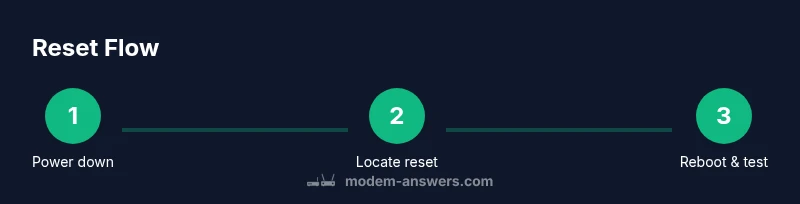
Gracefully power down the modem by removing the power cord from the outlet. Wait for about a minute to ensure internal caches clear before starting the reset sequence. This pause helps prevent partial resets that can leave the device in an unstable state.
Tip: If you have a separate router, consider powering it off too to isolate testing to the modem. - 2
Locate the recessed reset button
Find the small recessed reset button on the back or bottom of the modem. Have the paperclip or pin ready and avoid pressing other buttons. This step ensures you’re targeting the correct control for a reset.
Tip: Use a flashlight if the area is dim to avoid pressing the wrong button. - 3
Perform a soft reset (reboot)
With power still unplugged, press and hold the reset button for about 15 seconds, then release. Reconnect the power and allow the device to boot for several minutes. A soft reset clears temporary errors without altering saved configurations.
Tip: If the modem lights indicate normal activity after boot, you can test connectivity on a connected device. - 4
Power cycle the modem
If you didn’t already, unplug the power for 60 seconds, then plug back in. This ensures the modem fully reboots and re-establishes its connection with the network.
Tip: Avoid powering other devices from the same surge strip during the reset to isolate the testing environment. - 5
Test connectivity
Connect a computer or phone to the modem (or the router, if used) and run a quick web test or speed test. Confirm basic web access, email, and streaming performance before proceeding.
Tip: Note the results in a plain text log for reference if you perform further resets. - 6
If issues persist, perform a hard reset
If soft resets fail to restore service, perform a hard reset by holding the reset button for longer (as per the device manual) or following the manufacturer’s factory reset procedure. This will restore defaults and erase custom settings.
Tip: Back up or record essential settings before doing a hard reset since you’ll need to reconfigure after. - 7
Reconfigure Wi‑Fi and essential settings
After a hard reset, re-enter the Wi‑Fi name and password, set up any port forwards, and re-apply bridged mode if required by your network. Ensure your security settings (WPA2/WPA3) match your devices’ capabilities.
Tip: Create a new unique SSID and strong password to improve security. - 8
Verify complete functionality
Test streaming, gaming, and work-from-home tasks to confirm stability. Reconnect any previously connected devices and check that all services are functioning as expected. Document changes for future reference.
Tip: If performance remains inconsistent, run a modem health check or contact support.
FAQ
What is the difference between a soft reset and a hard reset?
A soft reset restarts the modem and clears temporary data without affecting your customized settings. A hard reset restores factory defaults, erasing Wi‑Fi names, passwords, and any personalized rules. Use soft reset first and reserve hard reset for persistent problems.
A soft reset restarts the device and keeps your settings, while a hard reset returns it to factory defaults and wipes custom configurations.
Will resetting delete my Wi‑Fi network name or password?
A factory reset will restore default Wi‑Fi settings. You’ll need to reconfigure the network name and password afterward. Soft resets do not typically erase these settings.
A factory reset may erase your Wi‑Fi name and password, so you’ll have to set them up again.
How long should I wait after a reset to test connectivity?
Allow the modem to boot fully and then test with a connected device. If you don’t see stable lights, wait a few more minutes and re-test to confirm the issue isn’t a slow restart.
Give the modem a few minutes to reboot and then try a test on a connected device.
Can I reset while using bridging mode?
Resetting can reset bridging settings to default. After a reset, you may need to re-enable bridging on your chosen device or reconfigure router settings to maintain your network topology.
Yes, but you may have to re-apply bridging settings after reset.
What if all lights are red after reset?
Red or no lights usually indicate a service or hardware issue. Power cycle again, check cables, and if the problem persists, contact Spectrum support with details of the steps you took.
If lights show an error, power cycle again and reach out to Spectrum if it continues.
Do I need to call Spectrum after resetting?
If service does not resume after a clean reset and reconfiguration, contact Spectrum support. They can verify line status or provide device-specific guidance.
If service doesn’t come back after reset, contact Spectrum support.
Watch Video
Key Takeaways
- Prepare all tools before you begin.
- Start with a soft reset to avoid data loss.
- Only perform a hard reset if issues persist after soft resets.
- Reconfigure Wi‑Fi and security settings after a reset.
- Document changes and monitor performance to ensure stability.