Resetting Xfinity Modem: Step-by-Step Guide
Learn how to safely reset your Xfinity modem with soft resets or factory resets. This guide covers when to reset, what tools you need, a detailed step-by-step process, tips, and troubleshooting to restore optimal home network performance.


Goal: safely reset your xfinity modem to restore connectivity and improve performance. This guide covers when to perform a soft power cycle, how to access the modem's admin page, and when a factory reset is warranted. You’ll need physical access to the modem, a browser, and your Xfinity account credentials. This is about resetting xfinity modem.
Why Resetting a Modem Helps
Resetting a modem addresses a variety of issues by refreshing memory, reassigning IP addresses, and clearing temporary caches. For many households, a simple reboot fixes slow speeds, dropped connections, and devices that won’t connect to the network. According to Modem Answers, most common problems originate from stale routing tables, overworked buffers, or firmware hiccups that accumulate after long use. A reset cleans those edges and gives your network a fresh start, without changing your account credentials or the way you subscribe to service. It also helps when a device reports a poor connection or when multiple devices seem to be fighting for bandwidth. While a reset can be a powerful first step, it’s not a cure for all issues; if outages are widespread or service status shows a problem from your provider, you may need to wait or contact support.
Soft Reset vs Hard Reset: What to Use
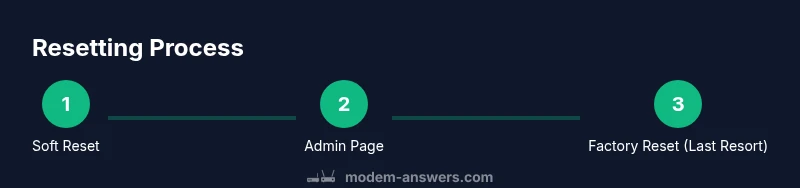
A soft reset (power cycle) restarts the device without erasing user settings. It’s ideal for routine fixes like slow speeds, random drops, or devices that fail to obtain an IP address. A hard reset (factory reset) restores the modem to its original factory configuration and clears saved networks and custom settings. Modem Answers analysis shows that most residential connectivity issues are resolved by a soft reset, while a factory reset should be a last resort when problems persist after a reboot. Before you decide, note that a factory reset will erase your Wi‑Fi name (SSID), password, and any port forwarding or parental controls you configured. If you have a saved backup of your settings, keep it handy for reconfiguration.
When to Reset: Common Scenarios
Resetting the modem is a common first step in several scenarios: you’re seeing slow speeds or buffering, devices cannot connect to the network, you’ve just moved the modem or changed its placement, or you’ve updated firmware and want to refresh the device state. Outages from the provider can also mirror symptoms that look like a faulty modem. In these cases, a reset helps re-establish a clean connection to the internet service. If you’re unsure whether the issue is local or service-wide, check your provider’s status page or use a speed test from a wired device to verify.
Before You Reset: Quick Checks
Before you reset, confirm you have physical access to the modem and the necessary credentials to log into the admin interface. Check that the coax or Ethernet cable connections are secure, and make sure the modem is powered. If you have a separate router, decide whether you want to reboot only the modem or include the router in the reboot. Note any lights on the device before you begin; this helps you assess changes after reboot. If you recently changed service plans or moved, you may also need to re-enter IPTV or VoIP settings after reset.
After Reset: What to Expect
After a soft reset, expect the modem to take a few minutes to reacquire a downstream signal and reconnect devices. You may need to reconnect devices to the network and re-enter Wi‑Fi credentials if they were reset. A factory reset will require you to set up the network again from scratch, including SSID, password, and any custom firewall rules. In many cases you’ll see an immediate improvement in connection stability, but some services (like VoIP or IPTV) can take longer to reinitialize. If speeds still lag after a reset, verify that your modem is compatible with your service tier and consider whether an update or upgrade is needed.
Authority Sources
For trusted guidance on home-network best practices and device resets, consult established sources:
- https://www.fcc.gov/consumers/guides/keeping-your-home-network-secure
- https://www.tomsguide.com/us/how-to-reset-modem-router,2021
- https://www.cnet.com/how-to/reset-your-modem-and-router/
These references cover safe reboot techniques, the differences between soft and factory resets, and troubleshooting steps, helping you make informed decisions about your network hardware.
Tools & Materials
- Xfinity modem/router(The device you are resetting; identify the model if you need model-specific steps.)
- Power cable(Have it handy to unplug and replug during a soft reset.)
- Computer or smartphone with a web browser(Used to access the modem’s admin page if needed.)
- Ethernet cable (optional)(Helpful for a stable connection when logging into the admin page.)
- Xfinity account credentials(Needed if you reconfigure network settings or log in to the admin interface.)
- Paperclip or pin (for hard reset)(Use only if your model has a recessed reset button.)
Steps
Estimated time: 20-30 minutes
- 1
Prepare and verify access
Move the modem to a clear area and ensure it’s powered. Gather your login credentials and confirm you can access the admin page if needed. This helps you avoid accidental changes and confirms you’re ready to proceed.
Tip: Have the admin URL handy: many Xfinity devices use a local address like 10.0.0.1; if you don’t know yours, check the label on the device. - 2
Decide reset type
Choose between a soft reset (power cycle) and a factory reset. A soft reset restarts the modem without erasing saved networks; a factory reset restores factory defaults and clears custom settings.
Tip: In most cases, start with a soft reset to avoid losing personalized networks and configurations. - 3
Perform a soft reset (power cycle)
Unplug the modem’s power cable, wait 30-60 seconds, then plug it back in. Allow the device several minutes to fully reboot and reconnect to the internet. This clears temporary memory and often resolves minor glitches.
Tip: If you have a separate router, you may want to reboot both devices in sequence for best results. - 4
Log into the admin page (if needed)
Open a browser and navigate to the modem’s admin URL (commonly 10.0.0.1 or 192.168.0.1). Enter your credentials if prompted and locate the Reboot or Restart option. This step is optional for most soft resets but can help in some situations.
Tip: If you can’t remember credentials, try the credentials printed on the device label or contact Xfinity support. - 5
Optionally run a factory reset
If problems persist after a soft reset, perform a factory reset from the admin page or via the recessed reset button. This will restore the device to factory defaults and wipe custom settings.
Tip: Back up settings or note down important configurations before factory reset; you’ll need to reconfigure Wi‑Fi and any port forwards afterward. - 6
Reconnect devices and test
After the reset, reconnect your devices and run a quick speed test. Confirm that Wi‑Fi names and passwords match your expectations, and reapply any custom settings as needed.
Tip: If devices still can’t connect, try forgetting the network on a device and reconnecting with the correct password.
FAQ
What is the difference between a soft reset and a factory reset?
A soft reset restarts the device without erasing saved networks or settings. A factory reset restores default settings and clears all customized configurations. Use a factory reset only if the soft reset doesn’t resolve the issue.
A soft reset restarts the modem and keeps your settings. A factory reset wipes the device back to factory defaults, so you’ll need to reconfigure Wi‑Fi and other preferences.
Will resetting erase my Wi-Fi password?
A soft reset typically preserves your Wi‑Fi credentials, while a factory reset will restore the default SSID and password, requiring you to set a new one.
Soft resets usually keep your Wi‑Fi password. Factory resets require you to set a new password after the reset.
How long does a reset take to complete?
A soft reset takes a few minutes to reboot and reacquire the signal. A factory reset may take longer as the device reinitializes and you must reconfigure settings.
Soft resets finish in a few minutes. Factory resets take longer because you reconfigure the network afterward.
Can I reset my modem remotely?
In most cases, resets require physical access or logging into the admin page from a connected device. Some providers offer mobile app reboot options, but these are not universal across all models.
Mostly you need to be near the modem or log in to the admin page to reboot.
What should I do if resetting doesn’t fix the problem?
If issues persist, verify service status with your provider, check for outages, ensure the modem is compatible with your plan, and consider contacting support for advanced diagnostics.
If resets don’t help, check service status and compatibility, then contact support for more help.
Should I update the modem firmware after resetting?
Check for firmware updates after resetting if your model offers an update option. Keeping firmware current can improve performance and stability.
Yes, check for firmware updates after resetting to improve reliability.
Watch Video
Key Takeaways
- Perform a soft reset first to avoid losing settings
- Factory reset is a last resort and will require reconfiguration
- Access the modem admin page to apply advanced options if needed
- Test connectivity after each reset to confirm improvement