How to Reset a CenturyLink Modem: Step-by-Step Guide
Learn how to reset a CenturyLink modem with practical steps, covering soft resets, hard factory resets, and post-reset configuration to restore reliable home internet quickly and safely.


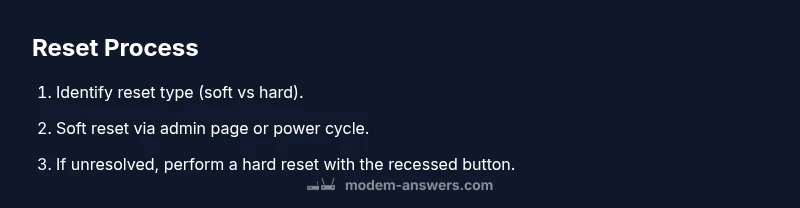
Reset a CenturyLink modem with a soft reboot or a hard factory reset. A soft reset reboots while preserving Wi‑Fi settings; a hard reset restores factory defaults, erasing custom network names and passwords. After resetting, you may need to re-enter your ISP credentials. Soft resets are quick and rarely affect service, while hard resets should be a last resort.
Why Resetting Your CenturyLink Modem Can Help
According to Modem Answers, resetting a modem can clear glitches, refresh the connection, and resolve IP conflicts. A reset is a common first step when devices suddenly drop off the network or speeds seem inconsistent. It can also help when you cannot access the admin interface but need to restore normal operation. This article aims to equip homeowners and renters with a practical, step-by-step approach that avoids jargon and preserves safety. By following these steps, you’ll regain control of your home network and reduce service calls to your provider.
Soft Reset vs Hard Reset: What’s the Difference?
A soft reset, or reboot, restarts the modem without altering your configured Wi-Fi name (SSID) or password. It’s fast and preserves most settings, making it ideal for minor glitches. A hard reset, or factory reset, restores the modem to its original factory state, erasing custom network names and credentials. This should be considered only after a soft reset fails. Modem Answers notes that hard resets can fix persistent configuration issues but require you to reconfigure the network afterward.
Soft Reset: Reboot Through Admin Page or Power Cycle
Soft resets are usually the first option. If you can access the modem’s admin page, look for a Restart or Reboot option and confirm. If the admin page is unavailable, you can perform a power cycle by unplugging the modem from power for about 30 seconds, then plugging it back in. In either method, allow a few minutes for the modem to come back online and test connectivity on multiple devices to ensure consistent performance.
Hard Reset: Factory Reset and Aftercare
A hard reset returns the device to its factory state, erasing customized Wi-Fi names and passwords. Locate the recessed reset button on the back or bottom of the modem and press it with a pin or paperclip for 10 to 15 seconds until the lights indicate a reset. After the reset, the modem will reboot and you will need to reconfigure your network settings. Be prepared to re-enter CenturyLink credentials if your service uses PPPoE or similar authentication.
Post-Reset Network Reconfiguration: Wi‑Fi Name and Password
Once the modem finishes rebooting, reconnect to the network and create a new SSID and strong password. Update the admin password for the device as a security best practice. If you rely on a separate router, you may need to re-pair it or re-enter the internet settings on the router. This step helps prevent accidental reversion to the old settings and ensures devices reconnect smoothly.
Troubleshooting Common Reset Scenarios
If the internet is still unstable after a soft reset, check the physical connections—coaxial cable, power cable, and any Ethernet cables. A loose connection can mimic a reset issue. If the lights on the modem indicate a problem, consult the manual for the light patterns or contact support. In some cases, service outages or account issues with CenturyLink can cause persistent problems that a local reset cannot fix.
Quick Verification: Speed Tests and Connection Checks
After completing the reset and reconfiguration, perform a quick verification. Run a basic speed test on multiple devices, stream a video, and load several websites to confirm stability. Check that your devices obtain a valid IP address and can resolve domains. If performance remains below expectations, consider scheduling a technician visit or requesting assistance from Modem Answers' troubleshooting resources.
Authority Sources and Next Steps
For further reading on modem security and best practices, consult authoritative sources such as FCC consumer guidance, official security guidelines, and university or government publications. Using these sources helps ensure you follow standardized procedures and maintain network security. As you proceed, keep your account details handy and document any changes you make to your network settings for future reference.
Quick Tips and Safety Warnings
- Always unplug the modem only after verifying all other devices are disconnected to avoid electrical hazards.
- A hard reset erases customized settings; back up important information before proceeding.
- If you are unsure about PPPoE credentials or service activation, contact CenturyLink support before reconfiguring.
Tools & Materials
- Pinhole reset tool (paperclip or needle)(Used to press recessed reset button on some models)
- Device to access modem admin page (laptop, smartphone)(Connected via Wi-Fi or Ethernet; you may need admin credentials)
- Stable power outlet(Keep modem powered during resets; use surge protection)
- Web browser or mobile app(Used for soft reset via admin interface)
- CenturyLink account credentials (if PPPoE or login is required)(Needed to re-authenticate if your service uses PPPoE)
Steps
Estimated time: 15-25 minutes
- 1
Gather prerequisites
Collect the items listed above and ensure your device can access the modem. Verify you have any required login details ready before you begin to avoid delays.
Tip: Have a clock handy and note your current Wi-Fi name if you plan to revert. - 2
Choose reset type
Decide between a soft reset (reboot) and a hard reset (factory reset) based on the issue's severity. A soft reset should be attempted first.
Tip: Start with a soft reset to preserve network settings. - 3
Perform soft reset via admin page
Log into the modem’s admin interface from a connected device and select the restart or reboot option. If the admin page isn’t accessible, power cycle the modem by unplugging the power for about 30 seconds and then reconnecting.
Tip: If prompted for credentials, use the account associated with your service. - 4
Wait for reboot and test connectivity
Allow the modem to complete the reboot cycle (about 2–5 minutes). Reconnect devices and test internet connectivity by loading a webpage on multiple devices.
Tip: Test on multiple devices to confirm consistency. - 5
Proceed to hard reset if issues persist
If soft reset fails to resolve the problem, perform a hard reset using the recessed reset button. Hold for 10–15 seconds until lights flash, then release.
Tip: Note that this will erase customized Wi-Fi details. - 6
Reconfigure network after hard reset
Once rebooted, log in to the modem again and re-create your Wi-Fi name and password. If required, re-enter any ISP credentials to restore service.
Tip: Create a strong password and consider updating the admin password too. - 7
Verify everything is working
Reconnect devices and run a quick speed check to ensure service is stable. If issues persist after a hard reset, contact support.
Tip: Keep a record of your new SSID and password.
FAQ
What is the difference between a soft reset and a hard reset?
A soft reset reboots the modem without changing current network settings. A hard reset restores factory defaults, erasing custom Wi-Fi names and passwords. Use a hard reset only if soft resets fail.
A soft reset reboots without changing settings, while a hard reset restores factory defaults.
Will resetting my modem erase my Wi-Fi name and password?
A hard reset will erase custom Wi-Fi details and require reconfiguration. A soft reset does not alter Wi-Fi name or password.
Yes, a hard reset erases your Wi-Fi name and password; a soft reset keeps them the same.
What should I do if I can’t access the modem’s admin page?
If the admin page is inaccessible, try a power cycle, connect via Ethernet, or consult the manual. If still blocked, a hard reset may be needed, followed by reconfiguration.
If you can’t reach the admin page, attempt power cycling or a wired connection; otherwise, a reset may be required.
Do I need to contact CenturyLink after resetting?
Only if you cannot restore service or need assistance with PPPoE credentials. Most users can complete reconfiguration themselves with the steps in this guide.
Usually you won’t need to contact CenturyLink unless service doesn’t come back after reset.
How long should I wait after reboot before testing connectivity?
Allow 2-5 minutes for the modem to finish rebooting before testing. If speeds are inconsistent, repeat the reset process or check cables.
Wait a few minutes for the modem to reboot before testing.
Watch Video
Key Takeaways
- Start with a soft reset to preserve settings
- Hard reset resets all configurations and requires reconfiguration
- Document your Wi-Fi name/password after reset
- If issues persist, contact CenturyLink support