How to Take Modem Out of Bridge Mode: A Practical Guide
Learn how to safely disable bridge mode on your modem, regain router control, and optimize home network performance with a clear, step-by-step approach.


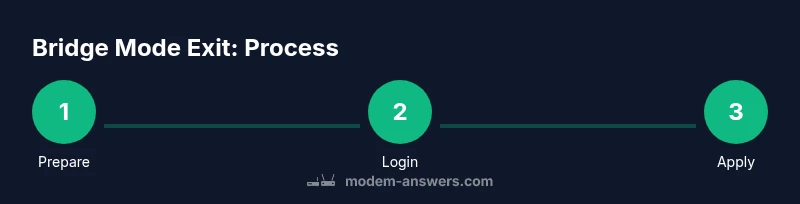
In this guide, you’ll learn how to safely take your modem out of bridge mode and restore router functionality. You’ll need access to your modem’s admin interface, the correct login credentials, and a connected device. We cover common ISP variations, what to do if you’re stuck, and safety checks. This quick answer previews the steps and cautions before you dive into the full guide.
Why taking a modem out of bridge mode matters
Bridge mode disables the modem's routing features, forcing a connected router to handle all network tasks. This is often needed when a third‑party router is used, but it can complicate things if you want unified Wi‑Fi, easier port forwarding, or consistent DHCP behavior. According to Modem Answers, understanding where bridge mode fits in your network design helps homeowners regain full control over DHCP, NAT, and firewall rules. If your goal is a simple, managed home network, stepping out of bridge mode can simplify troubleshooting and improve reliability. This article explains what bridge mode does, when you should disable it, and how to tell if you’re in bridge mode versus standard router operation. Turning bridge mode off hands back routing to your own router, enabling features like guest networks, parental controls, and precise port forwarding. The Modem Answers Team emphasizes safety and documentation as the first steps; never rush changes on a live network without a plan.
##Prerequisites and safety before you start
Before you begin, gather a few essentials to avoid mid‑process interruptions. You’ll need a computer or mobile device with a browser, access credentials for the modem, and a wired connection for stability during changes. Print or save any existing settings so you can revert if needed. If you’re on a shared or public network, disconnect other users and avoid making changes from borrowed devices. For safety, unplug any sensitive devices and perform changes during a time when a short outage won’t affect critical services. Modem Answers recommends documenting IP addresses and login details in a private note for quick reference.
##Identify your device and login credentials
Start by locating the exact model number and firmware version on the modem’s label. This helps you fetch the correct manual or online guidance in case the UI differs between models. Use the device’s sticker to confirm the default gateway address, or contact your ISP if you don’t know the login credentials. If you previously changed the password, use your saved credential or reset the device if you’re authorized to do so. Have a backup administrator ready in case two onboarding devices share the same login. This step is critical to ensure you access the right interface without compromising security.
##Locating the bridge mode setting in your UI
Log in to the modem’s admin interface using a direct device connection (Ethernet preferred). Common menu paths include Internet, WAN, or Delivery/Network settings. Look for terms like Bridge, IP Passthrough, or Router Mode. Some devices label the setting as Disable Bridge Mode or Enable Router Mode. If you see IP Passthrough, it often means the modem is handing the WAN IP to another device; you’ll want to disable this. Read the UI’s help text, as some menus require you to expand advanced settings. If you can’t locate the option, consult the device manual or your ISP’s knowledge base. This step is where most users find the core toggle to exit bridge mode.
##Disabling bridge mode: common paths
There are two common paths you’ll encounter. Path A is a simple Bridge Mode toggle—set it to Off or Disabled and apply changes. Path B is IP Passthrough or similar, where you’ll switch to Router Mode or disable Passthrough. In either case, ensure the modem reports it is operating in Router mode rather than Bridge mode. After changing the setting, save the configuration. Some devices require you to click Apply and then confirm the change in a subsequent dialog. If a warning prompts you about rebooting, confirm to proceed.
##Apply changes and reboot
Saving changes is not enough; many devices require a reboot to apply new routing rules. Click Save or Apply, then perform a full reboot of the modem. If you have a separate router, leave it powered and connected during the modem reboot. After reboot, give the device a few minutes to reinitialize. Check the modem’s status lights or status page to confirm it has transitioned to Router mode and established a WAN connection with your router. If the WAN LED is steady and normal, your router should be able to obtain an Internet address.
##Reconnect your router and verify connectivity
Reconnect the router’s WAN or LAN port to the modem as you normally would. Log into your router’s admin interface and verify WAN status shows an active connection. Test basic Internet access from a wired device, then test Wi‑Fi from a wireless device. If anything fails, power cycle both devices again, wait a few minutes, and recheck. If you still can’t reach the Internet, double-check your router’s DHCP settings and ensure there’s no IP conflict on the LAN. If issues persist, revert to the previous backup settings and consult the ISP for guidance.
##ISP-specific quirks and exceptions
Some ISPs require you to use their gateway in bridge mode, or they enable “IP Passthrough” by default. In such cases, disabling bridge mode may be limited or require a technician. If you don’t see Bridge Mode or Router Mode options, the device may be locked down by the ISP. In those situations, consider requesting a public IP or a customer-owned router instead of the ISP’s gateway. The important takeaway is that provider policies vary, and you may need to adjust your plan accordingly.
##Troubleshooting if issues arise
If the Internet doesn’t come back after turning off bridge mode, first verify that DHCP is enabled on your router and that the WAN interface is obtaining an address. Check cables for damage and reseat connections. Review firewall settings on the router and confirm that port forwarding rules are correct for any services you rely on. If you still see no Internet, retry the reboot sequence and consult the router’s support for troubleshooting steps. If the problem seems to originate from the ISP, contact their support line for guidance on bridging and provisioning.
##Best practices for ongoing network health
After successfully exiting bridge mode, keep firmware up to date on both devices, place your router centrally for even Wi‑Fi coverage, and use a single, well‑defined SSID if possible. Keep a simple backup of your current configuration and a separate list of shared passwords. Consider enabling features like WPA3 security, guest networks, and regular reboots to maintain stability. Regular checks of the status pages and LED indicators help you catch issues early. The goal is a reliable, secure, and easy‑to‑manage home network.
Tools & Materials
- Computer, smartphone, or tablet with browser access(Prefer a device connected to the modem via Ethernet for stability)
- Ethernet cable(Use for a wired connection during login and changes)
- Current login credentials for the modem(Have a backup plan if you’ve forgotten the password)
- Pen and paper or digital note for logging changes(Record addresses, credentials, and new settings)
- Backup configuration export (if available)(Safest option before making changes)
- Router credentials (for confirmation after changes)(You may need to log into the router to verify WAN status)
Steps
Estimated time: 20-40 minutes
- 1
Prepare and locate
Gather the necessary devices and backup settings. Identify the modem model and confirm you have the admin login details. A wired connection reduces prompts and errors during changes.
Tip: Have a plan and save a copy of current settings before making changes. - 2
Log into the modem's admin interface
Connect a computer to the modem and open a browser. Enter the device’s gateway address from the manual or sticker, then log in with your credentials. If a password prompt blocks access, use the backup credential or request a reset from the ISP.
Tip: Use a private device on your home network to minimize exposure. - 3
Find the bridge mode setting
Navigate to WAN, Internet, or Network settings. Look for Bridge mode, IP Passthrough, or a Router/Bridge toggle. If you see IP Passthrough, you’re likely in a passthrough state that must be disabled.
Tip: If you can’t locate it, search the page for 'bridge' or consult the device manual. - 4
Disable bridge mode and switch to router mode
Change Bridge mode to Off/Disabled or switch IP Passthrough to Off. Verify the interface indicates Router Mode after applying changes.
Tip: Avoid disabling other security features; ensure the firewall remains active on the router. - 5
Apply changes and reboot
Save or Apply the new setting, then reboot the modem. If you have a separate router, keep it connected. Wait a few minutes for devices to boot.
Tip: Some devices require a full power cycle to fully apply settings. - 6
Reconnect your router and verify
Reconnect the router’s WAN port to the modem. Check the router’s status for an active WAN connection and test Internet on wired and wireless devices.
Tip: If the router doesn’t obtain an address, power cycle the router and verify DHCP is enabled on the router. - 7
Handle ISP-specific quirks
If the option is missing or locked, contact your ISP for guidance or consider using their gateway as allowed by policy. Some providers require specific provisioning.
Tip: Document the provider’s policy to avoid surprises during future changes. - 8
Troubleshoot if issues persist
Check cables, verify DHCP, examine firewall rules, and confirm port forwarding settings. If issues persist, revert to the previous backup and seek support.
Tip: Use a methodical checklist to avoid missing a single misconfiguration. - 9
Maintain network health
Keep firmware up to date, review security settings, centralize placement for coverage, and log changes for future reference.
Tip: Schedule periodic reviews to catch stale configurations before they cause problems.
FAQ
What is bridge mode and why disable it?
Bridge mode turns a modem into a simple pass‑through device, handing routing duties to your own router. Disabling it restores standard NAT, DHCP, and firewall control, which simplifies port forwarding and network management.
Bridge mode is when the modem leaves routing to another device. Disabling it returns control to your router so you can manage features like NAT and firewall.
Do all modems support bridge mode?
Most modems support a Bridge mode or IP Passthrough option, but the terminology and availability vary by model and provider. Always check the device manual or the ISP’s knowledge base for exact steps.
Most modems can bridge or passthrough, but the wording varies by model. Check your manual for precise steps.
Will disabling bridge mode affect my current router?
Disabling bridge mode allows your router to manage DHCP and NAT, which can improve features like parental controls and QoS. You may need to reconfigure your router’s WAN settings after the change.
Disabling bridge mode hands control back to your router, so you may need to adjust its WAN settings.
What if I can’t access the modem’s admin page?
If you can’t reach the admin page, try a wired connection, verify the gateway IP, and ensure you’re on the private network. If needed, reset the modem to factory settings or contact the ISP for access credentials.
If you can’t reach the admin page, try a wired connection and verify the gateway IP, then seek ISP help if needed.
How long should I wait after changes?
Give the devices a few minutes to reboot and re‑acquire an IP address. If nothing comes up, reboot the router and modem again and recheck the WAN status.
Wait a few minutes for reboot and check WAN status; reboot again if needed.
Should I call my ISP if the option is missing?
Yes. Some ISPs lock bridge mode options or require their gateway. Contact support to confirm what’s allowed and whether they provide an alternative provisioning.
If the option is missing, contact your ISP to confirm if it’s locked or if there’s an alternative.
Watch Video
Key Takeaways
- Disable bridge mode safely and test router Internet immediately.
- Back up settings before making changes.
- Reboot devices to apply changes fully.
- Verify WAN status on the router after changes.
- Check ISP-specific policies if issues persist.