How to Access Modem When in Bridge Mode
Learn how to access your modem's admin interface while your gateway is in bridge mode. This step-by-step guide covers direct connection, IP configuration, login credentials, and safe testing to keep your home network running smoothly.


In bridge mode, your gateway’s routing is disabled and a connected router manages your network. To access the modem’s admin page, connect a computer directly to the modem via Ethernet, set your PC to obtain an IP automatically, and open the device’s default IP shown on the label or in the setup guide. Use the credentials provided by the label or your ISP.
Why You Might Need to Access the Modem in Bridge Mode
Bridge mode is commonly used when a separate router handles your network functions—think advanced Wi‑Fi, guest networks, and finer control over port forwarding. When the gateway is in bridge mode, its routing and NAT features are effectively turned off, letting your connected router become the sole path for IP addresses and traffic management. This setup helps prevent double NAT issues and gives you direct control over firewall rules and QoS. Understanding this distinction is key before attempting to access the modem’s admin interface, because the steps differ from a standard home network where the gateway also acts as the router.
According to Modem Answers, recognizing the difference between the modem acting as a bridge device and a dedicated router in your network is the first step toward a stable, controllable home network. The approach you take depends on whether you’re troubleshooting, configuring new hardware, or simply verifying that the bridge connection is functioning correctly.
Understanding Bridge Mode Basics
Bridge mode converts the gateway from a combined modem/router into a pure modem. Its job becomes simply to pass the Internet signal to your router, while your router handles IP assignment, NAT, and firewall rules. A side effect of bridge mode is that the modem’s built‑in Wi‑Fi (if any) is typically disabled, and you may need to manage wireless settings from your secondary router. This is often desirable for homes with a high‑performing external router or for testing new networking setups.
From a network design perspective, understanding bridge mode reduces confusion during setup. It minimizes double NAT scenarios, which can cause issues with certain online services or gaming consoles. If you decide to adjust settings later, you’ll want to re‑enable routing on the gateway or disable bridge mode through the device’s admin page or your ISP’s portal.
Preparation: What You Need Before You Begin
Before you try to access the modem, assemble the essentials. A direct Ethernet connection from a computer to the modem is the simplest path. Have your preferred router ready to connect downstream if you’re continuing with a separate device on the network. You’ll also need the modem’s default IP and admin credentials, typically printed on a label on the device or included in the setup guide. If you don’t have these, contact your ISP or consult the manual.
A clean notebook or a digital note is helpful for recording IPs, login details, and any changes you make. For security, use a strong, unique password and avoid leaving the admin page open on a shared device. These preparations reduce the risk of accidental misconfigurations that could disrupt your network.
Locating the Modem’s Default IP and Credentials
Most ISPs and device manufacturers publish a default IP address and admin credentials somewhere on the hardware label or in the user manual. If you cannot locate them, log in through your ISP’s account portal or download the latest setup guide from the manufacturer’s site. When you find the IP, it’s usually the address you’ll type into your web browser to reach the modem’s admin interface. Record this information in a secure place.
If the default IP or login doesn’t work, the device may have been reconfigured by a previous user or ISP technician. In that case, a factory reset can restore defaults, but note that this will erase all custom settings. Always back up current settings if possible before initiating a reset.
Step-by-Step Flow Overview (High-Level)
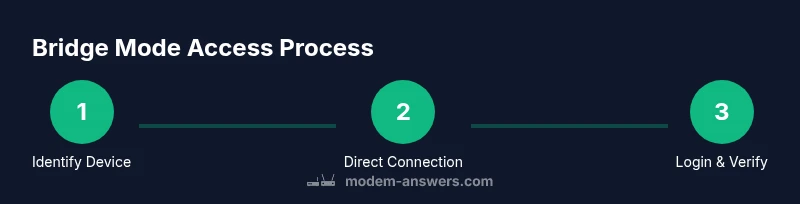
The following flow ensures you reach the modem’s admin UI safely: connect a PC directly to the modem via Ethernet, configure IP settings so the PC can see the modem, access the official IP with a browser, and log in using provided credentials. After confirming access, verify whether the bridge mode is active and test your connection by introducing the router and ensuring it properly handles WAN/LAN traffic. This overview helps you anticipate each phase before you begin.
Safety and Security Considerations in Bridge Mode
Directly connecting to a device’s admin page requires careful handling of network credentials. Ensure you’re on a private network, avoid using public Wi‑Fi to access the modem, and keep login details confidential. When finished, log out of the admin page and close the browser. If you need to perform factory resets, follow the manufacturer’s instructions precisely to avoid accidental data loss. Keeping firmware up to date improves security and reliability in bridge configurations.
Advanced Tips: Using a Separate Router Behind Bridge Mode
If you plan to run a robust home network, bridge mode is often paired with a high‑quality router. Place the router in a central location, enable the router’s security features, and configure its Wi‑Fi SSID and password. Disable any conflicting services on the gateway, such as built‑in NAT or Wi‑Fi, to prevent interference. Regularly monitor connected devices and update your router firmware to maintain performance and safety.
Troubleshooting Common Access Issues
If you cannot reach the modem’s admin interface after connecting directly, double‑check cables and Ethernet ports, and verify the PC’s IP configuration. Temporarily disable firewall or antivirus software if browser access is blocked, then re‑enable safety tools after login. If the IP page still doesn’t load, try a different browser, clear the cache, or restart the modem and PC. Persistent issues may indicate a firmware problem or a misconfigured bridge setting, which may require ISP assistance.
Quick Test: Verifying You’re Connected Properly
Once you gain access to the modem’s admin page, confirm bridge mode is active and that your router is obtaining WAN connectivity. Run a simple local network test to ensure devices connected through the router can access the internet without NAT conflicts. Document any changes for future reference and monitor performance for a few hours to ensure stability.
Conclusion: Ready to Maintain a Stable, Flexible Home Network
With the right preparation, you can confidently access a modem when in bridge mode and manage a high‑performing, router‑driven network. Remember to keep credentials secure, follow manufacturer guidelines, and test connectivity after each configuration change. The insights above provide a solid foundation for a reliable home network regardless of whether you’re streaming, gaming, or working remotely.
Tools & Materials
- Ethernet cable (Cat5e or better)(Use a direct link between PC and modem; avoid hubs/switches during access.)
- Laptop or desktop computer(Configure to obtain IP automatically (DHCP) or use a static IP within the modem’s accessible range.)
- Modem default IP and admin credentials(Found on the device label or in the user manual; may also be available via your ISP account portal.)
- Power supply and a quiet workspace(Keep a stable power source and a distraction-free area for settings changes.)
- Latest modem/router manuals or ISP guides(Useful for finding reset procedures and safe defaults before changes.)
Steps
Estimated time: 25-45 minutes
- 1
Identify the bridge-mode device and network layout
Review your existing network to confirm which device is in bridge mode and how the router connects downstream. This helps you target the correct admin page and avoids misconfigurations.
Tip: Sketch the topology on paper or in a quick diagram to keep actions clear. - 2
Prepare your computer for direct modem access
Connect your computer to the modem using a dedicated Ethernet port. Disable any VPNs and ensure you can access the local network. This setup reduces interference when you load the modem’s admin page.
Tip: Close other network services that might assign conflicting IP addresses. - 3
Connect directly to the modem with an Ethernet cable
Plug one end of the cable into the computer and the other into an available LAN port on the modem. Power on the modem if needed and await stable link lights before proceeding.
Tip: Use a fresh cable to avoid intermittent connectivity problems. - 4
Configure your computer’s IP settings
Set the computer to obtain an IP address automatically (DHCP) or assign a static IP in the modem’s management range as documented in the manual.
Tip: If using a static IP, pick a non-conflicting address within the modem’s default range. - 5
Open the modem’s admin interface and log in
Enter the default IP from the label or manual into a web browser. Log in with the provided credentials. If prompted for a security question or PIN, follow the on‑screen prompts.
Tip: If the page won’t load, try a different browser or clear the cache. - 6
Verify bridge mode status and test connectivity
Check that bridge mode is indicated as active within the modem UI and that the downstream router obtains a WAN IP. Run basic network tests to confirm internet access through the router.
Tip: Document changes and revert if you notice any connectivity issues.
FAQ
What is bridge mode and why would I use it?
Bridge mode turns a gateway into a pure modem, letting a separate router manage IP addressing and firewall rules. It’s useful to avoid double NAT and gain better control over your network settings.
Bridge mode makes the gateway behave like a modem only, so your router controls the network. This helps with features like advanced Wi‑Fi and firewall rules.
Can I access the modem’s UI while in bridge mode?
Yes, you can access the modem’s UI by connecting a computer directly to the modem and using the device’s default IP shown on the label or manual. If the page won’t load, verify IP settings and credentials.
Yes. Connect directly and use the default IP and credentials from the label or manual.
What if I can’t find the default IP or login?
Check the device label, the user manual, or the ISP’s support portal. If necessary, contact your ISP to obtain factory defaults or guidance for bridge mode access.
Check the label or manual, or contact your ISP for factory defaults.
Do I need to reset the modem to factory settings?
Only reset if you cannot access the admin page and other recovery options have failed. A factory reset erases custom settings, so document your current config before proceeding.
Only reset if necessary, as it erases saved settings.
How do I exit bridge mode later?
To exit bridge mode, access the modem’s UI and re‑enable routing or disable bridge mode in the provided options. You may need to reconnect to the modem using a different configuration or schedule an outage to apply changes.
Re‑enable routing in the modem’s UI to exit bridge mode.
What security steps should I take after bridging?
Change default passwords, enable WPA3 on your router, and keep firmware updated. Review firewall settings and ensure that only trusted devices can access administrative interfaces.
Update passwords, enable strong Wi‑Fi security, and keep firmware current.
Watch Video
Key Takeaways
- Access the modem via direct Ethernet when in bridge mode
- Use the device label or manual for default IP and credentials
- Configure your PC for DHCP or a safe static IP range
- Verify bridge mode is active and router connectivity after changes
- Keep firmware and credentials secure for ongoing safety