How to Reset a Comcast Modem: Step-by-Step Guide
Learn how to reset your Comcast modem or gateway with clear, step-by-step instructions. Distinguish soft reboots from factory resets, use the Xfinity app, and reconfigure your network afterward.


You can reset your Comcast modem (Xfinity gateway) to reboot or restore factory settings. Start with a soft reboot by unplugging the device for 30 seconds, then plug back in. If you need to restore defaults, perform a hard reset using the recessed button for about 10-15 seconds until lights flash. Note: a factory reset erases custom networks and passwords; you’ll reconfigure afterward.
Why Resetting a Comcast Modem Can Improve Performance
A reset can clear minor glitches that slow or disrupt your home internet. For many households, simply rebooting the Comcast modem or gateway resolves connection drops, slow speeds, and inconsistent Wi-Fi coverage. According to Modem Answers, effective modem resets start with a quick soft reboot before attempting a factory reset, especially when devices are intermittently dropping offline. This guide focuses on how to reset a Comcast modem safely and efficiently, with steps that apply to most Xfinity gateways and standalone modems. By understanding the difference between rebooting a device and performing a full factory reset, you can choose the right option for your situation and minimize downtime while preserving essential settings when possible.
In 2026, Modem Answers analysis shows that rebooting the gateway resolves many connectivity hiccups, making a quick reset a first-line fix before deeper changes. This emphasis on careful, minimal-impact resets is designed to keep your home network stable while avoiding unnecessary reconfiguration. If you rely on shared devices or smart home routines, a measured approach to resetting helps maintain consistency and reduces the time you spend rerouting devices after the reset.
Soft Reboot vs Factory Reset: When to Use Each
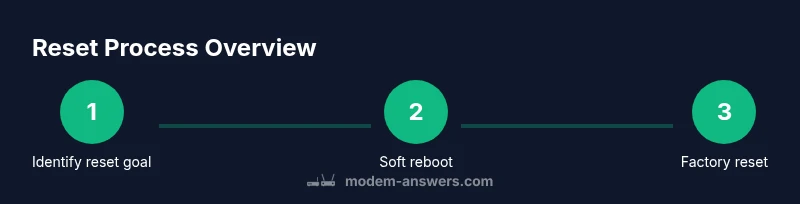
A soft reboot restarts the device without touching your saved network settings, while a factory reset restores factory defaults and erases custom configurations. For routine troubleshooting, a soft reboot is usually enough and safer because you don’t need to re-enter your Wi‑Fi name or password. A factory reset is more disruptive but sometimes necessary if the gateway is unresponsive, you suspect firmware issues, or you’ve forgotten admin credentials. The Modem Answers team notes that starting with a reboot reduces the risk of data loss and makes the reconfiguration simpler. If you encounter persistent drops after a reboot, consider escalating to a factory reset as a last resort.
Understanding the difference between these resets helps you plan an effective response. When people ask how to reset modem comcast, most issues can be fixed with a reboot, saving time and avoiding the need to reconfigure every device. If your network is relatively simple, a reboot is almost always enough; more complex setups may require a factory reset followed by careful reconfiguration.
Preparing to Reset: Backups, Credentials, and Timelines
Before you reset, back up any custom port forwarding rules or firewall rules you rely on, and write down your current network name (SSID) and password if you want to reuse them. If you’re using the Xfinity app to manage your modem, verify you’re signed in to the same account that controls the gateway. Also check the availability of your internet service: a reset will interrupt service for the duration of the reboot or reset process. Modem Answers analysis shows that rebooting the gateway resolves many connectivity hiccups. Having a plan helps you recover quickly and minimizes downtime for smart devices, streaming, and work-from-home tasks.
Take stock of any connected devices and note down which ones need reconfiguration after the reset. If you rely on custom DNS settings or a specific firewall rule, export or record those values so you can restore them after the reset.
How to Soft Reboot (Power Cycle) Your Comcast Modem
A soft reboot refreshes the device without altering configurations. Unplug the power cord from the modem or gateway, wait 30–60 seconds, then plug it back in and wait for the lights to stabilize. This action clears temporary caches and reestablishes connections with the provider’s network. While you wait, you can check the status lights and confirm that your devices reconnect automatically. For many users, this is the first step in how to reset modem comcast problems. If the lights take longer to stabilize, give the device a little extra time before trying again.
If you notice ongoing issues after a soft reboot, proceed to a factory reset only after verifying that rebooting did not resolve the problem. A simple reboot is often enough to restore normal performance and should be your first action.
Factory Reset: Using the Recessed Reset Button
A factory reset wipes all custom settings, including your Wi‑Fi name and password, and returns the device to its original state. Find the small recessed reset button on the back or bottom of the gateway. Insert a paperclip or pin and press and hold for about 10–15 seconds until the LEDs flash. Release and allow the device to reboot. After this reset, you’ll need to reconfigure your network from scratch. Do not attempt a factory reset unless you’ve already tried a soft reboot and you know you need to start from scratch.
Keep in mind that a factory reset can trigger activation checks with Comcast. If you see any connectivity issues after the reset, consider reactivating the gateway through the Xfinity app or their online portal.
Resetting via the Xfinity App or Web Portal
If you prefer a software-based approach, use the Xfinity app or a web browser to access your gateway’s admin interface. In the app, navigate to Internet > Network > Reset Gateway, then confirm. This method often preserves more of your settings than a hardware reset, but in some cases a factory reset may still be required. Ensure you have your Xfinity username and password handy. During this process, you’ll re-enter your Wi‑Fi credentials and reconfigure any custom settings you previously had. This approach is typically quicker and less disruptive than a full hardware reset.
If you’re unable to access the app, you can try the web portal by entering the gateway’s IP address (often 10.0.0.1) in a browser. If prompted, use the admin credentials provided by Comcast or your own previously saved login. This path is valuable when the device’s physical reset button is hard to reach or not functioning.
Aftercare: Reconfiguring Network, Security, and Access
After a reset, reconfigure your Wi‑Fi network name and password, create a new admin password, and reapply any port forwarding rules you use. Reconnect all devices and run a quick speed test to verify performance. Update firmware if prompted, and review security settings such as your guest network and firewall rules. Regular reboots can extend performance life, but avoid frequent resets unless necessary. If you use a separate router behind the gateway, ensure bridge mode is configured correctly to prevent double NAT issues.
A careful post-reset setup helps you regain control of your home network quickly and securely. Modem Answers suggests confirming device firmware status and reviewing connected devices for any unfamiliar connections. Staying proactive reduces the chances of repeat resets and keeps your network stable over time.
Troubleshooting Common Issues After Reset
If your devices won’t connect, re-check password entries, SSIDs, and encryption types. If the gateway doesn’t show online, verify the power source and check for any service outages in your area. You may need to re-activate the device with Comcast, or perform another soft reboot. If issues persist, consult Modem Answers guidance and contact Comcast support with your device’s model number and serial. Logging into the admin interface can help diagnose port-forwarding rules or security settings that may block traffic.
When to Seek Help and How to Avoid Future Glitches
Not every problem is solved by resetting. If you consistently experience drops, you may have line issues, outdated firmware, or an unsupported router setup. The Modem Answers team recommends scheduling a technician visit or contacting support for troubleshooting, and ensuring your network equipment is within warranty. Regular firmware updates and proper placement of the gateway can prevent problems before they arise. Keep a simple maintenance routine: check for outages, monitor connected devices, and perform a reboot during off-peak hours to minimize impact.
Tools & Materials
- Small pin or paperclip(For pressing the recessed reset button to perform a factory reset)
- Xfinity My Account app on a smartphone(Used for app-based reset and reconfiguration)
- Web browser or Xfinity account login(Needed to access the admin interface if not using the app)
- Paper and pen or digital note app(Record your current Wi‑Fi name/password and admin credentials before resetting)
- Powered outlet and cable access(Ensure you can unplug and replug the gateway and internet cable easily)
Steps
Estimated time: 20-40 minutes
- 1
Identify the reset goal
Decide whether you need a soft reboot to clear glitches or a factory reset to restore default settings. This determines which buttons or apps you’ll use and minimizes data loss from reconfiguration.
Tip: Start with a reboot first to avoid losing custom network settings. - 2
Prepare for the reset
Back up any custom rules and write down your Wi‑Fi name and password if you plan to reuse them. Ensure you know how to sign into the Xfinity app or admin portal after the reset.
Tip: Having credentials on hand prevents delays during reconfiguration. - 3
Perform a soft reboot (power cycle)
Unplug the gateway, wait 30–60 seconds, and plug it back in. Allow several minutes for the lights to stabilize and the network to reappear on devices.
Tip: Check for stable connectivity before deciding on a factory reset. - 4
Proceed to a factory reset if needed
If problems persist, press and hold the recessed reset button with a paperclip for 10–15 seconds until the LEDs flash. This restores factory defaults and requires reconfiguration.
Tip: Only perform a factory reset after confirming soft reboot didn’t fix the issue. - 5
Reconfigure network after reset
Use the Xfinity app or web portal to set a new Wi‑Fi name and password, re-enter admin credentials, and restore any necessary port forwarding.
Tip: Create a memorable but secure password and document changes. - 6
Verify connectivity and security
Run a speed test, check device connections, and review security settings. Ensure firmware is current and that only trusted devices are connected.
Tip: Enable the guest network for visitors to protect your main network.
FAQ
What is the difference between rebooting and factory resetting a Comcast modem?
Rebooting simply restarts the device to clear minor glitches, without removing saved settings. A factory reset restores the device to its original state, erasing custom network names, passwords, and configured rules. Use reboot first; resort to a factory reset only if issues persist after reboot.
A reboot restarts the modem to clear glitches, while a factory reset wipes everything and returns it to default settings.
Will resetting erase my Wi‑Fi name and password?
A soft reboot does not erase your Wi‑Fi name or password. A factory reset will restore defaults, including the Wi‑Fi name and password, requiring you to set them again afterward.
Only a factory reset will erase your Wi‑Fi name and password.
How long does a reset take and when will I be online again?
A soft reboot typically completes within a few minutes. A factory reset can take several minutes as the gateway reboots and reconfigures itself. Plan for a short downtime during the process.
Most resets finish in a few minutes, but plan for a brief downtime while it reboots.
Can I reset without the Xfinity app?
Yes. You can reset via the recessed reset button on the gateway or use a web portal. The app offers a convenient path, but hardware or web-based methods work too.
You can reset with the hardware button or the web portal if you don’t have the app.
What if my internet doesn’t come back after a reset?
First, verify there are no service outages in your area and that the gateway is powered. If needed, perform another soft reboot. If issues persist, contact Comcast support with your device model and serial.
If internet doesn’t return, check outages and try rebooting again, then contact support if needed.
Should I perform a reset if I suspect a hardware fault?
If you suspect a hardware fault, reset may not fix the issue. In that case, contact Comcast support or request a technician visit to diagnose line or hardware problems.
Ask support if you think the modem hardware is faulty; a reset won’t fix hardware problems.
Watch Video
Key Takeaways
- Start with a soft reboot to fix most issues.
- Factory reset only when necessary and with proper backups.
- Reconfigure network settings promptly after reset.
- Use the Xfinity app or web portal to streamline the process.
- Verify connectivity and security post-reset.