How to Check Modem IP Address
Learn how to check your modem IP address across Windows, macOS, iOS, and Android. Step-by-step methods, safe login tips, and common troubleshooting covered.


According to Modem Answers, you can determine your modem's IP address in a few reliable ways: view the admin page directly at the gateway IP, check the device label, or inspect network settings on your connected device. This quick guide covers both wired and wireless setups and how to interpret common results.
Why knowing your modem IP address matters
Your modem's IP address, often called the gateway IP, is the local address your home network uses to connect to the device that distributes internet access. Knowing this address helps you access the modem's admin page to configure settings, check firmware updates, or diagnose connectivity problems. It also helps you understand how devices on your network communicate and prevents you from accidentally exposing sensitive management interfaces to the broader internet. For homeowners and renters, a quick check can save time during a Wi‑Fi outage or when you need to adjust security features like port forwarding or parental controls. In many homes, the gateway IP is the address you enter in a browser to log into the modem or gateway device. This article follows a pragmatic approach, with steps you can perform on multiple platforms.
Understanding gateway IPs and their ranges
A gateway IP is the first hop on your local network, the address that routes traffic from your devices to the modem or router. Most home networks use private IP ranges, such as 192.168.x.x, 10.x.x.x, or 172.16.x.x through 172.31.x.x. These addresses are not reachable from the public internet, which adds a layer of security when configuring the device. Knowledge of the gateway IP also helps you distinguish between the device's internal address and your public IP assigned by the internet service provider. Modem Answers emphasizes practical steps for locating this address quickly, without exposing sensitive data or compromising network safety.
Common gateway IP addresses you may see
Many manufacturers standardize on a small set of gateway IPs for their devices, though there is no universal rule. The most commonly seen addresses are 192.168.0.1 and 192.168.1.1, which are used by a large number of consumer modems and routers. Some providers also assign 10.0.0.1 or 192.168.100.1 as the gateway. If you’re unsure, try these addresses first in your browser. If none work, consult the device label or the provider’s support site. Keeping a short list of these addresses can speed up future network checks and reduce frustration during outages.
Find the IP address from the modem's physical label
Look for a sticker on the bottom or rear panel of the modem or gateway. The label usually lists the default gateway IP alongside the device's model number and login credentials. If you see a line labeled ‘Gateway IP’ or ‘Web address’, use that address in your browser. If your router is a separate device behind a modem, this IP might point to the gateway device rather than a direct connection to your computer. For many users, this is the fastest way to get started without touching settings.
Find the IP address on Windows
Open the Start menu and type ‘cmd’ to launch the Command Prompt. Type ipconfig and press Enter. Look for the network adapter you’re using (likely labeled 'Ethernet' or 'Wi-Fi') and find the Default Gateway line. The number displayed is the modem’s IP address. If you have multiple adapters, repeat for each one. You can also copy this address and paste it into your browser to reach the admin page. If you see no Default Gateway, ensure your device is connected to the modem’s network.
Find the IP address on
Find IP address on
Find IP address on Android
Settings > Network & internet > Wi‑Fi > gear icon next to connected network. Scroll to Advanced and look for 'IP address' for your device, and ‘Gateway’ or 'Router' if available for the gateway IP. If you can’t locate it, use a network scanner app to reveal the gateway address on the same network.
Access the modem admin page safely
Once you know the gateway IP, type it into your browser's address bar. You should see the login page for the modem, where you can enter the admin credentials. If your provider gave you defaults, change them promptly to improve security. Do not use a common password or reuse credentials from other sites. If you get a certificate warning, proceed only if you trust the network and device.
Troubleshooting when you can't locate the IP
Ensure your device is connected to the modem, and reboot the modem and your device if needed. Re-check the label, use ipconfig (Windows) or ifconfig/ip route (
Security considerations after you find the IP
Limit access to the admin page by using a strong, unique password and enabling encryption. Keep firmware up to date to patch vulnerabilities. If you enable remote management, restrict access to trusted networks or disable it when not needed. Documentation of the gateway IP and login credentials helps maintain security over time.
Quick-reference at a glance
- Ensure you are connected to the modem’s network.
- Check the device label for a gateway IP.
- Use OS network tools (ipconfig, ifconfig, System Settings).
- Enter the gateway IP in a browser to access the admin page.
- Record credentials securely and change defaults promptly.
- Reboot to verify the IP and connectivity.
Tools & Materials
- Web browser(Chrome, Edge, Safari, or Firefox)
- Connected device(Phone, tablet, or computer connected to the modem's network)
- Pen and paper (optional)(Keep notes handy for IP addresses and credentials)
- Modem/ router label(Have the device label handy for default gateway IP)
Steps
Estimated time: 8-12 minutes
- 1
Connect to the modem's network
Ensure your device is connected to the modem via Wi-Fi or Ethernet. A stable connection helps the gateway IP respond reliably.
Tip: A wired connection is fastest and most stable. - 2
Check the modem label for the gateway IP
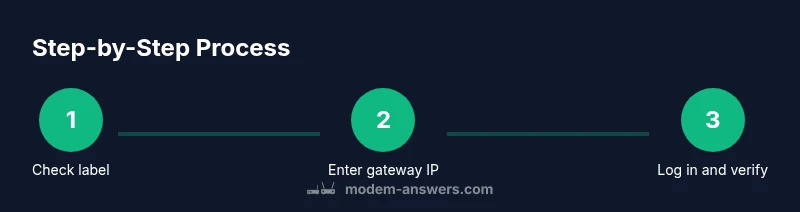
Look for a sticker on the bottom or rear panel that lists the gateway IP. This is often the quickest way to identify the address without touching software.
Tip: If you don’t find it, proceed to the next method. - 3
Try common gateway IP addresses in a browser
Open your browser and enter 192.168.0.1, 192.168.1.1, or 10.0.0.1 in the address bar. If a login page appears, you’ve found the gateway IP.
Tip: If the first two fail, try a third common address like 192.168.100.1. - 4
Log in to the admin page
Use the credentials shown on the device label or the provider’s recommended defaults. If you previously changed them, use the updated login.
Tip: If you can’t remember credentials, contact your provider or check the label again. - 5
Verify the IP on the admin page
Navigate to the status or LAN settings to confirm the gateway IP. Take a screenshot or write it down for future reference.
Tip: Record IP and login details securely to avoid future lookup friction. - 6
Alternate method: use OS network tools
If the gateway IP isn’t obvious, use your computer or mobile device’s network settings. For Windows, run ipconfig; for macOS, check System Settings; for iOS/Android, view the Router value in the Wi‑Fi settings.
Tip: Cross-check by verifying the value on two devices if possible.
FAQ
What is the difference between a modem IP address and a public IP address?
A modem IP address is the private address used inside your home network to reach the gateway device. The public IP address is assigned by your internet service provider and is visible to the outside world.
The modem IP stays inside your network, while the public IP is what websites see.
Why do gateway IPs look different across devices?
Different manufacturers assign different private IP ranges for the gateway. The value shown is the local address your devices use to reach the modem’s admin page.
Gateway IPs vary by device, but they all serve the same purpose: accessing the modem’s settings.
What should I do if I can't access the admin page after finding the IP?
First, confirm you’re connected to the modem’s network. Try re-opening the browser in incognito mode and ensure you’re using the correct gateway IP. If you still can’t access, reset credentials or contact your provider.
Ensure you’re on the right network and try again; if needed, reset credentials or get provider help.
Can I change the modem's IP address?
Yes, many modems allow changing the gateway IP within the admin page under LAN settings. Choose a private range supported by your devices and document the change to avoid misconfigurations.
You can usually change it, but keep track of the new address.
Is it safe to access the admin page over public Wi‑Fi?
Avoid accessing the admin page over public networks. If you must, use a trusted VPN and disable remote management to limit exposure.
Better to use a trusted network or VPN when logging into the modem.
What if my gateway IP isn't one of the common addresses?
Check the device label again, consult the provider’s support article, or use a network scanner on a trusted device to identify the gateway.
If it’s not one of the common addresses, check the label or ask support.
Key Takeaways
- Identify your gateway IP quickly
- Use multiple methods to verify the IP
- Secure the admin login after finding the IP
- Document credentials for future use
- Know when to seek provider support