How to Get Modem MAC Address
Learn reliable methods to locate your modem’s MAC address across devices and interfaces, with simple steps, screenshots, and safety tips for troubleshooting.


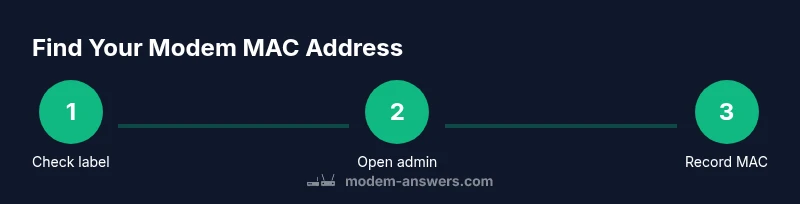
By following these steps, you’ll locate your modem’s MAC address quickly and safely. You can pull it from the hardware label, the modem’s admin interface, or your computer’s network settings (gateway view). This guide shows you how to identify the correct MAC address for WAN/LAN needs across platforms for troubleshooting and device pairing.
Understanding MAC addresses and why you need yours
A MAC address is a unique hardware identifier assigned to every network interface on your devices. For modems, the MAC helps ISPs manage activation, device provisioning, and security features like MAC filtering. Knowing your modem's MAC address can also help with troubleshooting, router configurations, and inventory management. According to Modem Answers, most users benefit from knowing the WAN MAC in addition to LAN MAC when setting up multiple devices. This section explains what the MAC address represents and why it matters for home networks. MAC addresses are written as six pairs of hex digits, separated by colons or dashes. The first three octets designate the manufacturer, while the remaining three identify the individual device. Because MAC addresses are hardware-based, they don't change unless you deliberately spoof or replace the NIC. In home networks, you may encounter WAN MAC addresses unique to the modem or gateway. The MAC can be essential when your service provider requires a specific MAC address to activate your modem, or when you set up MAC filtering to restrict access. Understanding these basics helps when you access the modem's admin page or contact support. In this guide, we’ll cover the most reliable methods to locate the MAC address across common platforms and devices. Note that exact labels and menu names vary by brand, model, and firmware, so a flexible approach will save time. Modem Answers provides practical steps you can follow at home.
Quick checks: where the MAC address is likely found
Most modems display the MAC address on a label affixed to the bottom or back of the device. This label may be labeled as MAC address, MAC ID, or a similar term. If the label has faded, check the original packaging, user manual, or the provider’s online documentation for the exact location. Some ISP gateways also show a stacked barcode with a MAC value. If you still can’t locate it on the device, you can verify via software: the admin interface often lists WAN MAC and LAN MAC under headings like Status, Device Info, or Network. In many setups you’ll see both MAC addresses—WAN for the internet-facing interface and LAN for your internal network. Starting with the hardware label saves time, and software views provide confirmation. The goal is to identify the correct MAC for the device you’re troubleshooting or registering with your ISP. Remember, the label’s readability and menu names vary by brand and firmware.
Accessing the modem's admin interface to view MAC addresses
To access the modem’s admin page, connect a computer or mobile device to the modem’s network, then open a web browser. Enter the gateway address shown in your manual or on a sticker near the ports, and log in with the credentials provided by your ISP or set by you. Once inside, navigate to sections commonly labeled Status, Device Info, or WAN. Look for entries named WAN MAC or Internet MAC to identify the address used on the internet connection. If you see multiple addresses, confirm which one is WAN—the other addresses typically refer to LAN interfaces. Some devices use a tab called “MAC Address” or a dropdown for Ethernet, Wi‑Fi, or USB interfaces. Copy the WAN MAC exactly as shown (colons or dashes may appear; the format is not case-sensitive). If your device supports different modes (for example, bridge mode), ensure you’re viewing the correct interface. When in doubt, consult the user guide for the exact menu names. Modem Answers notes that admin interfaces can vary, but the WAN MAC is consistently labeled in most firmwares.
Finding the MAC address from a computer: gateway view
If you cannot access the modem’s admin page, you can check the gateway MAC from a connected computer. On Windows, open the network settings for your active connection, and look for the gateway’s MAC in the details of that network adapter (the gateway is typically the device you router traffic through). On macOS, go to System Settings or Network, select the active connection, then click Advanced to view the hardware address, which is the MAC for the gateway you’re connected to. In both cases, you’re identifying the MAC address of the device acting as the gateway to the internet, which is usually the modem or ISP-provided gateway. If you connect a smartphone, you may also find gateway MAC details in the device’s Wi‑Fi settings under the connected network. This method is helpful when the physical label is unreadable or the admin interface is unavailable. The key is to ensure you’re reporting the MAC address associated with the device that connects your home to the internet.
WAN vs LAN MAC addresses: how to interpret them
MAC addresses exist for every network interface, which means your device may present several addresses. The WAN MAC is for the gateway’s internet-facing interface, while LAN MAC addresses apply to devices on your local network. When provisioning or troubleshooting, you may need to report the correct MAC depending on whether your service agent is configuring the modem remotely or validating a connected device. If you’re setting up MAC filtering or whitelists, prefer using the WAN MAC for internet-facing tasks and LAN MAC addresses to control access on your internal network. Distinguishing between WAN and LAN MAC addresses helps ensure accurate configuration and easier future troubleshooting. Remember that your modem may present multiple interfaces (e.g., Ethernet, USB, Wi‑Fi) each with its own MAC address.
Special cases: ISP gateways, bridged mode, and quirks
Some providers supply gateways that blend modem and router features. In these devices, the WAN MAC is the address seen by the ISP on the internet, while the LAN MAC controls devices within your home network. If a gateway is in bridged mode or managed by ISP software, MAC addresses can be displayed in different sections or may require contacting support to confirm the official WAN MAC. Firmware updates can also change where the MAC appears or how it is labeled, so it’s wise to re-check after updates. If you encounter a device with unusual menu names or missing fields, reference the model’s official documentation or provider support articles. Modem Answers stresses verifying the exact MAC you need to share with your ISP and avoiding confusion between WAN and LAN addresses during setup.
Troubleshooting: what to do if you still can't locate the MAC
Begin by re-checking the label and the admin interface’s sections. If the MAC remains elusive, power cycle the modem and try again, as a reboot can refresh the device’s status page. If you rent the modem from your provider, contact support for the precise WAN MAC and ask them to verify it on your account. You can also cross-check using a connected computer’s gateway view to confirm the MAC associated with the device you used to access the internet. Finally, consult the model’s official documentation or supplier resources for model-specific instructions. The Modem Answers team emphasizes methodical checking and keeping a record of the MAC addresses after you locate them, as this information is often needed for activation, diagnostics, and security settings.
Best practices: recording, security, and quick reference
Create a secure record that includes device model, serial number, and MAC addresses for WAN and LAN interfaces. Store this offline or in a password-protected manager with clear tags like MAC address, modem, and network. Treat MAC addresses as sensitive identifiers that help manage network access and device provisioning; avoid sharing them publicly or posting images of the MAC label in public spaces. Having a dedicated file or note makes it easy to retrieve the MAC when setting up new equipment, contacting support, or troubleshooting connectivity issues. Regularly review and update this record if you replace gear or alter network configurations. As you handle MAC addresses, keep privacy and security in mind—limit who has access and how the information is used.
Tools & Materials
- Computer, tablet, or smartphone with internet access(Used to view the admin page or network settings)
- Modem or gateway device(The device containing the MAC address)
- Web browser (Chrome, Edge, Safari, etc.)(To access the admin interface)
- Admin page credentials(If you never changed them, refer to the default credentials in the manual)
- Pen and paper or digital note(Optional for recording MAC addresses securely)
- ISP account details (optional)(Helpful when verifying MAC with the provider)
Steps
Estimated time: 20-30 minutes
- 1
Locate the modem physically
Inspect the bottom, back, or side of the modem for a label. Look for terms like MAC address, MAC ID, or hardware address. If you rent the device, the label will often be present on the device itself, sometimes near the ports. This step helps you quickly verify one of the most reliable sources of the MAC without needing to log in. If the label is hard to read, use a flashlight or take a close-up photo for later reference.
Tip: A clear photo of the label makes it easy to copy the exact string later. - 2
Read the device label
Read the MAC address exactly as printed on the label. Note whether it uses colons or dashes and whether uppercase or lowercase letters appear. Some devices show both WAN and LAN MAC addresses on the same label; confirm which one is WAN if you’re troubleshooting an internet connection. This step is useful for quick verification and is often all you need for activation tasks.
Tip: Copy the address carefully; even a single character mismatch can cause issues. - 3
Open the modem’s admin interface
On a connected device, open a web browser and enter the gateway IP address shown in the manual or on a label. Log in with the correct credentials. Navigate to a tab like Status, Device Info, or WAN. If you don’t see MAC details, try other sections labeled Network, Internet, or System. This is your guided path to the internal MAC addresses the device uses.
Tip: If you can’t log in, reset to factory defaults only as a last resort and after backing up settings. - 4
Identify WAN MAC in the admin page
Look for WAN MAC or Internet MAC. This is the address your ISP uses to recognize the gateway on the internet. Copy it exactly as shown. Some pages list multiple MACs; label which one is WAN to avoid confusion with LAN MAC addresses.
Tip: If the page uses a dropdown to switch views, ensure you’re viewing the WAN/Internet MAC view. - 5
Cross-check with computer gateway view
If you still aren’t certain, check your computer’s gateway information. On Windows, view the network properties of the active connection to find the gateway device’s MAC. On macOS, check the Network pane for the active interface and its hardware address. In both cases, you’re confirming the MAC of the device you’re connected to.
Tip: Ensure you’re reading the MAC for the device that handles internet access, not every device on the LAN. - 6
Record and secure your MAC addresses
Create a secure note or file that stores WAN and LAN MAC addresses, device model, and serial number. Label each MAC clearly (WAN vs LAN) and store it offline or in a password-protected manager. Having this information ready speeds up activation, troubleshooting, and support requests.
Tip: Use tags like MAC, modem, WAN, LAN to organize files for quick search.
FAQ
What is a MAC address and why is it needed for a modem?
A MAC address is a unique hardware identifier assigned to network interfaces. For modems, it helps with activation, provisioning, and security configurations. You may need it when reporting your device to an ISP or configuring network controls.
A MAC address is a unique hardware ID for your modem’s network interface. It's often needed for activation and security settings.
Where can I physically find the MAC address on my modem?
Most modems print the MAC address on a label attached to the bottom or back. If the label is unreadable, check the packaging or the user manual for the exact location.
Look on the modem’s label on the bottom or back; if unreadable, check the manual.
Can the MAC address be found from a connected computer?
Yes, you can identify the gateway device’s MAC by viewing the gateway details in your computer’s network settings or command-line tools. This reveals the MAC of the device you connected to, usually the modem or gateway.
You can view the gateway’s MAC in your computer’s network settings.
What if my modem is in bridged mode or ISP-managed?
In bridged mode, the MAC visibility may be different. The official WAN MAC is often provided by the ISP portal or support. Check their documentation or contact support to confirm the correct address.
Bridged mode can hide the MAC details; contact your provider for the exact WAN MAC.
Is it possible the MAC address changes?
MAC addresses are generally fixed to hardware and do not change unless you replace the NIC or spoof the address. Some configurations or virtualization features can alter reported MACs.
MAC addresses are usually fixed, but certain changes can alter what you see.
Do I need to share the MAC address for security or setup?
MAC addresses are used for device identification and access control. Keep them private and share them only with trusted support channels when needed.
Keep MAC addresses private and share only with trusted support.
Watch Video
Key Takeaways
- Check the physical label first for the MAC address.
- Use the modem’s admin page to confirm WAN vs LAN MAC.
- Record and secure the MAC addresses for future reference.
- Understand WAN vs LAN MAC to avoid configuration errors.