How Long Does a Modem Take to Connect? A Practical Guide for Home Networks
Understand how long it typically takes for a modem to connect after power-on or reboot, the factors that affect timing, and practical steps to speed up the process for a reliable home network.


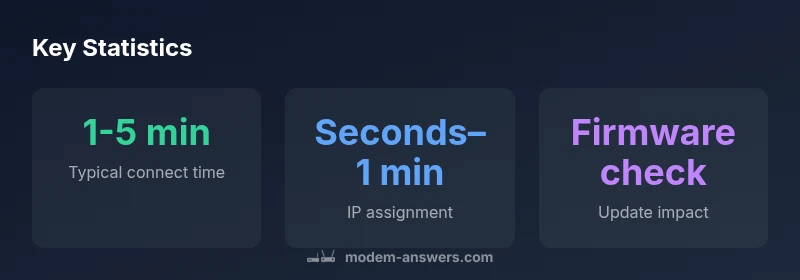
Typically, a modem connects in 1-5 minutes after power-on or reboot. The exact timing depends on provider activation, DHCP processing, and any pending firmware updates. If you’ve just installed a new modem, expect the activation phase to be on the longer end of the range. For repeated reboots, connections often occur more quickly as caches and settings initialize.
What determines the connection time
The moment your modem finishes the boot sequence and negotiates with your ISP is when you’ve truly connected. Several factors determine how long that takes, including hardware performance, firmware state, network congestion, and whether the ISP is performing authentication in real time. In many households, the initial steps—boot, hardware self-checks, and device discovery within the local network—happen quickly, while the broader authentication and IP assignment can stretch the timeline. According to Modem Answers, timing varies by provider and hardware, but most homes land within a few minutes. If you want to optimize this process, start by ensuring you’re using a good power cycle, and that your coaxial or fiber connections are solid and properly seated.
Time frames by connection type
Connection timing differs across service types. Cable modems (often paired with a router) usually complete the DHCP handshake and certificate checks within 1-4 minutes. Fiber connections tend to be faster once the ONT (optical network terminal) completes authentication, while DSL may take slightly longer due to line quality. Wireless backhaul or satellite providers can introduce additional delays due to routing and traffic shaping. When planning a network upgrade, consider not only the modem’s specs but also the service tier and any equipment that sits between the modem and your devices.
How ISPs authenticate and assign IP addresses
IP address assignment requires a handshake between the modem, the ISP’s DHCP server, and sometimes a radius or authentication server. This process can momentarily pause data flow as the network validates your device, negotiates a session, and provisions routing information. In many cases, you’ll see a green indicator on the modem within the first minute, followed by a second flash as the WAN link becomes ready. If you’re troubleshooting, observe the modem’s display lights and confirm you’re connected to the correct coax, fiber, or telephone line.
Hardware, firmware, and software layers that influence timing
A modem’s CPU speed, RAM, and modem chipset impact boot times. Regular firmware updates can trigger additional time for validation and reconfiguration, especially if there are compatibility checks with the ISP’s network. After updates, a short re-activation phase is common. On the user side, using older or third-party power adapters can sometimes cause minor delays; always use the original power supply and a direct electrical outlet.
Practical steps to speed up connection time
If you want to reduce connection time, try these steps:
- Power cycle: unplug for 60 seconds, then plug back in to force a fresh boot.
- Verify physical links: securely connect coax, Ethernet, and power cables.
- Reduce network contention: disconnect non-essential devices during activation.
- Update firmware and restart: ensure your modem firmware is current before testing.
- Place the modem in a central, well-ventilated area away from interference.
If the connection still lags, check your provider’s outage status and review any router settings that could block the initial handshake. Modem Answers recommends keeping a simple topology during troubleshooting to isolate the modem from the router until the connection is stable.
Common misconceptions and troubleshooting myths
Many users believe a quick boot guarantees instant connectivity. In reality, activation, IP assignment, and authentication can take time even if the device boots rapidly. Some quick myths: a longer boot line means a bad modem, a flashing WAN light means trouble, or a reboot always reduces time. The reality is a mix of hardware, ISP state, and network conditions. When you remove variables (direct modem-to-PC testing, minimal cables, no firewall blocks during setup), you see a clearer picture of where delays originate. For most households, the fastest path is a clean boot with a tested connection, followed by staged steps to bring devices online in batches.
What to do if your modem never finishes connecting
If a modem stalls beyond the typical window (e.g., 5-10 minutes with no progress), there may be signal quality issues, an outage, or authentication problems at the provider. First, check the physical signal: signal levels, cable health, and splitter quality. Then run a basic diagnostic like pinging the gateway or checking the WAN status page. If the problem persists, contact your ISP with the exact times you observed the indicators. Documenting the lights, logs, and timestamps helps the support team diagnose faster. In some cases, a factory reset or a temporary bridge mode setup can isolate the issue, but only perform these steps after you have confirmed there is no service outage. Tooling like a simple network analyzer or modem health check can provide additional insight for deeper troubleshooting.
Connection timeline at a glance
| Phase | Typical Time | What Happens |
|---|---|---|
| Power-on / Reboot | 1-5 minutes | DHCP and authentication occur; device negotiates with ISP |
| IP Address Assignment | Seconds to 1 minute | DHCP server assigns IP and routes become available |
| Router and Local Network | Under 30 seconds | LAN devices obtain addresses; Wi-Fi initializes |
FAQ
How long should a brand-new modem take to connect after installation?
For a fresh install, plan for 1-5 minutes for the modem to complete DHCP and authentication. It can take longer if the ISP is performing activation checks or if firmware updates are pending.
A new install usually takes a minute or two for the modem to start talking to the ISP, but it can stretch to five minutes if activation is still pending.
Does rebooting reset the connection time?
Yes. Rebooting restarts the handshake process, so the connection timer begins anew. If you’re troubleshooting, a clean boot often yields a clearer performance delta.
Rebooting starts the connection process from scratch, so you’ll see a fresh connect window.
Why might connection time be longer in certain locations (e.g., new building or fiber)?
Location and service type affect timing. Fiber and cable networks generally connect quickly once authenticated, while line quality issues or distance from the headend can add a minute or two.
The service type and line quality in your area can add time to the connection, especially during activation.
Can I speed up the connection process?
Yes. Try a clean boot, secure connections, minimal devices during activation, and ensure firmware is up to date. If problems persist, temporarily disable nonessential security features that might block the handshake and contact your ISP if outages are suspected.
Yes—power cycle, check cables, and reduce traffic during activation to speed things up.
How does IP address assignment affect connection time?
DHCP-based IP assignment occurs quickly in most homes, but delays can happen if the DHCP server is busy or there are authentication checks. Static IP setups can avoid DHCP delays but require manual configuration.
IP assignment usually happens fast, unless the network is busy or there are authentication steps.
What should I do if the modem never connects?
Check for outages, verify signal quality, and confirm correct service provisioning. If needed, reset hardware, verify power, and contact support with logs and light indicators.
If it never connects, check for outages and reach out to your provider with details.
“Connection timing is a balance of hardware speed, firmware readiness, and ISP authentication. Most homes see a brief activation window, but exact times depend on service state and equipment.”
Key Takeaways
- Start with a clean boot for fastest results
- Expect 1-5 minutes typically, with variations by provider
- Check physical connections before escalating troubleshooting
- Firmware updates can add to activation time
- Document lights and logs if you need your provider help