Can you go straight from modem to PC? A practical guide
Explore whether you can connect a PC directly to a modem, how to configure IP settings, and when to use bridge mode or a separate router. This educational step-by-step guide from Modem Answers covers direct connections, common pitfalls, and safe testing.


Yes—it's possible to connect a PC directly to a modem in many setups, but it depends on your device's mode. If your ISP-provided device is a pure modem, you can use an Ethernet cable and DHCP to obtain an IP. If the device is a gateway, you may need bridge/passthrough mode or a separate router.
Can you go straight from modem to PC? What it means in practice
In most homes, the question can you go straight from modem to PC boils down to whether your device is functioning as a pure modem or as a gateway. According to Modem Answers, many ISP-supplied devices combine modem and router features, enabling multiple devices but complicating a direct PC connection. If you have a true modem (no built-in router), you can plug a PC directly into the modem using an Ethernet cable and let the PC obtain an IP via DHCP. However, you'll typically lose wireless access for other devices unless you add a separate router. Telemetry shows that the majority of consumers operate behind a router/NAT setup, which introduces a barrier that direct PC connections can bypass only if bridge mode or passthrough is enabled. Another factor is the service provider's terms; some providers require using their gateway for compatibility and support. In short, yes you can connect, but the best method depends on your hardware and goals, especially if you want consistent access for other devices, Wi-Fi, or remote access.
Modem-only vs gateway: understanding the hardware
A modem-only device provides a straightforward bridge between your ISP and your network, while a gateway combines modem functions with router features. If your modem is truly standalone, a direct PC connection is technically feasible. If the device is a gateway, the PC will sit behind NAT unless you enable bridging or passthrough. In practical terms, many users will find bridging or adding a separate router provides equivalent or better performance with easier management. Modem Answers notes that bridging disables router functions on the gateway, allowing a direct path from the PC to the internet; however, you may lose built-in Wi-Fi and some ISP-provided management features. Always verify in your device admin page which mode you're in and what features are active.
How DHCP, IP addresses, and NAT affect direct connections
When you connect a PC directly to a modem, the PC usually uses DHCP to obtain an IP address, gateway, and DNS automatically. If the modem is a bridge or passthrough device, this process is seamless. If not, you might be assigned a private IP behind NAT, which can prevent direct inbound connections. In many setups, you'll see a private IP like 192.168.100.x and a gateway of 192.168.100.1. Static IP configuration is an alternative when the modem provides a static range; in that case, you must match IP, subnet, gateway, and DNS to the modem’s settings. This section walks you through typical DHCP vs static IP decisions for a direct PC connection.
Essential hardware for a direct modem-to-PC link
The core kit is simple: a wired Ethernet connection and a PC with an Ethernet port. If your PC lacks Ethernet, you can use a USB-to-Ethernet adapter. Use a Cat5e or Cat6 cable for reliability, and keep the distance under 100 meters in typical home layouts. You might also want a minimal network switch if you plan to connect more devices later. Optional but helpful accessories include a USB-C to Ethernet adapter, a small UPS for power stability, and documentation to access the ISP-provided modem configuration page. Remember to handle cables neatly to avoid accidental unplugging.
Step-by-step: from hardware to an internet-ready PC
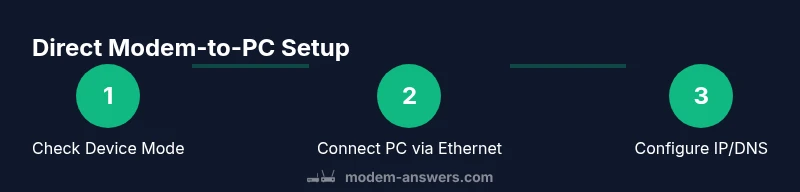
This section offers the core steps at a glance, but you'll find the full, detailed steps in the dedicated STEP-BY-STEP block below. First, confirm whether your device is a pure modem or gateway. Then connect the PC via Ethernet, enable DHCP on the PC, and test connectivity. If you lack internet, consider bridging mode or passthrough and re-test. Finally, document the configuration for future reference. When following these steps, expect to allocate 15–30 minutes for setup and testing, depending on device complexity and whether bridging needs to be enabled by your ISP.
IP configuration: DHCP vs static IP in practice
For most users, DHCP is the simplest path. Set the PC to obtain an IP address automatically, and the modem will assign an IP, gateway, and DNS. If DHCP fails or you need consistent networking for a server or a specific use case, configure a static IP within the modem's supported range and provide DNS values. This choice affects accessibility, port forwarding, and remote access. The key is to stay within the same subnet as the modem for reliable routing. If you use static IPs, document every parameter to avoid misconfiguration during future tweaks.
Bridge mode and IP passthrough: when to use them
Bridge mode disables the router portion of a gateway, turning the device into a pure modem. Passthrough mode shares the public IP with your PC, which can simplify access but may expose the device more directly to the internet. Both options can facilitate a direct PC connection but often disable built-in features you might rely on, such as Wi-Fi and ISP-provided security controls. Before enabling bridge/passthrough, check with your ISP, as some services require their gateway for support. If you don't need multiple devices on Wi-Fi, bridging can be an effective path to a direct server-like connection.
Security, privacy, and ISP considerations
Direct connections can expand attack surfaces if the PC is exposed to the internet without proper protection. Ensure a strong firewall, enable automatic OS updates, and keep antivirus software current. If you plan remote access, configure secure VPN access rather than relying on exposed ports. Additionally, some ISPs require using their gateway for certain services; bridging or passthrough could affect warranty coverage or support. Always review your provider's terms and keep a record of changes you implement.
Testing, validation, and ongoing maintenance
After configuration, test basic connectivity with ping and traceroute to known public servers. Check DNS resolution by visiting a website or using nslookup. Validate both download and upload speeds, and ensure Wi-Fi devices continue to connect if you kept the gateway features. Schedule a periodic review of the configuration to account for firmware updates, which can alter networking behavior. Regularly back up your configuration notes for quick recovery.
Tools & Materials
- Cat5e/Cat6 Ethernet cable(Use a reliable cable rated for Gigabit speeds; length depending on room layout.)
- PC with Ethernet port or USB-C-to-Ethernet adapter(If your PC lacks an RJ-45 port, add a compatible adapter.)
- Modem with an RJ-45 Ethernet port(Ensure the port is functional and not a service-specific uplink.)
- ISP account access or modem admin credentials(Useful for enabling bridge/passthrough; not always required.)
Steps
Estimated time: 30-60 minutes
- 1
Verify device mode
Check whether your modem is operating as a pure modem or as a gateway. Log into the device admin page and look for terms like 'bridge', 'passthrough', or 'router' mode. If you see router features active, you may need to switch to bridge or connect via a router. This step prevents misconfigurations later.
Tip: If unsure, contact your ISP to confirm device mode and supported configurations. - 2
Gather hardware and cables
Assemble a Cat5e/Cat6 Ethernet cable, a PC with an Ethernet port, or a USB-to-Ethernet adapter if needed. Keep the cable length reasonable to minimize signal loss, and organize cables to avoid tripping hazards or accidental unplugging.
Tip: Label cables so you know which device they connect to during troubleshooting. - 3
Physically connect the PC to the modem
Plug one end of the Ethernet cable into the PC and the other end into the modem\'s LAN port. Ensure a solid, clicky connection on both ends. If you\'re using a gateway in bridge mode, you may need to disable built-in Wi-Fi to prevent interference.
Tip: Use a dedicated LAN port on the modem to avoid uplink ports that may be configured differently. - 4
Configure PC to obtain IP automatically
On Windows, go to Ethernet properties and set IP to obtain automatically; on macOS, configure IPv4 to DHCP. This enables the modem to assign an IP address, gateway, and DNS automatically.
Tip: If automatic IP fails, try releasing/renewing the IP from a command prompt or terminal. - 5
Test basic connectivity
Open a browser and load a well-known site, or run ping 8.8.8.8 to verify basic reachability. If the test fails, check cables, restart devices, and confirm that the modem is in a compatible mode.
Tip: Use a wired test first to rule out Wi-Fi issues. - 6
Assess NAT and gateway behavior
If you see a private IP (like 192.168.x.x) and can\'t reach the internet, the modem is likely performing NAT. In that case, consider bridge/passthrough mode or add a router to manage NAT, routing, and firewall features.
Tip: Bridge mode can disable wireless, so be prepared to provide Wi-Fi elsewhere if needed. - 7
Configure DNS and testing
If you still can\'t reach the internet, manually set DNS servers (e.g., 1.1.1.1 and 8.8.8.8) on the PC. Retest connectivity and verify DNS resolution by visiting multiple sites.
Tip: Avoid using ISP-provided DNS alone if you want faster and more private resolution. - 8
Document and back up settings
Record the exact steps and any values you used (IP, subnet, gateway, DNS, bridge settings). This helps you reproduce the setup or revert changes if needed and is useful for future troubleshooting.
Tip: Keep a small digital note with device model, firmware version, and date of changes.
FAQ
Can I connect my PC directly to any modem, or are there exceptions?
Most pure modems support direct Ethernet connections to a PC. Gateways may require bridge/passthrough mode to avoid double NAT. Always check your device mode before starting.
Yes, usually you can connect a PC to a modem if it’s a standalone modem; gateways may need bridging.
What is bridge mode and when should I use it?
Bridge mode turns off the router functions in a gateway device, allowing a direct modem-to-PC connection. Use it when you need a single device to manage NAT or to expose a PC directly to the internet. Check with your ISP before enabling it.
Bridge mode disables the gateway’s router features, which helps when you want a direct PC connection.
Will connecting a PC to a modem affect Wi‑Fi on other devices?
If you switch a gateway to bridge mode, Wi‑Fi will usually be disabled on the gateway. You can still provide Wi‑Fi via a separate router or access point.
Bridging can turn off built-in Wi-Fi, so plan an alternative Wi‑Fi solution.
Do I need a static IP to connect directly to a modem?
DHCP is sufficient for most direct modem connections. Static IP is only needed if you plan to host services or require a fixed address.
Usually you don’t need a static IP; DHCP works for standard internet use.
Will my ISP still support troubleshooting if I bridge the modem?
Bridging can complicate support; some ISPs require you to use their gateway. Check terms and keep notes on changes.
Bridging may affect support; verify with your provider before changing modes.
Watch Video
Key Takeaways
- Direct PC-to-modem is possible with pure modems.
- Gateway devices require bridge/passthrough to avoid NAT.
- DHCP is usually sufficient, but static IP can help for servers.
- Bridge mode disables router features like Wi‑Fi; plan accordingly.
- Always test connectivity and document your settings for future use.