Can You Get Internet Straight From a Modem? A Practical Guide for Homes
Discover whether you can access the internet directly from a modem, when to use bridge mode, and how to set up a direct connection for a single device. Clear steps, precautions, and tips for homeowners and renters.


Yes. In many setups you can access the internet straight from a modem by connecting a single device via Ethernet and using bridge or pass-through mode to avoid double NAT. Your ISP may require a modem-only configuration or activation of bridge mode to provide a public IP and proper routing. This is common for troubleshooting or lab setups.
What does it mean to get internet straight from a modem?
When people ask if they can get internet directly from a modem, they’re usually considering a setup that bypasses a secondary router. In most residential ecosystems, a modem connects to a router that provides Wi‑Fi and LAN services. However, a modem can serve a single device directly if the network is configured for it—typically through bridge or pass-through mode. According to Modem Answers, the key distinction is whether the device hands out IP addresses and translates network addresses for multiple devices. In bridge mode, the modem passes public IPs through to the single connected device and disables NAT on the modem, which helps avoid double NAT and improves compatibility with certain services.
This approach is not universal. Some ISPs require the modem to operate in gateway mode with built‑in router features, while others will enable bridge mode only on approved devices. Always verify with your provider before changing modem settings.
Brand note: Modem Answers emphasizes confirming feature support with your ISP, as availability varies by plan and region.
Can you use a modem without a router?
Yes, you can use a modem without a separate router for a single device. The required conditions are that your ISP assigns a public IP to your modem and that you enable a bridge or pass-through configuration. Without these settings, you’ll likely encounter NAT (Network Address Translation) on the modem, which can complicate direct access for a single device and may affect certain online services. If you’re testing or troubleshooting a local connection, a direct Ethernet link can be simpler and faster. Modem Answers recommends confirming bridge mode support with your provider before making changes, to prevent service interruptions.
How bridge mode works and when it’s necessary
Bridge mode effectively turns your modem into a pure data conduit, handing the public IP (or the IP your ISP assigns) to the connected device. In this mode, the modem stops performing routing tasks like NAT, firewall rules, and DHCP. This is essential when you want a single device to control its own network stack or when you’re using a dedicated firewall or router behind the modem.
Common scenarios that benefit from bridge mode include:
- Connecting a high‑security firewall appliance that requires direct IP exposure
- Troubleshooting VPNs or gaming setups that don’t work well behind NAT
- Lab environments where you want full control over IP addressing
Before enabling bridge mode, ensure your device is compatible and that you have a fallback method to regain access if something goes wrong (e.g., a backup plan to regain admin access or reset). Modem Answers notes that misconfigurations can leave you without internet access.
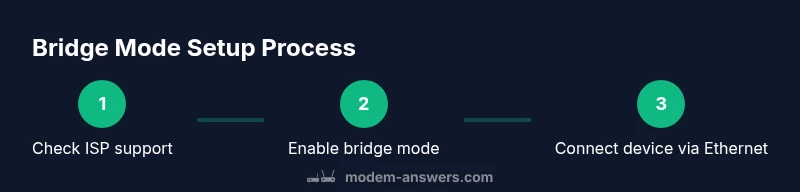
Step-by-step setup to connect a single device directly to a modem
- Verify compatibility and permission:
- Confirm with your ISP that bridge/pass-through is supported and available for your plan.
- If needed, obtain any required authorization or MAC‑based activation. Tip: Some ISPs disable bridging on consumer plans; you may need a technician visit.
- Gather your essentials:
- An Ethernet cable (Cat5e or Cat6), a computer or laptop, and a browser.
- The modem’s admin credentials and the ISP login (if required). Tip: Use a wired laptop connection for reliability during setup.
- Connect and access the modem:
- Plug in the modem and connect your computer via Ethernet to the modem’s LAN port.
- Open a browser and enter the modem’s default gateway IP (often 192.168.1.1 or 192.168.0.1). Tip: If you can’t reach the admin page, reset the device only as a last resort.
- Enable bridge or pass-through mode:
- Locate the section for bridge or WAN mode and enable it. Save changes and reboot if prompted.
- Some devices require you to specify the MAC address of the connected device. Tip: You may need to disable the modem’s built‑in Wi‑Fi to avoid interference.
- Configure your single device:
- On the connected computer, set the network adapter to obtain an IP address automatically (DHCP).
- If your ISP uses a static IP, enter the provided IP, gateway, and DNS settings. Tip: Document your original settings before changing anything.
- Test the connection:
- Open a browser and visit a site to confirm connectivity.
- Run a quick speed test and verify latency, which can reveal routing or NAT issues. Tip: If you don’t see a public IP, revisit the bridge configuration or contact your ISP for assistance.
IP addressing, NAT, and public IP considerations
Most home networks rely on a router to perform NAT, which translates many private addresses to a single public IP. When you enable bridge mode, the modem stops NAT, and your connected device receives a direct public IP (or the IP assigned by the ISP to that connection). This eliminates double NAT and can improve certain services (VPNs, gaming, or voice apps). However, not all ISPs provide public IPs by default, and some require you to configure a static IP or use a separate device to handle DHCP.
If you encounter IP addressing issues after enabling bridge mode, you may need to:
- Confirm DHCP settings on the connected device
- Reboot the modem and the device to refresh the IP assignment
- Check for an additional external device (e.g., another router) that might still be performing NAT
Modem Answers notes that public IP availability can vary by plan and geography, so consult your provider if the expected IP nature isn’t apparent.
Common pitfalls and how to avoid them
- Double NAT after bridge misconfiguration: Ensure the modem is truly in bridge mode and that no other device is performing NAT.
- Losing remote access to the modem: Keep a fallback plan to re-enter the modem’s admin page, such as a temporary local connection or a backup account.
- Wi‑Fi gaps when removing a router: If you still need wireless, add a dedicated access point or a wireless adapter on the single device.
- ISP restrictions: Some providers disable bridging on consumer plans; verify before changing settings.
- Firewall and security: A directly connected device may be more exposed; enable local firewall rules and keep software updated.
Modem Answers recommends documenting all steps and keeping contact with your ISP handy in case bridging requires activation or reversion.
Should you run with a router or go routerless? pros and cons
• Routerless (modem-only direct connection) pros: fewer devices, potentially lower latency for a single device, simpler topology. cons: no Wi‑Fi, reduced device flexibility, and lack of built‑in security features.
• Router-backed setups pros: Wi‑Fi coverage, easy sharing among multiple devices, enhanced security with firewall and updated firmware. cons: another device to manage and potential NAT complexity if not configured properly.
For most households, a router remains the practical choice for multi-device homes. If you’re troubleshooting or need direct access for a specific task, a bridged modem setup can be temporarily beneficial. Modem Answers suggests starting with a routerless test only if you have a clear, time-limited need and a plan to revert.
Quick reference: modem-only vs gateway vs modem-router combo
- Modem-only (bridge mode): Directly connect one device with no NAT from the modem. Best for labs, testing, or specialized setups.
- Gateway (modem with router still enabled): All-in-one device offering Wi‑Fi and LAN, but NAT is active.
- Modem-router combo: Most common consumer option; simple to use but harder to modify for advanced networks.
- Router behind a bridged modem: Keeps Wi‑Fi via the router while preserving a clean path for the single device when needed.
In practice, the choice depends on your needs for Wi‑Fi, number of devices, and how much control you want over IP addressing. The Modem Answers team recommends evaluating your usage pattern and compatibility with bridge mode before purchasing additional gear.
AUTHORITY SOURCES
- FCC. gov: https://www.fcc.gov/
- NTIA. gov: https://www.ntia.doc.gov/
- UC Berkeley: https://www.berkeley.edu/
These sources provide guidance on broadband configuration, IP addressing, and network considerations that underpin the practical steps outlined above.
Tools & Materials
- Ethernet cable (Cat5e or Cat6)(One end to modem LAN port, other end to single device NIC)
- Computer or laptop(For configuring modem and IP settings via browser)
- Web browser(Chrome/Firefox/Edge; ensure it’s up to date)
- ISP login credentials (if required)(May be needed for bridging activation)
- MODem admin credentials(Access to the modem web interface)
- Backup documentation(Record original settings before changing anything)
Steps
Estimated time: 45-60 minutes
- 1
Verify compatibility and obtain permission
Confirm with your ISP that bridge or pass-through is supported and that you’re authorized to enable it. Some plans require technician activation or special equipment. This step prevents later outages.
Tip: Document the exact policy from your provider in case you need to revert. - 2
Gather necessary equipment
Collect a tested Ethernet cable, a computer, the modem with its power supply, and your ISP login information. A wired connection ensures stable configuration changes.
Tip: Use a fresh cable to avoid flaky connections. - 3
Access the modem admin page
Power on the modem and connect your computer to a LAN port. Open your browser and enter the modem’s default gateway (e.g., 192.168.1.1). Log in with the admin credentials.
Tip: If you can’t reach the page, reset the modem using the recessed button only as a last resort. - 4
Enable bridge/pass-through mode
Navigate to the WAN/Bridge section and enable bridge or pass-through. Save changes and reboot the modem if required. Note any MAC address fields if your ISP requires them.
Tip: Some devices require you to specify the MAC of the connected device. - 5
Configure the connected device for IP addressing
On the connected computer, set the network adapter to obtain an IP automatically (DHCP). If your ISP uses a static IP, enter the provided IP, gateway, and DNS settings.
Tip: If using DHCP, you may need to renew the lease after bridging. - 6
Test connectivity and IP status
Open a browser to verify page loading and run a quick speed test. Check your IP via an external site to confirm a direct IP is visible.
Tip: If you don’t see a public IP, review the bridge settings or contact your ISP.
FAQ
Can I get internet directly from a modem without a router?
Yes, with bridge or pass-through enabled, a modem can pass the connection to a single device without a router. You’ll typically need a public IP and proper configuration from your ISP.
Yes—bridging lets a single device connect directly to the ISP’s network via the modem.
Will disabling the router risk security issues?
Removing the router’s NAT/firewall means your single device has fewer protections by default. Use a software firewall and keep the device updated, and re-enable router features if needed.
Removing the router does reduce built-in protections, so keep security software up to date.
Do all ISPs allow bridge mode?
No. ISP policies vary; some require technicians to enable bridge mode or may not support it at all. Check with your provider before changing settings.
Not all providers support bridge mode, so confirm with your ISP first.
What if I have multiple devices at home?
Bridge mode is best for a single device. If you need several devices with Wi‑Fi, consider using a dedicated router or access point behind the modem.
Bridge mode is usually for one device. For many devices, use a router or AP behind the modem.
Will I lose all internet if the bridge mode fails?
If bridging fails, you may lose connectivity until you revert to a standard gateway mode. Keep an alternate access method and know how to reset the modem.
Bridge issues can cut internet access, so be prepared to revert.
Watch Video
Key Takeaways
- Bridge mode can enable a direct internet path to one device
- Not all ISPs support bridge mode; confirm before changing settings
- Bridging removes NAT, so IP addressing and firewall control shift to the connected device
- Routerless setups are simplest for a single device, but less practical for homes with many devices