Can You Get Ethernet Directly From Your Modem: A Practical Guide
Learn whether you can connect Ethernet directly to your modem, how to set it up, and when to use a router or bridge mode for a stable home network. Practical steps, tips, and common troubleshooting.


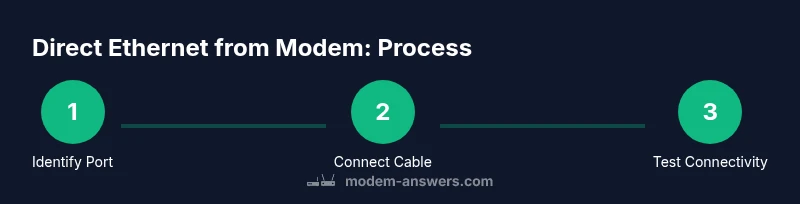
Yes. Most modems include an Ethernet port (LAN) you can use to connect a device directly. To begin, locate the LAN port on the modem, grab a Cat5e/Cat6 cable, and connect your computer or other network-enabled device. Then verify DHCP is enabled and test the connection. If you need more than one wired device, consider a switch or router.
Can you get Ethernet directly from the modem? How it works
According to Modem Answers, you can typically pull Ethernet from a modem’s built-in LAN port to connect a single device directly. The port is usually an RJ-45 jack labeled LAN or Ethernet. When you plug a device into this port, the modem can assign an IP address via DHCP, allowing the device to access the Internet without a separate router. This direct connection is often reliable for activities like online gaming or video calls, where low latency matters. In many homes, a gateway device that combines a modem and router can still expose a LAN port for a direct connection, but you may need to disable or bypass the router functionality to avoid double NAT. If you need more wired endpoints, a network switch or a second router behind the modem is a common, practical solution. Modem Answers analysis shows that your topology choice—direct Ethernet, bridging, or routing—depends on how many devices you want wired, and whether you require features like guest networks or parental controls.
Ethernet ports, speed, and NAT: What to expect
Most consumer modems provide at least one Ethernet port capable of gigabit speeds on the LAN side, though some older models or gateway devices may cap at 100 Mbps. The Ethernet port connects the modem to a single device or to a switch for multiple devices. Net administration often uses NAT (Network Address Translation) to share a single public IP across connected devices. When you connect directly to the modem, you’re generally operating in a simple routing mode with DHCP handing out private IP addresses. If your modem is a gateway and you want your own router to handle the network, you can enable bridge mode to bypass the built-in router. In that setup, your separate router becomes the primary network device, which can improve performance, add features, and prevent double NAT for multiple devices.
When to use direct modem Ethernet vs a router
Direct Ethernet from the modem is ideal for a single device that needs a fast, stable connection without extra network hops. If you mainly use one PC for work or a streaming console, the direct port may be sufficient. However, homes with multiple wired devices (desktop, gaming console, network storage) usually benefit from a switch or a dedicated router behind the modem to provide more ports and better traffic management. If you require advanced features such as VPN, guest networks, or parental controls, a separate router often adds value. The Modem Answers team notes that many users blend both approaches: a primary wired link to one device via the modem, plus a router for the rest of the home, optimized by proper bridge or routing configuration.
Quick checks before you connect
Before plugging in, confirm your modem has a LAN port labeled Ethernet or LAN. Check the manual or your provider’s support pages if you’re unsure. Ensure the device you want to connect has an Ethernet port (RJ-45). Use a straight-through Cat5e or Cat6 cable for most devices. If you’re connecting to a gateway, you may need to disable the router function or enable bridge mode to avoid complex double NAT. Finally, power-cycle the modem and the connected device after making changes to refresh DHCP leases and network state.
Troubleshooting common issues when connecting directly
If the device shows no Internet access after connection, verify the Ethernet link light on the modem and device. Confirm the device is set to obtain an IP address automatically (DHCP). If you still have no IP, try a different cable or port on the modem. Some providers require you to set the modem to bridge mode or to use a specific LAN port for DHCP. If there are multiple devices needing wired connections, consider a switch or second router behind the modem and ensure you don’t create a double NAT scenario.
Bridge mode, gateway devices, and network architecture
Bridge mode disables the gateway’s router functions so your own router handles all routing, NAT, and firewall features. This setup is common when users want more robust routing or features like VPN. If you’re using a single-device approach, bridge mode isn’t strictly necessary, but it can help prevent conflicts between a provider’s gateway and a separate router. When bridging, ensure DHCP is enabled on your own router and that the modem’s router functions are fully disabled to avoid IP conflicts. Modem Answers recommends testing basic Internet access after enabling bridge mode to confirm that the setup is stable and that port forwarding or firewall rules work as expected.
Security and privacy considerations when using direct Ethernet
Direct Ethernet reduces some wireless exposure and can be more secure for sensitive work than public Wi‑Fi. Still, you should keep firmware updated on both the modem and any connected devices. If you enable bridge mode with a separate router, configure strong Wi‑Fi passwords, enable the router’s firewall, and disable remote management unless you need it. Consider segmenting networks (guest network for visitors) and keeping a separate, isolated network for IoT devices to minimize risk.
Quick-start checklist for beginners
- Check for a LAN port on the modem (labelled LAN or Ethernet).
- Use a Cat5e/Cat6 cable long enough for your setup.
- Connect the device directly to the modem and ensure DHCP is enabled.
- If you need multiple wired devices, add a switch or dedicated router behind the modem.
- Power cycle the modem and device after changes to refresh connections.
- For advanced setups, consider bridge mode and configure your own router accordingly.
Tools & Materials
- Ethernet cable (Cat5e or Cat6)(Use a straight-through cable for device connections; avoid cross-over cables with modern NICs.)
- Device with Ethernet port (PC, game console, smart TV)(Ensure the device has a working RJ-45 port and network settings configured to obtain an IP automatically.)
- Modem with built-in Ethernet port(Most consumer modems have at least one LAN port; check labeling.)
- Optional: Network switch or separate router(Useful if you need multiple wired devices or more control over routing features.)
Steps
Estimated time: 15-25 minutes
- 1
Identify the modem’s Ethernet port
Locate the LAN port on the modem. Look for a label such as Ethernet or LAN near an RJ-45 jack. If you’re unsure, consult the manual or Modem Answers resources.
Tip: If there are multiple ports, confirm you’re using the designated LAN port, not a WAN or USB port. - 2
Prepare your Ethernet cable
Choose a Cat5e or Cat6 cable of sufficient length for your setup. Ensure the cable is intact and free of visible damage before plugging in.
Tip: Use a straight-through cable for modern devices; avoid damaged cables which cause flaky connections. - 3
Connect the device to the modem
Plug one end of the cable into the modem’s LAN port and the other end into the device’s Ethernet port. Ensure the connectors click into place.
Tip: Keep cable routing tidy to avoid accidental unplugging and to reduce wear on ports. - 4
Power cycle to refresh network state
Power off the device, then power cycle the modem for about 60 seconds, and turn the device back on. Allow a couple of minutes for DHCP to assign an address.
Tip: If you use bridge mode, follow your router’s startup sequence after the modem boots. - 5
Verify connectivity and IP assignment
Check the device for Internet access and verify it received a private IP address from DHCP. Use the network settings panel to confirm the gateway and DNS are correct.
Tip: If you don’t get an IP, reboot both devices again and try a different LAN port. - 6
Expand wired access if needed
If you need more wired ports, connect a network switch to the modem or deploy a dedicated router behind the gateway.
Tip: Configure the router in typical router mode if you want features like port forwarding or parental controls.
FAQ
Can you get Ethernet directly from a modem?
Yes, if the modem provides a LAN port. This lets you connect a device directly with a wired connection and often use DHCP for automatic IP addressing.
Yes, if your modem has a LAN port you can connect a device directly using a wired Ethernet connection.
Do all modems have Ethernet ports?
Most consumer modems do, but some gateway devices combine router features and may require you to enable bridge mode to bypass the built-in router.
Most modems have an Ethernet port, but some gateways require bridge mode to bypass the built-in router.
What is double NAT and why should I avoid it?
Double NAT occurs when two devices perform network address translation, which can complicate port forwarding and gaming. Bridge mode on a gateway can prevent this by letting a single router handle NAT.
Double NAT can cause connectivity issues; bridging or using a single router helps simplify networking.
Is Ethernet faster than Wi‑Fi?
Typically yes. A wired Ethernet connection provides lower latency and more consistent speeds than Wi‑Fi, especially in crowded wireless environments.
Yes, wired Ethernet usually offers lower latency and more consistency than Wi‑Fi.
Do I need a separate router if I only have one device?
Not necessarily. If you only need a single wired connection, the modem’s LAN port may suffice. A router becomes more valuable when you add more devices or want advanced features.
Not always; a single wired device can work fine directly from the modem, but a router is helpful for more devices and features.
What is bridge mode and when should I use it?
Bridge mode disables the modem’s router, letting your own router handle routing and NAT. Use it when you want advanced features or to avoid double NAT with multiple devices.
Bridge mode passes control to your own router, useful for advanced setups and avoiding double NAT.
Watch Video
Key Takeaways
- Yes, Ethernet can come directly from many modems.
- Direct Ethernet is best for a single device; multi-device setups benefit from a switch or router.
- Bridge mode changes how NAT and routing are handled.
- Always verify DHCP and IP addressing after connecting.
- Consider security and updates when running a direct Ethernet setup.