ARRIS Modem Lights Flashing: Troubleshooting Guide
A practical, step-by-step guide to diagnose ARRIS modem lights flashing. Learn common patterns, safe resets, and when to contact your provider.


If your ARRIS modem shows flashing lights, the most likely cause is a temporary line issue or a needed power cycle. In this guide you’ll learn quick safety checks, simple resets, and when to contact your provider. It focuses on practical, no-hassle steps homeowners can perform safely without tools and avoids jargon.
Why arris modem lights flashing matters
When you see arris modem lights flashing, it’s your modem’s way of signaling status and activity. In most homes, flashing lights point to data transmission, while steady lights usually indicate a stable connection. Understanding the pattern helps you distinguish between a quick hiccup and a true outage. Right away, you know where to start and what to test. The Modem Answers team has observed that most issues tied to flashing lights are solvable with a controlled sequence of checks, not a costly service call. Consistency matters—note the exact pattern and color, then use it to guide the next steps. This article centers on practical, no-nonsense steps you can perform safely, with clear signs of when professional help is needed.
Common light patterns and what they mean
Most ARRIS modems use a handful of common light signals. A blinking indicator often means data is moving on the line or the device is attempting to register. A solid light usually signals a good connection, while an amber or red pattern can mark a fault or misconfiguration. Colors vary by model, so reference your manual if colors don’t match what you see. If you notice frequent, rapid flashing in a pattern that doesn’t stabilize, that’s a stronger cue to perform a targeted reset and test connectivity in stages. Throughout this guide, keep track of the exact sequence—this becomes critical when you escalate to a support agent. The Modem Answers analysis shows that homeowners who document light patterns tend to resolve issues faster and with fewer trips to a service technician.
Quick checks you can do safely
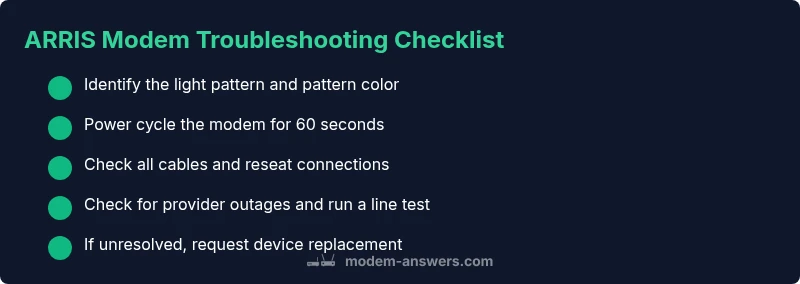
Before you touch any hardware, unplug non-essential devices from your network to reduce interference. Start with the simplest fix: power cycle the modem and, if you have a separate gateway, restart it too. Check all cables—coaxial, ethernet, and power—making sure they’re snug but not forced. If you’re comfortable, inspect the coax connector for corrosion or looseness, then reseat it firmly. Avoid using damaged cables; replacing them is often enough to restore a solid connection. If the lights resume a normal pattern after these steps, you’ve likely resolved the issue. If not, proceed to the diagnostic flow below to pinpoint the fault category and appropriate remedy.
Diagnostic steps and how to interpret symptoms
Diagnose by symptom groups: (a) no power or completely off lights, (b) intermittent blinking with online light, (c) steady amber light, (d) rapid cycle between states. For each group, apply the corresponding fix: confirm power supply, verify line integrity, test with a known-good cable, and check for any service outages reported by your provider. The diagnostic flow helps you separate simple fixes from issues requiring professional help. Modem Answers recommends documenting your results at each stage so you can tell the support tech exactly what you did and what lights appeared.
Next steps and professional help
If after completing the checks the lights still misbehave, contact your internet service provider’s support line and reference the exact light pattern observed. Many issues require a technician visit or a line test from the provider’s side, especially if service outages are suspected. If your modem is a rental device, verify with the provider whether a replacement is necessary. Keeping a record of the troubleshooting steps you performed will shorten the call and accelerate resolution. The Modem Answers team emphasizes that most cases are solvable with the steps in this guide—only a minority require on-site service.
Steps
Estimated time: 20-40 minutes
- 1
Power cycle the modem
Unplug the modem from power, wait 60 seconds, then plug back in. Allow 2–3 minutes for the device to reboot and reestablish the connection. Observe the lights as it comes back online.
Tip: If you have a separate gateway, restart it after the modem comes back up. - 2
Check all cables
Inspect the coaxial and Ethernet cables for tight connections and visible damage. Reseat both ends securely and ensure the splitter (if any) is not overburdening the signal path.
Tip: Do not force connectors; a gentle second tighten is enough. - 3
Test with known-good components
If possible, swap in a known-good coax and Ethernet cable to rule out faulty hardware. If the lights stabilize with a new cable, you’ve identified the culprit.
Tip: Label the working cables for future reference. - 4
Check for service outages
Visit your ISP’s outage page or call support to verify there are no regional issues affecting service. Outages can cause persistent flashing or no connectivity.
Tip: If an outage is reported, you may simply need to wait for restoration. - 5
Reset cautiously if needed
If the pattern remains unresolved, consider a factory reset only as a last resort and after confirming with your provider. This can wipe custom settings but clears many firmware glitches.
Tip: Back up any essential settings if your device allows. - 6
Escalate to professional help
If the issue persists after all steps, contact your provider with the exact light sequence and the troubleshooting steps you performed. A technician may be required for in-home testing or line repair.
Tip: Document the process and errors to speed up service calls.
Diagnosis: ARRIS modem lights flashing
Possible Causes
- highPower issue (intermittent power or surge) or power cycle needed
- highLoose or damaged cables (coaxial, ethernet, or power)
- mediumService outage or line problem from provider
- lowOutdated firmware requiring update or failed boot
Fixes
- easyPerform a safe power cycle: unplug for 60 seconds, then plug back in and wait 2–3 minutes for reboot
- easyReseat or replace loose/damaged cables (coax, Ethernet, power)
- easyCheck for an outage with your ISP and run a line test if available
- mediumIf the problem persists, contact your provider for a device replacement or advanced diagnostics
FAQ
What does it mean when ARRIS modem lights are flashing?
Flashing lights typically indicate data activity or a fault. Match the pattern to a category (power, line, or firmware) and follow the corresponding steps in this guide. If the pattern remains unresolved, proceed to the diagnostic flow or contact your provider.
Flashing lights usually mean data activity or a fault. Follow the guide steps and use the diagnostic flow if needed, then contact your provider if nothing helps.
Should I unplug the modem during troubleshooting?
Yes, a safe power cycle is a common first step. Unplug the modem for 60 seconds, then plug it back in and wait for it to reboot. Do not unplug other devices unless advised.
A safe power cycle is usually enough to start. Unplug for a minute, reconnect, and see if the lights stabilize.
What if the lights stop flashing after a reset?
If lights stabilize after a reset, monitor for a while to confirm consistency. If patterns return or service drops, proceed with the remaining diagnostic steps or contact support.
If it stabilizes, watch for a while. If it returns, continue with the guide or reach out to support.
How long should a firmware update take?
Firmware updates vary by model and network conditions but typically complete within 5–15 minutes. Do not unplug the modem during an update, as interruption can cause boot loop failures.
Firmware updates usually take 5 to 15 minutes. Don’t unplug the modem during the update.
When should I call my provider about flashing lights?
Call when you’ve completed the basic checks, the diagnostic flow indicates a line or service issue, or the pattern persists after steps. Providers can run line tests and dispatch a technician if needed.
Call your provider if the issue persists after troubleshooting or if line tests are needed.
Is a flashing light always a hardware problem?
No. Flashes can indicate data activity or a temporary signal issue. Start with power and cable checks, then proceed through the diagnostic steps before assuming a hardware fault.
Not always a hardware problem. Start with basic checks and follow the steps before assuming hardware fault.
Watch Video
Key Takeaways
- Identify the exact light pattern first
- Start with power and cable checks
- Use the diagnostic flow to isolate the issue
- Escalate to ISP if patterns persist