Arris Modem Blinking Green? Quick Troubleshooting Guide
Urgent, step-by-step guide to diagnose and fix an Arris modem blinking green. Learn quick fixes, diagnostic flow, and prevention tips to restore reliable internet fast.


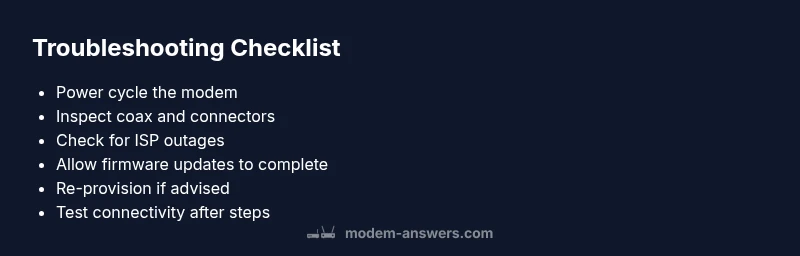
Blinking green on an Arris modem usually signals startup, firmware activity, or connection negotiation with your ISP. Start with quick checks: power cycle the modem, inspect the coax for tight connections, and ensure the router isn’t between the modem and devices. If the light remains blinking after these steps, perform a controlled reset and contact your ISP for guidance.
Understand the blinking green: what it means
An Arris modem blinking green LED isn't always a sign of a fatal failure. In many cases, it indicates the device is booting up, applying an update, or negotiating a new IP lease with the ISP. According to Modem Answers, recognizing the exact blink pattern helps you choose the right course of action quickly. The phrase 'arris modem blinking green' anchors the reader to this specific issue, reducing confusion with other color codes. When diagnosing, start by confirming basic conditions: power, coax connections, and whether any other equipment sits between the modem and your devices. A calm, methodical approach often resolves the problem without dispatching a technician. Remember, frequent interruptions or tight environmental conditions can extend boot or update times, so give the modem a few extra minutes during the first boot after power restoration. If the blinking continues past the initial checks, you’ll move into deeper diagnostics.
Common culprits behind the blinking green LED
The LED behavior can be influenced by several factors. Common culprits include the modem’s boot or firmware update sequence, loose or damaged coax connections, an ISP provisioning issue, or a hardware fault caused by overheating or a bad power supply. Splitters and long cable runs can also frustrate signal integrity, leading to extended blinking. Understanding these typical causes helps you prioritize steps and avoid unnecessary replacements. Remember to look for a consistent blink pattern rather than a random flash; patterns often point to a specific fault and guide you to the right fix. Modem health matters, so keep an eye on temperature and airflow in the closet or cabinet where the device sits.
Step 1: Power cycle and basic checks
Start with the simplest remedy: power cycle the modem. Unplug the unit from power, wait 60 seconds, then plug it back in. While it reboots, verify the outlet is live and not controlled by a wall switch or surge protector that could cut power momentarily. Inspect the power adapter for damage and ensure the device isn’t placed on a rug or enclosed space that traps heat. During this stage, also confirm the coax cable is snug at both ends and that there are no visible kinks or pinches. If you notice damage or loose connections, replace or reseat the cable. These basic checks address the majority of blinking-green scenarios and align with community best practices shared by the Modem Answers team.
Step 2: Inspect coax and wiring
Coax integrity is critical for a stable connection. Disconnect and reconnect the coax at the modem and the wall outlet, ensuring a firm hand-tight fit without overtightening. If you’re using a splitter, remove it temporarily to test a direct feed from the wall. Replace damaged connectors or worn-out cables. Check for moisture, corrosion, or visible wear inside the coax ports. A degraded signal can cause an extended boot or firmware negotiation sequence, reflected as a prolonged green blink. If the physical layer checks out, advance to the next troubleshooting step and monitor the LED for changes.
Step 3: Check service status and ISP outage
Sometimes the issue isn’t the modem but the service itself. Confirm whether there’s an outage in your area by visiting your provider’s status page or calling support. If the outage is confirmed, the Arris modem blinking green may persist until service is restored. If there’s no outage reported, ask your ISP to run a line test to verify signal strength and provisioning. Document the time you noticed the issue and any patterns (time of day, weather, or after a restart). This information helps the ISP diagnose the fault more quickly and reduce repeated trips.
Step 4: Firmware status and auto-update considerations
Firmware updates can take longer than expected and may require the LED to blink for extended periods. Do not interrupt automatic firmware processes unless you’re instructed by your provider. If you suspect a failed update, do not force a reboot repeatedly; instead, wait a bit and recheck the LED behavior. Some Arris models support remote updates initiated by the ISP, and the activation pattern will normalize once the update completes. If the LED never settles after an update window, proceed with a controlled reset under Step 5.
Step 5: Safe reset and re-provisioning
A factory reset should be a last resort, especially if your service uses dynamic IP addressing or requires ISP-specific provisioning. If advised by your ISP, perform a reset while the modem is connected directly to the wall outlet (no router). After resetting, allow the device to boot completely and watch for the LED to stabilize before reconnecting any gateway devices. Re-provisioning means entering your PPPoE or ISP credentials if required, and letting the modem renegotiate the link. Do not skip this step if you’re asked to reauthenticate; a successful provisioning often resolves blinking-green issues.
Step 6: After reset: test and monitor
Once provisioning completes, reintroduce your router and any connected devices. Test by running a quick speed test and loading several websites to verify consistent performance. Observe the LED pattern for 10–15 minutes; a steady green or solid status indicates the connection is healthy. If the light briefly blinks during activity but settles afterwards, you’ve likely resolved the issue. If it returns to a persistent blink, move to Step 7 or contact your ISP for further diagnostics.
Prevention: how to prevent green blinking in the future
Preventive maintenance reduces the likelihood of persistent blinking. Keep cables neat and away from heat sources, replace aging coax cables, and avoid using old splitters that can degrade signal. Place the modem in a well-ventilated area with adequate airflow to prevent overheating. Regularly reboot on a schedule (e.g., weekly or monthly) to keep firmware and provisioning current. If you rent equipment from your ISP, coordinate any replacements or service calls with them to avoid conflicts during updates.
When to call your ISP or a technician
If you’ve completed all the above steps and the Arris modem continues blinking green, it’s time to involve your ISP or a qualified technician. There may be a line fault, provisioning problem, or a hardware defect that requires professional inspection. Document all steps you’ve taken, including times, LED behavior, and cables used, to share with support. Early escalation can shorten downtime and prevent unnecessary hardware purchases.
Steps
Estimated time: 30-45 minutes
- 1
Power cycle the modem
Unplug the modem from power, wait 60 seconds, and plug it back in. Allow it to boot fully before testing. This basic reset clears temporary faults and re-initiates the connection with the ISP.
Tip: Take note of the time you unplugged and plugged back in for reference. - 2
Check coax and wiring
Inspect the coax cable for tight connections, cracks, or kinks. Remove any nonessential splitters and reconnect directly to the wall outlet if possible. A secure signal path is essential for stable operation.
Tip: Avoid over-tightening connectors; snug is enough. - 3
Verify router placement and order
If you’re using a separate router, ensure it is properly connected to the modem and that the router isn’t the source of the signal issue. Temporarily connect a laptop directly to the modem to isolate the problem.
Tip: Plug computer directly into modem for a clean test path. - 4
Reboot in proper sequence
Power cycle the modem first, then the router after the modem has fully booted. This sequence ensures the network chain reestablishes a clean handshake with the ISP.
Tip: Wait 2–3 minutes between devices during reboot. - 5
Check for firmware activity
If the LED is blinking during a known firmware window, allow the update to complete. Interrupting updates can leave the device in an unstable state.
Tip: Do not unplug during a reported firmware window unless advised. - 6
Factory reset and re-provision (if advised)
Only perform a factory reset if your ISP instructs you to do so. After reset, re-provision the modem with any required credentials and test connectivity again.
Tip: Document settings before resetting. - 7
Test connectivity and monitor
Run a few speed tests and load multiple sites to confirm stability. If the LED remains blinking after a full test, proceed to escalation.
Tip: Keep a short log of results for support calls. - 8
Escalate to ISP or technician
If issues persist, contact your ISP for a line test or arrange a technician visit. Provide your log and steps taken to speed up resolution.
Tip: Ask for a fault reference number when you call.
Diagnosis: ARRIS modem blinking green
Possible Causes
- highPower issue (outlet, surge protector, or power supply)
- mediumLoose, damaged, or miswired coax/wiring
- mediumISP outage or provisioning problem
- lowFirmware update in progress or failed update
- lowHardware fault or overheating
Fixes
- easyEnsure direct power supply; bypass surge protectors if safe
- easyReseat or replace coax; remove unnecessary splitters; check for corrosion
- easyReboot devices in proper sequence: modem → router → devices
- mediumIf ISP-provided, perform a factory reset only when advised; re-provision the device
- mediumContact ISP for line tests and provisioning verification if light persists
FAQ
What does a blinking green light mean on Arris modems?
A blinking green LED often indicates startup, firmware activity, or provisioning activity with the ISP. It is not necessarily a service outage. If it continues after basic checks, follow the troubleshooting steps in this guide.
A blinking green light usually means the modem is booting or updating. If it doesn’t settle after basic steps, run through the guide or contact your provider.
Is a blinking green light always a bad sign?
No. It can be normal during boot or update. A persistent blink should prompt troubleshooting or ISP contact to rule out outages or provisioning issues.
Not always bad—boot or update can cause it. If it sticks, follow the steps or call your ISP.
Should I unplug the modem during firmware updates?
No. Interrupting a firmware update can corrupt the device. Let the update finish unless your ISP instructs otherwise.
Usually you should not unplug during an update. If advised by your provider, follow their guidance.
What are the first steps I should take?
Power cycle the modem, check coax connections, and ensure no router sits between the modem and devices. These basics resolve most blinking-green issues.
Start with power, cables, and setup order, then test.
When should I contact the ISP?
If the light stays blinking after resets and cable checks, or if outage tests show problems, contact your ISP for line tests and provisioning.
If unresolved after checks, get your provider involved.
Can hardware faults cause a blinking green LED?
Yes, overheating or internal faults can cause abnormal LED patterns. If the issue persists after all steps, a hardware check or replacement may be needed.
Hardware faults can cause this; consider replacement if it continues.
Watch Video
Key Takeaways
- Start with power and cable checks to rule out simple faults.
- Firmware updates can cause extended blinking; allow time to complete.
- If blinking persists after steps, escalation to ISP is recommended.
- Document steps and results to speed up support.
- Preventive care reduces future blinking issues.