Modem Online Light Flashing: A Practical Troubleshooting Guide
Urgent, practical steps to diagnose and fix a flashing modem online light, with safe fixes and when to call your provider.


Understanding what the flashing online light signals on your modem
When you see a modem online light flashing, it's typically the device trying to establish a connection but hasn't completed the handshake with your Internet Service Provider. A solid green or blue light usually means the connection is healthy, while persistent or irregular flashing signals an issue that needs attention. In 2026, many gateways use specific LED patterns to indicate boot, handshake, or error states, but a stubborn flashing light after startup should be treated as a troubleshooting scenario. This section helps you interpret patterns, distinguish between routine activity and faults, and prepare for safe, effective fixes that homeowners can perform without special tools.
According to Modem Answers, prioritizing basic checks first saves time and reduces unnecessary service calls. By learning to read your modem’s LEDs, you can often resolve issues before calling support. This approach is especially helpful for homeowners and renters who want reliable, step-by-step guidance without jargon.
Quick checks you can perform right now
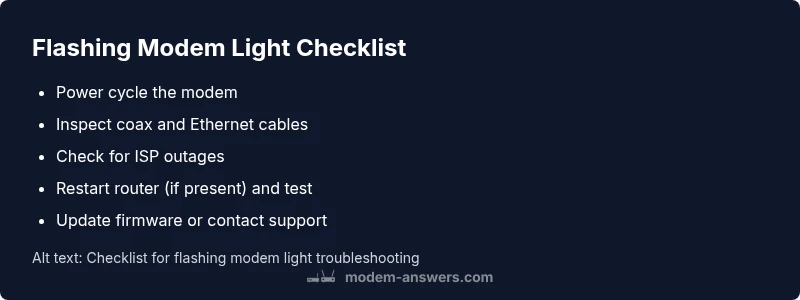
Before diving into advanced troubleshooting, run through a handful of simple checks that often resolve flashing-light problems. First, power cycle: unplug the modem, wait 30 seconds, plug back in and allow 2 minutes for full reboot. Next, inspect all cables: tighten the coaxial connector, Ethernet cord, and the power supply. A loose or damaged connector is a common, easily fixed culprit. Then, confirm there is not a known ISP outage by visiting your provider’s outage page or contacting support. If you use a separate router, temporarily bypass it to rule out router-related issues. Finally, ensure your modem’s firmware is up to date; automatic updates are common, but you may need to trigger a manual check from the admin interface. If there’s no improvement after these steps, proceed to the next section for deeper diagnostics.
Common causes and how to confirm them
Flashing patterns inform different problems. A brief, rapid blink during startup often means the device is negotiating a connection and should resolve after a reboot, while a long blink with short pauses can point to a firmware hang. A constantly flashing light after startup is more likely to be a link problem at the input (coax) or a service interruption from the provider. To confirm, check the status lights on any connected devices, test with a different Ethernet port or cable, and use a laptop to run a speed test. If your area is experiencing an outage, you’ll likely see consistent results across devices. If you notice heat buildup, unplug the unit and allow it to cool; overheating can trigger protective resets that mimic a flashing light.
Step-by-step fixes for the most common causes
-
Power cycle and reseat connections: unplug the modem, wait 60 seconds, reconnect the power, and firmly reseat the coax. Allow 2 minutes for full reboot. Tip: note any changes in the LED pattern to gauge progress.
-
Queue the router and test again: if you have a separate router, restart the router first, then the modem. This helps clear handshake issues without a full reset. Tip: avoid unplugging multiple devices at once.
-
Check for outages and account status: log in to your provider’s portal to verify service status and any notices on your account. If an outage is confirmed, wait it out. Tip: keep a screenshot of outage alerts for troubleshooting.
-
Firmware and provisioning: ensure automatic updates are enabled and the modem shows current firmware. If you suspect a hang, use the admin interface to trigger a check, or contact support for a guided update. Tip: never install firmware from unofficial sources.
-
Factory reset as last resort: if you still see the flashing light after the above, perform a factory reset and re-provision the device. Back up settings first. Tip: this erases saved networks and credentials.
-
When professional help is needed: If the light persists after a factory reset, contact your ISP for a line test or a replacement device. Have your model, serial number, and a brief LED pattern history ready. Tip: collect evidence during the troubleshooting process.
Safety, professional help, and prevention
Safety comes first when dealing with powered networking gear. Do not open the modem housing or attempt internal repairs, as this can void warranties and pose electrical hazards. If the flashing light persists after all home fixes, it’s time to call your ISP for a line test or replacement. In the meantime, use a mobile hotspot or alternate connection to maintain critical internet access. To prevent future outages, place the modem in a cool, ventilated area, use surge protection, and replace aging cables regularly. Enable automatic firmware updates and keep a simple network map for devices. Document LED patterns and outage times to speed future troubleshooting and reduce downtime. By following these steps, you’ll minimize service interruptions and stay productive while you resolve issues.