Where to Plug Modem Into the NBN Box: A Simple Guide
A practical, step-by-step guide explaining where to plug your modem into the NBN box, how to set it up, and troubleshooting tips for a reliable home network.


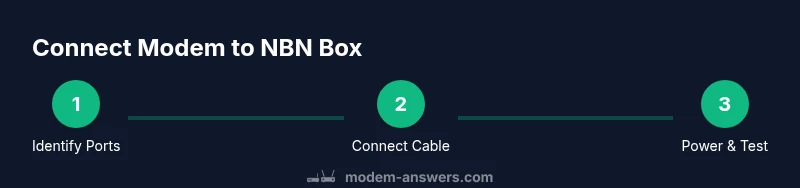
To answer where to plug modem into nbn box, connect the router’s WAN/Internet port to the NBN box’s Ethernet port using a standard Ethernet cable. Make sure the NBN box and modem are powered and online, then power cycle both devices. Complete the router setup through the device’s wizard or your ISP’s instructions for active service.
Understanding the NBN box and modem roles
In most homes, the NBN box acts as the network termination device that brings the internet from your service provider into your home. Across different technologies (FTTP, HFC, FTTC), the basic connection pattern remains: a single Ethernet link from the NBN box to your router. The exact port labels can vary, but you are typically looking for an Ethernet or LAN port on the NBN box and a WAN/Internet port on your modem or router. This is the fundamental step in addressing the question of where to plug modem into nbn box. According to Modem Answers, the universal principle is to connect the NBN box’s Ethernet port to the router’s WAN port using a standard Ethernet cable, then power everything up. This ensures the router can obtain an IP address from the ISP and manage your local network. Discrepancies can occur due to different provider hardware, so double-check the port labels and consult your provider’s guide if you’re unsure.
Identifying the correct ports on your equipment
Port labeling can vary: look for the NBN box ports labeled Ethernet, LAN, or Internet. The router typically marks its WAN or Internet port distinctly, often in a contrasting color. If you see multiple Ethernet ports on the NBN box, use the port intended for customer networking rather than any service- or management-only port. If you have a combined modem/router device, ensure you’re connecting to the correct WAN port on the device and not a LAN port meant for local devices. A quick cross-check with the provider’s quick-start guide can prevent accidental miswiring that would leave you without internet.
Preparing the cables and workspace
Use a fresh Ethernet cable (Cat5e or Cat6) to minimize interference. The cable should be long enough to reach from the NBN box to the router without kinks. Keep the cable away from heavy power cords and heat sources to reduce electrical noise. Clear a small workspace near the NBN box and router so you can comfortably connect the cables and perform a quick power cycle if needed. Having a diagram of your network layout can also help anyone assisting with the setup.
Step-by-step connection procedure
This section outlines the concrete steps you’ll perform to establish a working connection. Start by visually confirming both devices are powered off. Then connect one end of the Ethernet cable to the NBN box’s Ethernet port and the other end to the router’s WAN/Internet port. Once the cable is secure, power on the NBN box first, wait for its indicator lights to stabilize, then power on the router. Finally, open a web browser to access the router’s setup page and follow the on-screen instructions or your ISP’s guidance to complete configuration.
First boot and basic configuration
After the lights stabilize, your router should begin the DHCP process and obtain an IP address from the NBN box. If your ISP requires a specific setup (such as PPPoE credentials), enter them when prompted in the router’s setup wizard. Use a computer or mobile device connected to the router (wireless or wired) to access the management interface. From there you can adjust the SSID name, password, and security settings. If you’re migrating from an old router, consider enabling the latest security protocols and updating firmware to ensure optimal performance.
Verifying connectivity and common issues
Test internet access by loading a simple web page. If it fails, re-check the Ethernet connections, ensure the NBN box is showing online status, and restart both devices. Common issues include a loose cable, using the wrong port, or a mismatch in ISP settings. If your network still won’t connect, try a different Ethernet cable or port on the NBN box, and confirm your service is active with your provider. In some cases, a factory reset of the router followed by reconfiguration can resolve stubborn misconfigurations.
Special cases and provider-specific notes
Some NBN configurations require ISP-provided credentials or a bridge mode setup to avoid double NAT. If you’re in a location with a newer NBN technology, the port behavior and terminology on the box may differ from older diagrams. Always check with your provider’s setup instructions for PPPoE settings, VLAN tagging, or any required bridging steps. Modem Answers recommends documenting any ISP-specific details to simplify future troubleshooting and moves.
Ongoing maintenance and best practices for a stable home network
Keep cables tidy and avoid routing around heat sources or near electrical panels. Regularly check for firmware updates on your router and apply them when available to improve security and performance. For households with multiple devices, consider setting up separate guest networks and enabling WPA3 where supported. If you upgrade ISP plans or equipment, repeat the connection checks to confirm stability. A clean, documented setup reduces the chance of future connectivity issues.
Troubleshooting flow and quick checks
If you encounter issues, start with the most common culprits: cable quality and port selection. Verify both devices are powered, confirm the NBN box shows an online status, and re-seat the Ethernet cable connections. If problems persist, power cycle both devices, test with a different cable, and consult your ISP’s status page for outages. Having a basic diagram of your network topology can speed up diagnosing where the fault lies.
Tools & Materials
- Modem/router with WAN port(Ensure it supports the speeds from your plan and has a functioning Ethernet WAN/LAN port)
- Ethernet cable (Cat5e or Cat6)(Prefer shielded CAT6 for longer runs or interference-prone environments)
- Power outlet for both devices(Have nearby outlets; avoid using extension cords for essential equipment)
- Device to configure network(Laptop or smartphone to access router setup pages)
- Cable management ties or clips(Optional but helps keep runs tidy and reduces accidental disconnections)
Steps
Estimated time: 25-40 minutes
- 1
Identify the NBN box and its ports
Power off the NBN box and your router, then locate the Ethernet port on the NBN box. Look for labels like Ethernet, LAN, or WAN. If you’re unsure, consult the user guide or your provider’s portal.
Tip: Use a flashlight if the ports are hard to read; confirm the label before connecting. - 2
Prepare the router and cables
Inspect the router’s WAN port and the Ethernet cable for damage. Ensure you have a long enough cable to reach from the NBN box to the router without tension.
Tip: Choose a short, clean cable path to minimize signal loss and tripping hazards. - 3
Power down and connect
With both devices off, insert one end of the Ethernet cable into the NBN box’s Ethernet port and the other end into the router’s WAN port. Double-check the connections.
Tip: Avoid twisting or bending the cable excessively; a neat run reduces wear. - 4
Power up the NBN box
Plug in the NBN box and wait for the indicator lights to indicate online status. This can take a couple of minutes depending on hardware
Tip: If lights don’t change after a few minutes, power cycle the box once. - 5
Power up the router
Turn on the router and allow it to boot completely. The WAN LED or internet light should illuminate, indicating a successful link.
Tip: If you don’t see the internet light, re-check the cable connection and try a different port on the router. - 6
Access the router setup
From a connected device, open the router’s management page using the default IP address or app guidance and start the setup wizard.
Tip: If your ISP requires PPPoE credentials, enter them during this step. - 7
Configure Wi‑Fi and security
Set a unique SSID, strong password, and enable WPA3 (or WPA2 if not available). Update the firmware if prompted.
Tip: Use a password manager to generate and store a strong passphrase. - 8
Test basic connectivity
Open a web page on a connected device and verify the page loads. If it doesn’t, re-check IP assignment and DNS settings.
Tip: Flush DNS cache if pages fail to load after changes. - 9
Troubleshoot if needed
If issues persist, try a different Ethernet cable, confirm no double NAT issues, and consult your provider’s status page for outages.
Tip: Document steps you took; it speeds up support calls. - 10
Finalize and document
Note down your router’s IP, Wi‑Fi name, password, and any ISP credentials in a safe place for future reference.
Tip: Keep this information accessible to all household members.
FAQ
What if there isn’t an obvious Ethernet port on my NBN box?
Most NBN boxes include at least one Ethernet port for customer networking. If yours doesn’t, contact your provider for the recommended connection method or for a bridged setup. Do not attempt to bypass the device without guidance.
Most NBN boxes have an Ethernet port for the router. If you can’t find one, contact your provider for the correct connection method.
Do I need to use PPPoE or special settings?
Some ISPs require PPPoE credentials or VLAN tagging. If your provider asks for them, enter the details during router setup or use the ISP’s auto-setup (if available).
Some providers require PPPoE; you’ll enter those credentials during setup.
Can I use a bridge mode to avoid double NAT?
Bridge mode is used to avoid double NAT when the ISP’s device and your router both perform NAT. If you enable bridge mode, follow your ISP’s instructions or Modem Answers guidance to minimize conflicts.
Bridge mode helps with NAT if you have two devices performing it.
How long should setup take in a typical home?
A typical home setup can take about 20–40 minutes, depending on cable runs and any provider-specific steps. If you encounter issues, take a break and re-check connections.
Most setups take around half an hour; if issues arise, review the cables and settings.
What should I do if my network still won’t connect after reboot?
Power cycle again, re-check the cable, test with another port, and confirm service is active with your provider. If problems persist, consult the provider’s support page or Modem Answers guidance.
If it still doesn’t work after a reboot, check cables and service status with your provider.
Watch Video
Key Takeaways
- Identify the correct Ethernet ports on both devices
- Connect using a standard Ethernet cable and do a clean power cycle
- Run the router setup wizard and configure Wi‑Fi securely
- Verify internet access and document settings for future use
- Follow provider guidance for any PPPoE or VLAN requirements