When to Update Modem: A Practical Home Guide
Learn how to spot the signs you need a modem upgrade, how to choose the right model, and how to upgrade safely without downtime. A practical, step-by-step approach for homeowners and renters.


Definition: You should update your modem when it no longer meets your home’s internet needs, slows you down, or fails to receive security updates, and your ISP requires a newer model. Use this guide to decide if an upgrade is right for you. This quick rule helps homeowners and renters assess need without jargon.
Why Upgrading Modem Matters
Your modem is the unsung heart of your home network. A current device does more than simply push higher speeds; it improves reliability, security, and overall device performance. According to Modem Answers, choosing a modem that matches your ISP plan and household usage reduces buffering, minimizes dropped connections, and extends compatibility with new services. Newer modems come with more capable processors, better Wi-Fi support (if you have a gateway), and improved energy efficiency, which can lower power draw over time. For renters and homeowners alike, investing in a current modem can extend the life of your entire network setup, avoiding repeated outages and awkward support calls. Beyond raw speed, it also helps with security: older modems may stop receiving firmware updates, exposing your network to vulnerabilities. In short, updating your modem is a practical step to stabilize your home network today and future-proof it for the next wave of devices and services.
Signs It’s Time to Upgrade
If your current modem frequently drops connections, requires restarts, or cannot sustain the speeds promised by your plan, start considering an upgrade. Slow page loads, long buffering times on streaming services, and jittery video calls are common indicators. If you’re paying for a higher-tier plan but the actual throughput remains stuck at a fraction of that rate, a newer modem with better throughput and compatibility will likely help. Finally, if your provider explicitly requires the modem to be newer to access your plan’s full speed, that’s a decisive signal to upgrade. Modem Answers analysis shows that many households see tangible improvements after upgrading when their devices no longer support evolving standards or security updates.
How to Choose the Right Modem
Not all modems are created equal. Start by checking your ISP’s approved devices list and ensure the modem supports your plan’s maximum speeds. Look for current standards, channel bonding capacity, and the number of upstream/downstream channels. A modem with room to grow helps you avoid another upgrade soon. If you have smart home devices, consider a modem with stable performance under load and good heat dissipation. The Modem Answers team recommends prioritizing reliability, firmware update cadence, and compatibility with your router to maintain a smooth network.
Planning Your Upgrade with Your ISP
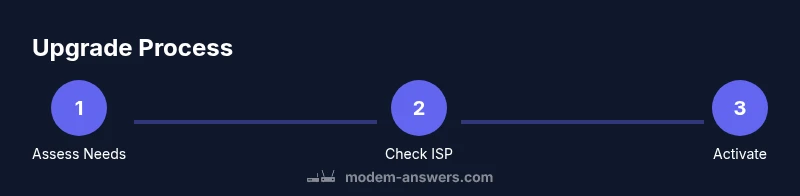
Before purchasing, contact your ISP to verify compatibility and to understand activation steps, rental return if you’re switching from a rental device, and whether they provide a self-install option. Some ISPs require the modem to be provisioned in their system before it will work on your network. If you’re replacing a rented device, ask about the return process and any equipment fees. Keep your account information handy and note the settings that might need reconfiguration after activation.
Step-By-Step Setup (High-Level) and Post-Upgrade Checks
After you acquire a new modem, unplug the old one, connect the new modem to your coaxial line and power, and run the setup wizard through your computer or mobile device. If your service uses a gateway device, follow on-screen prompts to establish Wi-Fi and, if desired, bridge mode. Run a speed test to confirm the expected throughput, then reconnect your router and recheck all connected devices for stability. If you’re moving from a rental modem, ensure the old device is returned to your provider to avoid continued charges.
Maintenance, Security, and Future-Proofing
Keep firmware updates enabled and check for new releases from the manufacturer or your ISP. Set automatic updates where possible to minimize manual maintenance. Periodically test your network with speed tests and device logs to catch issues early. Consider a future-proof model with higher throughput than you currently need to benefit from longer roadmaps and fewer mid-life upgrades.
Quick Tips for a Smooth Upgrade
- Plan downtime: perform upgrades during a period of low usage to minimize disruption.
- Document configurations: write down your Wi‑Fi name, password, and any custom settings so you can restore them quickly.
- Test after activation: compare before/after speeds and stability to validate the upgrade’s value.
- Safely dispose of old hardware: follow local guidelines for recycling or returns.
Tools & Materials
- New modem (purchase or upgrade from ISP)(Ensure it is compatible with your ISP and plan.)
- Coaxial cable(Have spare length to reposition if needed.)
- Ethernet cable (Cat5e/Cat6)(For wired testing and router bridging.)
- Power strip (surge-protected)(Protects devices; ensure rating supports all gear.)
- ISP account information (account number/login)(Needed for activation and provisioning.)
- Router (optional)(If bridging or using a separate router.)
- Notebook for configurations(Record Wi-Fi name, password, and settings.)
Steps
Estimated time: 1-2 hours
- 1
Verify compatibility and requirements
Check your ISP’s approved modem list and confirm the model supports your plan’s speeds. Ensure you have activation steps outlined so there are no surprises during setup.
Tip: Call support or check the provider’s site for the exact model support. - 2
Prepare your equipment
Gather the new modem, coaxial cable, Ethernet cable, power supply, and any needed account details. If you plan to use your own router, have it ready for bridging or reconfiguration.
Tip: Charge devices and lay out a clean workspace. - 3
Power down and disconnect the old modem
Unplug the old modem and, if applicable, disconnect the router. Label connections to avoid confusion during reassembly.
Tip: Take a quick photo of the current setup for reference. - 4
Install the new modem
Connect the coaxial cable to the new modem, plug it into power, and connect to a computer or app for activation. If using a gateway, follow the on-screen prompts to set up Wi‑Fi.
Tip: Use a wired connection for the initial activation when possible. - 5
Activate with your ISP
Run through the ISP activation flow either online or via their app. Ensure the device provisioning completes before you test the connection.
Tip: Have your account number handy and confirm MAC ID if required. - 6
Test, tune, and finalize
Perform speed tests on wired and wireless devices, enable automatic updates, and reconfigure any custom settings. Confirm all devices connect reliably to Wi-Fi.
Tip: Document the final settings and consider saving them in a secure note.
FAQ
How can I tell if my modem is outdated?
Common signs include slow speeds, frequent buffering, dropped connections, and incompatibility with new services. If your modem cannot meet your plan’s advertised speeds or lacks security updates, consider an upgrade.
Look for slow speeds and frequent buffering—these often mean it's time to upgrade your modem.
Should I buy or rent a modem?
Buying usually saves money over time and gives you full control, while renting can simplify support and replacement. Compare total costs and consider your technical comfort level.
Buying can be cheaper long-term, but renting offers easier replacements.
What features matter most when choosing a modem?
Look for current DOCSIS support, speed rating, channel bonding, dual-core processing, and strong security updates from the manufacturer.
Prioritize DOCSIS support, speed rating, and security updates.
How long does activation take?
Activation is usually completed within a few minutes over the web or app, but some providers may require a short window for provisioning.
Activation typically takes a few minutes online.
Can I upgrade without changing my router?
Yes, you can upgrade the modem and reuse your existing router, or opt for a gateway modem with built-in Wi-Fi if you prefer a single device.
Yes, you can upgrade just the modem and keep your router, or use a gateway.
Watch Video
Key Takeaways
- Upgrade when your modem can’t handle your plan’s speed needs
- Verify ISP compatibility before buying to avoid activation issues
- Test speeds before and after and document network settings
- Securely retire old hardware to prevent reuse or exposure