When to Replace Internet Modem: A Homeowner's Guide
Learn how to tell when your internet modem needs replacement, what features to prioritize, and how to install a new unit for reliable home connectivity.


You should consider replacing your modem when performance declines despite basic troubleshooting, you experience frequent outages, or your device no longer supports current service speeds. Key signals include persistent slow speeds, unexplained drops in connectivity, and the absence of necessary security or feature updates. Plan replacement by checking compatibility with your ISP, noting age, and budgeting for a modern, DOCSIS 3.1+ or equivalent gateway.
Why replacing your internet modem matters
In today’s connected homes, the modem is the gateway to everything online—from streaming and gaming to remote work. Knowing when to replace internet modem helps maintain speed, reliability, and security. The Modem Answers team has observed that older modems often lag behind the capabilities of modern networks, leading to slower speeds, more outages, and frustrated users. By treating modem health as part of your home network maintenance, you can prevent small issues from cascading into larger connectivity problems. This section explains how aging hardware, firmware shortcomings, and compatibility gaps with newer standards impact your daily connectivity and why a planned replacement can save time and stress in the long run.
We’ll also cover why you should avoid waiting for a total disaster to strike. Proactive replacement keeps your home network resilient, compatible with newer devices, and ready for upcoming internet service upgrades that many providers roll out. If you’re unsure where to start, this guide distills the decision-making process into clear, actionable steps. According to Modem Answers, homeowners who track performance and device age report smoother upgrades and fewer mid-day outages when they replace at logical intervals rather than waiting for failures. The Modem Answers team emphasizes a balanced approach: weigh current performance against cost and future-proofing to avoid overspending on features you don’t need.
Key takeaway: replacement decisions should be driven by evidence of performance decline, not just age. A well-timed upgrade can deliver tangible improvements in reliability and speed, especially in households with multiple users and smart-home devices that contend for bandwidth.
Signs your modem is aging and you should start thinking about replacement
Sustained performance decline is the most reliable indicator that it’s time to evaluate a replacement. If your download or upload speeds consistently fall below what your plan promises, even after reboots and channel reselection, the modem may be the bottleneck. Another red flag is frequent disconnects or a modem that requires multiple power cycles to recover a stable link. If you’re unable to access the latest features or security updates because your modem lacks essential standards (for example DOCSIS versions or IPv6 support), you’ll want to consider replacing it. Additionally, if you notice a lack of active LED indicators or the device feels unusually hot after short traffic bursts, it could be a hardware fault rather than a temporary ISP hiccup.
Beyond hardware health, compatibility matters. Some ISPs enforce device compatibility lists or firmware requirements for certain speed tiers. If your current modem doesn’t meet those requirements, you’ll experience throttling or outright incompatibility. In short, the best time to replace is when you identify persistent performance problems that point to hardware constraints rather than a temporary network issue. The Modem Answers analysis also notes that older devices struggle with modern networks that rely on higher channel bonding and improved modulation schemes, which translates to slower real-world speeds even on “fast” plans.
How to evaluate a replacement: performance, compatibility, and cost
When evaluating a replacement, start with performance needs: how many devices share your network, typical usage (streaming, gaming, video conferencing), and peak loads. A modem that supports current standards and faster downstream/upstream channels will help future-proof your setup. Compatibility is critical: verify your ISP’s approved device list and any activation steps required to avoid delays or failed activations. Consider the router’s role as well—do you want a standalone modem and separate router, or a gateway that combines both? If you already own a capable router, you may want a modem-only device to optimize cost and flexibility. Cost considerations include upfront price and potential monthly savings if a best-in-class modem eliminates rental fees. In many markets, buyers report long-term savings by purchasing a modem once instead of paying monthly rental fees over several years. For budgeting, plan for a mid-range device with DOCSIS 3.1 or newer (if cable), or the latest DSL/fiber-compatible standard, as appropriate for your service.
Headline decision points:
- Speed tier compatibility: ensure the device can handle your plan’s advertised speeds.
- Channel bonding: more channels generally mean higher sustained throughput.
- IPv6 and security features: modern modems provide improved security and future-proofing.
- Activation process: some ISPs require you to register the device; others simply recognize it on the network.
- Lifetime cost: rental vs. purchase, plus potential firmware update support.
As you compare models, use official ISP specs and independent lab reviews to sanity-check claims. The Modem Answers team recommends listing your must-haves (e.g., larger firewall capabilities or USB ports) and nice-to-haves (e.g., integrated mesh features) to guide your shopping list.
Quick path: when to replace vs repair
Not every issue demands a full replacement. Start with a diagnostic skim:
- Troubleshoot the network, verify cables, reboot equipment, and try a factory reset only if you’re comfortable with reconfiguring settings.
- Check for firmware updates from both the modem and router.
- If problems persist, determine whether the device hardware is physically degraded (port failure, overheating, buzzing sounds).
If the modem is older than the typical replacement window in your region, or you notice recurring outages or slowdowns that persist after resets and reconfigurations, replacement becomes a more cost-effective and reliable option than endless repairs. In many cases, a modest upgrade yields significant gains in stability and speed, especially with expanding home device ecosystems and higher internet speeds.
Choosing the right modem: budget ranges and features
Budget matters, but so do feature sets. For most households, a mid-range modem that supports DOCSIS 3.1 (for cable) or the current standard for other connection types is a prudent baseline. If you’re a light user with occasional streaming, a cost-effective option may suffice; power users or homes with multiple streams of 4K content should opt for models with higher downstream channel counts and robust security features. For those who want to minimize setup steps, a gateway modem-router combo can simplify installation, but remember that you’ll be paying a premium and may have fewer upgrade paths for future devices. If you rely on rental-by-ISP pricing, buying your own modem could pay for itself in a year or two. Regardless of budget, prioritize devices from reputable brands with clear warranty terms and easy activation steps.
When it comes to features, look for:
- DOCSIS standard (3.1 or newer) and channel bonding quality
- IPv6 support and strong onboard firewall
- USB ports for network storage or printer sharing (optional)
- IPv4/IPv6 dual-stack support
- Easy-to-use mobile app for setup and management
To keep devices ready for future upgrades, choose a modem with scalable performance that supports current service tiers and can handle simultaneous demand from smart home devices. Modem vendors frequently publish compatibility notes; always confirm with your ISP before purchase to avoid activation hassles.
Installing a new modem: a simple checklist
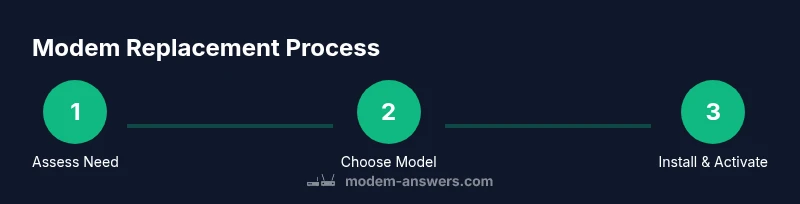
Install is straightforward if you follow a structured approach. First, power down your existing network hardware and disconnect the coax/phone line from the current modem. Connect the new modem to the internet service line and power it on. Allow the device to boot fully, then connect a computer or mobile device via Ethernet to access the configuration page. If you’re using a gateway, you’ll also connect the router portion as needed. Finally, activate the modem with your ISP—some providers require a quick call or online activation. After activation, connect your router (or use the modem’s built-in router), run a speed test, and verify that all devices regain internet access. If you encounter activation issues, double-check cables and ensure the device is listed on your ISP’s compatibility page.
Helpful tips during installation:
- Label all cables for easy future maintenance
- Change default admin passwords to improve security
- Create a guest network to separate IoT devices from primary devices
- Save a backup of your router configuration in case you need to reset
Maintenance tips to extend modem life
Even with a new modem, regular maintenance helps maximize uptime. Keep firmware up to date and monitor for unusual overheating or random reboots. Place the device in a well-ventilated area away from heat sources and moisture. Periodically check for loose cables and keep firmware from the vendor’s official site to avoid security vulnerabilities. If you see aging hardware symptoms like degraded indicators or degraded signal quality, schedule proactive replacement before service declines further. A small investment in periodic checks can prevent bigger outages and helps ensure your network remains robust as family needs grow.
Tools & Materials
- New modem (or modem-router gateway)(Ensure it matches your ISP compatibility list and supports the current standard (e.g., DOCSIS 3.1 for cable))
- Power adapter(Original supplied adapter if possible)
- Coaxial or fiber/ethernet cables(Have extra length; use shielded cables if possible)
- Ethernet cable (Cat-5e/6)(For wired device connections during setup)
- Computer or smartphone(Used to access the modem’s setup page)
- ISP account details(Active account and activation information)
Steps
Estimated time: 60-120 minutes
- 1
Gather device and plan details
Collect your current modem model, age, and your internet plan’s speed tier. Note any recurring issues and confirm your ISP’s compatibility requirements. This helps you pick a model that aligns with your service and future needs.
Tip: Take a quick photo of the device’s model label for easy lookup. - 2
Check compatibility and options
Verify the chosen modem supports your service type and the speed tier you subscribe to. Confirm activation steps with the ISP, and decide whether you want a standalone modem or a gateway device.
Tip: If renting, compare total cost over 1-2 years with the purchase price. - 3
Prepare the workspace
Power down all devices, locate the incoming service line, and clear space for proper airflow. This avoids overheating during setup.
Tip: Keep all cables neatly labeled to simplify future maintenance. - 4
Install the new modem
Connect the service line to the modem, attach the power, and wait for the device to boot. Then connect a computer via Ethernet to complete initial setup.
Tip: Do not mix up the WAN and LAN ports on a gateway. - 5
Activate with your ISP
Follow the ISP’s activation steps online or over the phone. If activation fails, double-check cable connections and ensure the device is on the approved list.
Tip: Have your account number handy during activation. - 6
Test and optimize
Run a speed test, check Wi‑Fi coverage, and verify all devices regain internet access. Adjust channel selection and security settings for best performance.
Tip: Test at multiple times of day to gauge reliability. - 7
Document and backup
Record model details, settings, and any changes you made during setup. Save a backup of configuration so future changes are quick.
Tip: Keep a copy of your network password in a secure place.
FAQ
How do I know if my modem is outdated?
Look for persistent slow speeds, frequent disconnects, and missing security updates. If your device no longer supports current standards or fails activation with your ISP, it’s a strong sign to evaluate replacement.
If your speeds drop consistently or you’re unable to activate the modem with your ISP, consider upgrading.
Is firmware updates enough to fix performance issues?
Firmware updates can improve security and stability, but hardware age can cap maximum performance. If issues persist after updates, replacement is often more effective than frequent repairs.
Firmware helps, but hardware age may still hold you back.
Should I replace my router at the same time as the modem?
If you have a separate router, you can swap the modem first and evaluate whether the router still meets your needs. A gateway device can simplify setup but may limit future upgrades.
You can start with the modem and see if your current router suffices.
Is renting a modem from my ISP better than buying?
Renting can be convenient but usually costs more over time. Buying a modem once often saves money in the long run, especially if you don’t need the latest features immediately.
Buying tends to be cheaper long-term, though renting offers convenience.
What is a reasonable budget for a new modem?
Budget ranges vary by region and features, but focusing on current standards and reliable brands provides the best value. Look for a model that matches your plan and includes a solid warranty.
Aim for a balance of core features and reliability within your budget.
Do all modems work with every provider?
No. Provider-specific compatibility lists and activation rules exist. Always confirm with your ISP before purchasing a modem to avoid activation problems.
Check compatibility with your ISP before buying.
Watch Video
Key Takeaways
- Assess performance before buying a new modem
- Prioritize compatibility and future-proof features
- Plan activation steps with your ISP
- Evaluate total cost over renting versus buying
- Test performance and security after installation