When to Upgrade Modem: A Practical Guide for Home Internet
Learn when to upgrade your modem, how to pick a modern DOCSIS 3.1+ model, and follow a step-by-step upgrade plan to boost reliability and speed in your home network.


This guide helps you decide when to upgrade your modem and shows a practical upgrade path for most homes. You’ll learn the signs that your current modem is underperforming, how to compare DOCSIS standards, and a step-by-step plan to upgrade with minimal downtime. By following these steps, homeowners can improve reliability, speed, and overall home networking performance.
Why upgrade when to upgrade modem
According to Modem Answers, many homeowners find that the best time to upgrade is tied to changing needs rather than a fixed calendar. If you experience persistent buffering, slower-than-expected speeds, or difficulty keeping multiple devices streaming or gaming at once, it may be time to consider an upgrade. A modem upgrade, especially to a DOCSIS 3.1+ model or higher, can improve how data is handled across your network and unlock better Wi‑Fi performance when paired with a capable router. This article helps you answer the central question: when to upgrade modem. You’ll learn to assess your current equipment, read the specs that matter, and plan a smooth transition that minimizes downtime. The goal is to empower you to choose gear that matches your home’s internet needs and your budget.
Signs you should consider upgrading
Do you notice buffering during streaming, frequent interruptions in video calls, or slow speeds when several devices are active? Are you reaching the edge of your plan’s advertised limits, or do you have many smart devices competing for bandwidth? If so, it’s worth evaluating a modem upgrade. Modem Answers analysis shows that reliability and performance tend to improve when households move to up-to-date hardware that matches or exceeds their plan’s capabilities. Consider also whether your current router (if you have a separate device) integrates well with a newer modem, or if you’d benefit from a combined modem-router solution. If these signs line up with your experience, start planning your upgrade.
Understanding modem capabilities: speed, latency, and compatibility
Modems differ in DOCSIS generations, channel bonding, upstream/downstream channels, and compatibility with your ISP. Older devices (DOCSIS 2.0 or 3.0) may bottleneck even when you pay for a faster plan. A modern DOCSIS 3.1+ modem supports wider channels and can handle higher sustained speeds, reduced latency, and better performance with multiple devices. When evaluating options, focus on compatibility with your service provider, the number of downstream/upstream channels, and the device’s ability to support your household’s peak usage without excessive power draw. While models vary, prioritize those that advertise DOCSIS 3.1+ or newer and ensure your chosen modem aligns with your plan.
How to compare modems and service plans
Start by confirming your ISP’s approved modem list and any activation steps. Compare DOCSIS versions (3.1+ preferred), channel bonding (more is generally better for high-load homes), and the number of ethernet ports. If you use a separate router, ensure the modem has a stable bridge mode or a simple way to connect. Price ranges vary by features, brand, and support, so balance upfront cost with long-term value like firmware updates and warranty. Don’t forget to verify energy use, heat output, and the physical size to fit your setup.
Step-by-step upgrade plan (overview)
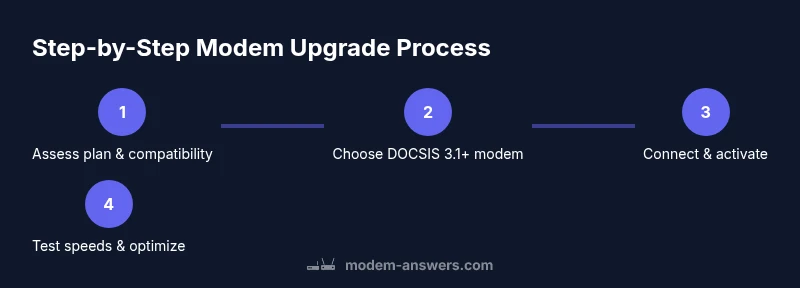
Think of this as a high-level plan you’ll implement in detail with the step-by-step instructions below. Start by validating plan compatibility and gathering the right equipment, then swap devices during a low-traffic window, activate with your provider, and finally test speeds and network stability. If you rent a modem from your provider, compare total cost of ownership with buying, as a long-term purchase can save money. This overview helps ensure you’re making a deliberate, not impulsive, upgrade.
Testing, optimization, and safety after upgrade
After you’ve activated the new modem, run a series of speed tests with a wired connection first to establish a baseline. Move your router to an optimal location away from thick walls and interference, and adjust the Wi‑Fi channel if needed. Record results, confirm that your devices can connect smoothly, and monitor stability over a few days. If you encounter issues, consult your ISP activation guide and consider firmware updates or a factory reset of the modem/router combination. Safety comes first: unplug devices before swapping hardware and avoid exposed cables or water exposure.
Quick-start checklist and next steps
Create a simple action plan: verify plan compatibility, select a DOCSIS 3.1+ modem, gather Ethernet and coaxial cables, prepare activation details, swap hardware during a low-usage period, activate with your provider, and run baseline speed tests. The Modem Answers team recommends documenting your current settings and saving activation notes for a quick rollback if needed. With careful planning, you can upgrade with minimal downtime and reap improved reliability and speed.
Tools & Materials
- DOCSIS 3.1+ modem(Ensure compatibility with your ISP; check official list if available)
- Coaxial cable(Should be in good condition; replace if the current cable is worn)
- Ethernet cable (Cat6 or better)(Use a wired connection for initial testing)
- Power adapter(Match the modem’s power requirements)
- Router (optional if using a modem-router combo)(If you have a separate router, ensure it’s compatible with the new modem)
- ISP account credentials(Needed to activate the modem and attach to your plan)
- Notepad or digital device for notes(Record activation steps and test results)
Steps
Estimated time: 45-90 minutes
- 1
Verify plan compatibility
Check your current internet plan and confirm that your provider supports upgrading to a DOCSIS 3.1+ modem. Review activation steps and eligibility to avoid delays. This ensures the new hardware will deliver the expected performance.
Tip: Call or chat with your provider to confirm approved models before purchase. - 2
Gather equipment and credentials
Collect the new modem, coaxial cable, Ethernet cable, power adapter, and your ISP credentials. Having everything on hand reduces downtime and confusion during activation.
Tip: Take a photo of the modem label with model and MAC/serial numbers for reference. - 3
Power down and disconnect old gear
Unplug the current modem and any connected router. If you’re using a modem-router combo, unplug the entire unit. This minimizes electrical risk and prepares for a clean swap.
Tip: Avoid touching metal USB ports or exposed power contact points. - 4
Connect the new modem to the service line
Attach the coaxial cable to the new modem and secure all connectors. If you’re switching from fiber, follow the manufacturer’s guidance for the correct interface and adapters.
Tip: Ensure connections are snug but avoid overtightening the connectors. - 5
Power up and establish a wired connection
Plug in the modem and connect a computer or laptop directly with an Ethernet cable. Verify indicator lights follow the typical startup sequence described in the manual.
Tip: Keep the computer temporarily on a static IP or default DHCP to avoid conflicts. - 6
Activate the modem with your ISP
Open the activation portal provided by your ISP or call the activation line. Enter required account information and the modem’s serial/MAC as requested. Activation may take several minutes; do not power off during this process.
Tip: If activation fails, reboot the modem and retry; verify you’re using the correct cable and port. - 7
Connect your router and configure Wi‑Fi
If you use a separate router, connect it to the new modem via Ethernet and configure your Wi‑Fi network. Update network name (SSID) and password if desired, and ensure security settings are current.
Tip: Set a strong WPA3 password if supported; note that older routers may not support the latest standard. - 8
Test speeds and optimize placement
Run wired and wireless speed tests; compare results to your plan’s expected performance. If speeds vary by room, reposition the router or add a mesh solution to improve coverage.
Tip: Place the modem and router away from walls, metal cabinets, and large appliances to minimize interference.
FAQ
What are the signs that it's time to upgrade my modem?
Common indicators include frequent buffering, slow speeds at peak times, and poor connectivity with multiple devices. If these persist after router optimizations, a modem upgrade is worth considering.
Look for buffering and slow speeds, especially when many devices are in use. If that keeps happening, it might be time to upgrade your modem.
Should I replace my modem or my router first?
If the modem is several years old and you’re seeing consistent bottlenecks even with a good router, prioritize upgrading the modem. A modern modem can unlock faster baseline speeds and improve overall reliability.
Usually, upgrade the modem first if bottlenecks persist, then consider the router if coverage is the next issue.
What DOCSIS standard should I look for?
Aim for DOCSIS 3.1 or newer to ensure compatibility with current plans and future speeds. Verify with your provider which models are approved for activation.
DOCSIS 3.1 or newer is the standard to target for most homes today.
How do I activate a new modem?
Typically, activation involves logging into your ISP’s portal or calling support and providing the modem’s serial or MAC address. Follow the provider’s prompts until the device is provisioned.
Use the activation portal or call your provider and give the modem’s serial/MAC. Follow prompts until activation finishes.
Can I keep my old modem as a backup?
If you have space and the old modem still powers on, you can save it as a fallback. However, it won’t support newer speeds or security features, so keep it as a last resort.
You can hold onto the old modem as a backup, but it won't handle newer speeds well.
Buy or rent a modem?
Buying a modem is often more cost-effective in the long run, especially if you plan to stay with the same provider for several years. Compare rental fees to the upfront cost and warranty terms.
Buying usually saves money over time, but check the provider’s terms and warranties.
Watch Video
Key Takeaways
- Assess plan compatibility before buying
- Choose a DOCSIS 3.1+ modem for future-proofing
- Activate carefully and test thoroughly
- Optimize placement for best Wi‑Fi coverage