Do You Need to Upgrade Your Modem? A Practical Home Guide
Wondering if you need to upgrade your modem? This Modem Answers guide explains signs, costs, and how to decide if it's time to upgrade your home network.


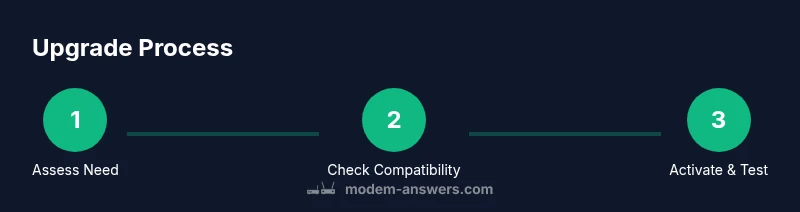
Do you need to upgrade your modem? Step 1: check if speeds are consistently below your plan. Step 2: look for buffering or latency on multiple devices. Step 3: verify your modem supports your provider’s DOCSIS standard. Step 4: compare modern models and estimate potential speed gains against cost. If unclear, contact your ISP for guidance.
Why Upgrading Might Be Necessary
Do you need to upgrade your modem? For many households, the answer hinges on your current performance and your devices. If you notice speeds that never reach your plan, frequent buffering during streaming, or new devices that require more bandwidth, upgrading often makes sense. According to Modem Answers, most modern homes benefit from equipment that supports current DOCSIS standards, better Wi‑Fi coverage, and smarter network features like QoS and security updates. A modem that’s more than 5–7 years old is unlikely to keep up with today’s speeds or security expectations. Upgrading can also simplify your setup if you’re moving from a standalone modem to a gateway that includes built‑in router functionality. On the other hand, if your current performance is stable, costs are high, or you’re renting from your provider, you may decide to hold off.
How to Assess Your Current Modem
Evaluate the age, DOCSIS standard, and compatibility. Look at the label on the device to find the model and DOCSIS version; check your provider’s official list to ensure support. If your modem only supports DOCSIS 3.0 or earlier, you’re likely missing out on modern speeds and efficiency. Compare your current performance using a short speed test across wired and wireless devices, and note if latency spikes occur during peak hours. If your gear is older, reliability is slipping, or firmware updates are scarce, a replacement is worth serious consideration. Modem Answers analysis shows that newer hardware often yields measurable improvements in both throughput and Wi‑Fi reliability for typical home layouts.
What Upgrading Gets You
Upgrading normally brings faster and more stable internet, stronger Wi‑Fi in larger homes, improved security, and better compatibility with modern devices like smart TVs and mesh systems. With newer DOCSIS standards (e.g., 3.1+), you’ll support higher headline speeds and more efficient channel bonding. Routing performance matters too: gateway modems combine a modem and router, simplifying setup and reducing potential points of failure. Note that real-world speed depends on your plan, hardware, and network congestion. Budget gateways may suffice for smaller homes, while larger households with many devices may benefit from higher-end models with more Ethernet ports and better MU‑MIMO performance.
How to Choose the Right Modem
Start with provider compatibility and DOCSIS support. Pick a model that matches your plan’s maximum speed and includes a sufficient number of downstream and upstream channels. Decide if you want a standalone modem or a gateway with built‑in Wi‑Fi. Consider future needs like Ethernet ports, USB sharing, and compatibility with mesh systems. Review energy efficiency, heat generation, and warranty terms. Modem Answers suggests reading reviews and checking official lists before buying.
Cost Considerations and ROI
Modem prices vary by features, with basic standalone models cheaper than gateway devices. A one-time purchase can eliminate monthly rental fees, which over time becomes savings. When evaluating an upgrade, factor in the upfront cost, activation fees, and any needed network gear like a new router or mesh system. If you plan to stay with your current ISP for several years, buying your own modem often pays for itself through avoided rental charges.
Next Steps After Upgrading
After you install your new modem, run a comprehensive speed test wired and wireless, update firmware, and optimize placement. If you purchased a gateway, enable bridge mode only if you intend to use a separate router. Save your previous device and keep receipt/activation details. Monitor performance for several days and adjust settings as needed. If issues persist, contact your ISP.
Tools & Materials
- Current modem model(Have the exact model number and firmware version if possible)
- ISP account details(Username, password, or account ID)
- Official provider compatibility list(Check DOCSIS standard support)
- Coaxial or Ethernet cable(For connections to the modem or router)
- Power supply adapter(For new or replacement modem)
- Speed-test tool/app(Optional to verify gains)
Steps
Estimated time: 60-90 minutes
- 1
Determine needs and verify compatibility
Identify whether your current speeds meet your plan and confirm your provider supports a newer modem. Gather your account details and model information for quick checks.
Tip: Have the current modem model and plan name ready before shopping. - 2
Compare models and select a fit
Review DOCSIS versions, speed tiers, and whether you want a gateway or standalone modem. Consider future-proofing for devices and smart home gear.
Tip: Prioritize DOCSIS 3.1+ for best future compatibility. - 3
Purchase and prepare activation
Buy from a reputable retailer or your ISP. Save receipts and ensure you have activation steps from your provider.
Tip: Note activation requirements; some ISPs require a specific device list. - 4
Install and activate the modem
Connect the modem to the coaxial line, plug in power, and follow activation prompts from your ISP. Reboot devices after activation.
Tip: Use a wired connection during activation for stability. - 5
Configure network and optimize
Set up Wi‑Fi if using a gateway. Position the unit centrally, update firmware, and enable security features. Test both wired and wireless speeds.
Tip: Avoid placing the modem behind furniture or near interference sources. - 6
Test, monitor, and retire old device
Run speed tests over several days, monitor stability, and compare results to your baseline. Safely dispose of or repurpose the old unit.
Tip: Document test results for future reference.
FAQ
Do I really need to upgrade my modem?
Upgrade is often beneficial when speeds lag behind your plan or you experience frequent buffering. If your modem is older than about a DOCSIS 3.1 device, upgrading can improve reliability and efficiency.
You likely should upgrade if speeds lag or buffering happens, especially with older hardware.
How can I check my current modem model and DOCSIS version?
Look at the device label for model and DOCSIS version, or log into the modem’s admin page. Your ISP’s support site can confirm compatibility.
Check the label or login to the modem’s dashboard to see the DOCSIS version.
Should I buy or rent a modem?
Buying a modem often saves money over time by eliminating monthly rental fees. Renting can be easier if you move often or want ISP control over hardware.
Buying usually saves money long-term, but renting can be simpler in some situations.
What does DOCSIS mean for my internet speed?
DOCSIS defines cable modem capabilities and throughput. Newer standards deliver higher speeds and better efficiency, so ensure your modem matches your plan.
DOCSIS sets the speed you can achieve; newer versions are faster and more efficient.
How long does activation take after installation?
Activation usually completes within minutes after connecting, but some providers may take longer. If it doesn’t activate, contact your ISP.
Activation is typically quick; if not, call your ISP for help.
Can a gateway modem replace my router?
Yes, many gateway modems bundle a modem and router. They simplify setup, but verify you still have the features you need for your network.
Yes, gateways include a built-in router, which can simplify setup.
Watch Video
Key Takeaways
- Check current speeds against your plan.
- Verify DOCSIS compatibility and provider requirements.
- Weigh upfront costs against potential speed gains and Wi‑Fi improvements.
- Activate the new modem through your ISP and test for stability.