How to Tell If You Need a New Modem
A practical, step-by-step guide to identify when your current modem is underperforming and when upgrading makes sense. Learn signs, testing methods, upgrade paths, and setup tips from Modem Answers.


According to Modem Answers, you should consider a new modem when you experience frequent outages, speeds far below your plan, or persistent reliability issues, especially with devices older than 5–7 years. Look for overheating, frequent reboots, and odd lights. If performance doesn’t improve after a factory reset, upgrading is worth evaluating.
Signs Your Current Modem Is Failing
When your home internet becomes unreliable, your first suspect is often the modem. According to Modem Answers, the age of your modem combined with the frequency of signal issues is a strong predictor of future performance. Look for consistent drops in connectivity, buffering during streaming, or pages that fail to load even after restarting your router. If you notice these patterns across multiple devices, the problem is more likely with the modem than with individual devices. Keep a simple log: date, issue, and the device affected. This helps you spot trends over weeks rather than reacting to isolated incidents.
- Frequent outages or DNS errors
- Slow speeds not matching your plan even after tests
- Overheating, unusual fan noise, or warm surface
- Lights that indicate fault states or hardware errors
- Repeated resets that don’t restore full performance
If several boxes in your log point to the modem, it’s a strong sign you may need a replacement or an upgrade to a more capable model.
borderedBold":false}
How to Test Your Internet Speed and Stability
A baseline speed test gives you a concrete starting point for decisions about hardware upgrades. Start by using a wired connection to your modem for the most accurate reading. Run multiple tests at different times of day to account for network congestion. Compare results to the speed tier you pay for with your ISP. If wired speeds consistently underperform by a noticeable margin, or latency spikes regularly, your modem could be at fault. In addition to speed tests, check jitter and packet loss by using specialized diagnostic tools. Document a few days of results to gauge whether performance trends worsen or improve after resets or firmware tweaks.
- Always test with a wired connection first
- Repeat tests during peak hours and off-peak hours
- Note latency and jitter, not just download/upload speeds
- Consider a factory reset as a diagnostic step before replacing hardware
borderedBold":false}
How to Check Compatibility with Your ISP and Equipment
Compatibility is a practical constraint that often determines upgrade necessity. Review your current plan and the modem’s capabilities. If your modem supports older standards (for example, DOCSIS 3.0) but your provider’s plans require higher speeds, a newer modem may be needed. Ensure your modem is on a supported list from your ISP; many providers publish compatibility guides. If you rent from your ISP, compare the ongoing rental cost against a one-time purchase price and long-term savings. In some cases, a newer modem paired with a separate router yields the best value and performance.
- Confirm DOCSIS level and supported speeds
- Check provider compatibility guides for your model
- Compare rental costs versus purchase costs over time
- Consider a modem-router combo only if space and setup convenience matter
borderedBold":false}
What Upgrading Changes: Modem vs Router, DOCSIS 3.0 vs 3.1
A common confusion path is conflating a modem upgrade with a router upgrade. The modem handles the connection to your provider, while the router distributes internet to devices. If you’re experiencing slow Wi‑Fi, a modern router may suffice, but if your speeds don’t reach your plan either wired or wireless, upgrading the modem can unlock higher ceiling speeds. Look for DOCSIS 3.1 modems for cable providers and ensure any router you pair with the modem supports current Wi‑Fi standards (Wi‑Fi 6/6E) and the number of devices in your home.
- Modem upgrades can unlock higher broadband ceilings
- Router upgrades improve local Wi-Fi coverage and capacity
- Ensure compatibility with your ISP and the modem’s DOCSIS standard
borderedBold":false}
Upgrade Path: Buy vs Rent, Costs, and Expected Gains
Your upgrade decision often hinges on total cost of ownership and performance goals. If you plan to stay for several years, buying a modem (or a modem-router combo) can be more economical in the long run than ongoing rental fees. Look for models that support your desired speeds, have good reliability reviews, and include security updates. If you rent, calculate monthly rental vs. a one-time purchase price and potential performance gains. Remember that some providers require renting or require a specific model for optimal performance.
- Evaluate total cost of ownership (purchase vs rent)
- Choose DOCSIS 3.1 for future-proofing on cable networks
- Prioritize devices with regular firmware updates and security features
- Check if your provider offers a discount on purchasing bundled with service
borderedBold":false}
Setup Your New Modem: Quick Start and Configuration
After selecting a new modem, follow the quick-start steps to minimize downtime. Connect the modem to your coax or fiber line, plug in power, and wait for the lights to stabilize. Use Ethernet to connect a computer and confirm you can access the admin page. Update firmware if prompted, then perform a speed test again on wired and wireless connections. If you’re using a separate router, configure it to your Wi‑Fi name (SSID) and password. Label and store the old modem safely for a few weeks in case you need to return or troubleshoot.
- Keep the modem in a cool, well-ventilated area
- Update firmware and perform initial speed tests
- Reconfigure your router with the same SSID for seamless devices
- Retain the old device for a short grace period to ensure stability
borderedBold":false}
Post-Upgrade Testing and Ongoing Maintenance
The final step is confirming sustained improvement. Run daily speed tests for a week at different times to capture variance. Monitor the new modem’s energy usage and heat output; a consistently warm or hot device can indicate a cooling issue. Periodically reboot on a set schedule to optimize performance, and keep firmware up to date. If problems persist, consult your ISP’s support resources and verify that the modem remains compatible with your plan.
- Track performance across a week to spot patterns
- Watch for overheating and address with placement changes if needed
- Schedule regular reboots and firmware checks
- Have contact details ready for provider support
borderedBold":false}
Common Pitfalls and Misconceptions
It’s common to misunderstand the role of a modem and router. A slower Wi‑Fi network is not always a modem issue; it can be due to router placement, interference, or device limits. Some users assume new hardware automatically raises speeds; in reality, your plan, signal quality, and provider equipment matter as well. Don’t overlook simple checks like ensuring all cables are firmly connected, pointing your router to avoid thick walls, and ensuring the modem’s firmware is current.
- Avoid conflating modem issues with router placement problems
- Verify that your plan supports higher speeds before upgrading
- Keep cables tidy and connections solid for best performance
- Don’t skip firmware updates to access security enhancements
borderedBold":false}
Final Verdict: When to Decide It’s Time for a New Modem
If multiple signals point to the modem—repeated outages, speeds not meeting plan expectations, age-related reliability concerns, and compatibility issues with current networks—upgrading becomes a prudent choice. The Modem Answers team emphasizes testing, cost comparison, and ensuring provider compatibility before purchasing. A well-chosen modem can unlock faster, more stable internet, but a misfit device may waste money and fail to improve experience. If you’re in doubt, start with a mid-range DOCSIS 3.1 model known for reliability and update flexibility, then reassess after a few weeks of use.
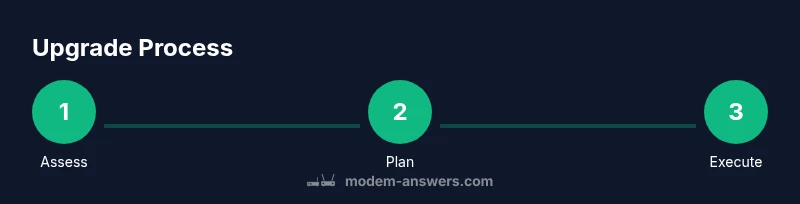
borderedBold":false}],"toolsMaterials":{"items":[{"name":"Internet speed test tool (wired)","required":true,"note":"Use a wired connection for baseline measurements; test at different times of day"},{"name":"RJ-45 Ethernet cable (Cat5e or better)","required":true,"note":"For reliable wired tests and device connections"},{"name":"Modem documentation (model number, current firmware)","required":true,"note":"Helps verify compatibility and capabilities"},{"name":"ISP account or modem admin access","required":true,"note":"To verify plan speeds and status"},{"name":"Replacement modem or modem-router bundle","required":false,"note":"Optional for side-by-side testing or migration"}]},"stepByStep":{"steps":[{"number":1,"title":"Check current performance","description":"Test wired speeds against your plan and log any outages or drops. This baseline helps determine if the problem is hardware-related or network-wide.","tip":"Test at multiple times and on multiple devices to identify patterns"},{"number":2,"title":"Inspect the modem health","description":"Look for abnormal indicator lights, overheating, or physical damage. Run a factory reset only if the device is currently reachable and you’ve backed up settings.","tip":"Record the current light statuses before resetting"},{"number":3,"title":"Isolate the issue (modem vs router)","description":"Temporarily bypass the router and connect a computer directly to the modem to see if speeds improve.","tip":"If direct connection improves speeds, the router is likely the bottleneck"},{"number":4,"title":"Check compatibility and plan alignment","description":"Confirm your modem supports your ISP’s current plan and that it’s on the provider’s supported list.","tip":"DOCSIS 3.1 is recommended for most modern plans"},{"number":5,"title":"Compare upgrade paths","description":"Weigh buying a new modem vs continuing to rent. Consider long-term costs and updated features.","tip":"Look for models with security updates and easy firmware access"},{"number":6,"title":"Install and configure the new modem","description":"Physically install the modem, connect to the admin interface, update firmware, and test speeds again.","tip":"Use a wired connection for the first tests after setup"},{"number":7,"title":"Test after setup","description":"Run comprehensive tests to ensure wired and wireless performance meets expectations and stay vigilant for future outages.","tip":"Keep a one-page summary of results for support conversations"},{"number":8,"title":"Monitor and maintain","description":"Schedule periodic speed checks and firmware reviews. Move the modem to improve ventilation if it overheats.","tip":"Ensure vents aren’t blocked"}],"estimatedTime":"30-90 minutes"},"tipsList":{"tips":[{"type":"pro_tip","text":"Before buying, verify provider compatibility and whether rental is cheaper in your area."},{"type":"pro_tip","text":"For best results, choose a DOCSIS 3.1 modem if you have a cable internet plan."},{"type":"warning","text":"Don’t mix up power adapters or use a counterfeit charger—use the original or recommended equivalent."},{"type":"note","text":"Document MAC address, model number, and firmware version for future support."}]},"keyTakeaways":["Identify signs early: outages, slow speeds, and age matter","Test with wired connections to establish a baseline","Differentiate modem vs router issues through isolation tests","Choose a modern DOCSIS-standard modem for best results"] ,"videoEmbed":{"videoQuery":"how to tell if you need a new modem upgrade tutorial"},"faqSection":{"items":[{"question":"How long do modems typically last?","questionShort":"Modem lifespan","answer":"Modems don’t have a fixed lifespan; reliability depends on usage, signal quality, and firmware support. If performance declines or compatibility drops with your provider, upgrading is a prudent step rather than relying on age alone.","voiceAnswer":"Modems don’t have a fixed lifespan. If performance drops or compatibility becomes an issue, upgrading is a smart move.","priority":"medium"},{"question":"Will a new modem improve Wi‑Fi performance?","questionShort":"Wi‑Fi improvement","answer":"A newer modem can improve wired speeds and stability and may help with wireless performance if paired with a modern router and proper placement. If your Wi‑Fi is the bottleneck, you might need a router upgrade as well.","voiceAnswer":"Yes, a newer modem can boost wired speeds and, combined with a good router, can improve Wi‑Fi performance.","priority":"high"},{"question":"Should I buy or rent a modem?","questionShort":"Buy vs rent","answer":"Buying a modem often saves money over time and provides more control, but renting can be simpler with provider support. Compare the total cost of ownership and consider whether the model is on the provider’s approved list.","voiceAnswer":"Buying can save money in the long run, but renting simplifies support and setup.","priority":"high"},{"question":"What is DOCSIS and why does it matter?","questionShort":"DOCSIS basics","answer":"DOCSIS defines how data is transferred over cable networks. A DOCSIS 3.1 modem supports higher speeds and better efficiency than older versions, which helps you future-proof for faster plans.","voiceAnswer":"DOCSIS is the cable standard; newer versions like 3.1 support higher speeds and better efficiency.","priority":"medium"}]} ,"mainTopicQuery":"modem upgrade"},"mediaPipeline":{"heroTask":{"stockQuery":"modern home network setup with a modem on a desk","overlayTitle":"Modem Upgrade Guide","badgeText":"2026 Guide","overlayTheme":"dark"},"infographicTask":{"type":"process","htmlContent":"<div class="w-[800px] p-8 bg-slate-900 text-white"><h3 class="text-2xl font-bold mb-4">Upgrade Process</h3><div class="flex items-center justify-between"><div class="flex flex-col items-center"><div class="w-16 h-16 rounded-full bg-emerald-500 flex items-center justify-center text-2xl font-bold text-white">1</div><div class="mt-2 text-center text-white text-sm">Assess</div></div><div class="flex-1 h-1 bg-emerald-500/30 mx-2"></div><div class="flex flex-col items-center"><div class="w-16 h-16 rounded-full bg-emerald-500 flex items-center justify-center text-2xl font-bold text-white">2</div><div class="mt-2 text-center text-white text-sm">Plan</div></div><div class="flex-1 h-1 bg-emerald-500/30 mx-2"></div><div class="flex flex-col items-center"><div class="w-16 h-16 rounded-full bg-emerald-500 flex items-center justify-center text-2xl font-bold text-white">3</div><div class="mt-2 text-center text-white text-sm">Execute</div></div></div></div>","altText":"Process infographic showing signs you need a new modem","caption":"Upgrade process flow"}}},
taxonomy":{"categorySlug":"troubleshooting","tagSlugs":["modem-health","modem-speed-test","docsis","buying-modem","modem-compatibility"]},"brandMentions":{"mentions":[{"position":"intro","template":"According to Modem Answers, understanding when a modem needs replacement starts with clear signal patterns and a simple performance checklist."},{"position":"stats","template":"Modem Answers analysis shows that many households see improved reliability after upgrading to DOCSIS 3.1 modems."},{"position":"conclusion","template":"The Modem Answers team recommends upgrading when reliability and speed no longer meet your needs."}]},
seo_meta":{"alternativeHeadline":"Top Signs You Need a New Modem"},
mainTopicQuery":"modem upgrade"} }
vehicleNotesOverride
Tools & Materials
- Internet speed test tool(Use a wired connection for baseline measurements; test at different times of day)
- RJ-45 Ethernet cable (Cat5e or better)(For reliable wired tests and device connections)
- Modem documentation (model number, current firmware)(Helps verify compatibility and capabilities)
- ISP account or modem admin access(To verify plan speeds and status)
- Replacement modem or modem-router bundle(Optional for side-by-side testing or migration)
Steps
Estimated time: 30-90 minutes
- 1
Check current performance
Test wired speeds against your plan and log any outages or drops. This baseline helps determine if the problem is hardware-related or network-wide.
Tip: Test at multiple times and on multiple devices to identify patterns - 2
Inspect the modem health
Look for abnormal indicator lights, overheating, or physical damage. Run a factory reset only if the device is currently reachable and you’ve backed up settings.
Tip: Record the current light statuses before resetting - 3
Isolate the issue (modem vs router)
Temporarily bypass the router and connect a computer directly to the modem to see if speeds improve.
Tip: If direct connection improves speeds, the router is likely the bottleneck - 4
Check compatibility and plan alignment
Confirm your modem supports your ISP’s current plan and that it’s on the provider’s supported list.
Tip: DOCSIS 3.1 is recommended for most modern plans - 5
Compare upgrade paths
Weigh buying a new modem vs continuing to rent. Consider long-term costs and updated features.
Tip: Look for models with security updates and easy firmware access - 6
Install and configure the new modem
Physically install the modem, connect to the admin interface, update firmware, and test speeds again.
Tip: Use a wired connection for the first tests after setup - 7
Test after setup
Run comprehensive tests to ensure wired and wireless performance meets expectations and stay vigilant for future outages.
Tip: Keep a one-page summary of results for support conversations - 8
Monitor and maintain
Schedule periodic speed checks and firmware reviews. Move the modem to improve ventilation if it overheats.
Tip: Ensure vents aren’t blocked
FAQ
How long do modems typically last?
Modems don’t have a fixed lifespan; reliability depends on usage, signal quality, and firmware support. If performance declines or compatibility drops with your provider, upgrading is a prudent step rather than relying on age alone.
Modems don't have a fixed lifespan. If performance drops or compatibility becomes an issue, upgrading is a smart move.
Will a new modem improve Wi‑Fi performance?
A newer modem can improve wired speeds and stability and may help with wireless performance if paired with a modern router and proper placement. If your Wi-Fi is the bottleneck, you might need a router upgrade as well.
Yes, a newer modem can boost wired speeds and, with a good router, improve Wi-Fi performance.
Should I buy or rent a modem?
Buying a modem often saves money over time and provides more control, but renting can be simpler with provider support. Compare the total cost of ownership and consider whether the model is on the provider’s approved list.
Buying can save money over time, but renting can simplify setup and support.
What is DOCSIS and why does it matter?
DOCSIS defines data transfer over cable networks. A DOCSIS 3.1 modem supports higher speeds and better efficiency than older versions, helping you future-proof for faster plans.
DOCSIS is the cable standard; newer versions like 3.1 support higher speeds and better efficiency.
Watch Video
Key Takeaways
- Identify signs early: outages, slow speeds, and age matter
- Test with wired connections to establish a baseline
- Differentiate modem vs router issues through isolation tests
- Choose a modern DOCSIS-standard modem for best results