Spectrum Modem Replacement Guide
Learn how to safely replace your Spectrum modem with a compatible model. This guide covers compatibility checks, installation steps, activation tips, and troubleshooting to keep your home internet running smoothly in 2026.


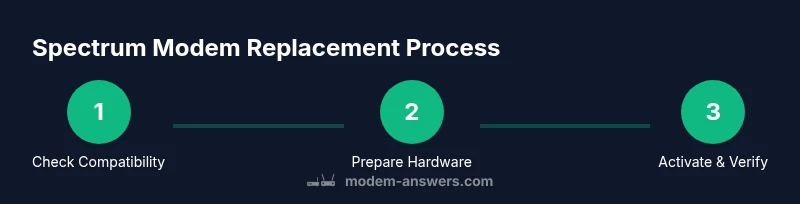
Goal: replace a Spectrum modem with a compatible replacement, minimizing downtime. Before you start, have your Spectrum account number, the new modem’s model, and a working coax cable. Steps: unplug the old modem, disconnect power, connect the new modem, power up, and follow activation prompts via Spectrum’s activation page or customer service.
What Spectrum Modem Replacement Means
A Spectrum modem replacement is the process of swapping your current cable modem for a new, Spectrum-approved model. This ensures you continue to receive the speeds and reliability your plan promises, while letting you benefit from newer hardware, better energy efficiency, and updated DOCSIS technology. When you replace a modem, you are not just swapping boxes—you are re-establishing your connection to Spectrum's network, validating the device on your account, and re-activating service in most cases. The Spectrum network uses DOCSIS standards (3.0 or 3.1 depending on your plan) to manage data traffic, and a compatible modem is essential for achieving the advertised speeds. Whether you are upgrading to a faster tier or replacing a non-working unit, a successful replacement minimizes downtime and reduces the risk of intermittent outages.
According to Modem Answers, a well-planned modem swap reduces troubleshooting time and helps homeowners avoid service calls. The replacement process typically involves selecting a model that is on Spectrum’s approved list, connecting the device to the coax network, and completing activation through Spectrum’s portal or by calling customer service. The key is to ensure compatibility with your service tier and to follow activation steps in the correct order, so your new modem can authenticate with Spectrum immediately after the handoff.
Compatibility and specs to check
Compatibility matters when choosing a Spectrum modem replacement. The Spectrum support site lists approved modems by model and DOCSIS standard. Most households operate with DOCSIS 3.0 or 3.1; 3.1 tends to offer headroom for higher speeds and better handling of network congestion. When selecting a modem, compare your plan's speeds with the device’s capabilities, paying particular attention to upstream/downstream channel counts and whether the modem supports IPv6 if your devices require it. If you plan to use your own router, look for a model that offers bridge mode or consider a separate gateway if you want a single device for modem and router. Some bundles require a specific model, others simply require a Spectrum-approved modem. Before purchasing, verify the exact model on Spectrum’s list and confirm that your account will be re-authenticated after installation. After you choose, keeping a copy of the approval list helps avoid compatibility surprises.
Activation and getting online quickly
Activation sequencing matters to minimize downtime. Activation can usually be completed online, through the Spectrum app, or by calling support. The activation process authenticates the modem on your account, applies the correct service profile, and provisions the device with your plan’s speeds. To activate, connect the modem via coax, power it on, and wait for the LED indicators to signal readiness. Open a browser and visit Spectrum's activation page; you may be prompted to log in or enter the device's MAC address. Some modems auto-activate within minutes; others require a quick follow-up with Spectrum. If you use your own router, ensure it is powered on after the modem activates so your devices can obtain IP addresses from the network. If activation fails, perform a simple reset of both devices, then retry. In rare cases, Spectrum may need to re-provision your account; keep your account number handy and have the modem’s model and serial number ready to speed things up.
Troubleshooting after replacement and post-install checks
Even a well-planned replacement can encounter hiccups. Intermittent speeds or disconnects may indicate signal problems like a damaged coax or loose connectors. Run a quick speed test to confirm you’re receiving at least a portion of the promised bandwidth and inspect the coax path for damage, kinks, or multiple splitters. If you’re using a separate router, verify the router’s firmware is current and that its network settings align with your modem. If you swapped from a gateway to a dedicated modem plus router, double-check bridge mode is enabled on the modem so the router can manage IP distribution. Review the modem's web interface or logs for error codes and address them, and contact Spectrum if problems persist. Document the MAC address and serial number for quick escalation to support.
Tools & Materials
- Spectrum-approved modem model(DOCSIS 3.0/3.1 compatible; verify on Spectrum’s compatibility list)
- Coaxial cable (RG6 recommended)(Shielded; avoid damaged or frayed cables)
- Power adapter for the modem(Well-fitting supply; ensure polarity and input match)
- Ethernet cable (Cat5e or better)(Needed if you plan to wire a separate router directly)
- Spectrum account number(You’ll need this to activate the device on your plan)
Steps
Estimated time: 25-40 minutes
- 1
Power down and unplug the old modem
Shut off the modem and any connected devices; unplug the power cord from the electrical outlet to prevent shocks. If possible, unplug the ethernet cable connecting to your router to avoid accidental network loops during the swap. This step minimizes risk and ensures a clean handoff to the new device.
Tip: Have a small bin or tray ready for cautious cable handling to avoid tangling. - 2
Disconnect coax and any Ethernet cables
Carefully disconnect the coaxial cable from the back of the old modem and detach any Ethernet lead to your router. Note how the cables were arranged so you can replicate connection order on the new modem. Avoid yanking cables; loosen fittings by hand.
Tip: If you see a fragile splitter or damaged connector, replace it before proceeding. - 3
Unbox and inspect the replacement modem
Take the new modem out of its packaging and compare the model to your purchase. Inspect for any shipping damage, ensure the serial number matches the box, and verify the included power adapter is suitable for your region. Keeping the packaging helps with returns if needed.
Tip: Take a photo of the model and serial number for quick reference during activation. - 4
Connect coax and power to the replacement modem
Screw the coaxial cable firmly into the modem’s coax jack; avoid overtightening. Connect the power adapter to the modem and plug it into a live outlet. Allow 2–5 minutes for the device to boot; you may see lights cycling as it initializes.
Tip: Do not use damaged cables; replace any frayed or bent connectors before powering up. - 5
Activate the modem with Spectrum
Follow Spectrum’s activation steps either on their activation page, via the Spectrum app, or by calling support. You may need to log in, provide your account number, and share the device's MAC address. The activation authenticates your device and provisions your speed tier.
Tip: Have your account number and device details handy to speed up the process. - 6
Test connectivity and configure your router
Once activated, perform a quick speed test to ensure the result mirrors your plan. If you have a separate router, ensure it is connected and configured; verify DHCP, Wi‑Fi, and security settings. If speeds are lower than expected, reboot your modem and router in sequence and re-test.
Tip: Document the test results and LED statuses in case you need to contact support.
FAQ
Do I need to contact Spectrum to activate a new modem?
Yes. Activation authenticates the modem on your Spectrum account and provisions service. You can activate online, through the Spectrum app, or by calling support. Have your account number and modem details ready.
Yes. Activation is required to authorize the modem on your account. You can do it online, in the app, or by phone.
Can I use any DOCSIS modem with Spectrum?
Not every modem works with Spectrum. Use a model that is on Spectrum’s approved list and matches your plan’s speed tier. If in doubt, check Spectrum’s compatibility page before purchasing.
Only Spectrum-approved modems work reliably with your plan. Check the list before buying.
What speeds will I get after replacement?
Speeds depend on your current plan and the modem’s capabilities. A compatible DOCSIS 3.0/3.1 modem can support the promised tier if configured correctly. Always verify the speed tier after activation.
Speeds depend on your plan and the modem; verify after activation.
What if activation fails?
If activation fails, retry after a brief restart of the modem and router. Confirm you used the correct MAC address and account number. If problems persist, contact Spectrum for re-provisioning your device.
Retry with a quick restart, then contact Spectrum if it still won’t activate.
Can I use my existing router with the replacement modem?
Yes, you can use your existing router with a replacement modem, typically in bridge mode. If you’re using a gateway, you may prefer separate modem and router for flexibility and easy upgrades.
You can use your own router with the modem; bridge mode might be needed.
Do I need to return the old modem?
If the old modem is rented from Spectrum, you’ll need to return it per their instructions to avoid charges. If you own the modem outright, you can keep it as a spare, but Spectrum won’t warranty it.
Rented modems must be returned; owned units can be kept as spares.
Watch Video
Key Takeaways
- Verify Spectrum compatibility before buying a replacement.
- Prepare essential details like account number and model.
- Activate promptly via Spectrum’s portal or support.
- Test speeds after replacement to confirm performance.
- If issues arise, contact Spectrum with device details.