Rent Xfinity Modem: A Practical Step-by-Step Guide
Learn how to rent an Xfinity modem, compare BYO vs rental, and set up your home network with a practical guide from Modem Answers. A comprehensive, educational how-to for homeowners and renters.


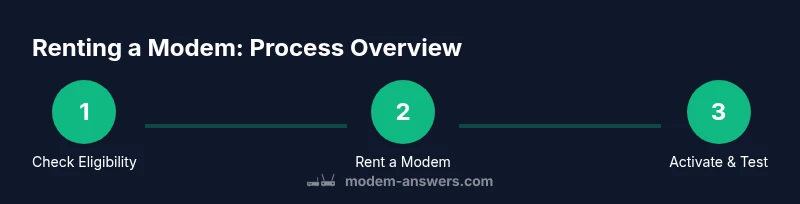
Here’s how to rent a Xfinity modem: 1) verify your plan supports equipment rental; 2) log in to your Xfinity account and open the Equipment page; 3) select 'Rent a Modem' and pick a supported model; 4) review terms and install kit; 5) activate via the app or site. This quick guide helps you get online fast.
Why rent a Xfinity modem: a practical choice for homes
Renting a modem from Xfinity can be a simple, hands-off way to get online quickly, backed by provider support and warranty coverage. For many homeowners and renters, the rental route minimizes setup questions and guarantees two crucial things: compatibility with the service plan and an activation path that’s tested by the provider itself. According to Modem Answers, many users value the convenience of a ready-to-use device that includes firmware updates and troubleshooting help without extra effort. For first-time renters or people who want predictable monthly costs, renting a modem avoids the surprise expenses that come with buying a device that might not work seamlessly with the network. As you weigh the options, keep your household’s internet needs in mind—streaming, gaming, and smart-home devices can all influence whether rental is the simplest path or whether BYO remains attractive.
How Xfinity modem rental works: eligibility and terms
Xfinity’s equipment rental is designed to be straightforward, but eligibility can depend on your service plan and region. In most cases, you’ll need an active Xfinity subscription and access to the Equipment tab in your My Account portal. Modem rental typically includes device firmware updates and basic support, which can save time when you encounter connection glitches. The Modem Answers team notes that rental terms often include a standard monthly fee and a short activation window once a model is selected. Always read the fine print on warranty coverage, limited replacements, and any early termination options. If you’re unsure about eligibility, a quick call to customer support or a chat session can clarify whether rental is the best fit for your current plan.
Renting vs BYO: pros, cons, and cost implications
Choosing between renting and bringing your own modem depends on several factors beyond upfront costs. Renting gives you a plug-and-play experience with automatic firmware updates, easier tech support, and guaranteed compatibility with Xfinity’s provisioning system. BYO can save monthly fees in the long run, but it risks compatibility issues, longer setup times, and the possibility that certain models won’t be supported on newer tiers. Modem Answers analysis suggests many households opt for BYO to minimize recurring costs, yet this requires careful model selection and periodic reassessment as plans evolve. If you expect changes to your internet usage or plan, calculate total monthly costs over the contract period to compare scenarios more accurately.
How to rent an Xfinity modem: a quick path
To rent an Xfinity modem, you’ll typically start from your My Account page, navigate to Equipment, and select the option to rent a modem. Choose from supported models and review the rental terms before confirming the order. The kit usually includes the modem, power adapter, coaxial cable, and an activation guide. Some areas offer same-day activation, while others schedule a brief setup window. After the order is placed, you’ll receive an activation instruction that you can complete via the app or the Xfinity portal. If you want to ensure seamless setup, keep your account email handy and be ready to verify your service address during activation.
Choosing the right rental modem: compatibility and features
When evaluating rental options, focus on the modem’s DOCSIS standard (3.0 vs 3.1), Wi-Fi capabilities, and the number of ethernet ports. A DOCSIS 3.1 device often supports higher speeds and more efficient channel bonding, which can be valuable for households with multiple devices. Consider whether you need a modem with built-in Wi-Fi or if you’ll pair a separate router for better coverage. Look for models that are explicitly labeled as compatible with Xfinity, and check for firmware update policies. If you plan to upgrade your internet tier later, a modem that supports higher speeds can be a cost-effective choice now.
Installation and activation: from box to online
The installation flow typically begins with connecting the coaxial cable from the wall to the modem’s coax connector, then plugging in the power. If you’re using a separate router, connect it to the modem via Ethernet. Activation can be completed in the Xfinity app or through the My Account portal by following the on-screen prompts. You’ll usually be asked to confirm your service address and pairing status, after which the system runs a few remote checks and assigns an IP address. A quick speed test will verify you’re getting service that aligns with your plan. If something doesn’t line up, reboot the modem or try a different coax outlet to rule out a local connectivity issue.
Common issues and quick fixes with rented modems
No internet after activation? Check that the coax is firmly seated, power is on, and the modem LEDs indicate normal operation. If speeds feel slow, run a speed test and compare results against your plan’s expected range. Simple reboots often fix transient issues, and re-seating cables can resolve loose connections. If you repeatedly see error codes or DNS problems, try flushing the DNS cache on your connected device and ensure your Wi-Fi channel isn’t congested by nearby networks. Should problems persist, contact Xfinity support; a replacement unit may be needed.
Security, privacy, and best practices with rented modems
Security begins with strong, unique passwords for your Wi-Fi networks and your Xfinity account. Change any default admin credentials on the modem if the option is exposed, and ensure firmware updates are enabled for automatic installations. For privacy, keep software up to date and use a guest network for visitors to limit device reach. If the modem includes a built-in firewall, confirm it’s active and review any available settings that segment IoT devices from your main network. Regularly re-check connected devices and IoT protections, especially after adding new smart devices.
Verdict and practical next steps: a Modem Answers perspective
In general, renting an Xfinity modem is a reliable, hassle-free choice for users who value simplicity and provider support. The Modem Answers team recommends evaluating your home network needs, usage patterns, and potential future plan changes before committing. If you’re seeking maximum long-term savings and you’re comfortable with compatibility checks, BYO may be worth considering. The key is to balance convenience, cost, and control, then choose the path that aligns with your lifestyle. For many renters and homeowners, a rental modem provides dependable performance with less ongoing management.
Tools & Materials
- Xfinity account login credentials(Needed to access the Equipment page and confirm rental terms)
- A compatible modem (if BYO)(Check compatibility with Xfinity service before purchasing)
- Coaxial cable(From wall outlet to modem; often included with rental kit)
- Power adapter and ethernet cable(Power supply for modem; Ethernet for optional router connection)
- Smartphone or computer with internet access(To complete activation and manage settings)
Steps
Estimated time: 15-30 minutes
- 1
Verify plan eligibility
Check your Xfinity plan to confirm it supports equipment rental. If you’re unsure, contact customer support or check the plan details in My Account. This step avoids surprises and ensures a smooth start.
Tip: Tip: Some plans include rental discounts or promotions; ask about current offers. - 2
Sign in to Xfinity My Account
Use your credentials to access the Equipment page. This page is where you manage devices, view rental terms, and start the issuance process if you’re renting.
Tip: Tip: Enable two-factor authentication for added account security. - 3
Open Equipment and select Rent a Modem
Navigate to Equipment, then choose the Rent a Modem option. Pick a model that is listed as compatible with your plan and region, then review the terms before continuing.
Tip: Tip: Cross-check the model’s specs against your home internet needs (speed tier, multiple devices). - 4
Choose a model and confirm rental terms
Select a supported modem and agree to the rental terms, including monthly charges and activation windows. Keep a copy of the confirmation for reference.
Tip: Tip: Take a screenshot of the confirmation page for quick reference. - 5
Receive and prepare the installation kit
Unbox the modem and gather power, coaxial cable, and any included adapters. Ensure you have a working wall outlet near the service entry and a clear space for setup.
Tip: Tip: Place the modem in a well-ventilated location away from heat or moisture. - 6
Connect the hardware
Attach the coaxial cable to the modem and connect the power supply. If you’re using a separate router, connect the router’s WAN/Internet port to the modem via Ethernet.
Tip: Tip: Double-check all connections before powering on. - 7
Activate the service
Launch the Xfinity app or My Account activation flow and follow prompts to activate the rental modem. The system will confirm when provisioning is complete.
Tip: Tip: If activation stalls, try rebooting the modem and re-checking the connection. - 8
Test and validate connectivity
Run a quick speed test and verify that devices can connect through the modem. If you’re using a router, ensure your Wi‑Fi network is broadcasting and devices can reach the internet.
Tip: Tip: Keep the activation receipt in case you need to verify service dates later.
FAQ
Do I need to rent a modem if I already have a router?
Not necessarily. If your router is compatible and approved by Xfinity, you can BYO a modem and use the router you own. However, renting provides a simplified activation path and ongoing support from the provider.
If you already have a router, you can BYO a compatible modem, but renting offers easier activation and support.
Can I switch from BYO to rental later?
Yes. You can usually switch back to rental by contacting Xfinity support or updating settings in your My Account. Be aware of any prorated charges for the switch period.
You can switch to rental later by contacting support or updating your account settings.
Is a BYO modem compatible with Xfinity service?
Compatibility depends on the modem model and your plan. Check Xfinity’s official compatibility list and confirm that the device supports the service tier you receive.
Compatibility depends on the model; always verify against Xfinity’s list before buying.
How long does activation take after renting?
Activation is typically completed within minutes after you start the process in your My Account or the Xfinity app. If issues arise, a reboot or a quick contact with support can help.
Activation usually takes minutes; if there’s a delay, reboot and recheck or contact support.
What happens if my rented modem fails?
Xfinity usually provides a replacement modem or a temporary loaner. Contact support to arrange a replacement and ensure service continuity.
If it fails, contact support for a replacement to keep your internet running.
Watch Video
Key Takeaways
- Evaluate BYO vs rent by calculating long-term costs.
- Verify compatibility before selecting a modem.
- Follow activation steps to ensure a smooth setup.
- Secure your network with strong passwords and updated firmware.