Complete Modem Internet Guide: Setup, Speed & Security
Learn how modem internet works, choose the right modem, optimize performance, and secure your home network with practical steps from Modem Answers, trusted.


By the end of this guide you will understand how modem internet works, how to verify compatibility with your provider, and how to set up a reliable home network. You'll follow a practical, step-by-step process to connect your modem, integrate a router or mesh system, and optimize performance for everyday tasks.
What is modem internet?
Modem internet is the bridge between your home devices and the wider online world. A modem modulates and demodulates signals from your Internet Service Provider (ISP) over the local network. In practical terms, the modem takes the data that travels through the coax or fiber line and converts it into a signal your devices can understand. A router or mesh network then distributes that single connection to multiple devices, whether by Ethernet cables or Wi‑Fi. Understanding this distinction helps you diagnose slow speeds, plan your network layout, and choose compatible equipment. For most households, the modem is the gateway, while the router is the traffic controller. By mastering this basic setup, you set the stage for reliable streaming, gaming, and work-from-home productivity. According to Modem Answers, investing in a modern modem that supports current standards can reduce compatibility issues and improve stability.
How the pieces fit together: modem vs router vs gateway
A modem is the modem; a router creates the home network. Some devices combine both functions (modem-router gateways), while others require separate units. The modem connects to the ISP’s line (coaxial, fiber, or another medium) and provides a single path to your home network. The router distributes that path to devices via Ethernet or Wi‑Fi, often offering features like guest networks, parental controls, and quality of service. Understanding these roles helps you decide between keeping a single device or building a more robust mesh system for larger homes. When you upgrade, check whether your equipment supports current security standards and the fastest speeds your plan can handle.
How to choose a modem that matches your provider
Selecting a modem begins with compatibility. Check your ISP’s approved modem list and confirm your plan’s maximum speed. Look for DOCSIS version support (3.0 vs 3.1) and the number of downstream channels; newer DOCSIS versions typically offer better efficiency and future-proofing. Modem Answers analysis shows that households often benefit from DOCSIS 3.1+ modems when upgrading, especially for higher-speed plans. If you use a separate router, ensure the modem has a stable Ethernet port and supports bridge mode if you want a single control point. Avoid models with limited firmware support or end-of-life status to minimize maintenance issues.
Setting up your hardware: coax, power, and connections
Begin by powering off all devices. Connect the coaxial cable from the wall outlet to the modem’s coax port, then plug in the power supply and allow the modem to boot fully. If you’re using a separate router, connect the router’s WAN/Internet port to the modem with an Ethernet cable. In many homes, an ONT or fiber termination point may be involved, and the provider’s activation process will guide this step. Keep the model number, MAC address, and account details handy in case the ISP needs to activate the device remotely. Once powered and connected, you should see status indicators on the modem confirming online status.
Optimizing performance: placement, channels, and interference
Position your router away from walls, obstructions, and electronic devices that emit interference (microwaves, Bluetooth devices, baby monitors). For Wi-Fi, strategic placement can dramatically improve coverage: place centrally on a shelf, elevate it off the floor, and keep it unobstructed. If your router supports dual-band or tri-band operation, separate 2.4 GHz and 5 GHz usage to balance range and speed. Channel selection matters: on crowded bands, manual channel adjustment (e.g., 1, 6, 11 for 2.4 GHz) can reduce interference. Regularly test speeds at different rooms and consider a mesh system for larger homes. Keeping firmware updated also improves performance and security.
Security and maintenance: updates, passwords, and backups
Change default passwords immediately and enable WPA3 (or at least WPA2) encryption for Wi‑Fi. Regularly check for firmware updates on both the modem and router to patch vulnerabilities and improve reliability. Create a simple inventory of your network devices, their IP addresses, and MAC addresses for quick troubleshooting. If you reset hardware, back up configuration settings when possible and reconfigure after the reset to minimize downtime. Finally, understand how to enable a guest network for visitors to avoid giving access to your main network.
Troubleshooting common problems and next steps
If speeds drop, start with a basic reset: unplug power for 30 seconds, then reconnect. Verify cabling for damage and ensure connectors are secure. Use a wired connection for speed tests to isolate Wi‑Fi issues. If problems persist, consider checking for service outages with your provider, testing a different modem, or contacting support with your device model numbers and error indicators. When in doubt, document the symptoms, times, and connected devices to help technicians diagnose the issue quickly.
Tools & Materials
- Modem(Choose a model compatible with your ISP (DOCSIS 3.0/3.1). Check the provider's approved list.)
- Router (or mesh system)(If you need Wi‑Fi coverage; a separate router or mesh system is ideal. If using a modem-router combo, this can be skipped.)
- Coaxial cable(Ensure the cable is in good condition and not damaged.)
- Ethernet cable (Cat5e/Cat6)(For wired connections between modem and router or directly to devices.)
- Power supply(Power adapter included with devices; use a surge-protected outlet.)
- Laptop or smartphone(To access device web interfaces and run speed tests.)
Steps
Estimated time: 60-90 minutes
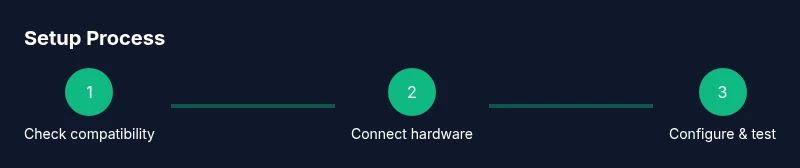
- 1
Check compatibility with your ISP
Before purchasing or activating equipment, verify which modems are approved by your ISP and confirm the plan’s maximum speeds. Note the modem model, DOCSIS version, and whether bridge mode is needed for integration with your existing router.
Tip: Have your account details and the model numbers ready for quick verification. - 2
Connect the modem to the coax and power
Attach the coaxial cable to the modem and connect the power adapter. Wait for the power and online indicators to stabilize before proceeding. If you’re using a separate router, keep the modem powered but ready for the next step.
Tip: Avoid bending the coax cable sharply to prevent signal loss. - 3
Activate and configure the modem
Use a computer or mobile device to access the modem’s web interface or follow your ISP’s activation flow. Complete activation, set a strong admin password, and note the IP address and gateway information for future access.
Tip: If activation stalls, reboot the modem once, then reattempt the activation flow. - 4
Connect a router for Wi‑Fi
Connect the router’s WAN/Internet port to the modem via Ethernet. Power on the router, then access its admin page to configure SSID, password, and security settings. If you have a mesh system, follow the manufacturer’s pairing steps.
Tip: Use a unique SSID and a strong, unique passphrase for security. - 5
Test speed and optimize
Run a wired speed test first, then test wireless performance in common rooms. If speeds are below expectations, adjust router placement, enable QoS if needed, and ensure firmware is up to date.
Tip: Test at different times of day to gauge consistency. - 6
Document, secure, and maintain
Save configuration backups, write down network details, and enable automatic firmware updates where possible. Schedule periodic checks for performance and security.
Tip: Keep a small network log with dates of updates and test results.
FAQ
What is the difference between a modem and a router?
A modem connects your home to the internet by translating signals from your ISP, while a router distributes that connection to devices via Ethernet or Wi‑Fi. Some devices combine both functions, but many setups use a separate router for better flexibility.
A modem links you to the internet; a router shares that link with your devices.
Do I need a separate router if my modem has built-in Wi‑Fi?
If your modem has built-in Wi‑Fi and meets your coverage needs, you can rely on it alone. For larger homes or more advanced features, a separate router or mesh system can improve coverage and performance.
A built‑in Wi‑Fi modem works for small spaces, but a separate router often delivers better range.
What is DOCSIS and which version do I need?
DOCSIS defines how data is transmitted over cable. Newer versions (e.g., DOCSIS 3.1) support higher speeds and more efficient use of the network. Check your plan and ISP compatibility when choosing a modem.
DOCSIS tells you how fast your cable internet can be; newer versions are generally better.
How can I tell if my modem is compatible with my ISP plan?
Consult your ISP’s approved device list and verify the model supports your plan’s speeds. Use the modem’s model number to cross-check with the provider’s documentation or support.
Look up the model on your ISP’s list to be sure it’ll work with your plan.
Why is my speed not matching the plan after setup?
Several factors can reduce speed: modem/router hardware limits, Wi‑Fi interference, network congestion, and faulty cabling. Start with wired tests, update firmware, and optimize placement before contacting support.
If speeds lag, test wired connections first, then check for interference and updates.
How often should I reboot my modem/router?
Regular reboots can resolve minor issues and clear cached data. If you notice frequent drops, perform a scheduled reboot during low-usage times and check for firmware updates afterward.
A periodic reboot helps keep things running smoothly, especially after updates.
Watch Video
Key Takeaways
- Identify modem vs router roles to plan your network correctly.
- Verify provider compatibility before buying equipment.
- Optimize placement and channels for best Wi‑Fi performance.
- Prioritize security with strong passwords and updated firmware.
- Document settings and perform regular maintenance.