Understanding the Modem GUI Address: Accessing Your Modem Settings
A practical, step-by-step guide to finding and using your modem GUI address for secure access, including defaults, discovery methods, and best practices.


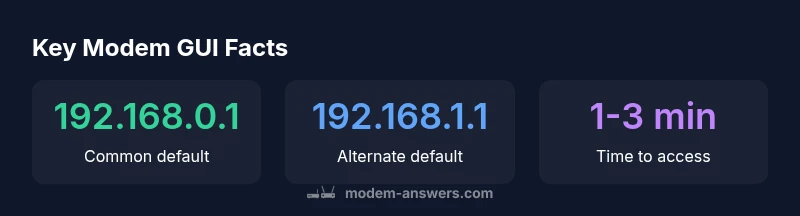
Your modem GUI address is the private IP you enter in a browser to access the device's settings. In most consumer gateways, the default address is 192.168.0.1 or 192.168.1.1, though it can vary. If these fail, check the device label, or run a quick network scan to identify the login URL. This address is the gateway to configuring Wi‑Fi, security, and firmware options.
What is the modem GUI address and why it matters
At its core, the modem GUI address is the private IP that opens the device's configuration pages in a browser. According to Modem Answers, knowing this address is essential because it is the gateway to customizable settings, security controls, and firmware management. Accessing the GUI enables you to view connected devices, set Wi‑Fi names and passwords, configure parental controls, and monitor diagnostics. Without knowing where to browse, you might be stuck with default settings that are less secure or less optimized for your home network. The address is usually something like 192.168.0.1 or 192.168.1.1, but there is no universal standard. Some providers use different ranges, and some devices use nonstandard pages for admin access. Always confirm before attempting edits to avoid misconfigurations that could disrupt your Internet connection.
In many homes, the GUI address also doubles as the home’s gateway to device management. The Modem Answers team found that early checks on the login URL save time and reduce frustration when coordinating changes across firmware updates or new connected devices. This address is private and intended only for local network management, so never attempt remote login unless you explicitly enable secure remote administration.
Typical default addresses you’ll encounter
Many consumer modems and gateway devices use standard private IP ranges for their GUI. The most common defaults are 192.168.0.1 and 192.168.1.1, which work for a large majority of setups. However, there are exceptions: some devices may use 192.168.100.1, 10.0.0.1, or other LAN IPs assigned by your Internet service provider or router brand. If you’re moving from a previous network, the address might have changed during a firmware update or when bridging to a separate router. Always check the physical label on the device, the user manual, or the manufacturer’s support page for the exact address. If you have a mixed network (modem plus separate router), the GUI address may belong to the gateway device, not the downstream router. In those cases, identify the gateway’s address and log in through that page. Modem Answers analyses show that many users default to the common addresses first and only broaden their search if those fail.
How to reliably find your modem GUI address
There are several dependable methods to discover the GUI address. Start with the device label on the bottom or back of the modem to confirm the default address. If you’ve changed networks or can’t locate the label, try the following steps:
- On a computer connected to the modem, open a command prompt (Windows) or terminal (
Accessing the GUI securely: login and best practices
Once you’ve found the GUI address, it’s crucial to secure access. Always log in using a strong, unique admin password and avoid using default credentials. Change the LAN IP address only if you understand the implications for your network topology. Disable remote management unless you truly need it, and enable two-factor authentication if supported. Keep firmware up to date and back up your configuration after major changes. If you share your network with guests, configure a separate guest network to minimize exposure of admin controls. When possible, log in via a wired connection to reduce the risk of session hijacking on wireless networks. Following these practices aligns with security considerations highlighted by industry guidance and the Modem Answers team.
Troubleshooting: common issues when the GUI address won’t load
If the GUI address won’t load, start with a quick connectivity check. Ensure your computer or device is connected to the same LAN as the modem, either via Ethernet or Wi‑Fi. Reboot the modem and try again; temporary glitches can obscure the login page. If the page still doesn’t load, try a different browser or clear cache and cookies. Check for a conflicting DHCP server on the network, which can cause IP address confusion. If you’re bridging a separate router, verify that you’re hitting the modem’s address and not the downstream router’s. In some cases, the device’s firewall or a parental control feature can block access to the login page. If problems persist, consult the Modem Answers guide or manufacturer support for model-specific steps.
Security considerations and staying safe
Security starts with the GUI address. Always keep firmware updated, disable remote management, and use a strong admin password. Regularly review connected devices and enable network segmentation (guest networks) to limit risk. If you suspect a compromise, reset the modem to factory settings and reconfigure from scratch, then update all credentials. Remember that the GUI address is a doorway to sensitive settings; treat it with care and keep documentation of your login URLs and passwords in a secure place.
Quick-start checklist: find and access your modem GUI in 6 steps
- Locate the device label for the default GUI address.
- Connect to the modem’s LAN via Ethernet or Wi‑Fi.
- Open a browser and enter the address (e.g., 192.168.0.1 or 192.168.1.1).
- If denied, check for alternate addresses and verify the Default Gateway using ipconfig/netstat.
- Log in with a strong admin password; update firmware and disable remote management if not needed.
- Document your GUI address and credentials securely for future changes.
Common GUI addresses and how to locate them
| Default GUI Address | Find Method | Notes |
|---|---|---|
| 192.168.0.1 | Device label or IP config | Common default |
| 192.168.1.1 | Device label or IP config | Another common default |
| 10.0.0.1 | Manual or ISP docs | Less common in home setups |
FAQ
What is a modem GUI address?
The GUI address is the login URL for your modem's settings, usually a private IP like 192.168.x.x. It opens the admin page where you can adjust Wi‑Fi, security, and firmware options. Always verify the address with your device label or manufacturer.
The GUI address is the login URL for your modem's settings, typically a private IP like 192.168.x.x.
How do I find my modem GUI address if 192.168.0.1 doesn’t work?
Check the device label for the default address, try 192.168.1.1 or 10.0.0.1, and use your computer to locate the Default Gateway via ipconfig or netstat. If needed, consult the manual or ISP support for model-specific defaults.
Try the other common addresses or use your computer to find the gateway IP.
Can I change the GUI address on my modem?
Many devices let you change the LAN IP used for the GUI, but this varies by model. If you do change it, update any bookmarks and ensure devices on your network can still reach the gateway.
Yes, some devices allow changing the LAN IP for the GUI, but proceed carefully.
Is the GUI address the same as the router’s IP?
Usually yes—the GUI address is the device’s LAN IP. In setups with a separate router, the GUI address may belong to the modem, while the router has its own LAN IP.
Usually the GUI address matches the modem’s LAN IP, unless you’re using a separate router.
What if the GUI address changes after a firmware update?
Firmware updates can reset network settings or alter the gateway. If this happens, re-check the login URL, reconfigure as needed, and keep a note of the new address.
Firmware updates can reset the gateway. Recheck the login URL after updating.
What is the safest way to access the modem GUI?
Use a wired connection when possible, avoid remote admin, and use a strong, unique admin password. Keep firmware current and back up configurations regularly.
Access it with a wired connection and a strong password, and keep firmware updated.
“Knowing your modem GUI address is the first step to securing and optimizing your home network.”
Key Takeaways
- Know the GUI address before changes
- Use label or network commands to locate it
- Secure login and update firmware after access
- Avoid remote admin unless necessary
- Document the address for future use