Cox Modem Rental: A Practical How-To Guide
Learn how to rent a Cox modem, activate it, and optimize your home network. This Modem Answers guide covers model choices, setup steps, security, and end-of-lease procedures for homeowners and renters.


With Cox modem rental, you get a compatible, supported device and easy upgrades as service changes require. This guide shows who benefits, what to check before you rent, and a clear step-by-step process for ordering, activating, and returning Cox rental modems—so you stay online with minimal confusion. Expect setup tips, compatibility notes with common internet plans, and troubleshooting steps if issues arise.
Why Cox Modem Rental Is Worth It for Homeowners and Renters
Choosing a modem strategy for Cox service can feel overwhelming, but rental remains a popular option for many households. According to Modem Answers, renting a modem from Cox simplifies ongoing support, guarantees compatibility with the network, and reduces the risk of outdated hardware. If you are moving, renting can also shorten setup times since Cox can deliver a pre-configured device. This approach helps you avoid the hassle of shopping for a third-party modem that may not work with your service or require extra configuration.
In practice, rental plans bundle firmware updates, security patches, and replacement devices if the hardware fails. If the rental device encounters a problem, you can swap it at a service center or request a replacement by contacting Cox support. For renters who move frequently or don’t want to manage multiple devices, rental is a convenient, low-effort option that keeps your home network stable. The Modem Answers team notes that the peace of mind comes from guaranteed compatibility with Cox's network, automatic updates, and streamlined support channels. However, there are costs to consider over time, and you should compare rental terms with the cost of owning your own modem.
What You Get When You Rent (Hardware, Software, and Support)
When you rent from Cox, you receive a certified modem (sometimes in a combined modem/router unit) that is pre-configured for Cox's service. The rental typically includes firmware updates, security patches, and access to Cox's customer support for hardware issues. If you encounter a hardware failure, Cox will replace or swap the device with minimal downtime. Some rental packages also bundle advanced Wi‑Fi features, guest networks, and easy parental controls, all managed through Cox's app or your account portal. Having a single bill that covers hardware, updates, and service continuity can simplify budgeting. Because the device is configured specifically for Cox's network, you avoid common compatibility hassles that can occur with third-party modems. The device's lifecycle is tied to your Cox plan, so upgrades often happen automatically as newer models become available.
Renting vs Owning: Pros and Cons Without Selling Outlandish Claims
Renting a modem from Cox offers predictable support and easy upgrades, but ownership has its own benefits. Modem Answers analysis shows that many households value turnkey compatibility and stress-free maintenance more than low upfront costs. On the pro side, you won't worry about firmware updates, security patches, or warranty coverage—the provider handles those for you. On the con side, rental fees can accumulate over time; ownership can be cheaper in the long run if you already plan to stay on the service and possess a compatible, up-to-date device. If you travel frequently or relocate often, rentals can provide flexible swaps; otherwise a personal modem can be optimized for certain advanced settings. Compare total cost of ownership against rental terms by considering replacement cycles, upgrade policies, and the convenience of troubleshooting delivered by Cox support.
How to Check If You Qualify and Choose the Right Cox Modem Rental Model
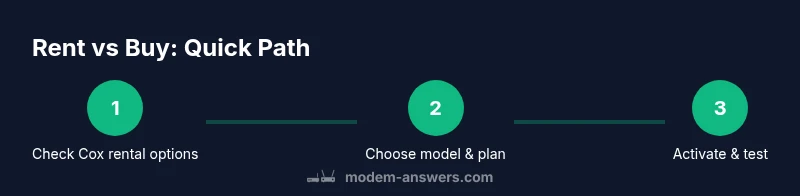
Start by logging into your Cox account to view the current modem rental options and any promotions. Confirm your current service plan's compatibility with rental hardware; some bundles require specific gateway devices. Review the available Cox modem models that the carrier supports, paying attention to DOCSIS version, Wi-Fi capabilities, and whether the unit includes built-in routing. If you frequently need more robust Wi‑Fi coverage, consider a model with dual-band performance and easy app-based management. Finally, compare terms: delivery options, replacement policies, and any fees for late returns or upgrade swaps. If in doubt, contact Cox support to verify model compatibility and confirm activation steps before ordering.
Activation and Setup: What to Expect After Delivery
Once your Cox rental modem arrives, place it on a stable surface near a coax outlet and a power source. Connect the coax cable to the modem, plug it in, and power up. Use the Cox app or website to start activation; the process is usually guided by on-screen prompts and can take a few minutes. After activation, connect a device directly to the modem via Ethernet for initial testing, then configure Wi‑Fi settings in the app (SSID, password, security). If you have a separate router, set it behind the modem and adjust the network mode as needed. Save the activation steps and test your Internet connection on multiple devices to ensure coverage throughout the home.
Security and Privacy Considerations When Renting Modems
Renting a Cox modem comes with automatic firmware updates that help protect against vulnerabilities; ensure these updates are enabled in the device settings. Change the default administrator password during setup and enable the firewall and network encryption (prefer WPA3 where available). Create a guest network for visitors and separate IoT devices from primary devices to reduce risk exposure. Regularly review connected devices in the Cox app and remove anything you no longer recognize. If you suspect a security issue, contact Cox support immediately for guidance and a potential device swap.
Common Issues and Troubleshooting for Cox Modem Rentals
Connectivity hiccups happen even with provider-managed hardware. If the Internet light on the modem remains off or unstable, first verify the coax connection is secure and the power supply is stable. A simple power cycle—unplug, wait 30 seconds, reconnect—often resolves temporary glitches. If speeds seem slow, test with a wired connection first to determine if Wi-Fi or the modem is the bottleneck, then adjust placement or update firmware. Use the Cox app to check for service outages in your area and to confirm activation status. If problems persist, reach out to Cox support for a device swap or guided troubleshooting.
Return, Swaps, and End-of-Term Considerations
When your rental period ends or you decide to upgrade, review Cox's return policy and packing instructions. Prepare and label any return packaging as directed by Cox, and schedule a pickup or drop-off according to your account. If you swap to a newer model, confirm the replacement device will be delivered promptly and that activation will be reconfigured automatically. Keep your rental agreement handy so you know about warranty coverage and the process to terminate the rental. Understanding these end-of-term steps helps you avoid penalties and ensures you stay connected during transitions.
Making the Final Decision: Should You Rent or Buy? A Practical Checklist
Before finalizing, use a simple checklist: Do you prioritize predictable support and minimal setup? Is your budget aligned with ongoing rental fees, or would owning a modem suit your long-term plans better? The Modem Answers team recommends evaluating plan compatibility, expected device upgrades, and total cost of ownership over the life of the service. Consider your relocation plans, your comfort with handling firmware updates, and the availability of quick exchanges if hardware fails. The Modem Answers verdict is to weigh the convenience and support of Cox modem rental against the potential savings of ownership, then decide based on your home network needs and future plans.
Tools & Materials
- Active Cox internet service(Existing service on your account; needed to authenticate rental)
- Cox account login(Needed to view options, place orders, and manage the device)
- Web browser or Cox app(Used to order, activate, and manage rental)
- Delivery address and building access(Needed for delivery or pickup scheduling)
- Optional: return packaging(If you plan to return or exchange gear)
Steps
Estimated time: 15-25 minutes
- 1
Sign in to Cox account and view rental options
Log in to your Cox account and navigate to the Equipment or Modem rental page. Review the available models and terms to understand what is offered for your address and plan. This step sets the foundation for a smooth rental experience.
Tip: Have your account credentials ready or reset access if you’re new to online management. - 2
Compare models for compatibility and features
Check each modem model’s compatibility with your current service tier and whether it includes built‑in Wi‑Fi, security features, and app-based management. Ensure the DOCSIS version and supported wireless standards align with your home network goals.
Tip: Prioritize models that support your planned Wi‑Fi coverage and smart-home devices. - 3
Choose a rental plan and place the order
Select the model and rental terms, then place the order through the Cox app or website. Confirm delivery preferences and ensure the ship-to address matches where you’ll install the device.
Tip: Take a screenshot of the confirmation page for reference. - 4
Choose delivery or pickup and confirm address
Decide between home delivery or in-store pickup if available. Confirm the address, contact method, and any special delivery notes.
Tip: If scheduling delivery, note the earliest available window to minimize downtime. - 5
Unbox, connect, and power on the modem
Unbox the device, connect the coax cable, plug into power, and mount in a central, unobstructed location. Allow the device to boot before proceeding with activation steps.
Tip: Place the modem away from large metal objects and thick walls to maximize signal. - 6
Activate the device via Cox app/website
Open the Cox app or sign in on the site and follow activation prompts. The process usually takes only a few minutes and verifies service on the line.
Tip: If activation stalls, try a browser or app refresh and ensure your account is ready for the new device. - 7
Test the connection and configure Wi‑Fi
Run a quick speed test on multiple devices and confirm both wired and wireless connectivity. Set up your Wi‑Fi name (SSID) and strong password, enabling recommended security settings.
Tip: Write down the final SSID and password and store them securely.
FAQ
What is Cox modem rental?
Cox modem rental lets you borrow a certified modem from Cox as part of your service. The rental typically includes firmware updates and access to Cox support, with device swaps available if issues arise.
Cox modem rental lets you borrow a certified modem with updates and support.
Are there upfront costs to renting a Cox modem?
Upfront costs vary by plan and location but commonly include the first month’s rental and any activation fees. Check your Cox account or contact support for exact terms.
Your upfront costs depend on the plan and location; check your account for specifics.
Can I return a rented modem at any time?
Rentals have a defined end date or upgrade window. Contact Cox to arrange a return or swap when your plan ends or you move to a different package.
Rentals have a go‑live window; contact Cox to arrange returns or swaps.
Do rental modems support Wi‑Fi 6 or newer standards?
Many Cox rental modems include built‑in Wi‑Fi with modern standards. Check the model details on your account to see whether Wi‑Fi 6 is included.
Most rentals offer current Wi‑Fi standards; verify the model in your account.
Will renting affect my service speed?
The modem is designed to work with Cox’s plan and network. Speed is primarily driven by your service tier and network conditions, not rental status.
Your speed mostly depends on your plan and network, not whether you rent.
How do I request a swap or upgrade of my Cox modem rental?
You can request a swap or upgrade through your Cox account or by contacting support. They will guide you to a compatible model and arrange delivery.
You can request a swap or upgrade through your Cox account or via support.
Watch Video
Key Takeaways
- Renting offers predictable support and upgrades
- Choose Cox‑approved models to ensure compatibility
- Activate promptly and test across wired and wireless devices
- Review end-of-term terms to avoid penalties