Can You Put a Modem & Router in a Cabinet? A Safe, Practical Guide
Learn if you can put a modem and router in a cabinet and how to do it safely. This Modem Answers guide covers ventilation, cable management, and practical setup for reliable home networking.


Can you put a modem and router in a cabinet? Yes, with careful planning for ventilation, heat, and access. This quick answer outlines key prerequisites and shows you what to consider before starting. You’ll learn how to choose a cabinet, position devices, manage cables, and maintain performance without sacrificing convenience.
Cabinet placement reality
The question can you put a modem and router in a cabinet is often answered with a cautious yes. The success of such a setup hinges on deliberate heat management, clear airflow, and unblocked access to ports. According to Modem Answers, cabinet placement works best when you treat networking gear like hot electronics: allow space around each device, align vents with the cabinet's exhaust path, and ensure serviceable access for reboots or firmware updates. Start by measuring the available space and listing every connection point on both devices. Compare those measurements with your cabinet's interior geometry to confirm you won't obstruct vents or cables. In practice, the goal is a compact, airy environment where heat escapes and you can reach power and data cables without crawling behind furniture. Plan for at least a couple of inches of clearance on all sides and a clear back path for cable exits, so the devices stay cool during peak usage.
Why cabinet placement can help—and where it hurts
A cabinet can keep cables tidy, hide clutter, and protect devices from curious pets or kids, which is a real benefit in busy homes. It also reduces the chance that cables get stepped on or tangled behind furniture. However, a cabinet without proper ventilation can become a heat trap, leading to throttled performance and shorter device life. If you’re weighing this approach, plan for airflow rather than sealing the gear inside. Metal cabinets can affect Wi‑Fi signals if the router sits fully enclosed; consider placing the router behind a vented panel or using a cabinet with mesh fronts to let signals escape. Modem Answers analysis shows that successful setups maintain unobstructed air channels and accessible ports, so you can reboot or swap cables without disassembling the enclosure. Remember to keep you devices away from walls or other electronics that could block airflow and heat dissipation.
Ventilation and heat management basics
Heat is the silent limiter in cabinet installations. The core principle is simple: establish a steady, unobstructed airflow path that carries heat away from both the modem and router. Avoid stacking devices directly on top of one another; provide breathing room on all sides and align vents with the cabinet’s exhaust. If the cabinet lacks built-in ventilation, consider adding mesh panels or a quiet, small inline fan rated for electronics. Ensure the power strip is placed where its heat does not accumulate near the devices, and avoid placing cables directly over air vents. Front clearance is essential not just for user access, but for temperature sensors and LED indicators. When heat remains controlled, you’ll see more reliable speeds and fewer firmware-induced reboots, even in compact cabinet setups. A well-ventilated cabinet also makes routine maintenance like cleaning filters and checking connectors much easier.
Cabinet selection: size, vents, and accessibility
Selecting the right cabinet is as important as arranging the devices inside. Start with width, height, and depth that comfortably accommodate your modem, router, and any small switch. Adjustable shelves or vertical rails give you flexibility for optimal mounting and clean cable runs. Ventilation matters: look for front and rear vents, mesh panels, or built-in fans; avoid sealed enclosures unless you have dedicated cooling. Accessibility is key for firmware updates and resets: you need to reach the power strip, Ethernet ports, and the devices’ reset holes without crawling behind furniture. If possible, choose a cabinet with a removable back panel and easy-to-clean filters. Finally, verify that the cabinet’s interior supports heat-rated components and provides a clear path for re-cables and future upgrades.
Cable management and power planning
A tidy cabinet makes servicing easier and reduces the chance of interference. Separate the power and data paths to minimize electrical noise and ensure stable performance. Use a surge-protected power strip with adequate capacity and a cord long enough to reach a wall outlet without strain. Route Ethernet cables with ample slack to avoid tension, label both ends, and keep runs behind shelves neat and shielded from dust. Velcro straps are preferred over zip ties because they allow quick reconfigurations. If you have a small switch or PoE devices, give those lines dedicated channels to manage heat and airflow. Plan for future changes by leaving easy access points for new cables and devices. A thoughtful layout pays off in reliability and ease of maintenance.
Step-by-step inside-cabinet setup (overview)
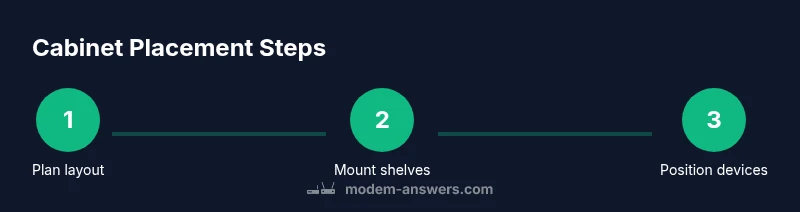
This overview gives practical, repeatable guidance for installing inside a cabinet. Begin by clearing the cabinet of loose items, then prepare shelves or mounts that can support the devices’ weight. Place the modem and router with ventilation in mind, ensuring there is space for air to flow around each device. Route cables cleanly, label each end, and secure them with Velcro ties to prevent shifting. Reconnect the power and perform an initial connectivity test before enabling full operation. Finally, test Wi‑Fi coverage around your home to confirm the signal path remains strong. This block provides the big-picture approach; the detailed steps below translate this into actionable actions you can perform in one sitting.
Maintenance and monitoring: heat, noise, firmware
After installation, ongoing care matters as much as initial setup. Regularly inspect cabinet vents for dust buildup and measure temperatures near the devices; adjust placement or add ventilation if temperatures trend upward. Listen for unusual fan noise or rattling that could indicate blocked intakes or collapsed filters. Keep firmware updated on both modem and router, and schedule quarterly checks to verify everything runs smoothly. If you notice slower internet speeds or unstable connections, revisit airflow and cable routes. Consistent monitoring ensures long-term reliability and helps you catch issues before they affect your home network.
Common mistakes and best practices
Avoid common errors: never seal the cabinet shut, never block vents, and never crimp cables in tight bends. Provide at least some open space around devices and near the back panel to let heat escape. If the cabinet is enclosed, consider adding mesh panels or a small fan to improve airflow. Keep the router’s antennas clear to maximize signal reach, and plan for serviceability by placing devices where reset buttons and ports are reachable without removing doors. With careful planning, a cabinet can be both a tidy home for networking gear and a reliable performance hub.
Tools & Materials
- Ventilated cabinet with adjustable shelves(Choose front and rear vents; allow 2-3 inches around each device)
- Cable management straps (Velcro)(For easy adjustments and reconfiguration)
- Cable entry grommets or brush(Seals openings to reduce dust and improve aesthetics)
- Surge-protected power strip(UL-listed; ensure the total load fits the strip rating)
- Cat6 or better Ethernet cables (labeled)(Plan lengths with extra slack for movement)
- Temperature sensor (optional)(Helps monitor heat in enclosed spaces)
- UPS or backup power (optional)(Adds resilience during outages)
Steps
Estimated time: 60-90 minutes
- 1
Power down and unplug devices
Shut off and unplug the modem and router. Disconnect any attached antennas and disable features that may auto-run during setup. This reduces shock risk and ensures a clean starting point.
Tip: Keep track of which cord belongs to which device to simplify reassembly. - 2
Measure space and plan layout
Measure the cabinet interior and plan where each device will sit, noting vent locations and access to ports. Create a rough layout that avoids blocking vents and preserves cable routes for future changes.
Tip: Draft a quick sketch showing airflow paths and cable exits. - 3
Prepare cooling and shelf layout
If needed, install adjustable shelves to create vertical spacing and allow space around devices. Consider adding a small inline fan or vent enhancers if heat is a concern.
Tip: Leave room for a temperature sensor if you’re using one. - 4
Mount or position the devices
Place the modem and router with adequate clearance, ensuring router antennas have space to broadcast. Align vents with cabinet exhaust and avoid stacking devices.
Tip: Use non-slip pads under devices to reduce vibration and noise. - 5
Route and label cables
Route power and data cables separately, label both ends, and secure with Velcro straps. Keep ethernet runs away from power lines to minimize interference.
Tip: Leave 2–3 inches of slack to accommodate movement and reconfiguration. - 6
Reconnect power and test
Plug in power strips and devices, power up, and verify internet connectivity. Check LED indicators and note any anomalies in performance.
Tip: Run a quick speed test and confirm stable Wi‑Fi across the home. - 7
Monitor and optimize
Regularly monitor cabinet temperatures and airflow. If temps rise, adjust layout or add ventilation. Schedule firmware checks every few months.
Tip: Document changes so you can revert if needed.
FAQ
Is it safe to mount both devices in a cabinet?
Yes, it's safe when the cabinet provides ventilation and easy access. Ensure you have a clear airflow path and access to ports for rebooting or updates.
Yes, you can mount them safely as long as you have proper airflow and easy access to ports.
What cabinet features are essential for networking gear?
Look for front and rear vents, adjustable shelves, accessible back panels, and space for cable routing. Avoid sealed boxes unless you can reliably cool them.
Ventilation, adjustable shelves, and accessible backs are essential.
How can I improve airflow in a cabinet?
Add vents or mesh panels and consider a small fan if needed. Ensure there is space around devices for air to circulate.
Add vented panels or a tiny fan to boost airflow.
Should I separate the modem and router inside the cabinet?
Yes, provide spacing between devices to improve airflow and avoid heat build-up. Do not stack them tightly.
Keep some distance between devices for better airflow.
What about dust and moisture with cabinet setups?
Use dust filters where possible, seal gaps, and keep the cabinet in a dry, well-ventilated area. Regular cleaning helps.
Protect the cabinet from dust and moisture with filters and cleaning.
How do I access devices for updates?
Choose a cabinet with an accessible back panel and front doors. This makes firmware updates and reboots straightforward without disassembly.
Make updates easy with accessible panels and doors.
Watch Video
Key Takeaways
- Check ventilation and clearance to prevent overheating.
- Position modem and router for easy access and maintenance.
- Label cables and use surge protection to protect equipment.
- Test performance and monitor cabinet temperatures regularly.