Can the modem and router be in different rooms? A practical guide
Discover whether you can place your modem and router in separate rooms, plus wired and wireless backhaul options, setup steps, and common pitfalls for reliable home networks.


Yes. You can place the modem in one room and the router in another as long as you have a reliable backhaul—wired Ethernet for speed, or a strong wireless link or powerline/MoCA adapters as backups. This setup can improve coverage when the primary router location is far from the modem.
Can the modem and router be in different rooms?
According to Modem Answers, separating the modem from the router is a common strategy for optimizing home network coverage, especially in multi-room homes. The key requirement is a dependable backhaul between the devices. If you can run a cable or use a backhaul adapter, you gain predictable performance. If you cannot run a cable, higher‑quality wireless backhaul options become essential. In practice, many households benefit from placing the router where Wi‑Fi is needed most and placing the modem near the incoming service point for ease of service and maintenance. The decision should hinge on your floor plan, walls, and how you use the network daily.
Wired backhaul versus wireless backhaul
The most robust backhaul is a wired Ethernet connection from the modem to the router placed in a separate room. A wired link minimizes latency, reduces packet loss, and provides consistent throughput, which is especially noticeable for gaming, video conferencing, and streaming between rooms. If wiring is impractical, a strong wireless backhaul can work, but expect potential dead zones or interference from nearby networks or appliances. In spaces with coaxial outlets, MoCA adapters offer a reliable wired-like path over existing cabling, while powerline adapters use electrical wiring to carry the signal between rooms. Each option has trade-offs in cost, ease of installation, and performance.
Alternative backhaul options: MoCA and powerline adapters
MoCA adapters leverage existing coaxial cables to create a dedicated high‑quality network path between rooms. They tend to be more stable than typical Wi‑Fi extenders in environments with thick walls or multiple floors. Powerline adapters convert electrical wiring into network conduits, which can be convenient in homes without usable coax. When choosing adapters, prioritize modern standards, and ensure both ends are on the same electrical circuit when possible. Be mindful of electrical noise from appliances and other devices, which can degrade performance.
Planning your layout: measurements, paths, and interference risks
Start with a rough floor plan. Identify the ideal router location based on where you use wireless devices most and avoid metals, microwaves, and dense concrete. Measure approximate cable lengths if you plan to run a physical Ethernet cable, and consider future needs like a second router or mesh nodes. Clear paths reduce signal reflection and interference. If you must cross doors or hallways, use cable management options to keep the route neat and safe. A well‑planned route minimizes the chance you’ll need to rework the setup later.
Safety, permits, and don’t‑miss checks
If you’re drilling or running cables through walls, check local codes and landlord policies. Use proper wall plates, conduit, and cable glands to protect the cabling and maintain a clean aesthetic. Label each end of every cable for easier troubleshooting later. Before powering up, confirm all connections are secure and avoid pinching lines where carpeting or baseboards bend. These precautions help protect your hardware and maintain a neat appearance.
Testing and learning from real-world use
After installation, test in multiple rooms to verify coverage and consistency. Run speed tests, check latency, and monitor for buffering during peak usage. If you notice gaps, reposition the router or add a supplemental access point, extender, or mesh node. Document your results so you can revert to a working configuration if needed. With careful testing, you’ll gain a clearer map of where coverage is strongest and where it isn’t.
Long-term maintenance and future-proofing
Revisit your setup if you add more devices, change service plans, or move to new living spaces. Keep firmware up to date and periodically reassess coverage with household changes. If your space evolves into a larger area or multi‑story layout, consider upgrading to a mesh system or adding another access point to preserve seamless roaming. Regular checks help sustain performance without a full redesign.
Tools & Materials
- Cat6 (or better) Ethernet cable(Choose length with some extra slack; shielded if running near power lines; consider Cat6a for future-proofing.)
- MoCA adapters (optional)(Use in homes with coax outlets to provide a wired-like backhaul.)
- Powerline adapters (optional)(Alternative backhaul over electrical wiring; performance varies by circuit quality.)
- Wi‑Fi extender or mesh node (optional)(Useful if wiring is not feasible and you need broader coverage.)
- Cable management supplies(Cable clips, raceways, and labels for organization and safety.)
- Cable tester or simple continuity tester (optional)(Helpful to verify cabling before powering up.)
Steps
Estimated time: 2-4 hours
- 1
Assess layout and set goals
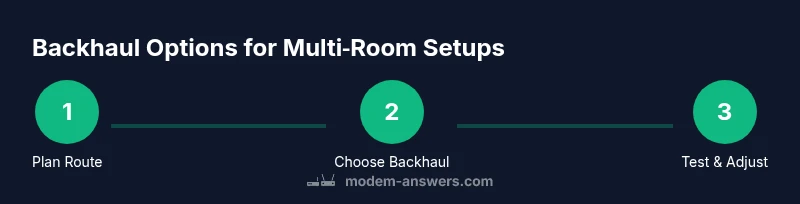
Survey your home’s floor plan and identify primary usage areas. Decide whether you’ll rely on a wired backhaul, MoCA, or wireless only. Prioritize the room where you most need strong Wi‑Fi and plan the route from the modem to that location.
Tip: Document your plan with a quick sketch and measurement notes to avoid last‑minute changes. - 2
Choose backhaul method
If possible, plan for a wired Ethernet link between modem and router in the second room. If wiring is not feasible, evaluate MoCA or powerline adapters as alternatives. Avoid routing over unresolved power lines without adapters.
Tip: Wired backhaul yields the most predictable performance; adapters should be on the same circuit where possible. - 3
Plan the physical route
Map a clear path for the Ethernet cable or adapters. Avoid running cables parallel to electrical cables, and minimize sharp bends. Use conduits or cable channels to keep the setup neat and compliant with building codes.
Tip: Keep cable length under practical limits for stretch and signal integrity; label endpoints clearly. - 4
Prepare hardware
Gather all necessary hardware, cut or trim cables to length, and test connectors. Label each end of cables so you can quickly identify destinations during future changes.
Tip: Test the ethernet cable for continuity before installation to catch faulty runs early. - 5
Install and connect devices
Connect the modem to the backhaul in the primary room, then run the Ethernet cable to the router in the secondary room and connect to the WAN port. Power on both devices and wait for them to boot.
Tip: Use a surge protector to reduce risk from lightning strikes and power surges; avoid daisy-chaining power strips. - 6
Configure router in the new location
Log into the router’s admin page, set the WAN/Internet settings, and configure the Wi‑Fi network. Decide whether to keep the same SSID or create a new one for easier troubleshooting during the transition.
Tip: Note the default admin login and change the password during setup to maintain security. - 7
Test network performance
Run speed tests in multiple rooms, check video streaming quality, and monitor latency. Confirm that devices connected to the new router location receive consistent performance.
Tip: Test during peak usage to mimic real-life conditions; adjust placement if gaps appear. - 8
Fine-tune and consider future upgrades
If coverage is uneven, adjust router positioning, add extenders or a mesh node, or consider upgrading to a mesh system for seamless roaming. Document any changes for future reference.
Tip: Keep firmware up to date and monitor network performance after major changes.
FAQ
Can I place the router in another room from the modem?
Yes, with proper backhaul. A wired Ethernet path is ideal; MoCA or powerline adapters are good alternatives when wiring is difficult.
Yes, you can place the router in another room if you have a solid backhaul like Ethernet or adapters; test connectivity after setup.
Do I need to run an Ethernet cable end-to-end?
Not always, but wired backhaul provides the strongest signal. If wiring is impractical, MoCA or powerline adapters improve reliability over wireless alone.
Not always, but wired backhaul is stronger. If wiring isn't possible, MoCA or powerline adapters help.
Will moving the modem/router affect warranty?
Placement typically doesn't void warranties, but check device terms and your provider's policy if you rent equipment.
Placement alone usually doesn't void warranties, but verify with your provider or manufacturer.
Is a mesh system a better option for large homes?
Mesh can simplify coverage across large spaces by adding nodes, but compare total cost and management with a dedicated backhaul setup.
A mesh system can help cover large homes without long cables, but weigh cost and control.
What about using wireless backhaul only?
Wireless backhaul can work in smaller homes but may create gaps in larger layouts; extenders or mesh can help if Wi‑Fi gaps appear.
Wireless-only backhaul may struggle in big homes; consider extenders or mesh if you notice gaps.
Watch Video
Key Takeaways
- Plan layout before running cables.
- Wired backhaul offers stability and speed.
- Label cables for easier maintenance.
- Consider mesh or extenders for large homes.