Back Up Xfinity Gateway Modem: A Practical How-To
Learn how to back up your Xfinity gateway modem settings, including Wi-Fi credentials and custom rules. This practical guide from Modem Answers covers app-based, web UI, and manual backup methods to keep your home network safe.


You will learn how to back up the configuration of your Xfinity gateway modem, including Wi-Fi settings and custom rules. You’ll need a computer or mobile device with a web browser, and access to the gateway admin UI. This guide covers app-based, web UI, and manual backup methods. Follow the steps to export a backup file, save passwords securely, and test restoration.
What backing up your Xfinity gateway modem means
Backing up your Xfinity gateway modem means creating a current copy of the device’s configuration so you can restore quickly after changes, outages, or firmware updates. A backup can include your Wi-Fi network name (SSID), password, guest networks, firewall rules, and port-forward settings. It provides a safety net that minimizes downtime and keeps your home network stable. According to Modem Answers, taking a backup before you apply firmware updates or reconfigure settings significantly reduces the time needed to recover from errors. You’ll want a reliable backup strategy that fits how you use your home network. This approach is especially valuable for renters who relocate often and homeowners who manage multiple smart devices. A thoughtful backup plan helps you migrate to new gateways with minimal reconfiguration. In addition, having backups supports disaster recovery after hardware failures or power outages and gives you confidence when testing new features in your network.
Why backing up matters for homeowners
Home networks power daily life, from work collaboration to streaming and smart devices. When a change goes wrong, recreating settings by memory is time-consuming and error prone. A well-structured backup reduces guesswork and helps you revert unwanted changes quickly. Modem Answers analysis shows that households that maintain a routine of backups experience less downtime and smoother firmware updates. It also makes it easier to migrate to a new gateway without reconfiguring every device. The cost of backing up is low, but the benefit is high: less frustration and faster restoration. By planning a simple backup cadence, you protect all devices, from laptops to smart speakers, even in mixed vendor environments. Regular backups also help when you misplace credentials or when an outage interrupts your home network, since you can restore to a known-good state with minimal disruption.
What you can back up on an Xfinity Gateway
On an Xfinity Gateway, you typically can back up Wi-Fi network credentials (SSID and password), guest network configurations, parental control rules, firewall rules and port forwarding, device access restrictions, and the list of connected devices. Some models support a full configuration export file; others only present settings that you can copy manually. The exact content of backups varies by firmware and model, so always check the gateway UI for available export options. Be mindful that sensitive data may be included in the backup; store the file securely and restrict access to trusted users only. If you use additional third‑party devices, keep a separate record of their settings to avoid dependency on the gateway alone.
Methods to back up settings: app, web interface, and manual notes
Two common methods exist: through the gateway web interface and through the Xfinity mobile app. In many cases you will find an Export or Backup option under Settings or Maintenance. If an export option isn’t available, you can create a manual backup by recording the SSID, Wi‑Fi password, guest network settings, and any custom port forwards or firewall rules in a protected note. For extra safety, capture screenshots of the relevant screens and save them in a secure location. If you plan to migrate to a new gateway, consider exporting the backup to a USB drive if your model supports it.
High-level backup flow you can follow
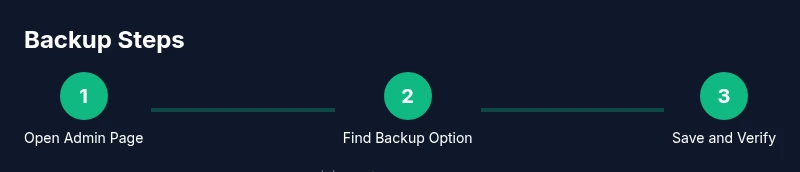
- Prepare by logging into the gateway with your admin credentials. 2) Look for a Backup or Export option and choose a file name that includes the date. 3) Save the backup file to a secure location on your computer or an encrypted drive. 4) Manually record Wi‑Fi credentials and critical router rules if they aren’t included. 5) Confirm the backup by reopening the file or notes and cross-check key settings. 6) Store backups in a second location as an extra precaution. 7) Periodically review and update your backup as your network changes.
Best practices and safety considerations
- Schedule backups after meaningful changes, such as new devices, changed passwords, or firmware updates. - Keep the backup file encrypted if possible and store it away from the gateway device. - Use a password manager to track backup file access securely. - Document the backup date, content, and the device version in a maintenance log. - If you cannot export, combine manual notes with periodic screenshots for a more complete record.
Security and privacy considerations when backing up
Backing up a gateway configuration can expose sensitive network details. Treat backup files like other private data: encrypt, store offline, and restrict access. Regularly audit who has access to backups and change passwords after major changes. The firmware version you are using may affect what is included in a backup; always hide or remove credentials that are not necessary for restoration and consider rotating keys after restore.
How to test the backup and plan for restoration
A good backup plan includes testing the restore process. If your gateway supports a restore function, perform a test on a non-critical device or during a maintenance window. After restoring, verify the Wi‑Fi network appears, the passwords work, and essential rules such as port forwards and parental controls resume as expected. This step validates both the backup file and your restoration steps.
Quick maintenance plan
Set a simple schedule to review and refresh backups every few months or after major home network changes. Keep multiple copies in a secure location, and routinely verify that the backup can be opened and that the critical settings restore correctly. A consistent routine reduces panic during a real outage or upgrade.
Tools & Materials
- Computer or mobile device with internet access(Used to access the gateway admin interface.)
- Active Xfinity account credentials(Needed to log into the gateway admin UI.)
- Web browser (prefer private/incognito mode)(Helps avoid caching issues during export.)
- USB drive (optional)(If your model supports USB backup export.)
- Notebook or password manager(Record changes and restore steps if export is unavailable.)
- Secure storage location (encrypted if possible)(Store backups and related documents.)
Steps
Estimated time: 15-45 minutes
- 1
Open the gateway admin page
Open a browser on a device connected to your home network and enter the gateway's admin address (the default IP address is on the device label). Log in with your admin credentials. If you can't reach the page, verify the device is online and that you are on the correct network.
Tip: If you forgot the admin password, use the account recovery options or contact your ISP for reset procedures. - 2
Find the backup/export option
Navigate to Settings or Maintenance and look for a Backup or Export button. If you see a full configuration export, choose it and select a descriptive file name with a date stamp.
Tip: If there is no export option, skip to the manual backup method and document essential settings. - 3
Create and save the backup file
Click Export or Backup and save the file to your computer or external drive. Verify that the file is complete by opening it in a text viewer or backup tool to confirm content.
Tip: Name the file with the device model and date to avoid confusion later. - 4
Record Wi-Fi credentials and rules
If the backup does not include Wi-Fi passwords or custom rules, manually record SSIDs, passwords, guest networks, and any port forwards or firewall rules in a secure note or password manager.
Tip: Capture screenshots of critical screens as a visual reference. - 5
Store the backup securely
Move the backup to a secure location, ideally encrypted, and maintain at least two copies in separate physical locations.
Tip: Avoid storing recovery files on the same device that you back up; separate storage reduces risk of simultaneous loss. - 6
Test the restore process
If possible, perform a test restore on a non-critical device or during a maintenance window to confirm the backup works as expected.
Tip: Document the restore steps so you can repeat them quickly in a real scenario. - 7
Document and schedule reviews
Create a simple maintenance log noting backup date, device version, and any changes since the last backup. Set reminders to re-back up after major changes.
Tip: Automate reminders if your router UI supports it or add to a calendar.
FAQ
Can I back up my Xfinity gateway modem settings?
Yes, if your firmware supports export. If not, rely on manual notes and screenshots to capture essential configurations.
Yes, you can back up if the feature is available in your firmware; otherwise, use manual notes.
Where do I find the backup or export option in the Xfinity gateway UI?
Look under Settings or Maintenance for an option labeled Backup or Export. If you don’t see it, your model may not support full exports.
Check the Settings or Maintenance section for backup options.
Will a backup include my passwords?
Backups may include some network credentials. If sensitive data is not included, record passwords in a secure manager.
It might include Wi-Fi passwords; if not, keep a secure note.
Is it safe to store backups on a USB drive?
Yes, if the drive is encrypted and stored securely away from the gateway. Avoid leaving it in devices that are easy to access.
Encrypt and store USB backups securely.
How often should I back up my gateway settings?
Back up after meaningful changes such as new devices, password changes, or firmware updates, and periodically as part of a maintenance routine.
Back up after changes and on a regular schedule.
How do I restore from a backup if something fails?
Use the gateway UI restore option if available, or re-import your backup file following the UI prompts. Verify settings after restoration.
Use the restore option in the UI and verify afterward.
Watch Video
Key Takeaways
- Back up before changes to enable quick recovery.
- Save Wi-Fi credentials securely and document key rules.
- Export backups to encrypted storage and verify accessibility.
- Test restoration to confirm backup validity.
- Maintain a simple backup routine and log updates.