What is Xfinity Modem Username and Password: A Practical Guide
Learn how to locate, reset, and secure your Xfinity modem username and password. This guide covers default credentials, recovery steps, and best practices for a safer home network in 2026.


There isn’t a single universal Xfinity modem username and password—the credentials vary by model and firmware. In 2026, the Modem Answers team finds most gateways use a local web UI login or your Xfinity account, and defaults should be changed immediately. Start by checking the gateway label or the Xfinity app for the correct credentials and update them with a strong, unique password.
What the login credentials are for Xfinity modems
Understanding what constitutes a modem username and password is essential for securing your home network. For Xfinity gateways, credentials are not universal across all devices; they depend on the model, firmware version, and management method. In 2026, the Modem Answers team finds that most gateways offer two main paths to sign in: a local web UI and an account-based portal accessed via the Xfinity app. The key point is to treat these as sensitive access controls and avoid sharing them broadly. If you’re setting up a new gateway, plan to replace any defaults immediately and document the new credentials in a secure password manager. The goal is to limit who can view the gateway settings and to minimize the risk of remote exploitation. For many readers asking, "what is xfinity modem username and password?", remember that the answer varies by model and firmware, making it crucial to identify the exact device and firmware version you’re working with.
Common defaults and why you should change them
Default credentials are often documented in the gateway’s label, manual, or quick-start card. However, these defaults are not one-size-fits-all for Xfinity hardware, and some devices require credentials tied to your Xfinity account rather than a local login. The best practice is to assume any default could be compromised and replace it before you connect new devices. To locate your credentials, start with the gateway itself: look for a label on the bottom or back showing a username and password, or a model number you can search against the official Xfinity support site. If you purchased a third-party modem-router combo, verify whether the login is separate from your Xfinity account. In all cases, avoid reusing passwords across multiple sites, use a long passphrase, and store it in a password manager. This approach helps defend your home network against common intrusion attempts that target default credentials.
How to find your Xfinity modem username and password
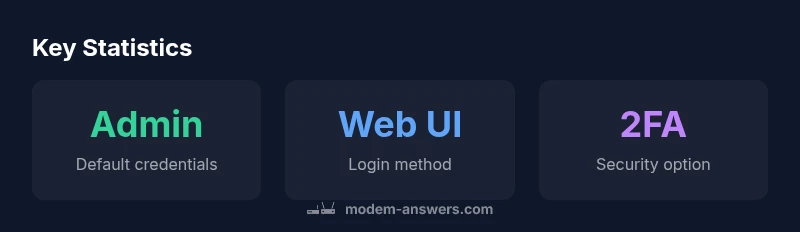
The quickest path is to examine the gateway label for model-specific defaults and then verify the login method in the Xfinity app or web portal. If you see a local login, the username might be a generic term such as admin or cusadmin, with a password listed on the device label. If a password is not shown, you’ll likely need to sign in via the Xfinity account to access gateway settings. The Xfinity app simplifies this process by using your account credentials to authenticate and run a guided gateway setup. In cases where the label is unreadable, use a computer on the same network and navigate to commonly used local IP addresses such as 10.0.0.1 or 192.168.0.1; these routes often present the login screen prompting for credentials. Always cross-check with official documentation for your specific model.
How to reset your Xfinity modem username and password
If you forget or misconfigure credentials, you have several recovery paths. First, try the Xfinity app or your account portal to reset the gateway password without altering your account credentials. If that fails, access the gateway’s local UI using a browser and select the password reset option, provided you still can sign in with an existing account. When all else fails, a factory reset restores the gateway to its original state; this will erase custom settings, including port forwards and Wi‑Fi names. After a reset, you’ll be prompted to set a new username and password. Plan this reset during a time you can reconfigure your network promptly, and ensure you record the new credentials securely for all household devices.
Best practices for securing your home network
Security starts with a strong, unique password. Use a long passphrase that combines letters, numbers, and symbols, and avoid common phrases or personal information. Change credentials promptly after installing new hardware or after a security incident. Enable the gateway’s firewall and disable unnecessary remote management to prevent exposure from outside your network. If supported, enable two-factor authentication for your Xfinity account and consider a separate guest network for visitors to keep your primary network credentials private. Finally, update the gateway firmware regularly; manufacturers release security patches that close exploitable gaps. Keeping the system current helps maintain robust protection for your connected devices.
Troubleshooting common login issues
Login issues often stem from IP address conflicts, browser caching, or using outdated credentials. Ensure you’re on the correct network and try the gateway’s local IP (commonly 10.0.0.1 or 192.168.0.1). Clear browser cache or try a private browsing window if you’re seeing a login page that won’t accept credentials. If your Xfinity account controls the gateway login, verify that your account is active and that you’re using the correct email/username tied to the device. Some devices have dual login modes (local admin vs cloud account); make sure you’re signing in with the correct mode. If the problem persists, consult the Xfinity support site for model-specific steps and confirm that there are no service outages affecting management portals.
What to do after changing credentials
After updating your Xfinity modem username and password, update all devices that previously connected to the gateway with the new credentials. Reconnect smartphones, laptops, smart TVs, and IoT devices using the new password. Document the new credentials in a secure password manager and enable automatic security updates for your gateway to reduce the chance of future breaches. If you have multiple gateways or access points in a mesh system, duplicate the update across all units to avoid authentication errors. Regularly review who has network access and consider rotating passwords on a scheduled basis (e.g., every 6–12 months) to maintain ongoing security.
Quick reference resources
For ongoing reference, bookmark official Xfinity support pages and trusted guides from Modem Answers. Use model-specific instructions whenever possible, and avoid relying solely on user forums for critical security steps. Keep in mind that credential practices evolve with firmware updates, so periodic checks are wise. Finally, teach household members to recognize phishing attempts that could capture account credentials, and advise them to store login details securely rather than writing them on sticky notes.
Typical ways to access or recover Xfinity gateway credentials
| Login method | Typical URL/Path | Notes |
|---|---|---|
| Web portal | http://10.0.0.1 or http://192.168.0.1 | Username varies by model; often admin or cusadmin |
| Xfinity app | Xfinity My Account app | Credentials tied to Xfinity account, not always a local login |
| Factory reset | Device reset button + default credentials | Use as last resort; resets all settings |
FAQ
What is the default username for most Xfinity modems?
Default usernames vary by model and firmware. Many devices use a local login such as admin or cusadmin, but the password is specific to the device and may not be visible on the label. Always verify with the official Xfinity support resources for your exact device.
Defaults vary by model; check the device label or Xfinity app to confirm the correct login.
How do I recover my Xfinity modem password if I forgot it?
If you forget the gateway password, use the Xfinity account recovery options or the gateway’s password reset feature in the web UI/app. As a last resort, you can perform a factory reset to restore defaults, then set new credentials immediately.
Use account recovery or reset in the app; factory reset only if other options fail.
Can I change the username and password separately on Xfinity modems?
Many Xfinity gateway models allow changing the username and password within the same admin area, but some have combined credentials or model-specific limits. Refer to your device’s documentation for the exact process.
Check your device docs; some models require changing both together, others allow separate changes.
Is it safe to store Xfinity credentials in my browser?
Storing gateway credentials in a browser is not recommended. Use a password manager and ensure browser syncing is secure. Prefer signing in via the Xfinity app or a secure portal.
Better to use a password manager and secure sign-in methods rather than browser auto-fill.
What should I do if I can’t access the admin interface after changing credentials?
Double-check the correct IP address, verify you’re on the right network, and clear browser cache. If problems persist, revert to a known working credential via account recovery or contact Xfinity support for model-specific guidance.
Make sure you’re using the right login path, then contact support if needed.
“Your gateway credentials are the keys to your home network—treat them as sensitive information and change defaults immediately.”
Key Takeaways
- Change default credentials immediately
- Use the web UI or Xfinity app for secure access
- Store credentials securely in a password manager
- Enable strong passwords and guest networks for visitors
- If forgotten, use account recovery or a factory reset as a last resort